---
title: "Add Microsoft Clarity to Joomla - Code Snippets"
description: "Your analytics tell you that a page has a high bounce rate, but they never tell you why people leave. You are left guessing whether the button is hidd"
url: "https://www.tassos.gr/docs/code-snippets/howto/analytics-tracking/microsoft-clarity"
date: "2026-08-24T00:00:43+00:00"
language: "en-GB"
---
[ Home ](https://www.tassos.gr/index.php?option=com_content&view=category&layout=blog&id=24&Itemid=1088) / [ Code Snippets ](https://www.tassos.gr/index.php?option=com_content&view=category&id=120) / [ How-to Guides ](https://www.tassos.gr/index.php?option=com_content&view=category&id=125) / [ Analytics & Tracking ](https://www.tassos.gr/index.php?option=com_content&view=category&id=140)
# Add Microsoft Clarity to Joomla
Your analytics tell you that a page has a high bounce rate, but they never tell you why people leave. You are left guessing whether the button is hidden, the form is confusing, or the layout breaks on mobile. Session recordings and heatmaps answer that question, and adding Microsoft Clarity to Joomla is how you get them. Hopefully, you don't need an extra plugin for it. You can add the Clarity tracking code to your Joomla site using Tassos Code Snippets.
## [What is Microsoft Clarity](#what-is-microsoft-clarity)
Microsoft Clarity is a free behaviour analytics tool. It records real user sessions, builds click and scroll heatmaps, and highlights frustration signals such as rage clicks and dead clicks, so you can see how visitors actually use your pages.
## [How to get the Microsoft Clarity tracking code](#how-to-get-the-microsoft-clarity-tracking-code)
You need a Microsoft account and a Clarity project. If you haven't created one yet, follow these steps.
1. Go to [Microsoft Clarity](https://clarity.microsoft.com/) and sign in.
2. Click **New project**.
3. Enter your site name, website URL, and pick a site category.
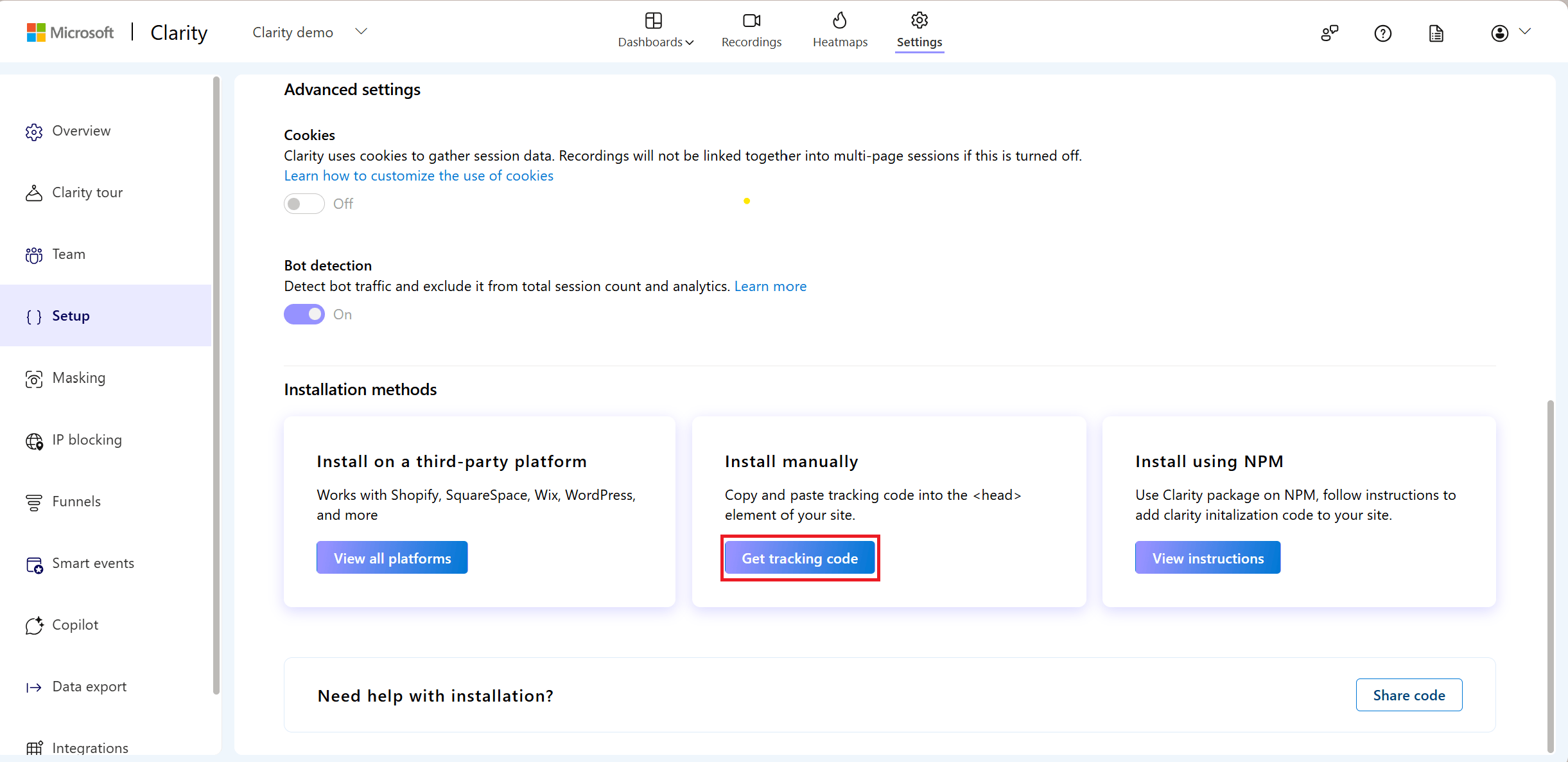
4. Open your project and go to **Settings → Setup**.
5. Click on Install Manually > **Get tracking code**.
[](https://www.tassos.gr/images/2026/08/microsoft-clarity-tracking-code-1.png)
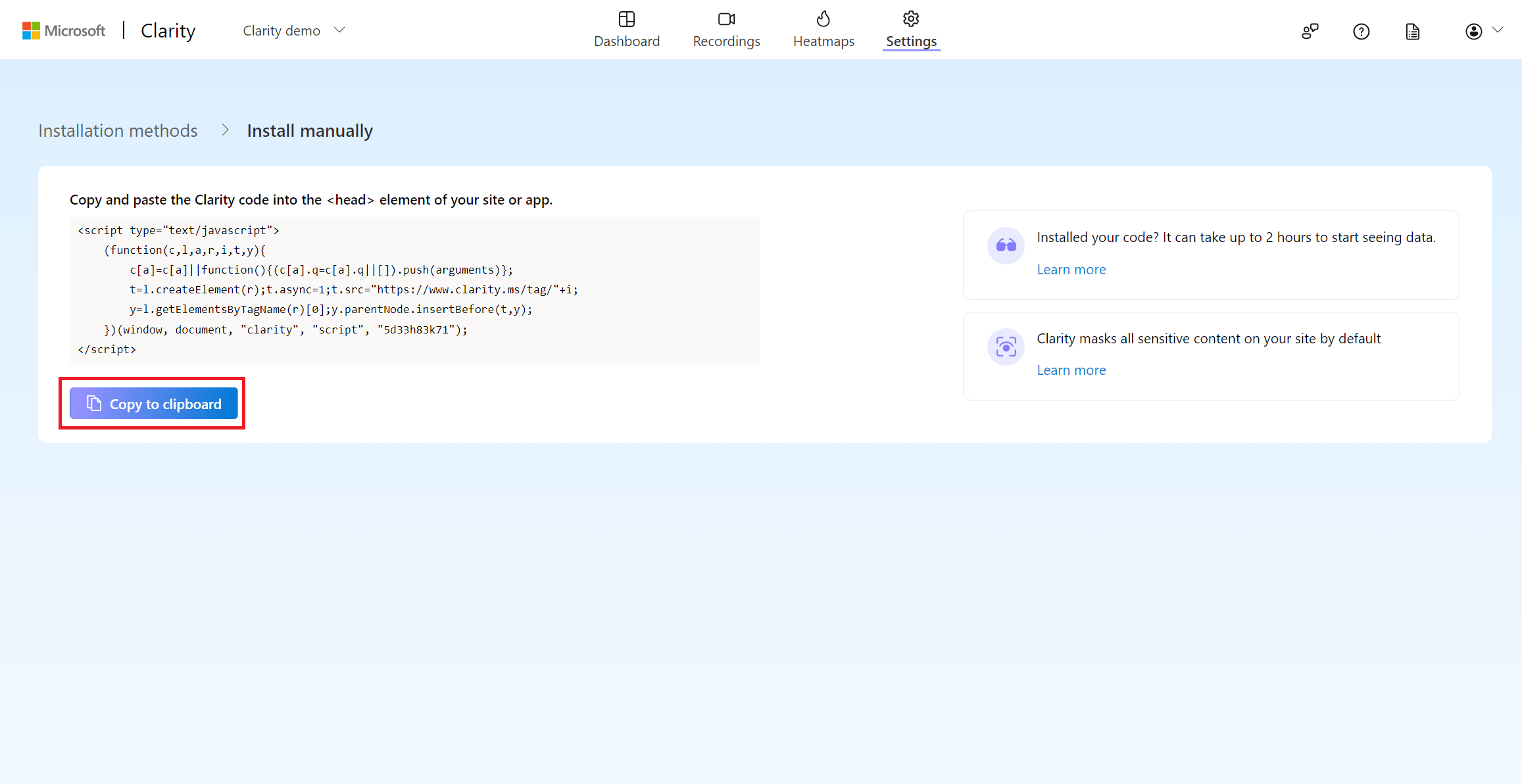
6. Next, you can click on "Copy to clipboard" to copy your Microsoft Clarity tracking code. Your **Project ID** is the short string at the end of the snippet.
[](https://www.tassos.gr/images/2026/08/microsoft-clarity-tracking-code-2.png)
## [How to Add Microsoft Clarity to Joomla](#how-to-add-microsoft-clarity-to-joomla)
1. Install **Tassos Code Snippets** if it is not installed already.
2. Go to Joomla Administrator.
3. Open **Components → Tassos Code Snippets**.
4. Click **New**.
5. Give your snippet a descriptive title like "Microsoft Clarity Tracking".
6. Select **HTML** snippet type.
7. Paste the following code, replacing **YOUR\_PROJECT\_ID** with your actual Clarity Project ID: ```
```
8. Select **Site Header** as the **Insertion Method** .
9. Publish the snippet.
10. Optionally, open the **Conditional Logic** tab to restrict which pages the snippet runs on. Leave it empty to run it site-wide. Learn more in [Using Conditional Logic](https://www.tassos.gr/docs/code-snippets/functionality/conditional-logic/).
Congrats! You've successfully added Microsoft Clarity to your Joomla site without installing another plugin.
## [Verify it Works](#verify-it-works)
Open your website in a normal browser tab and click around a few pages. Then go back to your Clarity dashboard and open the **Recordings** tab. Your session appears within a few minutes. If nothing shows up, check that the snippet is published, that the Project ID is correct, and that an ad blocker isn't blocking the script on your test browser.
For more information about snippet types and insertion methods, visit our documentation:
Last updated on Aug 14th 2026 15:08