---
title: "Add Published and Modified Date Meta Tags to Joomla - Code Snippets"
description: "Tell Google and the social networks when each Joomla article was published and last updated, with two meta tags in the head, using one HTML or PHP snippet."
url: "https://www.tassos.gr/docs/code-snippets/howto/seo-meta-tags/article-date-meta-tags"
date: "2026-10-23T00:41:00+00:00"
language: "en-GB"
---
[ Home ](https://www.tassos.gr/docs) / [ Code Snippets ](https://www.tassos.gr/docs/code-snippets) / [ How-to Guides ](https://www.tassos.gr/docs/code-snippets/howto) / [ SEO & Meta Tags ](https://www.tassos.gr/docs/code-snippets/howto/seo-meta-tags)
# Add Published and Modified Date Meta Tags to Joomla
## Tell Google and the social networks when each Joomla article was published and last updated, with two meta tags in the head, using one HTML or PHP snippet.
 Heads up! This article contains PHP code and is intended for developers. We offer this code as a courtesy, but don't provide support for code customizations or 3rd party development.
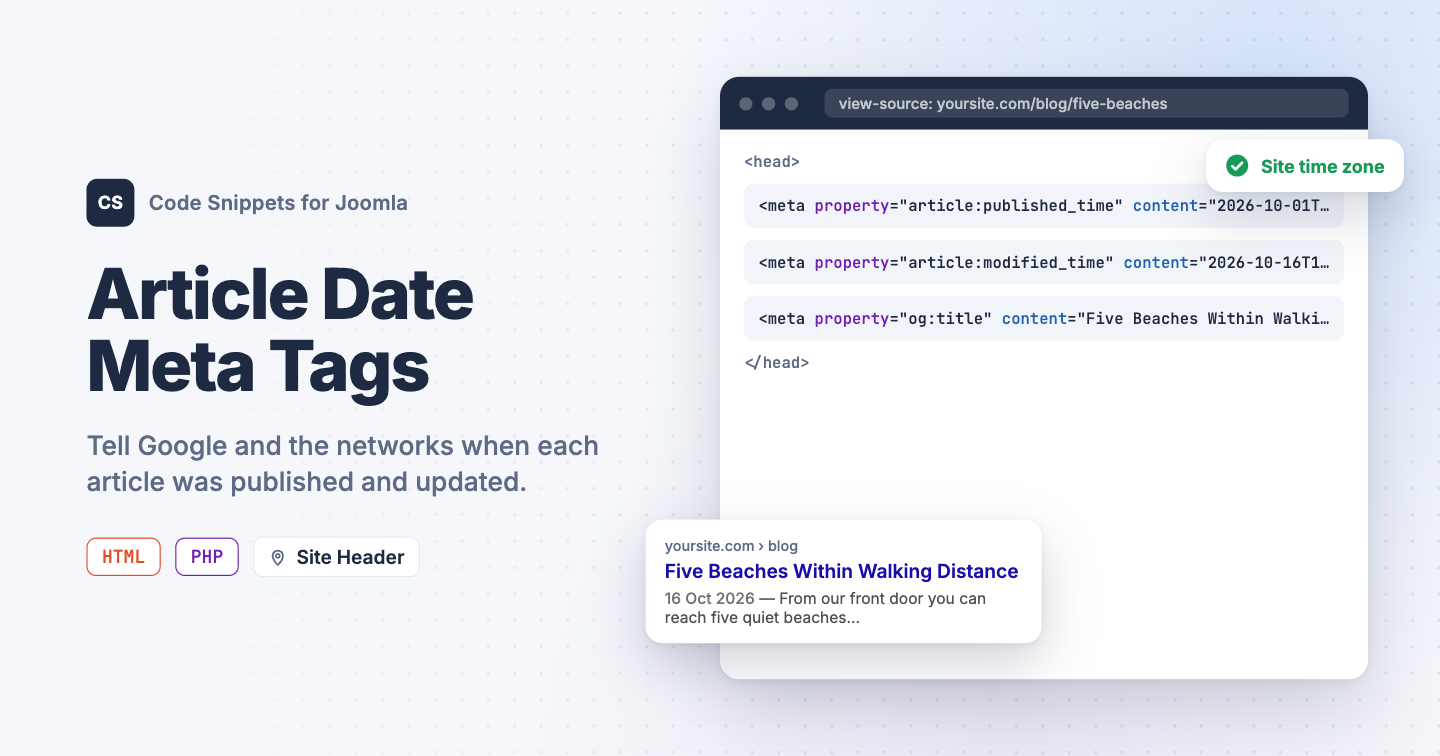
Google, Facebook and LinkedIn read two meta tags to learn when an article was published and when it last changed: `article:published_time` and `article:modified_time`. A fresh date can earn a "2 days ago" label in search results and tells the networks to refresh a shared card. Joomla keeps both dates for every article but writes neither into the head. You can add the two tags with one snippet in Code Snippets, as two lines of HTML or as a PHP snippet that adds the time of day.
## [Using an HTML snippet](#using-an-html-snippet)
This is the basic version: two meta tags, filled in by smart tags when the page renders. It writes the dates without the time, like `2026-10-16`, which is all the networks need for a card, and it covers single article pages.
1. Install [Code Snippets](https://www.tassos.gr/docs/code-snippets/getting-started/how-to-install) if it isn't installed already.
2. Log into your Joomla backend.
3. Go to **Components** → **Tassos Code Snippets**.
4. Click **New**.
5. Enter a title, for example *Article date tags*.
6. Set **Code Type** to **HTML**.
7. Set **Insertion Method** to **Auto-Insert Locations**.
8. Set **Location** to **Site Header**.
9. Paste this code into the editor:
```
```
10. Open the **Conditional Logic** tab:
- Set **Display on** to **Selected Pages**.
- Click **New Condition Set**.
- Click **Select Condition** and choose **Content View**.
- Select **Single Article**.
11. Click **Save & Close**.
The `{tcs article.publish_up}` smart tag prints the article's Start Publishing date and `{tcs article.modified}` its modified date, both as `2026-10-16 15:45:00`. The `--filter` option removes the space and everything after it, which leaves the date in the form the networks read.
The condition matters. Outside a single article page the article smart tags print nothing, and an empty date tag is worse than none. The Content View condition is part of Code Snippets Pro. With the free version, use the PHP snippet below, which needs no condition.
Being the basic version, it has one limit: Joomla stores dates in UTC, and the tag prints the UTC date. An article published at 01:00 in Athens carries the day before. If that matters to you, or you want the time of day in the tags, use the PHP version.
## [Using a PHP snippet](#using-a-php-snippet)
Use this method if you want more flexibility. It writes the full date and time with your site's time zone offset, as `2026-10-01T11:00:00+03:00`, falls back to the creation date when Start Publishing is empty, and needs no condition, because it checks for an article page itself.
```
use Joomla\CMS\Document\HtmlDocument;
use Joomla\CMS\Factory;
use Joomla\CMS\HTML\HTMLHelper;
use Joomla\Database\DatabaseInterface;
use Joomla\Database\ParameterType;
$app = Factory::getApplication();
$app->registerEvent('onBeforeCompileHead', function () use ($app) {
$doc = $app->getDocument();
if (!($doc instanceof HtmlDocument))
{
return;
}
$input = $app->getInput();
$isArticle = $input->getCmd('option') === 'com_content'
&& $input->getCmd('view') === 'article';
if (!$isArticle)
{
return;
}
$id = $input->getInt('id');
$db = Factory::getContainer()->get(DatabaseInterface::class);
$query = $db->createQuery()
->select($db->quoteName(['created', 'publish_up', 'modified']))
->from($db->quoteName('#__content'))
->where($db->quoteName('id') . ' = :id')
->bind(':id', $id, ParameterType::INTEGER);
$article = $db->setQuery($query)->loadObject();
if (!$article)
{
return;
}
// Joomla stores dates in UTC. The 'c' format writes them in the site's
// time zone, as 2026-10-17T14:30:00+03:00.
$published = $article->publish_up ?: $article->created;
$published = HTMLHelper::_('date', $published, 'c');
$modified = HTMLHelper::_('date', $article->modified, 'c');
$doc->setMetaData('article:published_time', $published, 'property');
$doc->setMetaData('article:modified_time', $modified, 'property');
});
```
There is nothing to change. The time zone comes from **Website Time Zone** in your Global Configuration, so a site set to Europe/Athens writes `2026-10-01T11:00:00+03:00` for an article published at 08:00 UTC.
1. Install [Code Snippets](https://www.tassos.gr/docs/code-snippets/getting-started/how-to-install) if it isn't installed already.
2. Log into your Joomla backend.
3. Go to **Components** → **Tassos Code Snippets**.
4. Click **New**.
5. Enter a title, for example *Article date tags*.
6. Set **Code Type** to **PHP**.
7. Set **Insertion Method** to **Auto-Insert Locations**.
8. Set **Location** to **On Page Load**.
9. Paste the code above into the editor.
10. Click **Save & Close**.
Use one snippet or the other, never both.
## [Check that it works](#check-that-it-works)
1. Open any article on your site.
2. View the page source and search for `article:`.
Two meta tags carry the article's dates: `2026-10-16` with the HTML snippet, `2026-10-16T18:45:00+03:00` with the PHP one. An article that was never edited shows the same value in both, because Joomla sets the modified date when the article is created. The homepage, category pages and feeds have no such tags.
These tags belong next to the Open Graph tags that give a shared link its title and image. See [Add Open Graph and Twitter Card Tags to Joomla](https://www.tassos.gr/docs/code-snippets/howto/seo-meta-tags/open-graph-tags) for those. To show the modified date to readers on the page itself, see [Display the Last Modified Date in Joomla Articles](https://www.tassos.gr/docs/code-snippets/howto/content-enhancement/last-modified-date). To learn more about the two snippet types, read the [HTML snippet docs](https://www.tassos.gr/docs/code-snippets/types/html) and the [PHP snippet docs](https://www.tassos.gr/docs/code-snippets/types/php).
Last updated on Oct 17th 2026 14:10