---
title: "Smart Tags - Convert Forms"
description: "Insert relevant information into your Joomla forms, much like how a programmer uses variables when writing code. Capture current URL, referrer URL or even the visitor's IP address in form fields."
url: "https://www.tassos.gr/docs/convert-forms/features/smart-tags"
date: "2026-04-12T16:00:21+00:00"
language: "en-GB"
---

[ Home ](https://www.tassos.gr/index.php?option=com_content&view=category&layout=blog&id=24&Itemid=1088) / [ Convert Forms ](https://www.tassos.gr/index.php?option=com_content&view=category&id=43) / [ Advanced Features ](https://www.tassos.gr/index.php?option=com_content&view=category&id=75)

#  Smart Tags

##  Insert relevant information into your Joomla forms, much like how a programmer uses variables when writing code. Capture current URL, referrer URL or even the visitor's IP address in form fields.

 Smart Tags Has More Options in Pro

 Additional features are locked in the free version. Upgrade to Convert Forms Pro to get the most out of it.

 [ Unlock all features ](https://www.tassos.gr/joomla-extensions/convert-forms/subscribe)

Smart Tags are dynamic placeholders written inside curly braces, e.g. `{date}` or `{field.email}` that lets you insert real data into your forms, emails, and notifications. With them, you can create versatile notifications and build more advanced Joomla contact forms. Each time a submission is captured, Smart Tags allow you to automatically include details from the submission, the form, the visitor, and even site-wide information.

They can be used after a form is submitted, as well as during form rendering, for example, to pre-populate a field with a value or to display dynamic content inside an HTML field.

You can use them in many places, including:

- **Email Notifications**: Insert submission details into subject lines or message bodies.
- **Form Field Settings**: Set default values, placeholders, or hidden field values dynamically.
- **Tasks &amp; Integrations**: Pass data to services like MailChimp, HubSpot, Emails, or Webhooks.
- **Success Messages**: Personalize the confirmation message the user sees after submitting a form.

For an overview of all site-wide options, visit our [common guide for Smart Tags](https://www.tassos.gr/docs/common/features/smart-tags/start).

## [Use Cases](#use-cases)

Smart Tags unlock many practical workflows. Here are some examples with links to relevant guides:

- [Auto-Populate Form Fields Using Query String](https://www.tassos.gr/docs/convert-forms/features/auto-populate-forms-query-string): Capture URL parameters and insert them into form fields with `{querystring.NAME}`.
- [Adding a Unique ID to Each Form Submission](https://www.tassos.gr/docs/convert-forms/functionality/unique-ids-for-submissions): Use `{randomid}` to generate a unique reference number for every submission.
- [Display Submission Count for a Specific Form](https://www.tassos.gr/docs/convert-forms/functionality/display-submissions-count-for-a-specific-form): Output the total number of submissions for a form with `{convertforms ID submissions_total}`.
- [Create Multilingual Forms in Joomla](https://www.tassos.gr/docs/convert-forms/functionality/multilingual-forms): Dynamically output the current language with `{language.STRING}` to build multilingual forms.

## [Form Smart Tags](#form-smart-tags)

These tags provide access to form metadata and properties. They can be used either during form rendering or form submission.

### [{form.id}](#form-id)

Output the ID of the form that was just used. This is useful for analytics tracking, database references, or API calls.

### [{form.name}](#form-name)

Output the name of the form that was just used. Using it in emails helps recipients immediately understand which form was submitted, especially useful when multiple forms are sent to the same email address or you have generic email templates shared across forms.

## [Submission Smart Tags](#submission-smart-tags)

These tags provide details about the submission event, including when it occurred, which form was used, who submitted it, and the number of existing submissions. Great for tracking, personalization, or distinguishing between entries.

### [{submission.id}](#submissionid)

This smart tag provides the ID of the submission that your form just captured. Every submission is assigned this unique incremental ID, which can be found through your Submissions screen in Convert Forms.

### [{submission.dateCreated}](#submissiondate)

Outputs the date the submission was created using Joomla's `DATE_FORMAT_LC5` date format.

### [{submission.dateModified}](#submissiondate)

Outputs the date the submission was last modified using Joomla's `DATE_FORMAT_LC5` date format.

### [{submission.visitor\_id}](#submissionvisitorid)

This smart tag provides the visitor's ID. The visitor ID is basically the cookie ID, which is generally used to track each visitor's movements.

### [{submissions.count}](#submissionscount)

This smart tag provides the number of submissions for this form.

## [Field Smart Tags](#field-smart-tags)

Use these tags whenever you want to pull in the user-provided input itself—whether the plain value, the label, a formatted (HTML) version, or even the raw content. Perfect for putting submission data into emails, messages, or hidden form fields.

### [Output Field Value](#output-field-value)

Use this tag when you need to display the value exactly as the user submitted it.

 ```
{field.NAME}
```

Where `NAME` is the field name as set in the field settings.

For instance, if you have a field named **Email**, and the user submits `my@mail.com` using `{field.email}` will output `my@mail.com`

**Important:** By default, values are escaped for security. HTML tags are converted to entities.

For instance, if you accept user-generated content with a **Rich Text Editor**, and the user submits the following:

 ```
<strong>Hello</strong>
```

Using `{field.NAME}` will output:

 ```
&lt;strong&gt;Hello&lt;/strong&gt;
```

If you want to output the raw value without escaping, see [Output Field Raw Value](#output-field-raw-value) below.

### [Output Field Label](#output-field-label)

Use this tag when you need to output a field’s **label**, so you don’t have to retype it manually.

 ```
{field.NAME.label_}
```

Note: The trailing underscore `_` is required.

### [Output Field HTML Version](#output-field-html-version)

Some fields provide an HTML-friendly version of their value. Useful when you want clickable links or formatted output.

 ```
{field.NAME.html}
```

**Supported fields include:**

- **Email** → Clickable mailto link (`<a href="mailto:...">`)
- **Phone** → Clickable tel link (`<a href="tel:...">`)
- **URL** → Clickable hyperlink (`<a href="...">`)
- **File Uploads** → List of download links for uploaded files
- **Password** → Replaced with asterisks for privacy
- **Signature** → Renders as an `<img>` tag with the actual signature

### [Output Field Raw Value](#output-field-raw-value)

Use this tag if you want the raw submitted value without any modifications. For example, to preserve HTML tags exactly as entered by the user.

 ```
{field.NAME.raw}
```

### [Output Dropdown and Radio Button Data](#output-dropdown-and-radio-button-data)

Use these tags with **Dropdown** or **Radio Button** fields when you need the selected option’s label or its calculated value.

To output the label of the selected option, use:

 ```
{field.NAME.selected.label}
```

Note that if you're [populating the field's choices using PHP](https://www.tassos.gr/docs/convert-forms/developers/php-scripts#populate_checkboxes), the above Smart Tag will always output the value of the selected option instead of the label. This happens because the PHP script that populates the choices runs only during form rendering.

If you use [Calculations](https://www.tassos.gr/docs/convert-forms/features/field-calculations), to output the calculation value of the selected option, use:

 ```
{field.NAME.selected.calcvalue}
```

### [{all\_fields}](#allfields)

This Smart Tag outputs all the submitted information from your form fields in the following HTML layout:

 ```
<div><strong>Name</strong>: John Doe</div>
<div><strong>Email Address</strong>: john@doe.com</div>
<div><strong>Comments</strong>: This is a test message</div>

```

Because of this it can be used in the Email Notifications, Thank you Message or even in the PDF Form Submissions addon to get a complete picture of all the fields which were filled out by the particular submission.

This Smart Tag supports the following options to customize it further. Let's see them one by one:

**--hideLabels**

Use this option if you don't want to include the field labels in the output.

Syntax:

 ```
{all_fields --hideLabels}
```

**--excludeEmpty**

Your form may include optional fields which is very likely to not have a value. Use this option to exclude those fields from the output.

Syntax

 ```
{all_fields --excludeEmpty}
```

**--excludeFields**

By default, all fields will be included in the output. Use this option to exclude certain fields by their name separated by a comma. For instance, the example below will exclude *text1* and *dropdown2* fields from the output.

Syntax

 ```
{all_fields --excludeFields=text1,dropdown2}
```

**--excludeTypes**

By default, all fields will be included in the output. Use this option to exclude certain fields by their type separated by a comma. For instance, the example below will exclude all Hidden fields from the ouput.

Syntax

 ```
{all_fields --excludeTypes=hidden}
```

**--excludeHiddenByLogic**

If you’re using [conditional fields](https://www.tassos.gr/joomla-extensions/convert-forms/docs/conditional-fields) in your form and want to prevent fields hidden by this logic from being included in the output, use this option. It ensures that only the fields visible to the user at the time of submission are included..

Syntax

 ```
{all_fields --excludeHiddenByLogic}
```

**Combining options**

You can also combine multiple options in the same shortcode. For instance, the example below will output only the fields that have a value and at the same time will exclude all Hidden fields.

 ```
{all_fields --excludeEmpty --excludeTypes=hidden}
```

## [Global Smart Tags](#global-smart-tags)

These tags pull in information that isn’t tied to a specific form or submission — things like visitor data, site pages, user accounts, and the environment. They let you add context from outside what the user submits: where they are, what page they’re on, their IP, what user account they’re logged in with, etc. Because they apply everywhere (not just within Convert Forms), they’re especially useful when you want to personalize content, track analytics, or enrich your notifications.

For a full list of what’s available, see the [Global Smart Tags documentation](https://www.tassos.gr/docs/common/features/smart-tags/start) guide. ￼

## [How to use Page Smart Tags](#how-to-use-page-smart-tags)

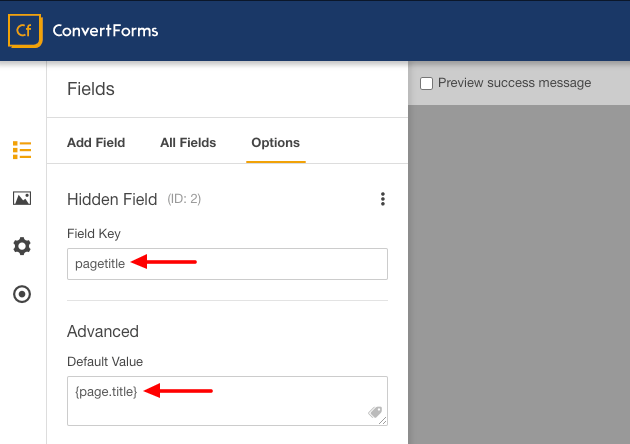
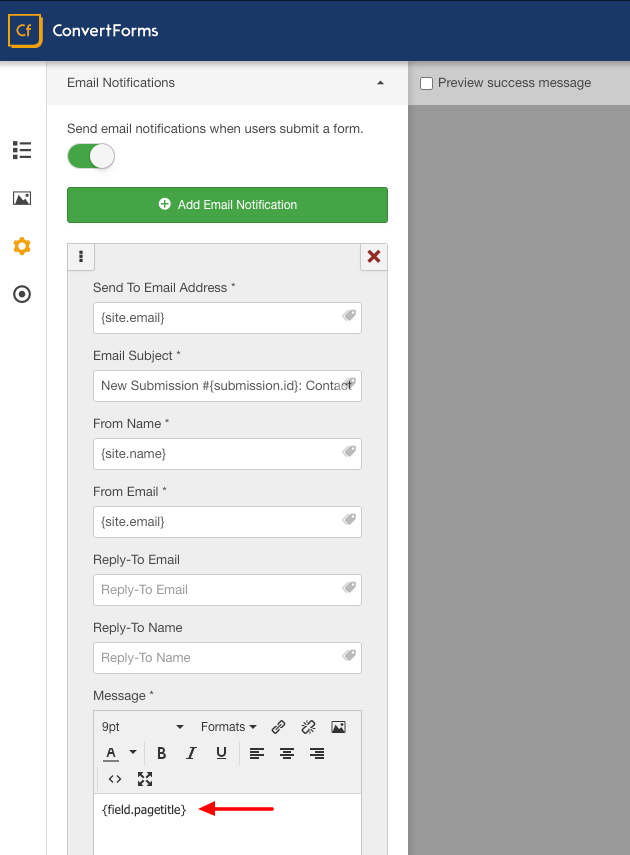
If you want to use these Smart Tags in an Email Notification you'll have to follow the steps listed below:

**1.** Add a hidden field in your Form like in the screenshot below.
![page-smart-tag-hidden-field](https://www.tassos.gr/images/page-smart-tag-hidden-field.png)

**2.** Inside your Email Notification use the field Smart Tag like in the screenshot below.
![page-smart-tag-workaround](https://www.tassos.gr/images/page-smart-tag-workaround.png)

 Smart Tags Has More Options in Pro

 Additional features are locked in the free version. Upgrade to Convert Forms Pro to get the most out of it.

 [ Unlock all features ](https://www.tassos.gr/joomla-extensions/convert-forms/subscribe)

 Last updated on Jan 12th 2026 11:01

## Schema

```json
{
    "@context": "https://schema.org",
    "@type": "BreadcrumbList",
    "itemListElement": [
        {
            "@type": "ListItem",
            "position": 1,
            "name": "Home",
            "item": "https://www.tassos.gr"
        },
        {
            "@type": "ListItem",
            "position": 2,
            "name": "Home",
            "item": "https://www.tassos.gr/docs"
        },
        {
            "@type": "ListItem",
            "position": 3,
            "name": "Convert Forms",
            "item": "https://www.tassos.gr/docs/convert-forms"
        },
        {
            "@type": "ListItem",
            "position": 4,
            "name": "Advanced Features",
            "item": "https://www.tassos.gr/docs/convert-forms/features"
        },
        {
            "@type": "ListItem",
            "position": 5,
            "name": "Smart Tags",
            "item": "https://www.tassos.gr/docs/convert-forms/features/smart-tags"
        }
    ]
}
```

```json
{
    "@context": "https://schema.org",
    "@type": "Article",
    "mainEntityOfPage": {
        "@type": "WebPage",
        "@id": "https://www.tassos.gr/docs/convert-forms/features/smart-tags"
    },
    "headline": "Smart Tags",
    "image": {
        "@type": "ImageObject",
        "url": "https://www.tassos.gr/"
    },
    "publisher": {
        "@type": "Organization",
        "name": "Tassos",
        "logo": {
            "@type": "ImageObject",
            "url": "https://www.tassos.gr/https://www.tassos.gr/media/brand/logo-text.png"
        }
    },
    "author": {
        "@type": "Person",
        "name": "Sotiris Katsaniotis",
        "url": "https://www.tassos.gr/docs/convert-forms/features/smart-tags"
    },
    "datePublished": "2017-04-21T11:04:02+03:00",
    "dateCreated": "2017-04-21T11:04:02+03:00",
    "dateModified": "2026-01-12T11:22:44+02:00"
}
```
