---
title: "HowTo Structured Data - Google Structured Data"
description: "Add HowTo structured data to your Joomla tutorials. Include step-by-step instructions, tools, materials, and time estimates to help users find your guides with rich results in search."
url: "https://www.tassos.gr/docs/google-structured-data/schemas/howto"
date: "2026-05-01T15:42:43+00:00"
language: "en-GB"
---
[ Home ](https://www.tassos.gr/index.php?option=com_content&view=category&layout=blog&id=24&Itemid=1088) / [ Google Structured Data ](https://www.tassos.gr/index.php?option=com_content&view=category&id=42) / [ Schema Types ](https://www.tassos.gr/index.php?option=com_content&view=category&id=66)
# HowTo Structured Data
## Add HowTo structured data to your Joomla tutorials. Include step-by-step instructions, tools, materials, and time estimates to help users find your guides with rich results in search.
HowTo Structured Data is available in Pro Unlock this and dozens of other powerful features by upgrading to Google Structured Data Pro.
[ Unlock this feature ](https://www.tassos.gr/joomla-extensions/google-structured-data/subscribe)
The HowTo schema type is not officially supported by Google. It will not be detected in the [Google Rich Results Test](https://search.google.com/test/rich-results), but it is fully valid according to the [Schema.org Validator](https://validator.schema.org/).
Even though Google Search may not directly use this type, structured data can still provide value. Other Google services, third-party search engines, and AI models such as ChatGPT can read it to better understand your content.
Remember: today we should not add structured data only for Google, but also for the broader web ecosystem, including alternative search engines and AI systems.
A HowTo is a step-by-step guide that helps users accomplish a specific task. By marking up your how-to content with structured data, you make it eligible to appear as a rich result snippet in Google Search Result Pages. These can include a list of steps, images, required tools and materials, and estimated time required.
## [How to build a structured data-powered HowTo page in Joomla (Step-by-Step Guide)](#how-to-build-a-structured-data-powered-howto-page-in-joomla-step-by-step-guide)
Let's see how we can add step-by-step instructions in a Joomla Article and make the Google Structured Data extension automatically create the HowTo schema for our page.
### [Step 1: Create a new Joomla! Article](#step-1-create-a-new-joomla-article)
The first step is to create a Joomla Article that will contain your how-to guide. To do so, go to Content -> Articles -> New. If your site already has a how-to guide page, proceed with the next step.
### [Step 2: Add steps and details to your Article](#step-2-add-steps-and-details-to-your-article)
The next step is to populate our article with the how-to content. You can structure your content in two ways:
1. **Manually**: Create your content normally and later manually input the steps in the HowTo Item's settings
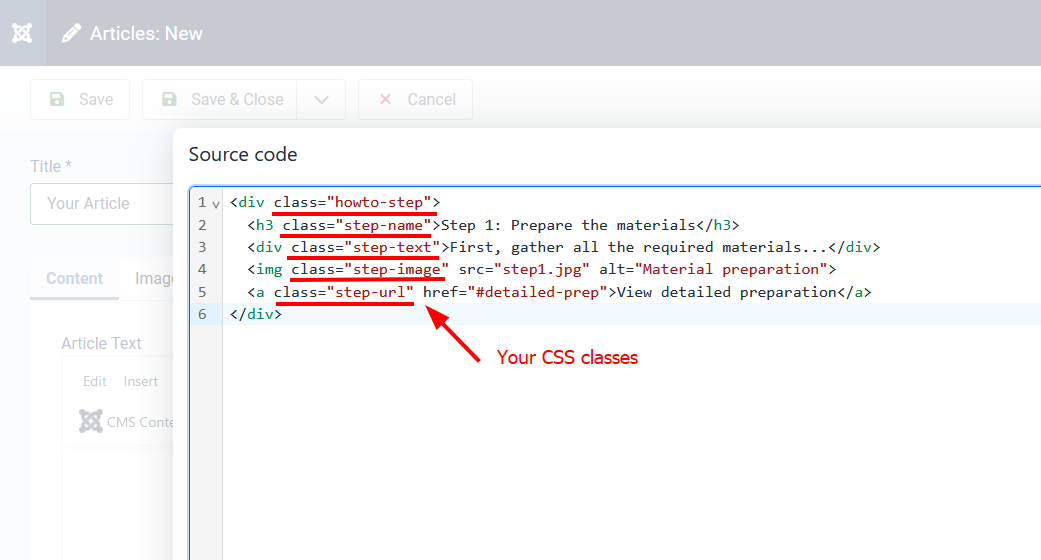
2. **Automatic** (using CSS Selectors): Structure your content with specific CSS classes that the extension can automatically detect. E.g.:
```
```
### [Step 3: Create a HowTo Item](#step-3-create-a-howto-item)
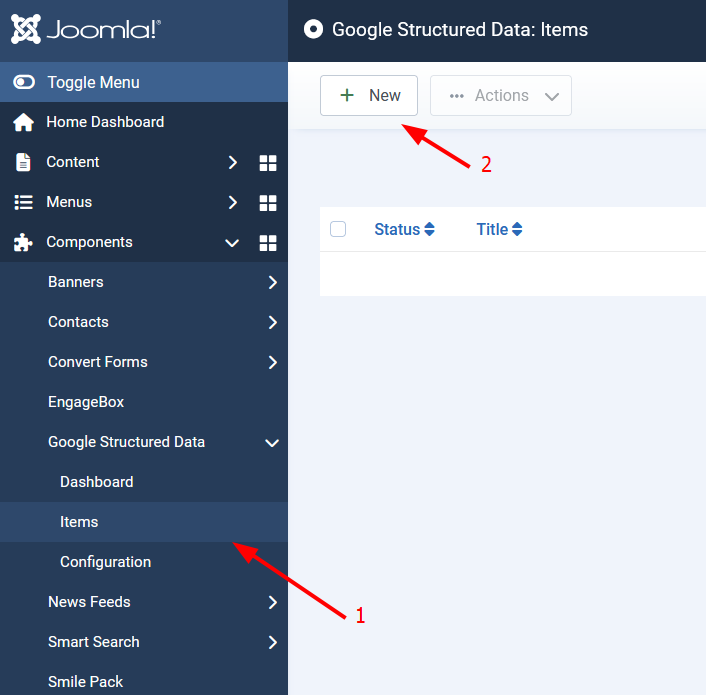
Go to Components -> Google Structured Data. Click on Items from the left sidebar and then on the New button to create a new Structured Data Item.
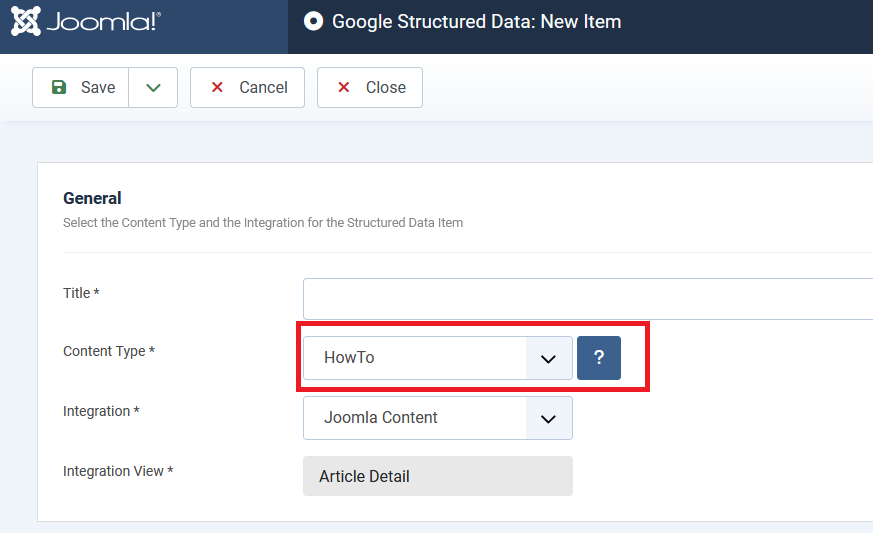
Now, configure the structured data item:
1. Enter a title of your choice (for back-end purposes only)
2. Select the HowTo Content Type
3. Select Joomla Content from the Integration option
After selecting the HowTo Content Type and Integration, a new section will appear where you can enter your HowTo settings.
### [Step 3.1: HowTo Schema Settings](#step-3-1-howto-schema-settings)
Here's a table of the properties you can define for the HowTo Content Type.
| **Name** | **Description** |
|---|---|
| Title | The title of your HowTo guide. |
| Image | The image of the completed HowTo guide |
| Estimated Cost | The estimated cost of the supplies consumed when performing the instructions. |
| Estimated Cost Currency | The currency of the Estimated Cost. |
| Tool | List of objects used (but not consumed) when performing instructions. You can enter multiple values, each on a separate line. |
| Total Time | The total time required to complete all steps (in minutes). |
| Supply | List any supplies or materials needed when performing the instructions. You can enter multiple values, each on a separate line. |
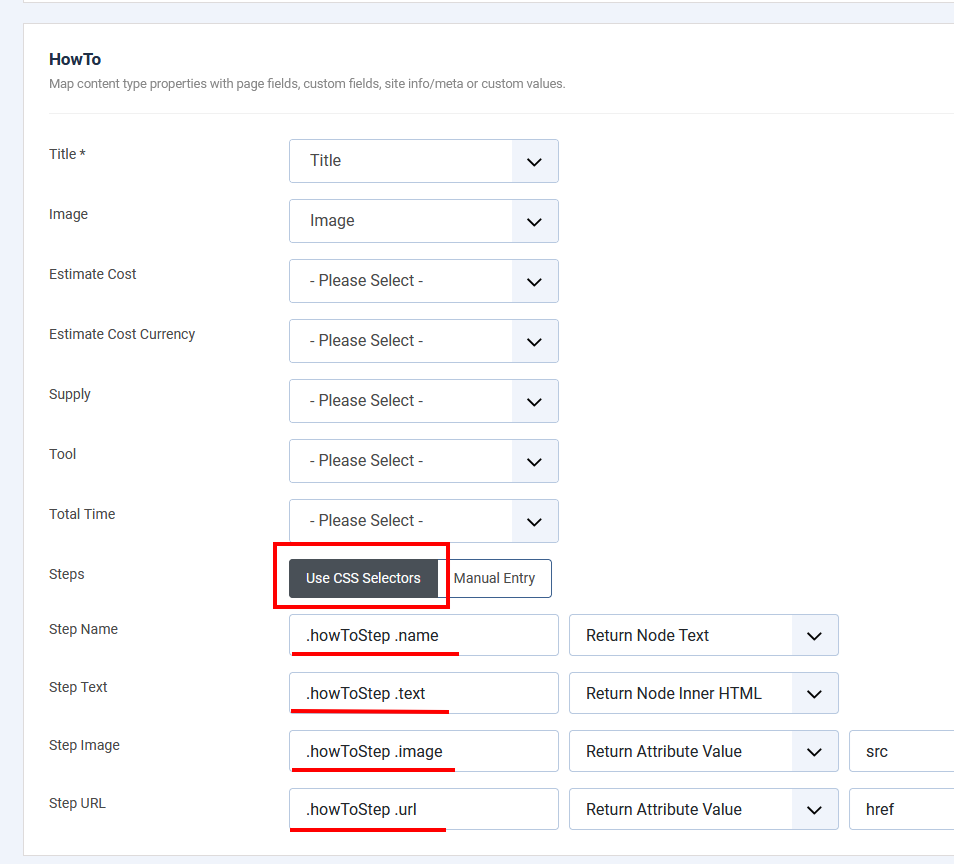
| Steps | **Manual Entry**: Use this option if you prefer to provide the HowTo steps manually. The available step properties include the following: - Name (required) - Text description - Image - URL for more details **Use CSS Selectors (automatic mode)**: Use CSS Selectors to automatically find the HowTo steps in your page's HTML: - Step Name: CSS selector for step titles (e.g.: **.howToStep .name**) - Step Text: CSS selector for step descriptions (e.g.: **.howToStep .text**) - Step Image: CSS selector for step images (e.g.: **.howToStep .image**) - Step URL: CSS selector for step detail links (e.g.: **.howToStep .url**) |
In the following screenshot you can see an example of setting up your HowTo Item with CSS selectors:
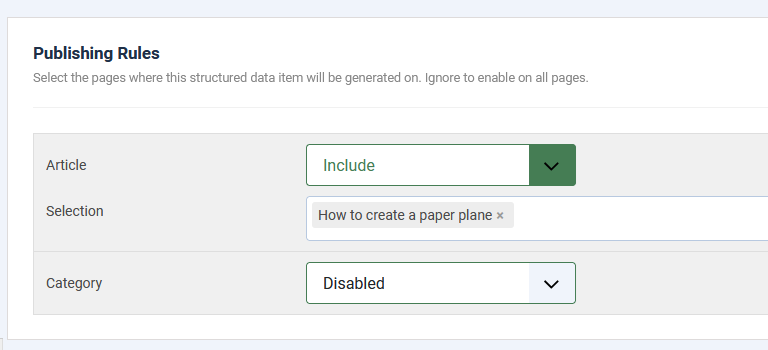
## [Step 4. Publishing Rules](#step-4-publishing-rules)
In this section you will be able to control the pages where your HowTo Item will be applied.
**Article**: Select which Joomla Articles will contain the HowTo structured data.
**Category**: Select which Joomla Categories will contain the HowTo structured data.
> **Note:** Leave both options **Disabled** to apply the HowTo schema on all of your Joomla Articles.
## [Step 5: Validate your HowTo Item settings](#step-5-validate-your-howto-item-settings)
Use Google's Rich Results Test tool to validate your markup:
1. Visit Google's [Rich Results Test](https://search.google.com/test/rich-results) page.
2. Enter your page's URL and click TEST URL.
3. Check that the HowTo schema is properly detected and has no errors
## [Step 6: Notify Google about your Schema markup](#step-6-notify-google-about-your-schema-markup)
1. Log in to your [Google Search Console](https://search.google.com/search-console/) account.
2. Use the URL Inspection tool to check your how-to page.
3. Request indexing to inform Google about your changes
## [CSS Selector Examples](#css-selector-examples)
### [Example #1](#example-1)
```
```
Resulting CSS selectors:
- Step Name: **.step-title**
- Step Text: **.instructions**
- Step Image: **.step-photo**
- Step URL: **.step-details**
## [Troubleshooting HowTo Schema pages](#troubleshooting-howto-schema-pages)
### [The HowTo Schema is added but not showing in search results](#the-howto-schema-is-added-but-not-showing-in-search-results)
- **Verify your markup**: Use the Rich Results Test tool to check for errors.
- **Follow Google's guidelines**: Make sure your content meets [Google's HowTo Guidelines](https://developers.google.com/search/docs/appearance/structured-data/sd-policies).
- **Request indexing**: Use Google Search Console to request fresh indexing.
- **Be patient**: Allow time for Google to process and display your rich results.
## [Frequently Asked Questions](#frequently-asked-questions)
### [What makes a good HowTo guide?](#what-makes-a-good-howto-guide)
A good HowTo guide should:
- Clearly solve a specific task or problem.
- Include detailed, actionable steps.
- Use images to illustrate key steps.
- List required tools and materials.
- Provide an estimated completion time.
### [Do I need images for my HowTo Schema?](#do-i-need-images-for-my-howto-schema)
While images are not required, they are strongly recommended. Images help users understand the steps better and can make your rich results more appealing in search results.
### [Can I use HowTo Schema for recipes?](#can-i-use-howto-schema-for-recipes)
No, for recipes you should use the dedicated Recipe Schema type instead. HowTo Schema is for general instruction guides, DIY projects, and other non-food-related procedures.
HowTo Structured Data is available in Pro Unlock this and dozens of other powerful features by upgrading to Google Structured Data Pro.
[ Unlock this feature ](https://www.tassos.gr/joomla-extensions/google-structured-data/subscribe)
Last updated on Oct 3rd 2025 14:10
## Schema
```json
{
"@context": "https://schema.org",
"@type": "BreadcrumbList",
"itemListElement": [
{
"@type": "ListItem",
"position": 1,
"name": "Home",
"item": "https://www.tassos.gr"
},
{
"@type": "ListItem",
"position": 2,
"name": "Home",
"item": "https://www.tassos.gr/docs"
},
{
"@type": "ListItem",
"position": 3,
"name": "Google Structured Data",
"item": "https://www.tassos.gr/docs/google-structured-data"
},
{
"@type": "ListItem",
"position": 4,
"name": "Schema Types",
"item": "https://www.tassos.gr/docs/google-structured-data/schemas"
},
{
"@type": "ListItem",
"position": 5,
"name": "Add HowTo Structured Data to Joomla",
"item": "https://www.tassos.gr/docs/google-structured-data/schemas/howto"
}
]
}
```
```json
{
"@context": "https://schema.org",
"@type": "Article",
"mainEntityOfPage": {
"@type": "WebPage",
"@id": "https://www.tassos.gr/docs/google-structured-data/schemas/howto"
},
"headline": "Add HowTo Structured Data to Joomla",
"image": {
"@type": "ImageObject",
"url": "https://www.tassos.gr/"
},
"publisher": {
"@type": "Organization",
"name": "Tassos",
"logo": {
"@type": "ImageObject",
"url": "https://www.tassos.gr/https://www.tassos.gr/media/brand/logo-text.png"
}
},
"author": {
"@type": "Person",
"name": "Theo Nikitaras",
"url": "https://www.tassos.gr/docs/google-structured-data/schemas/howto"
},
"datePublished": "2025-06-16T15:57:23+03:00",
"dateCreated": "2025-06-16T15:57:23+03:00",
"dateModified": "2025-10-03T14:16:32+03:00"
}
```
 View detailed preparation


