
What's coming in Convert Forms 6

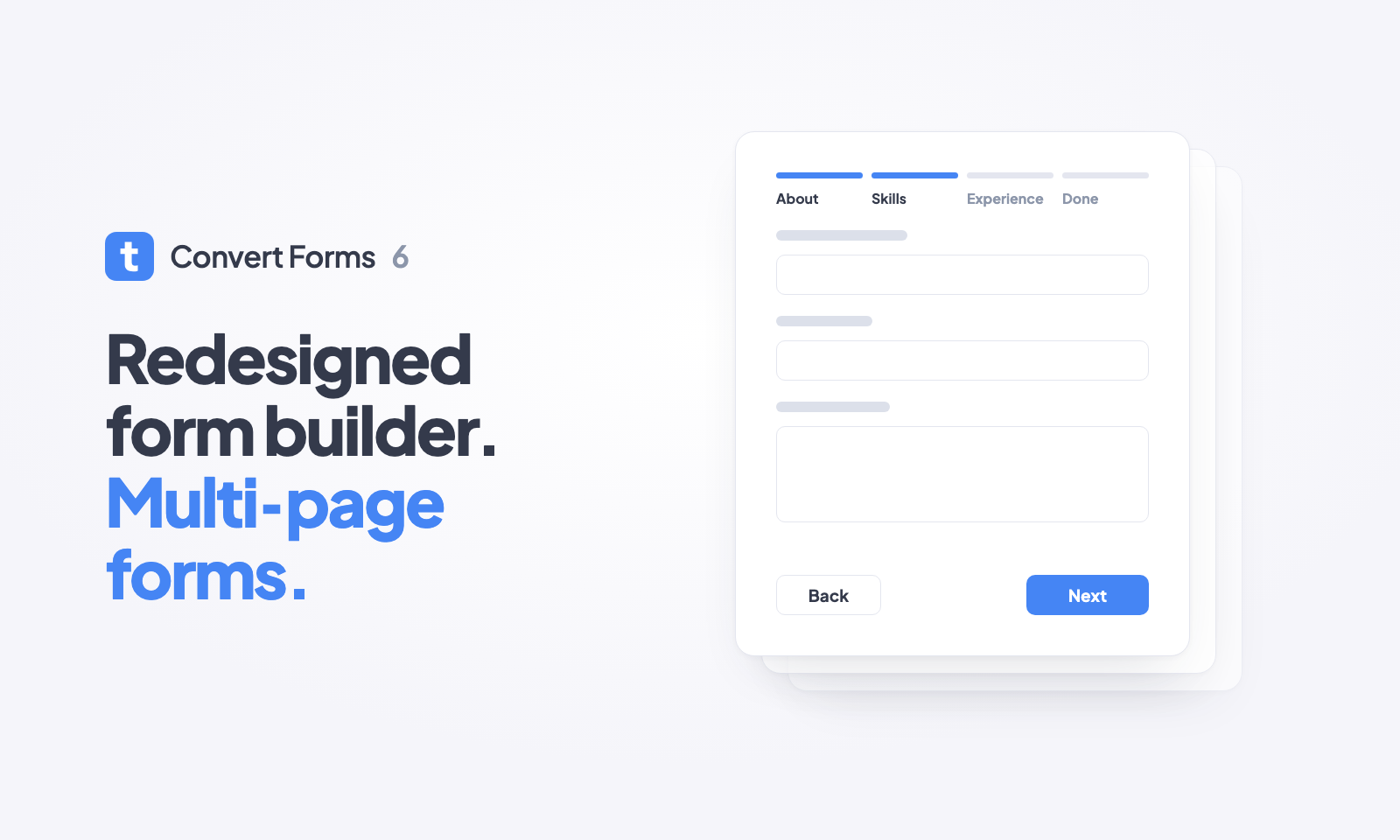
Multi-page forms are in Convert Forms 6. Split a long form into pages, show each visitor only the pages that apply to them, and end on a page you design yourself.
Convert Forms 6 also brings a new builder, a Design panel that runs off 1 font size and 1 text color, a place of their own for tasks and connections, and Smart Tags wherever you type.
The beta is out now. Your 5.x forms carry over and look the same on your site. The last 2 sections cover what the update changes and how to test it before you touch a live site.
The new builder: Your form gets all the attention
We wanted a builder where your form gets all the attention. So the new one is minimal and fresh, with nothing on screen you don't need, and it's fast.
It also comes with keyboard shortcuts (Alt+/ lists them all), Undo and Redo, and a dark mode that follows your Joomla admin's setting. A new form starts from a picker of 14 templates, from a simple contact form to a scored quiz.
The left side of the builder shows how your form is laid out: each page with its elements under it, and your endings at the bottom (more on both in a moment). Drag an element to reorder it, or drop it on another page to move it there.
Multi-page forms: Ask a few questions at a time
Multi-page forms are finally here. You've waited a long time for this one. I gave you dates more than once, and I missed them. Sorry about that.
Here's how they work: every element now belongs to a page, and a form can have as many pages as you want. Split a long form into short pages, so visitors answer a few questions at a time.
Group related questions together: contact details on 1 page, the job on the next, documents last. Visitors move between pages with Next and Back, and only the last page submits.
Add a page from the Form panel, tick the elements that belong on it, and move them there in 1 go. Double-click a page to rename it, and drag pages to reorder them.
Page Logic: Show each visitor only the pages that apply
In a long form with many pages, not every page fits every visitor. A page should show up only when the answers on earlier pages call for it. That's what Page Logic does.
Say your job application asks for the role on page 1. A visitor who picks "Developer" gets a page about the programming languages they know. A visitor who picks "Sales" never sees that page and moves straight on to the next one.
Visitors only see the pages that apply to them, and the progress indicator only counts those pages, so the form never feels longer than it is.
Endings: Build the page visitors see after they submit
A form has 2 types of pages. Form pages, like the ones above, ask visitors for their answers. An ending is what they see after they submit.
Until now, all you had for that moment was a single text area for the success message, or a redirect URL. In 6, an ending is a page you build with the same elements as the form (headings, text, icons, dividers), or a redirect to any page you choose.
A form can have several endings, each with its own rules. A quiz can show a different result page for each score range, and a survey can thank happy and unhappy customers differently. Convert Forms checks the endings from top to bottom and shows the first one whose rules match.
In the video, a hotel builds a thank-you ending from an icon, a heading, text, and a coupon code. A second ending redirects unhappy guests to another page, and the rules on each ending decide which one a guest gets.
Next, Back and Submit: Every page gets the buttons it needs
In 5.x, you had to add a Submit button to every form yourself. In 6, the form adds the buttons each page needs: Next to move forward, Back to return, and Submit on the last page.
Visitors move on only when the page in front of them is filled in correctly, and pages can slide or fade in as they go.
Progress indicator: Visitors always know how far they've come
Add a progress indicator so visitors always know where they are and how many pages are left. Pick 1 of 3 styles: Lines draws 1 line per page, Bar draws 1 line that fills up as visitors move on, and Title shows the page's title as a heading with a "Page 2 of 3" counter. Lines and Bar can also show each page's title and number.
Design: A few settings style the whole form
We kept seeing admins struggle to find the right mix of font sizes, colors and padding. So we cut styling down to a few settings that shape the whole form, and a new form looks good the moment you create it.
It all starts from 1 number: the Base Font Size. Labels, inputs, buttons and the space around them are all sized from it, so change it and the whole form scales in proportion, whether you make it small for a sidebar or large for a landing page.
1 Text Color covers every label and what visitors type. Spacing sets every gap, from field to field and from a label to its input. Border Radius rounds every input and button at once. Spacing and Border Radius are presets like Small, Medium and Large, so you never work out pixel values.
Need more? The Labels, Inputs and Buttons sections still have settings of their own, and Custom CSS covers the rest. Forms you built in 5.x keep their exact sizes and colors.
Per-page overrides: Give a single page its own look
The settings above style every page at once, so all pages match. To make 1 page stand apart (a green page in a red form, say), add an override to it and change only the settings you need: colors, spacing or button alignment. Everything else on that page keeps the form's design, and endings can have overrides too.
Pick a setting from the list (theme colors, spacing, input and button colors), set its value and the preview shows the page in its new look while the rest of the form stays as it was. Remove the override and the page follows the form's design again.
Below, the Documents page of a job application gets 3 overrides: a green background and green buttons. Every other page keeps the form's own colors.
Tasks: Send every submission where it needs to go
Tasks are what a form does after someone submits it: send an email, add a contact to Mailchimp, create a Joomla user, call a webhook. We redesigned the task editor, and the new Smart Tags picker makes mapping your form fields easier than before.
A task's logic can now mirror another task's logic, so you don't have to build the same rules twice. Change the rules on the first task, and every task that mirrors it follows.
The old Email Notifications moved here too. The update turns each email a form sends into an Email task with the same options, so everything a form does after a submission lives in 1 place.
Connections: Connect an account once, use it in every form
A connection is your account with another service. In 5.x, it was buried inside a task: you connected your Mailchimp account while setting up a task, and it stayed there.
In 6, connections have their own place. Click the cable icon in the builder's toolbar, next to the cog, or press Alt+5. You get 1 table with every account on your site, Test and Delete buttons, and the forms that use each one. Connect an account once and every form can use it.
Today, that means the email marketing and CRM apps your tasks send leads to, like Mailchimp, HubSpot and Brevo. Connections are also where the services a form uses directly will live: Google Analytics, or a payment gateway like Stripe or PayPal. Yes, that's a hint. Payments are coming.
Smart Tags: Make any text personal, wherever you type
Smart Tags are what make a form personal. Greet a logged-in user by name, prefill their email, thank visitors with their own answers, or tell your sales team which page a lead came from.
In 6, they work everywhere you can type text in the builder: element settings, design options, tasks, emails, conditional logic and the rest. Type { and a picker opens under your cursor. Keep typing to filter it, then pick a tag.
The full picker (Alt+T) groups tags by what they read: form fields, submission details, the visitor, the user, date and time, and the site. It only shows the tags that work in the setting you're editing.
Updating from 5.x: Your forms keep working
We built Convert Forms 6 with 1 goal: keep your existing forms working. Your forms, submissions, tasks and connections carry over, and the update converts the settings we removed for you.
What may look different
A few things can still look or work differently from 5.x:
- Links on a form take the form's new Accent Color in place of your template's link color.
- A title in the form's header may change size or font, since it now follows the form's own heading sizes.
- Custom CSS written for the old form layout may need a few changes.
- PHP scripts that read the old success message to change it need a small rewrite.
- Honeypot needs the form's JavaScript to run. A script optimizer that blocks that JavaScript blocks submissions too.
The full list of settings we removed, what the update does with each one, and how to fix a form that looks different is in Updating from Convert Forms 5 to 6.
Try the beta: Test 6 on a copy of your site
We changed a lot in how forms work, and we may have missed something. That's where we need your help. There are 2 ways to test the new version:
- Try it in our free demo: try the Convert Forms 6 beta.
- Download the beta and update a staging copy of your site. Once everything works there, update your live site. (⛔️ BETA coming soon)
If something breaks or looks wrong, let us know, and we'll fix it before the final release.
Featured Articles


 Rated: