

-
-
- Submit Updated Articles to Bing and Yandex with IndexNow in Joomla
- Add Published and Modified Date Meta Tags to Joomla
- Add Open Graph and Twitter Card Tags to Joomla
- Auto-Generate Meta Descriptions from Article Text in Joomla
- Add Noindex to Specific Pages in Joomla
- Verify Your Joomla Site with Google Search Console
-
- Add a View as Markdown Link to Joomla Articles
- Display the Last Modified Date in Joomla Articles
- Embed Iframes in Joomla
- Automatically Link Twitter (X) @mentions in Joomla Articles
- Open External Links in a New Tab in Joomla
- Display Estimated Reading Time in Joomla Articles
- Replace Old URLs in Joomla
- Search and Replace in Joomla
-
- Add a Footer Line to the Joomla Administrator
- Show a Staging Banner in the Joomla Administrator
- Remove the "All" Option from Admin List Limits in Joomla
- Add a Cookie Consent Banner to Joomla
- Make the Administrator Navigation Sticky in Joomla
- Add Google Fonts to Joomla
- Add a Facebook Messenger Chat Button to Joomla
- Add a Reading Progress Bar to Joomla
- Add a Custom Scrollbar to Joomla
- Show Confetti on a Thank You Page in Joomla
- Add Smooth Scrolling to Joomla
- Add a Back to Top Button in Joomla
- Add a WhatsApp Chat Button in Joomla
-
- Protect the Administrator with a Secret URL Key in Joomla
- Show a Welcome Message on First Login in Joomla
- Log Out Idle Administrators in Joomla
- Assign New Users to a Different User Group Automatically in Joomla
- Redirect Visitors by Country in Joomla
- Redirect Users After Login by User Group in Joomla
- Block User Registration with Certain Usernames in Joomla
- Block User Registration by Country in Joomla
- Block User Registration by Email Address in Joomla
- Block User Registration by IP Address in Joomla
- Remove the Forgot Password and Username Links in Joomla
- Remove the Generator Meta Tag in Joomla
- Let Users Log In with Their Email Address in Joomla
- Block Traffic by Country in Joomla
- Block Bot Traffic in Joomla
- Block Traffic by IP Address in Joomla
Add Google Ads Conversion Tracking to Joomla
Find out which Google Ads keywords bring in sales and let Smart Bidding chase more of them, with an HTML and a JavaScript snippet.
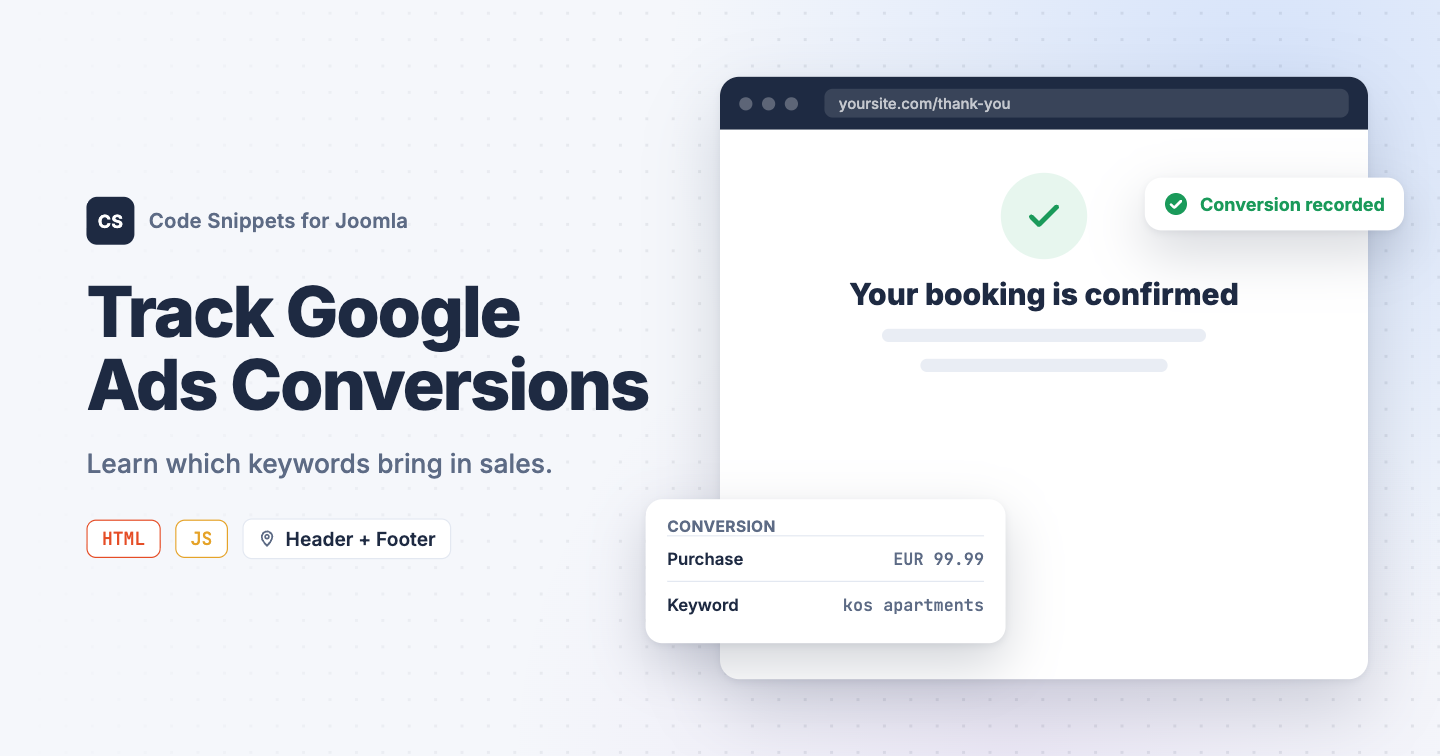
Google Ads reports every click, but clicks don't pay the bills. Without conversion tracking you can't tell which keyword brought in the sale, Smart Bidding has nothing to aim for, and every budget decision is a guess. Conversion tracking needs a tag on every page and an event on your thank you page. You can add both to Joomla with an HTML and a JavaScript snippet in Code Snippets.
Get your conversion ID and label
You need a Google Ads account.
- Go to Google Ads and sign in.
- Go to Goals → Conversions → Summary, and click New conversion action.
- Choose Website, enter your domain, and set up the action you want to count, like a purchase.
- Choose to install the tag yourself.
- Copy your Conversion ID, which looks like
AW-123456789, and the conversion label from the event snippet.
The snippet code
The first snippet is the Google tag. It goes in the <head> of every page:
<script async src="https://www.googletagmanager.com/gtag/js?id=AW-123456789"></script>
<script>
  window.dataLayer = window.dataLayer || [];
  function gtag(){dataLayer.push(arguments);}
  gtag('js', new Date());
  gtag('config', 'AW-123456789');
</script>
The second reports the conversion. It runs only on the page visitors see after they convert, like your thank you or order confirmation page:
gtag('event', 'conversion', {
    'send_to': 'AW-123456789/AbCdEfGhIjKlMnOp',
    'value': 99.99,
    'currency': 'EUR',
    'transaction_id': ''
});
Change value and currency to what one conversion is worth to you.
How to add the snippets
Snippet 1: the Google tag
- Install Code Snippets if it isn't installed already.
- Log into your Joomla backend.
- Go to Components → Tassos Code Snippets.
- Click New.
- Enter a title, for example Google Ads tag.
- Set Code Type to HTML.
- Set Insertion Method to Auto-Insert Locations.
- Set Location to Site Header.
- Paste the Google tag above into the editor.
- Replace
AW-123456789with your Conversion ID, in both places. - Click Save & Close.
Snippet 2: the conversion event
- Click New.
- Enter a title, for example Google Ads conversion.
- Set Code Type to JavaScript.
- Set Insertion Method to Auto-Insert Locations.
- Set Location to Site Footer.
- Paste the conversion code above into the editor.
- Replace
AW-123456789/AbCdEfGhIjKlMnOpwith your Conversion ID and label. -
Open the Conditional Logic tab:
- Set Display on to Selected Pages.
- Click New Condition Set.
- Click Select Condition and choose URL - Query String.
- In URL, enter a part of your thank you page's address, for example
thank-you.
- Click Save & Close.
Check that it works
- Install Google Tag Assistant and connect it to your site.
- Browse a few pages, then make a test conversion.
Tag Assistant should show the Google tag on every page and the conversion only on the thank you page. In Google Ads, the conversion action leaves the Unverified status after the first real conversion, which can take a few hours.
To see all your traffic, not only ad clicks, see Add Google Analytics to Joomla. To learn more, read the HTML snippet docs and the JavaScript snippet docs.




 Rated: