

-
-
- Submit Updated Articles to Bing and Yandex with IndexNow in Joomla
- Add Published and Modified Date Meta Tags to Joomla
- Add Open Graph and Twitter Card Tags to Joomla
- Auto-Generate Meta Descriptions from Article Text in Joomla
- Add Noindex to Specific Pages in Joomla
- Verify Your Joomla Site with Google Search Console
-
- Add a View as Markdown Link to Joomla Articles
- Display the Last Modified Date in Joomla Articles
- Embed Iframes in Joomla
- Automatically Link Twitter (X) @mentions in Joomla Articles
- Open External Links in a New Tab in Joomla
- Display Estimated Reading Time in Joomla Articles
- Replace Old URLs in Joomla
- Search and Replace in Joomla
-
- Add a Footer Line to the Joomla Administrator
- Show a Staging Banner in the Joomla Administrator
- Remove the "All" Option from Admin List Limits in Joomla
- Add a Cookie Consent Banner to Joomla
- Make the Administrator Navigation Sticky in Joomla
- Add Google Fonts to Joomla
- Add a Facebook Messenger Chat Button to Joomla
- Add a Reading Progress Bar to Joomla
- Add a Custom Scrollbar to Joomla
- Show Confetti on a Thank You Page in Joomla
- Add Smooth Scrolling to Joomla
- Add a Back to Top Button in Joomla
- Add a WhatsApp Chat Button in Joomla
-
- Protect the Administrator with a Secret URL Key in Joomla
- Show a Welcome Message on First Login in Joomla
- Log Out Idle Administrators in Joomla
- Assign New Users to a Different User Group Automatically in Joomla
- Redirect Visitors by Country in Joomla
- Redirect Users After Login by User Group in Joomla
- Block User Registration with Certain Usernames in Joomla
- Block User Registration by Country in Joomla
- Block User Registration by Email Address in Joomla
- Block User Registration by IP Address in Joomla
- Remove the Forgot Password and Username Links in Joomla
- Remove the Generator Meta Tag in Joomla
- Let Users Log In with Their Email Address in Joomla
- Block Traffic by Country in Joomla
- Block Bot Traffic in Joomla
- Block Traffic by IP Address in Joomla
Add the LinkedIn Insight Tag to Joomla
Track conversions, retarget visitors and reach better leads by adding the LinkedIn Insight Tag to your Joomla site, using one HTML snippet.
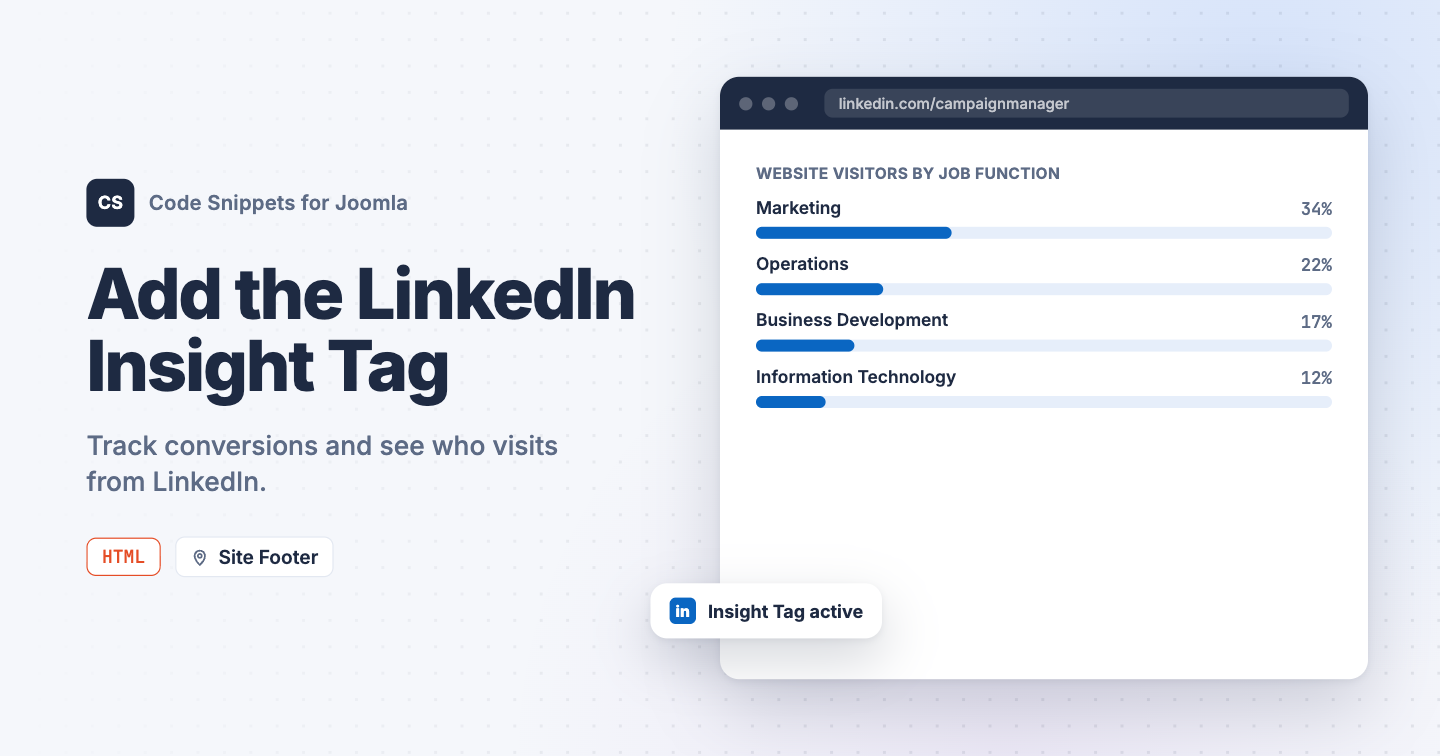
You run LinkedIn ads to a Joomla landing page, but the campaign reports stop at the click. You can't see which visitors converted, retarget the people who read the page, or learn which job titles visit your site. The LinkedIn Insight Tag reports all of that back to Campaign Manager. You can add the LinkedIn Insight Tag to Joomla with one HTML snippet in Code Snippets.
Get your Insight Tag
You need a LinkedIn Campaign Manager account with an ad account.
- Sign in to LinkedIn Campaign Manager.
- Go to Analyze → Insight Tag.
- Choose to install the tag yourself.
- Copy the tag code.
The snippet code
The tag looks like this, with your Partner ID in 2 places:
<script type="text/javascript">
  _linkedin_partner_id = "YOUR_PARTNER_ID";
  window._linkedin_data_partner_ids = window._linkedin_data_partner_ids || [];
  window._linkedin_data_partner_ids.push(_linkedin_partner_id);
</script>
<script type="text/javascript">
  (function(l) {
    if (!l) { window.lintrk = function(a, b) { window.lintrk.q.push([a, b]) }; window.lintrk.q = [] }
    var s = document.getElementsByTagName("script")[0];
    var b = document.createElement("script");
    b.type = "text/javascript";
    b.async = true;
    b.src = "https://snap.licdn.com/li.lms-analytics/insight.min.js";
    s.parentNode.insertBefore(b, s);
  })(window.lintrk);
</script>
<noscript>
  <img height="1" width="1" style="display:none;" alt="" src="https://px.ads.linkedin.com/collect/?pid=YOUR_PARTNER_ID&fmt=gif" />
</noscript>
LinkedIn asks for the tag in your site's footer, so use the Site Footer location. It lands right before the closing </body> tag on every page.
How to add this snippet
- Install Code Snippets if it isn't installed already.
- Log into your Joomla backend.
- Go to Components → Tassos Code Snippets.
- Click New.
- Enter a title, for example LinkedIn Insight Tag.
- Set Code Type to HTML.
- Set Insertion Method to Auto-Insert Locations.
- Set Location to Site Footer.
- Paste your Insight Tag into the editor.
- Click Save & Close.
Check that it works
- Open your site in a normal browser window with no ad blocker.
- Go back to Analyze → Insight Tag in Campaign Manager.
The tag turns Active once LinkedIn receives data from your site, which can take up to 24 hours. If it stays unverified, check that the snippet is published and that the Partner ID is right in both places.
To track Facebook and Instagram ads too, see Add the Meta (Facebook) Pixel to Joomla. To learn more about how HTML snippets work, read the HTML snippet docs.




 Rated: