

-
-
- Submit Updated Articles to Bing and Yandex with IndexNow in Joomla
- Add Published and Modified Date Meta Tags to Joomla
- Add Open Graph and Twitter Card Tags to Joomla
- Auto-Generate Meta Descriptions from Article Text in Joomla
- Add Noindex to Specific Pages in Joomla
- Verify Your Joomla Site with Google Search Console
-
- Add a View as Markdown Link to Joomla Articles
- Display the Last Modified Date in Joomla Articles
- Embed Iframes in Joomla
- Automatically Link Twitter (X) @mentions in Joomla Articles
- Open External Links in a New Tab in Joomla
- Display Estimated Reading Time in Joomla Articles
- Replace Old URLs in Joomla
- Search and Replace in Joomla
-
- Add a Footer Line to the Joomla Administrator
- Show a Staging Banner in the Joomla Administrator
- Remove the "All" Option from Admin List Limits in Joomla
- Add a Cookie Consent Banner to Joomla
- Make the Administrator Navigation Sticky in Joomla
- Add Google Fonts to Joomla
- Add a Facebook Messenger Chat Button to Joomla
- Add a Reading Progress Bar to Joomla
- Add a Custom Scrollbar to Joomla
- Show Confetti on a Thank You Page in Joomla
- Add Smooth Scrolling to Joomla
- Add a Back to Top Button in Joomla
- Add a WhatsApp Chat Button in Joomla
-
- Protect the Administrator with a Secret URL Key in Joomla
- Show a Welcome Message on First Login in Joomla
- Log Out Idle Administrators in Joomla
- Assign New Users to a Different User Group Automatically in Joomla
- Redirect Visitors by Country in Joomla
- Redirect Users After Login by User Group in Joomla
- Block User Registration with Certain Usernames in Joomla
- Block User Registration by Country in Joomla
- Block User Registration by Email Address in Joomla
- Block User Registration by IP Address in Joomla
- Remove the Forgot Password and Username Links in Joomla
- Remove the Generator Meta Tag in Joomla
- Let Users Log In with Their Email Address in Joomla
- Block Traffic by Country in Joomla
- Block Bot Traffic in Joomla
- Block Traffic by IP Address in Joomla
Log Out Idle Administrators in Joomla
Log administrators out of Joomla after a period of inactivity, with a countdown warning and a button to stay signed in, using one HTML snippet.
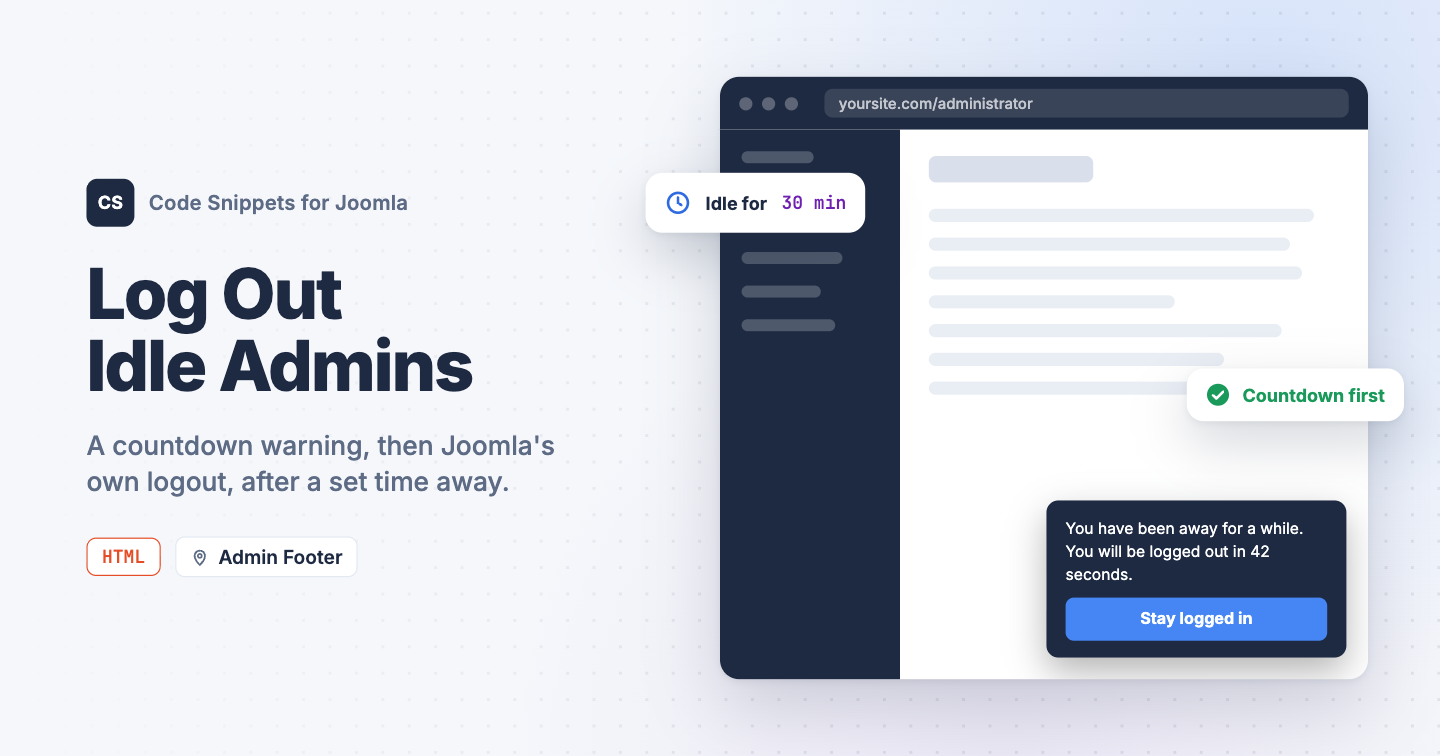
An administrator who walks away from an open article leaves a signed-in Joomla session on the screen for anyone who passes by. The session lifetime in Global Configuration doesn't help: Joomla pings the server while an edit form is open, so the session never expires. Security policies often ask for a hard logout after a set time, with a warning first. You can add both to the Joomla administrator with one HTML snippet in Code Snippets.
The snippet code
The snippet starts a timer on every administrator page. After the set number of minutes without a click, a key press or a mouse move, a box appears in the corner with a countdown and a Stay logged in button. When the countdown reaches zero, the snippet opens Joomla's own logout link, and the next page is the login screen.
<style>
  .tcs-idle {
    position: fixed;
    right: 20px;
    bottom: 20px;
    z-index: 10000;
    max-width: 320px;
    padding: 16px 18px;
    border-radius: 8px;
    background: #1e2a42;
    color: #fff;
    font: 14px/1.5 system-ui, sans-serif;
    box-shadow: 0 10px 30px rgba(0, 0, 0, .3);
  }
  .tcs-idle p { margin: 0 0 12px; }
  .tcs-idle button {
    font: inherit;
    font-weight: 600;
    padding: 7px 14px;
    border: 0;
    border-radius: 6px;
    background: #4585f4;
    color: #fff;
    cursor: pointer;
  }
</style>
<script>
(function () {
  // Minutes without a click, key press or mouse move before the warning shows.
  var idleMinutes = 30;

  // Seconds the warning stays on screen before the logout.
  var warnSeconds = 60;

  // Do not edit below.
  if (document.body.classList.contains('com_login'))
  {
    return;
  }

  var token = Joomla.getOptions('csrf.token');
  var logoutUrl = 'index.php?option=com_login&task=logout&' + token + '=1';
  var warnTimer, logoutTimer, countdown, toast;

  function logout()
  {
    location.href = logoutUrl;
  }

  function hide()
  {
    clearTimeout(logoutTimer);
    clearInterval(countdown);

    if (toast)
    {
      toast.remove();
      toast = null;
    }
  }

  function warn()
  {
    var left = warnSeconds;

    toast = document.createElement('div');
    toast.className = 'tcs-idle';
    toast.setAttribute('role', 'alert');
    toast.innerHTML = '<p></p><button type="button">Stay logged in</button>';

    var text = toast.querySelector('p');
    var update = function () {
      text.textContent = 'You have been away for a while. You will be logged out in '
        + left + ' second' + (left === 1 ? '' : 's') + '.';
    };

    update();
    toast.querySelector('button').addEventListener('click', reset);
    document.body.appendChild(toast);

    countdown = setInterval(function () { left--; update(); }, 1000);
    logoutTimer = setTimeout(logout, warnSeconds * 1000);
  }

  function reset()
  {
    hide();
    clearTimeout(warnTimer);
    warnTimer = setTimeout(warn, idleMinutes * 60000);
  }

  // While the warning is on screen, moving the mouse or scrolling doesn't
  // count. A click anywhere or a key press does.
  ['mousemove', 'keydown', 'click', 'scroll', 'touchstart'].forEach(function (name) {
    document.addEventListener(name, function () {
      if (toast && name !== 'click' && name !== 'keydown')
      {
        return;
      }

      reset();
    }, { passive: true });
  });

  reset();
})();
</script>
Change idleMinutes to set how long someone can be away before the warning, and warnSeconds to set how long the warning stays. While the warning is on screen, moving the mouse doesn't count as being back: a click anywhere or a key press does, and so does the button.
The timer runs in each open tab on its own, so an administrator with two tabs is logged out by whichever one goes idle first. The login screen is left alone.
How to add this snippet
- Install Code Snippets if it isn't installed already.
- Log into your Joomla backend.
- Go to Components → Tassos Code Snippets.
- Click New.
- Enter a title, for example Idle logout.
- Set Code Type to HTML.
- Set Insertion Method to Auto-Insert Locations.
- Set Location to Admin Footer.
- Paste the code above into the editor.
- Click Save & Close.
Admin locations are part of Code Snippets Pro.
Check that it works
- Set
idleMinutesto1andwarnSecondsto10for the test, and save the snippet. - Open Content → Articles and keep your hands off the keyboard and mouse.
After a minute the warning appears at the bottom right and counts down from 10. Let it reach zero and you land on the login screen. Reload the articles list again, wait for the warning, and click Stay logged in: the box goes away and the minute starts over. Put the real values back when you're done.
To learn more about how HTML snippets work, read the HTML snippet docs.




 Rated: