

-
-
- Submit Updated Articles to Bing and Yandex with IndexNow in Joomla
- Add Published and Modified Date Meta Tags to Joomla
- Add Open Graph and Twitter Card Tags to Joomla
- Auto-Generate Meta Descriptions from Article Text in Joomla
- Add Noindex to Specific Pages in Joomla
- Verify Your Joomla Site with Google Search Console
-
- Add a View as Markdown Link to Joomla Articles
- Display the Last Modified Date in Joomla Articles
- Embed Iframes in Joomla
- Automatically Link Twitter (X) @mentions in Joomla Articles
- Open External Links in a New Tab in Joomla
- Display Estimated Reading Time in Joomla Articles
- Replace Old URLs in Joomla
- Search and Replace in Joomla
-
- Add a Footer Line to the Joomla Administrator
- Show a Staging Banner in the Joomla Administrator
- Remove the "All" Option from Admin List Limits in Joomla
- Add a Cookie Consent Banner to Joomla
- Make the Administrator Navigation Sticky in Joomla
- Add Google Fonts to Joomla
- Add a Facebook Messenger Chat Button to Joomla
- Add a Reading Progress Bar to Joomla
- Add a Custom Scrollbar to Joomla
- Show Confetti on a Thank You Page in Joomla
- Add Smooth Scrolling to Joomla
- Add a Back to Top Button in Joomla
- Add a WhatsApp Chat Button in Joomla
-
- Protect the Administrator with a Secret URL Key in Joomla
- Show a Welcome Message on First Login in Joomla
- Log Out Idle Administrators in Joomla
- Assign New Users to a Different User Group Automatically in Joomla
- Redirect Visitors by Country in Joomla
- Redirect Users After Login by User Group in Joomla
- Block User Registration with Certain Usernames in Joomla
- Block User Registration by Country in Joomla
- Block User Registration by Email Address in Joomla
- Block User Registration by IP Address in Joomla
- Remove the Forgot Password and Username Links in Joomla
- Remove the Generator Meta Tag in Joomla
- Let Users Log In with Their Email Address in Joomla
- Block Traffic by Country in Joomla
- Block Bot Traffic in Joomla
- Block Traffic by IP Address in Joomla
Add a WhatsApp Chat Button in Joomla
Let visitors message you on WhatsApp in one tap with a floating chat button on your Joomla site, using one HTML snippet.
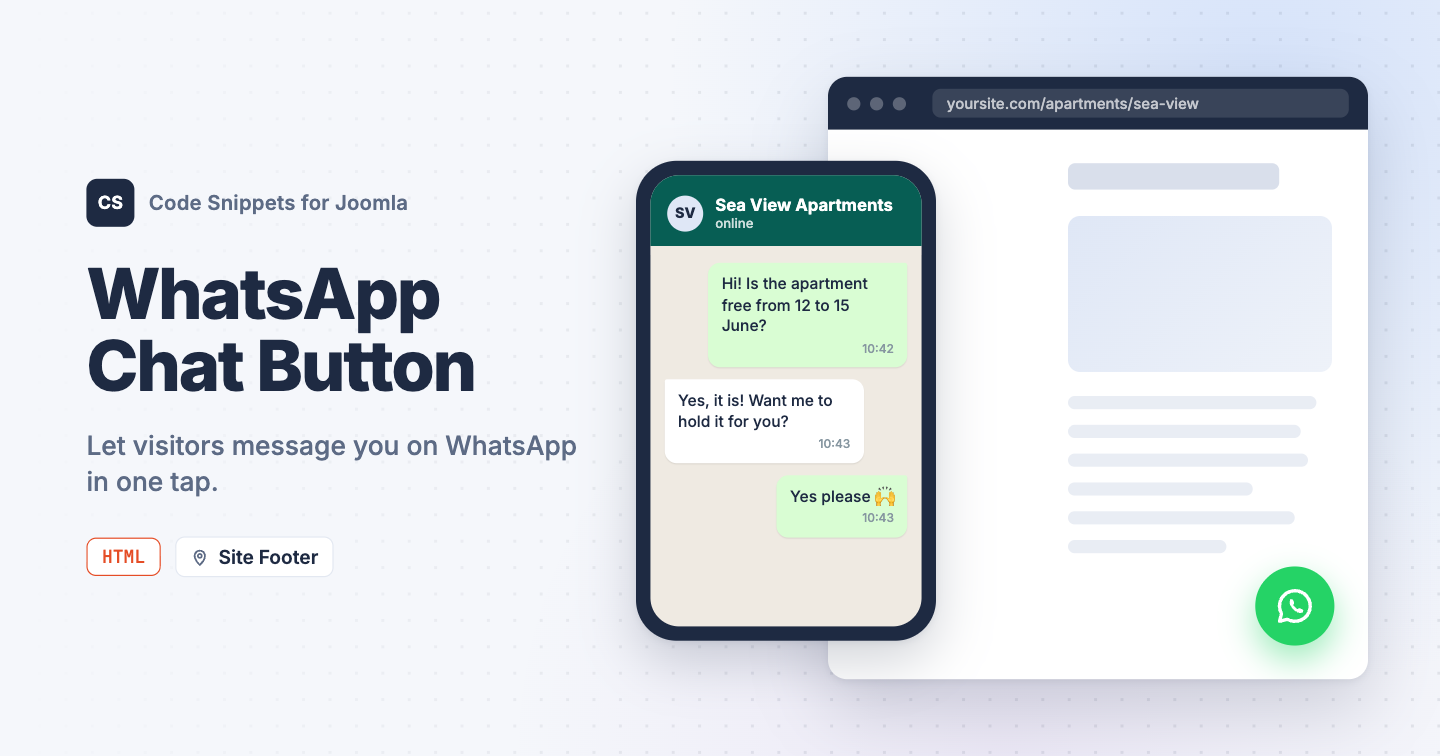
A visitor with a quick question rarely fills in a contact form. They want an answer in a minute, and a form with a captcha and a "we'll reply within 2 business days" note sends them elsewhere. A floating WhatsApp button opens a chat in the app they already have on their phone, and adding one doesn't need another plugin. You can add a WhatsApp chat button to your Joomla site using Code Snippets.
How to get your WhatsApp link
WhatsApp uses plain wa.me links, so there's nothing to sign up for.
- Take your phone number in full international format.
- Remove the
+, spaces, dashes, and brackets.+30 210 1234567becomes302101234567. - Your link is
https://wa.me/302101234567. - To pre-fill the first message, add
?text=, for examplehttps://wa.me/302101234567?text=Hi,%20I%20have%20a%20question.
The snippet code
This HTML snippet adds a floating WhatsApp button in the bottom-right corner of every page. The styling and the official icon (inlined as SVG) are included, so nothing external has to load.
<a id="tcs-whatsapp" href="https://wa.me/302101234567?text=Hi,%20I%20have%20a%20question"
   target="_blank" rel="noopener" aria-label="Chat on WhatsApp">
    <svg viewBox="0 0 32 32" width="28" height="28" fill="currentColor" aria-hidden="true">
        <path d="M16 3C8.8 3 3 8.8 3 16c0 2.3.6 4.5 1.8 6.4L3 29l6.8-1.8C11.6 28.4 13.8 29 16 29c7.2 0 13-5.8 13-13S23.2 3 16 3zm0 23.6c-2 0-3.9-.5-5.6-1.6l-.4-.2-4 1 1.1-3.9-.3-.4c-1.1-1.7-1.7-3.7-1.7-5.7C5.1 10 10 5.1 16 5.1S26.9 10 26.9 16 22 26.6 16 26.6zm6-7.9c-.3-.2-1.9-1-2.2-1.1-.3-.1-.5-.2-.7.2s-.8 1.1-1 1.3c-.2.2-.4.2-.7.1-.3-.2-1.4-.5-2.6-1.6-1-.9-1.6-1.9-1.8-2.3-.2-.3 0-.5.1-.7l.5-.6c.2-.2.2-.3.3-.5.1-.2 0-.4 0-.6s-.7-1.7-1-2.3c-.3-.6-.5-.5-.7-.5h-.6c-.2 0-.6.1-.9.4-.3.3-1.2 1.1-1.2 2.8s1.2 3.2 1.4 3.5c.2.2 2.4 3.7 5.9 5.2.8.4 1.5.6 2 .7.8.3 1.6.2 2.2.1.7-.1 1.9-.8 2.2-1.6.3-.8.3-1.4.2-1.6-.1-.1-.3-.2-.6-.4z"/>
    </svg>
</a>

<style>
#tcs-whatsapp {
    position: fixed;
    right: 20px;
    bottom: 20px;
    z-index: 999;
    display: flex;
    align-items: center;
    justify-content: center;
    width: 56px;
    height: 56px;
    border-radius: 50%;
    background: #25d366;
    color: #fff;
    box-shadow: 0 2px 10px rgba(0, 0, 0, .25);
    text-decoration: none;
}

#tcs-whatsapp:hover {
    background: #1ebe57;
    color: #fff;
}
</style>
Replace 302101234567 with your own number and edit the text= part to change the pre-filled message. If a back to top button already sits in that corner, change bottom: 20px to bottom: 90px on one of them.
The button floats in a fixed corner on purpose. It stays within reach however far the visitor scrolls, it doesn't move your content, and the green circle is a shape people already know from booking and business sites. To show it only on phones, where a tap opens the app directly, add this to the <style> block:
@media (min-width: 769px) {
    #tcs-whatsapp {
        display: none;
    }
}
Where a WhatsApp button pays off
- Vacation rentals and direct-booking sites. A host who lists on Airbnb but also runs their own Joomla site gets the questions that decide a booking here: free on these dates, parking, is it child-friendly. Answer in 2 minutes and the guest books direct. The same chat later carries check-in instructions and a location pin.
- Hotels, guesthouses, and tour operators. Guests from abroad often prefer a chat to a phone call in a foreign language, and it works over the hotel Wi-Fi with no roaming charges.
- Real estate agencies. Property pages get "is this still available" and "can I visit Saturday" messages that no one would type into a contact form.
- Restaurants and local trades. Reservations, a quote from a plumber, or "do you have this in stock" for a small shop all fit a short chat better than an email thread.
- Freelancers and one-person businesses. You can't staff a live chat widget alone, but you can answer WhatsApp from your phone between jobs.
Use the Conditional Logic tab to fit the button to the job: show it only on property or product pages, hide it on checkout, or switch it off outside the hours you reply.
How to add this snippet
- Install Code Snippets if it is not installed already.
- Log into your Joomla backend.
- Go to Components → Code Snippets.
- Click New.
- Give your snippet a descriptive title like "WhatsApp Chat Button".
- Select HTML snippet type.
- Paste the WhatsApp button code above.
- Replace the sample phone number with yours.
- Select Site Footer as the Insertion Method.
- Publish the snippet.
- Optionally, open the Conditional Logic tab to limit the button to certain pages or hours. Leave it empty to run it site-wide. Learn more in .
Congrats! You've added a WhatsApp chat button to your Joomla site without installing another plugin.




 Rated: