

-
-
- Submit Updated Articles to Bing and Yandex with IndexNow in Joomla
- Add Published and Modified Date Meta Tags to Joomla
- Add Open Graph and Twitter Card Tags to Joomla
- Auto-Generate Meta Descriptions from Article Text in Joomla
- Add Noindex to Specific Pages in Joomla
- Verify Your Joomla Site with Google Search Console
-
- Add a View as Markdown Link to Joomla Articles
- Display the Last Modified Date in Joomla Articles
- Embed Iframes in Joomla
- Automatically Link Twitter (X) @mentions in Joomla Articles
- Open External Links in a New Tab in Joomla
- Display Estimated Reading Time in Joomla Articles
- Replace Old URLs in Joomla
- Search and Replace in Joomla
-
- Add a Footer Line to the Joomla Administrator
- Show a Staging Banner in the Joomla Administrator
- Remove the "All" Option from Admin List Limits in Joomla
- Add a Cookie Consent Banner to Joomla
- Make the Administrator Navigation Sticky in Joomla
- Add Google Fonts to Joomla
- Add a Facebook Messenger Chat Button to Joomla
- Add a Reading Progress Bar to Joomla
- Add a Custom Scrollbar to Joomla
- Show Confetti on a Thank You Page in Joomla
- Add Smooth Scrolling to Joomla
- Add a Back to Top Button in Joomla
- Add a WhatsApp Chat Button in Joomla
-
- Protect the Administrator with a Secret URL Key in Joomla
- Show a Welcome Message on First Login in Joomla
- Log Out Idle Administrators in Joomla
- Assign New Users to a Different User Group Automatically in Joomla
- Redirect Visitors by Country in Joomla
- Redirect Users After Login by User Group in Joomla
- Block User Registration with Certain Usernames in Joomla
- Block User Registration by Country in Joomla
- Block User Registration by Email Address in Joomla
- Block User Registration by IP Address in Joomla
- Remove the Forgot Password and Username Links in Joomla
- Remove the Generator Meta Tag in Joomla
- Let Users Log In with Their Email Address in Joomla
- Block Traffic by Country in Joomla
- Block Bot Traffic in Joomla
- Block Traffic by IP Address in Joomla
Add a Custom Scrollbar to Joomla
Give your Joomla site a scrollbar in your brand colors, a small detail that makes the whole site feel finished, using one CSS snippet.
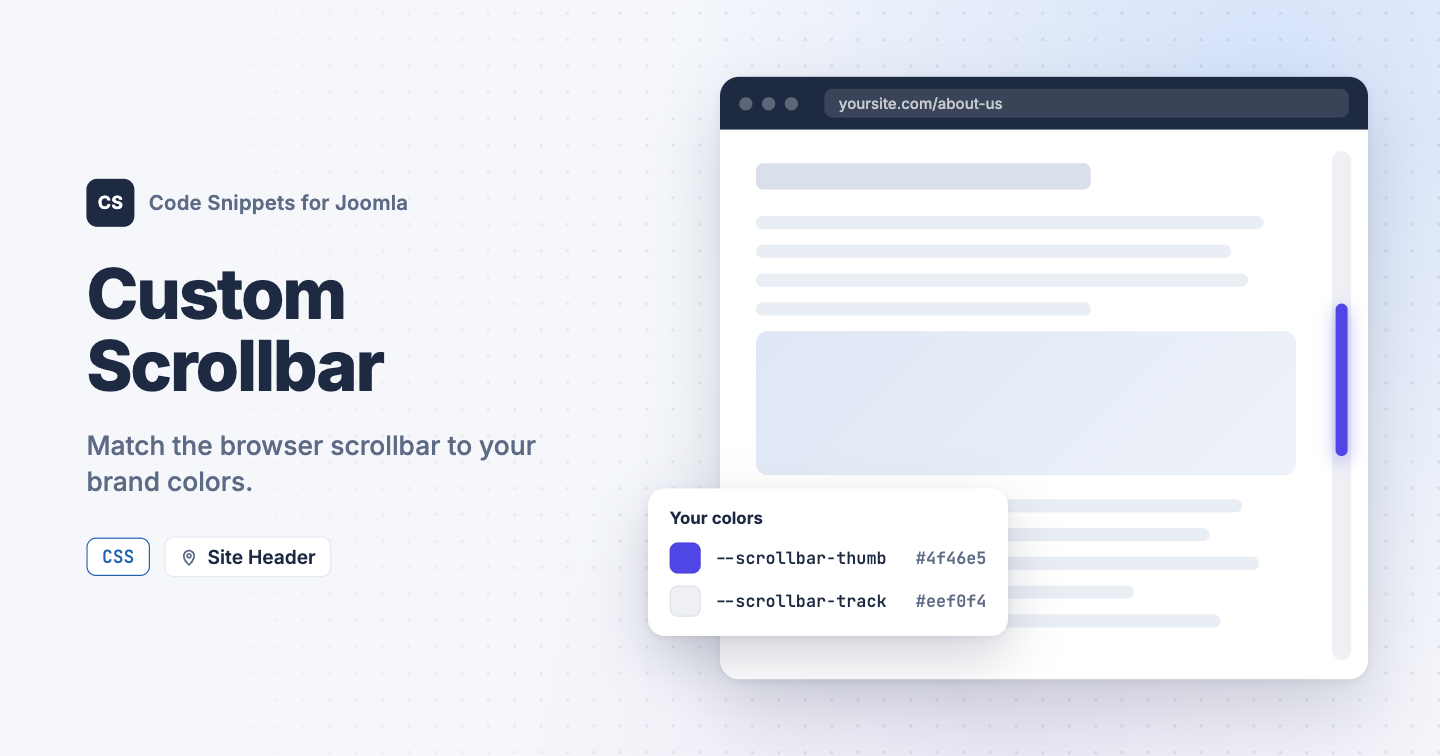
The browser's default scrollbar is grey and looks the same on every site. Matching it to your brand colors is a small detail that makes a site feel finished, and modern browsers let you do it with a few lines of CSS. You can add them to your Joomla site with one CSS snippet in Code Snippets, without touching your template.
The snippet code
This CSS snippet sets the colors of the scrollbar and makes it slimmer. It uses the standard scrollbar-color and scrollbar-width properties that Chrome, Edge, and Firefox support, plus a fallback for browsers that only understand the older ::-webkit-scrollbar styles.
/* Scrollbar colors: change these to match your brand. */
:root {
  --scrollbar-thumb: #4f46e5;
  --scrollbar-track: #eef0f4;
}

/* Chrome, Edge, Firefox and other modern browsers */
html {
  scrollbar-color: var(--scrollbar-thumb) var(--scrollbar-track);
  /* Use "auto" for a regular width or "thin" for a slim scrollbar. */
  scrollbar-width: thin;
}

/* Browsers without scrollbar-color support, such as older Safari */
@supports not (scrollbar-color: auto) {
  ::-webkit-scrollbar {
    width: 10px;
    height: 10px;
  }

  ::-webkit-scrollbar-track {
    background: var(--scrollbar-track);
  }

  ::-webkit-scrollbar-thumb {
    background: var(--scrollbar-thumb);
    border-radius: 10px;
    border: 2px solid var(--scrollbar-track);
  }
}
Change --scrollbar-thumb and --scrollbar-track to your own colors. The thumb is the part that moves, and the track is the strip behind it. Scrollable boxes inside your pages, like wide tables, pick up the same colors.
Phones and tablets show their own thin scrollbar only while you scroll, so the change mostly shows on desktop.
How to add this snippet
- Install Code Snippets if it isn't installed already.
- Log into your Joomla backend.
- Go to Components → Tassos Code Snippets.
- Click New.
- Enter a title, for example Custom scrollbar.
- Set Code Type to CSS.
- Set Insertion Method to Auto-Insert Locations.
- Set Location to Site Header.
- Paste the code above into the editor.
- Click Save & Close.
Check that it works
- Open a long page on your site in a desktop browser.
- Look at the scrollbar on the right edge of the window.
It should now use your colors. If it still looks grey, clear your browser cache and reload the page.
To learn more about CSS snippets, read the CSS snippet docs.




 Rated: