

-
-
- Submit Updated Articles to Bing and Yandex with IndexNow in Joomla
- Add Published and Modified Date Meta Tags to Joomla
- Add Open Graph and Twitter Card Tags to Joomla
- Auto-Generate Meta Descriptions from Article Text in Joomla
- Add Noindex to Specific Pages in Joomla
- Verify Your Joomla Site with Google Search Console
-
- Add a View as Markdown Link to Joomla Articles
- Display the Last Modified Date in Joomla Articles
- Embed Iframes in Joomla
- Automatically Link Twitter (X) @mentions in Joomla Articles
- Open External Links in a New Tab in Joomla
- Display Estimated Reading Time in Joomla Articles
- Replace Old URLs in Joomla
- Search and Replace in Joomla
-
- Add a Footer Line to the Joomla Administrator
- Show a Staging Banner in the Joomla Administrator
- Remove the "All" Option from Admin List Limits in Joomla
- Add a Cookie Consent Banner to Joomla
- Make the Administrator Navigation Sticky in Joomla
- Add Google Fonts to Joomla
- Add a Facebook Messenger Chat Button to Joomla
- Add a Reading Progress Bar to Joomla
- Add a Custom Scrollbar to Joomla
- Show Confetti on a Thank You Page in Joomla
- Add Smooth Scrolling to Joomla
- Add a Back to Top Button in Joomla
- Add a WhatsApp Chat Button in Joomla
-
- Protect the Administrator with a Secret URL Key in Joomla
- Show a Welcome Message on First Login in Joomla
- Log Out Idle Administrators in Joomla
- Assign New Users to a Different User Group Automatically in Joomla
- Redirect Visitors by Country in Joomla
- Redirect Users After Login by User Group in Joomla
- Block User Registration with Certain Usernames in Joomla
- Block User Registration by Country in Joomla
- Block User Registration by Email Address in Joomla
- Block User Registration by IP Address in Joomla
- Remove the Forgot Password and Username Links in Joomla
- Remove the Generator Meta Tag in Joomla
- Let Users Log In with Their Email Address in Joomla
- Block Traffic by Country in Joomla
- Block Bot Traffic in Joomla
- Block Traffic by IP Address in Joomla
Add a Facebook Messenger Chat Button to Joomla
Let visitors start a Messenger conversation with your Facebook Page from a floating button on every Joomla page, using one HTML snippet.
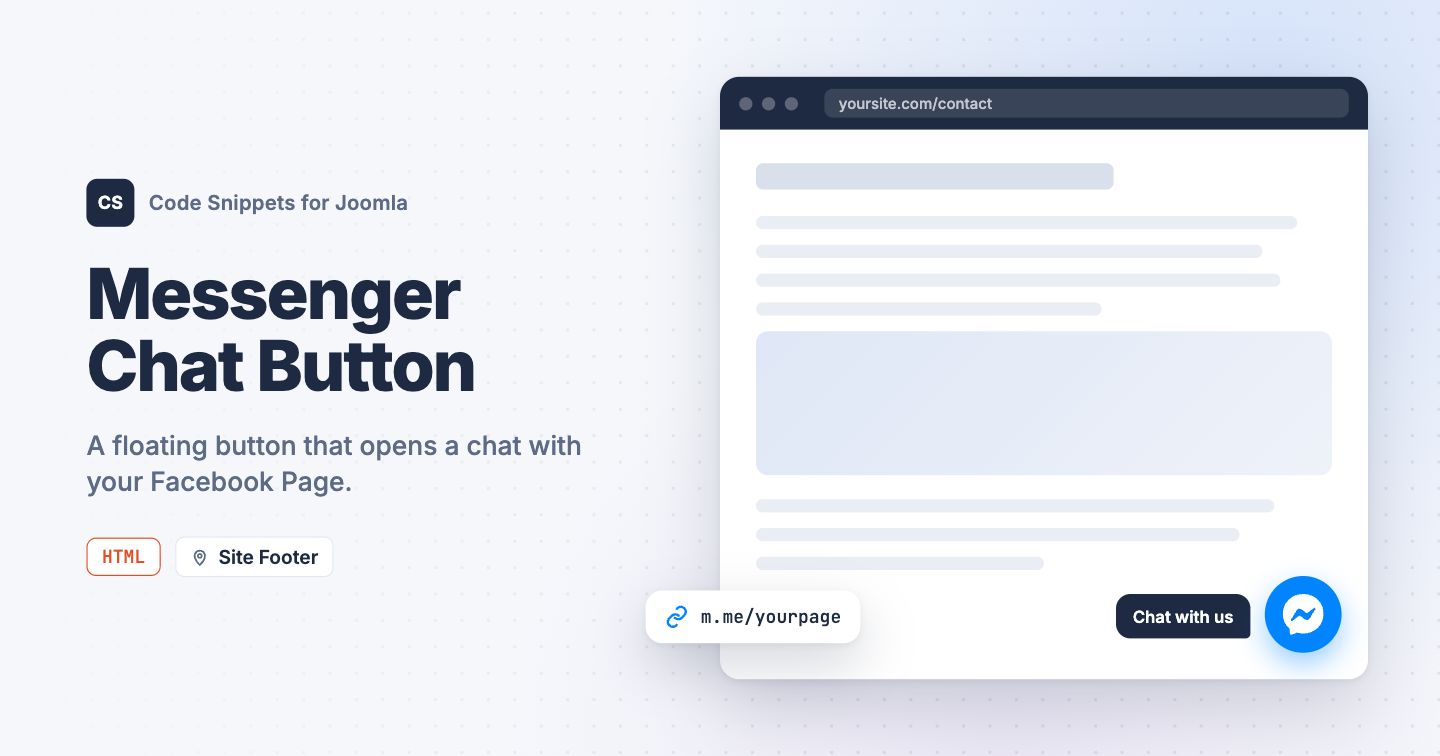
Your customers already message your Facebook Page, but on your site they have to hunt for a contact form. A Messenger button in the corner of every page starts the conversation in the app they use anyway. You can add a Facebook Messenger chat button to Joomla with one HTML snippet in Code Snippets.
How to get your Messenger link
Every Facebook Page has a Messenger address at m.me/ followed by the Page's username. The username is the last part of your Page's web address: for facebook.com/tassosgr it's tassosgr, and the Messenger link is https://m.me/tassosgr. If your Page has no username yet, set one under the Page's settings on Facebook.
Meta retired the Messenger Chat Plugin that opened a chat window inside your site in May 2024, so old embed codes no longer work. The m.me link is Meta's own replacement: it opens the conversation in Messenger on the web or in the app.
The HTML snippet code
The snippet adds a round blue button with the Messenger logo to the bottom right corner of every page. It stays in place while the visitor scrolls and opens your Page's Messenger conversation in a new tab.
<a id="tcs-messenger" href="https://m.me/yourpage"
   target="_blank" rel="noopener" aria-label="Chat with us on Messenger">
    <svg viewBox="0 0 24 24" width="30" height="30" fill="currentColor" aria-hidden="true">
        <path d="M.001 11.639C.001 4.949 5.241 0 12.001 0S24 4.95 24 11.639c0 6.689-5.24 11.638-12 11.638-1.21 0-2.38-.16-3.47-.46a.96.96 0 0 0-.64.05l-2.39 1.05a.96.96 0 0 1-1.35-.85l-.07-2.14a.97.97 0 0 0-.32-.68A11.39 11.39 0 0 1 .002 11.64zm8.32-2.19-3.52 5.6c-.35.53.32 1.139.82.75l3.79-2.87c.26-.2.6-.2.87 0l2.8 2.1c.84.63 2.04.4 2.6-.48l3.52-5.6c.35-.53-.32-1.13-.82-.75l-3.79 2.87c-.25.2-.6.2-.86 0l-2.8-2.1a1.8 1.8 0 0 0-2.61.48z"/>
    </svg>
</a>

<style>
#tcs-messenger {
    position: fixed;
    right: 20px;
    bottom: 20px;
    z-index: 999;
    display: flex;
    align-items: center;
    justify-content: center;
    width: 56px;
    height: 56px;
    border-radius: 50%;
    background: #0084ff;
    color: #fff;
    box-shadow: 0 2px 10px rgba(0, 0, 0, .25);
    text-decoration: none;
}

#tcs-messenger:hover {
    background: #006fd6;
    color: #fff;
}
</style>
Replace yourpage in the link with your Page's username. To move the button to the left side, change right: 20px to left: 20px. To change the color, edit the 2 background values: the first is the normal color, the second the hover color.
How to add this snippet
- Install Code Snippets if it isn't installed already.
- Log into your Joomla backend.
- Go to Components → Tassos Code Snippets.
- Click New.
- Enter a title, for example Messenger button.
- Set Code Type to HTML.
- Set Insertion Method to Auto-Insert Locations.
- Set Location to Site Footer.
- Paste the code above into the editor.
- Replace
yourpagewith your Page's username. - Click Save & Close.
Show it only on some pages
- Open the snippet and go to the Conditional Logic tab.
- Set Display on to Selected Pages.
- Click New Condition Set.
- Click Select Condition and choose Menu.
- Pick the menu items where the button should appear.
- Click Save & Close.
Learn more in Conditional Logic.
Check that it works
- Open any page on your site.
- Click the blue button in the bottom right corner.
A new tab opens on Messenger with a conversation with your Page. Visitors who are logged into Facebook can type right away.
To offer WhatsApp as well, see Add a WhatsApp Chat Button in Joomla. To learn more about HTML snippets, read the HTML snippet docs.




 Rated: