

-
- DJ-Catalog2
- DJ-Classifieds
- DJ-Events
- DPCalendar
- EasyBlog
- Eshop
- Event Booking
- Gridbox
- HikaShop
- iCagenda
- J2Commerce
- JBusiness Directory
- JCal Pro
- JEvents
- Joomla Articles
- Joomla Menu Manager
- JoomShopping
- JReviews
- K2
- OSCampus Structured Data
- Quix Page Builder
- RSBlog
- RSEventsPro
- SEO Glossary
- SobiPro
- SP Page Builder
- VirtueMart
- YOOtheme
- ZOO
-
- Troubleshoot Structured Data not Added to the Page
- Troubleshoot Structured Data not Identified by the Google Rich Results Tool
- Troubleshoot Structured Data not Showing in Search Results
- Preview button not showing on Structured Data Testing Tool
- I am seeing the "is not a known valid target type for the identifier property" error
- Fixing Error decoding JSON data in Joomla Articles
- Fix missing Google Structured Data tab in the Article Editing Page
-
- How to map schema properties using CSS Selectors
- How to Export and Import Google Structured Data Items
- HTML to Markdown Conversion
- Adding Facebook Open Graph Meta Data
- Site Representation Settings
- Use Structured Data for Google Merchant
- Create Multilingual Structured Data Items
- Use the Custom Code Content Type
- Prepare Content option
- Using the Schema Cleaner
Add Structured Data to Pages
In this page, you will learn how to add Structured Data Content Types to your pages and integrate with your favorite Joomla Component. Let's how you can make that happen with the following 4 easy steps.
Step 1: Create a new Structured Data Item
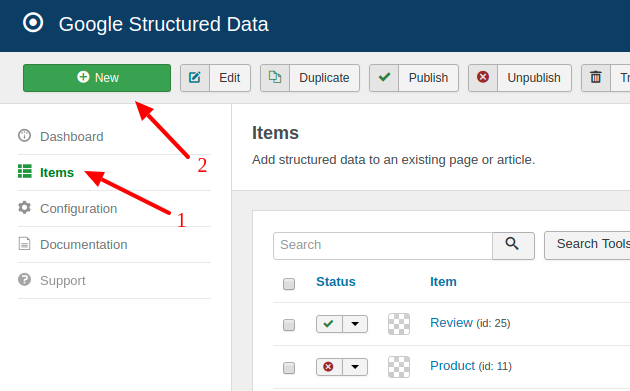
Go to Components → Google Structured Data → Items and click New to create a new structured data item, as shown in the image below.
Step 2: Select Content Type & Integration
On the next page, you will need to setup your Structured Data Item. initially, there will be available the following options:
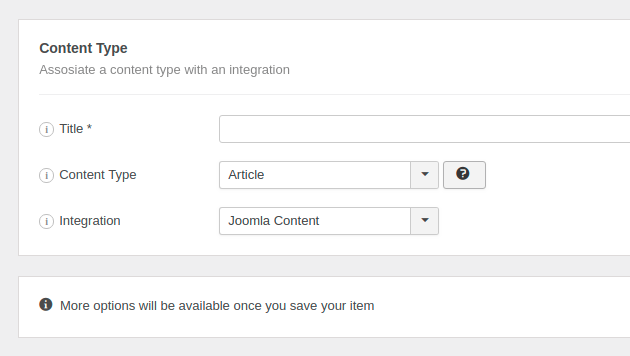
- Title: This is the title of the Structured Data Item. You can enter you like as this label appears in the backend only.
- Content Type: The Content Type you want to generate on the page. View the Supported Content Types.
- Integration: The Integration - Component you'd like to generate the Content Type to. View the Supported Integrations.
- Integration View: The type of page of the selected Integration where the structured data will be generated (e.g. Article or Product). Most integrations support only one view, so this field is read-only and pre-selected.
Once you pick a content type and an integration, the form reloads and 2 new sections appear.
Step 3: Map Content Type Properties
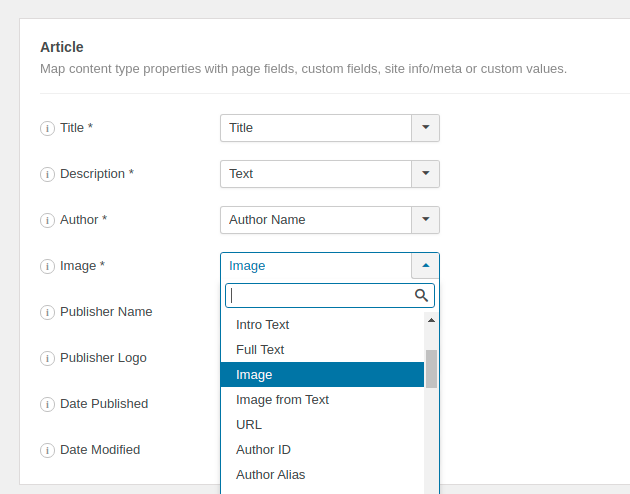
Each Content Type is composed of a set of properties (Title, Description, Date, Rating e.t.c) that need to be properly filled in order to generate valid and error-free schema markup. The Google Structured Data extension has a very flexible and powerful mapping mechanism in order to help you match these properties with values of the current page such as Page Title, Description, Meta Properties, Page Custom Fields, Site Info or even custom values.
You’ll see a Drop Down field in front of each Content Type Property field. This is where you can select the option with which you want to map the current property.
Mapping Options
Mapping options are categorized mainly in the following 5 groups:
- Integration: Use this group to map a property with data related to the selected Integration. For instance, if you're using the Joomla Content Integration and you've selected the Title option, the property's value will always be equal to the Title of the Joomla Article the user is currently browsing.
- Custom Fields: Use this group to map a property with a Custom Field assosiated with the selected Integration. For instance, if your Joomla Articles are using Custom Fields you will be able to map a property with any of these Custom Fields.
- Page: Use this group to map a property with options related to the current Page. For instance, the Page Meta Description option will return the meta description value of the page the user is currently browsing.
- Site Info: Use this group to map a property with global and site-wide options. For instance, the Site Name will return the Website Name set on the Site Representation tab. If none is set, then the value set in the Site Global Configuration will be used instead.
- Custom Info: Use this group if you want the property to have a fixed value, or to read it from the page with a CSS Selector.
Step 4: Publishing Rules (Optional)
In this section, you can target and filter the pages where the structured data item is going to be generated using a set of publishing rules.
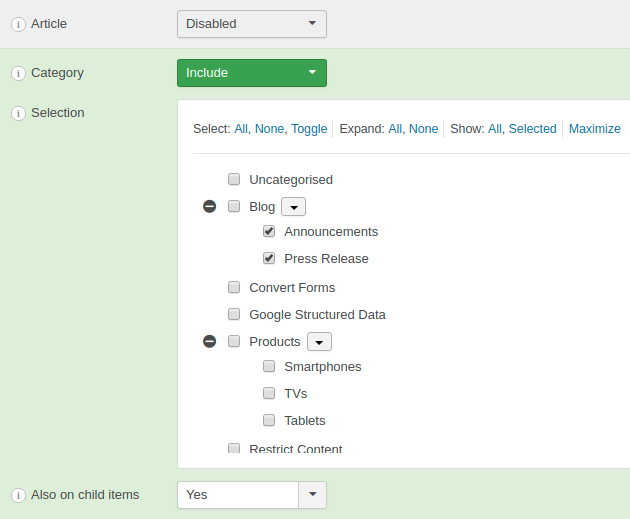
Although the publishing rules may vary for each integration, most of the them come with two standard publishing rules. A Single Page based rule which can be used to target specific existing pages of the selected integration, and a Category based rule which can be used to target pages assigned to specific categories.
Remember, in case you don't enable any of the available publishing rules, the structured data will be generated on all pages of the selected integration.



 Rated: