

Unlock this and dozens of other powerful features by upgrading to Google Structured Data Pro.
Unlock this feature
-
- DJ-Catalog2
- DJ-Classifieds
- DJ-Events
- DPCalendar
- EasyBlog
- Eshop
- Event Booking
- Gridbox
- HikaShop
- iCagenda
- J2Commerce
- JBusiness Directory
- JCal Pro
- JEvents
- Joomla Articles
- Joomla Menu Manager
- JoomShopping
- JReviews
- K2
- OSCampus Structured Data
- Quix Page Builder
- RSBlog
- RSEventsPro
- SEO Glossary
- SobiPro
- SP Page Builder
- VirtueMart
- YOOtheme
- ZOO
-
- Troubleshoot Structured Data not Added to the Page
- Troubleshoot Structured Data not Identified by the Google Rich Results Tool
- Troubleshoot Structured Data not Showing in Search Results
- Preview button not showing on Structured Data Testing Tool
- I am seeing the "is not a known valid target type for the identifier property" error
- Fixing Error decoding JSON data in Joomla Articles
- Fix missing Google Structured Data tab in the Article Editing Page
-
- How to map schema properties using CSS Selectors
- How to Export and Import Google Structured Data Items
- HTML to Markdown Conversion
- Adding Facebook Open Graph Meta Data
- Site Representation Settings
- Use Structured Data for Google Merchant
- Create Multilingual Structured Data Items
- Use the Custom Code Content Type
- Prepare Content option
- Using the Schema Cleaner
Course Structured Data
Mark up your course listings with structured data. Set details like start/end dates, location, instructor name, and workload to help students find your courses.
Course Structured Data is available in Pro
The Courses snippet is ideal for articles which describe a course. You are able to mark up your courses with structured data so prospective students can find you through Google Search. You can provide details including the course name and a short description. Let's see how to create one.
How to markup Joomla Pages with the Course Schema
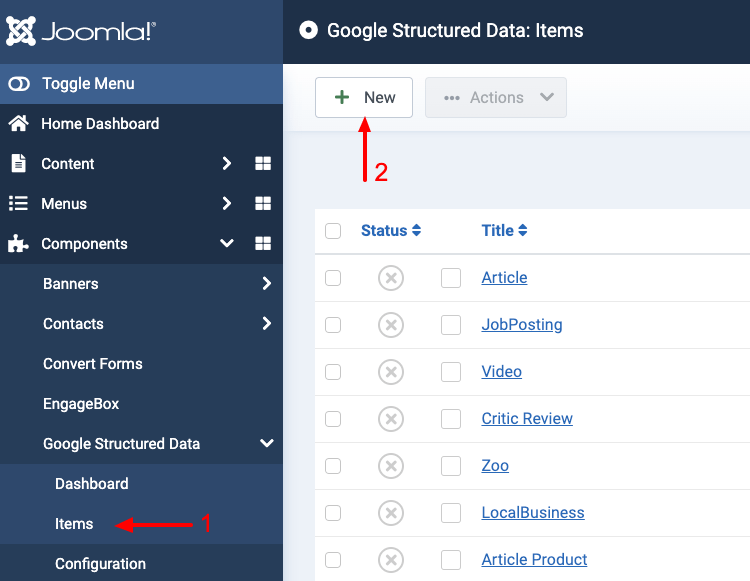
Go to Components → Google Structured Data → Items and click New to create a new structured data item.
On the next page, you will need to prepare the Structured Data Item. Enter a Title (it can be anything) and select the Course Content Type from the respective dropdown.
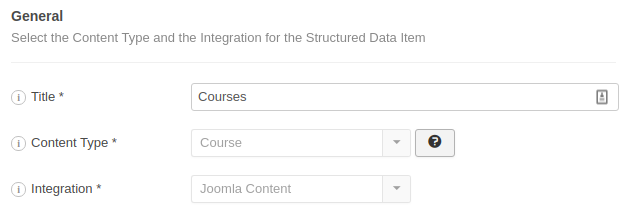
Then select the Integration for the component you want to mark up, for example Joomla Content. Integration View is filled in automatically. View the Supported Integrations.
The form reloads and a new section called Course appears below, where you can map each property with page data. A Publishing Rules section appears under it.
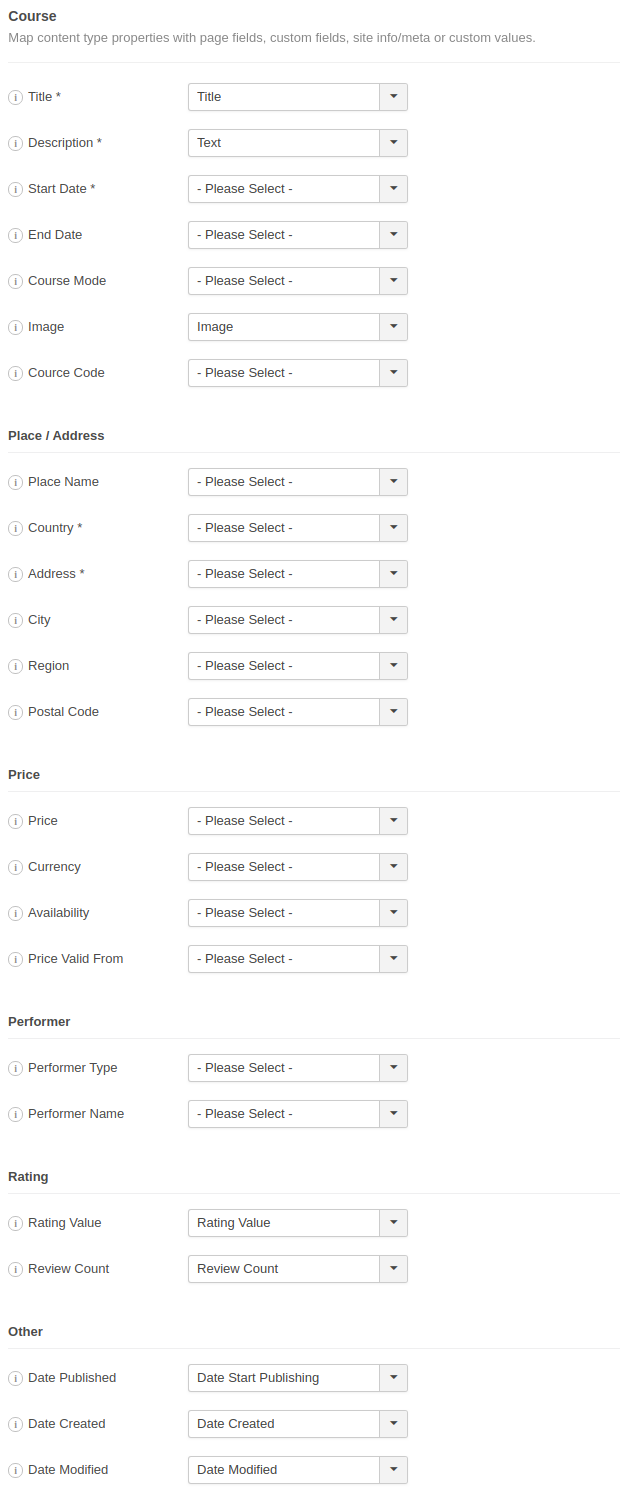
To read more details on how the mapping works, visit the respective section in the How to Add Structured Data to Pages guide.
Course Schema Properties
Here's a table of the properties you can define in the Course Content Type.
| Name | Description |
|---|---|
| Title | The title of the course. If left blank, the article title will be used instead. |
| Description | The short description. |
| Start Date | The date the course starts |
| End Date | The date the course ends |
| Course Mode | The medium or means of delivery of the course instance or the mode of study. |
| Image | The main image. |
| Course Code | The unique code of the course. |
| Course Workload | The total time to watch all videos and complete all assignments and exams, in hours (e.g. 120) or as an ISO 8601 duration (e.g. P1Y). |
| Time Required | How long the course takes, in minutes. The markup turns it into an ISO 8601 duration, so 180 becomes PT180M. |
| Educational Level | The level the course is aimed at, such as Beginner, or the name of the learning path it belongs to. |
| Learning Outcomes | What the visitor can do after the course. Separate multiple outcomes with a comma, or read them from a list on the page (see Learning outcomes). |
| Subjects | The subjects the course covers, separated by a comma. |
| Teacher | The person who teaches the course. The markup names this person as the author of the course and as the instructor of the course instance. |
| Place / Address | |
| Place Name | The name of the place where the course will be held. |
| Country | The country where the course will be held. |
| Address | The address where the course will be held. |
| City | The city where the course will be held. |
| Region | The region where the course will be held. |
| Postal Code | The postal code of the address where the course will be held. |
| Price | |
| Price | The price of the item. |
| Currency | The currency used to describe the price, in three-letter ISO 4217 format. |
| Offer Category | The type of the course (free, partially free, subscription, or paid). |
| Availability | The availability of the marked-up item. Eg: InStock or OutOfStock. |
| Price Valid From | The date when the item becomes valid. |
| Performer | |
| Performer Type | The type of the performer that presents the course. |
| Performer Name | The name of the person or the group presents the course. |
| Rating | |
| Rating Value | The rating value for the content. |
| Review Count | How many reviews does this item have. |
| Other | |
| Date Published | The date the item published. |
| Date Created | The date the item was created. |
| Date Modified | The date the item modified. |
Offer Category is required. If you leave Price unmapped, the markup carries a price of 0.00, so set Offer Category to Free for a free course.
General rule: Always markup content that is displayed on the page to visitors. Doing otherwise you may end up with a Spammy Structured Markup Penalty.
Learning outcomes
Course pages often show their outcomes as a bulleted list. Point a CSS Selector at the list items and each one becomes a separate outcome.
- Wrap the list in an element with a class of your own, such as
my-outcomes. - Set Learning Outcomes to CSS Selector.
- Enter
.my-outcomes lias the selector. - Keep Return Node Text in the dropdown next to it.
- Click Save.
Keep the li in the selector. Without it the selector matches the list as a whole, and every outcome ends up in one long string.
Course syllabus
The Course Content Type can list the modules of a course, each one with its lessons, in the syllabusSections property. There's no field to map for it. The Integration supplies the list, so it appears only with an Integration that knows the modules of a course, such as the OSCampus Integration.
Each lesson in the syllabus links to its own page. Mark those pages up with the Learning Resource Content Type, and group your courses into paths with the Educational Occupational Program Content Type.
Useful Links
Course Structured Data is available in Pro
Unlock this and dozens of other powerful features by upgrading to Google Structured Data Pro.
Unlock this feature
Last updated on Oct 16th 2026 10:10
Schema and Structured Data Extension for Joomla
Markup your content with structured data and enhance the appearance of your website with rich results. Boost Joomla SEO in a few clicks.

Tassos offers a premium suite of Joomla extensions with 7 products and over 2.4 million downloads, providing reliable solutions since 2014.


 Rated:
Copyright © 2014 - 2026 - Smile Motive Development LP. All Rights Reserved.