

Unlock this and dozens of other powerful features by upgrading to Google Structured Data Pro.
Unlock this feature
-
- DJ-Catalog2
- DJ-Classifieds
- DJ-Events
- DPCalendar
- EasyBlog
- Eshop
- Event Booking
- Gridbox
- HikaShop
- iCagenda
- J2Commerce
- JBusiness Directory
- JCal Pro
- JEvents
- Joomla Articles
- Joomla Menu Manager
- JoomShopping
- JReviews
- K2
- OSCampus Structured Data
- Quix Page Builder
- RSBlog
- RSEventsPro
- SEO Glossary
- SobiPro
- SP Page Builder
- VirtueMart
- YOOtheme
- ZOO
-
- Troubleshoot Structured Data not Added to the Page
- Troubleshoot Structured Data not Identified by the Google Rich Results Tool
- Troubleshoot Structured Data not Showing in Search Results
- Preview button not showing on Structured Data Testing Tool
- I am seeing the "is not a known valid target type for the identifier property" error
- Fixing Error decoding JSON data in Joomla Articles
- Fix missing Google Structured Data tab in the Article Editing Page
-
- How to map schema properties using CSS Selectors
- How to Export and Import Google Structured Data Items
- HTML to Markdown Conversion
- Adding Facebook Open Graph Meta Data
- Site Representation Settings
- Use Structured Data for Google Merchant
- Create Multilingual Structured Data Items
- Use the Custom Code Content Type
- Prepare Content option
- Using the Schema Cleaner
Convert HTML to Markdown
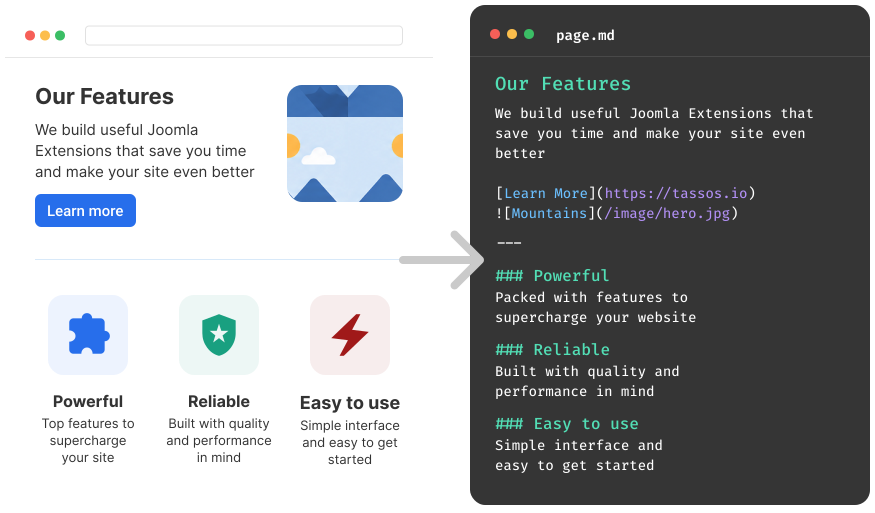
Serve clean Joomla-aware Markdown pages with dedicated .md URLs. Help AI Agents like ChatGPT and Claude read, understand and share your valuable content.
HTML to Markdown Conversion is available in Pro
How content is discovered online is changing. Traffic no longer comes only from search engines. AI crawlers and agents are now a significant source, and they operate on a web that was built for humans.
Treating agents as first-class visitors means giving them content they can actually use. They fetch full HTML pages, scripts, modules, chrome, and all, and every unnecessary token costs more to process. Markdown strips that away, leaving only the content and your JSON-LD structured data.
This guide will help you enable HTML-to-Markdown conversion on your Joomla site.
Convert HTML to Markdown in Joomla
Follow the steps below to enable real-time HTML to markdown conversion in any page in your Joomla site.
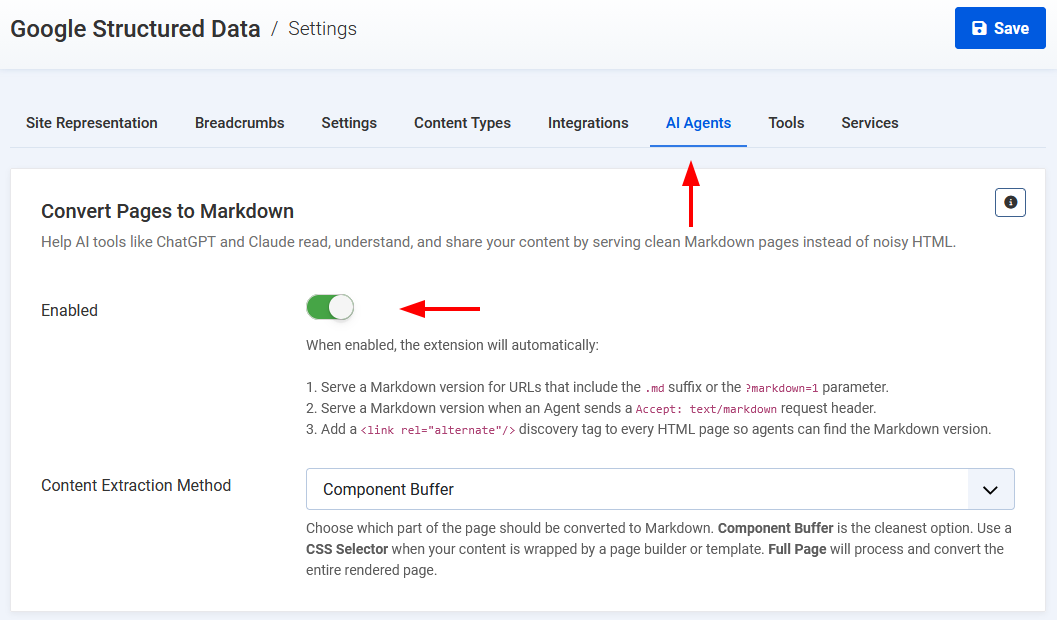
- Log in to your Joomla administrator
- Go to Components → Google Structured Data → Configuration
- Open the AI Agents tab
- Enable the Convert Pages to Markdown toggle
- Optionally, set the Content Extraction Method to control which part of the page gets converted
- Component Buffer extracts the component's raw HTML output before the template wraps it. This is the cleanest option and works well for standard Joomla articles and views.
- CSS Selector lets you target a specific element in the final rendered HTML. Useful when your content lives inside a page builder or custom template wrapper. Set your selector in the field that appears below (e.g.
.article-content,#main article). - Optionally, toggle YAML Frontmatter to prepend metadata (title, description, URL, language) to the Markdown output. It is off by default.
- Optionally, toggle Schema Summary to append your page's Schema.org JSON-LD to the Markdown output. It is off by default.
- Full Page converts the entire rendered HTML once Joomla has finished rendering. Use it as a last resort when the other 2 methods miss content.
Accessing Markdown Pages
There are 3 ways to request a Markdown page.
-
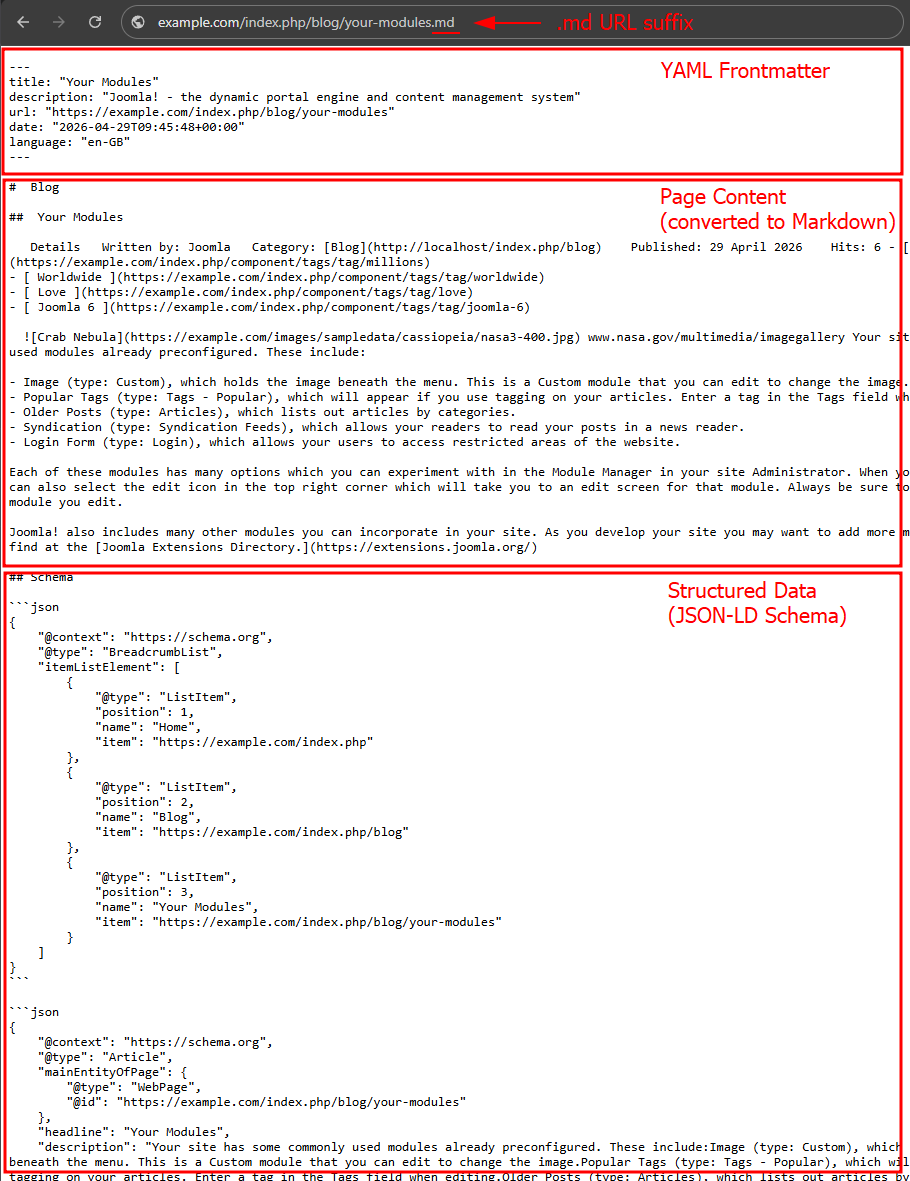
.md URL suffix: Append
.mdto any page URL. For example,/my-article.mdreturns the Markdown version of/my-article. These URLs are independently cacheable and work in any HTTP client without setting custom headers. Joomla's SEF URLs must be enabled for this method to work. - ?markdown=1 query parameter: A fallback for testing or for clients where you can't set custom headers. Works on any page.
-
Content Negotiation: An agent that sends
Accept: text/markdowngets Markdown automatically. This allows clients to request different representations of the same resource using the HTTP-standard Accept header, rather than requiring different URLs. The same URL serves HTML to browsers and Markdown to agents, depending on the client's request. No URL changes needed on your end.Try it yourself:
# Responds with HTML
curl https://tassos.gr/docs/google-structured-data/functionality/html-to-markdown

# Responds with Markdown
curl -H "Accept: text/markdown" https://tassos.gr/docs/google-structured-data/functionality/html-to-markdown
What's Included in a Markdown Page
Each Markdown page response is structured and predictable, making it easy for both humans and AI agents to parse and use.
YAML Frontmatter
YAML frontmatter is an authoring convention popularized by Jekyll that provides a way to add structured metadata to Markdown pages. It is a block of key-value content enclosed between two delimiters at the top of the file, and is well understood by most static site generators, AI agents, and developer tooling.
In each Markdown response, the frontmatter includes the following properties:
title: The page title as set in the document.description: The page meta description.url: The canonical URL of the HTML page. Its primary job is to tell an agent "this content belongs to this page" so it can cite it properly in a response to a human.date: The publication date of the content in ISO 8601 format. Falls back to the current date if no publication date is available.language: The language tag of the current page (e.g.en-GB).
The frontmatter block is controlled by the YAML Frontmatter setting in the AI Agents tab and is off by default. To enable it, follow the steps below:
- Log into your Joomla backend.
- Go to Components → Google Structured Data → Configuration.
- Open the AI Agents tab.
- Set YAML Frontmatter to Yes.
- Save.
Page Content
This is the main body of the page, cleaned up and transformed for readability. The exact content included depends on the Content extraction method configured in the plugin settings. The following transformations are applied:
- Elements stripped. Navigation, scripts, styles, forms, and interactive elements are removed, leaving only the readable text.
- Relative URLs converted to absolute. All relative links and image sources are resolved to their full absolute URLs.
- Relative URLs converted to absolute. All relative links and image sources are resolved to their full absolute URLs.
- Marked elements removed. Any element carrying the
data-gsd-markdown-ignoreattribute is stripped, along with its contents, before conversion. Use it to keep ads, related-post widgets, or interactive blocks out of the Markdown output without affecting the HTML page.
Add the attribute to the wrapping element you want excluded:
<div data-gsd-markdown-ignore>
  This block is excluded from the Markdown version.
</div>
JSON-LD Schema
When the Schema Summary setting is enabled (in the AI Agents tab; off by default), the full JSON-LD structured data is appended at the bottom of the Markdown response as a fenced code block. This is the exact same schema markup that Google Structured Data generates for search engines, types like Article, Product, Event, and more, giving AI agents rich semantic context about the page in a format they can parse directly, without having to infer it from the content.
Header Responses
Every Markdown response also includes the following HTTP headers:
X-Markdown-Tokensan estimated count of how many tokens the Markdown response contains. AI models have a limit on how much text they can process at once, often called a context window. This header lets an agent check the size of a page before reading it, so it can decide whether it fits within that limit.Vary: Acceptsignals to caches that the response differs by content type, so browsers and agents each get the right version.X-Robots-Tag: nonekeeps Markdown URLs out of search results.noneis equivalent tonoindex, nofollow. Without this, search engines could index both the HTML and Markdown versions of the same page, creating duplicate content. This header tells crawlers to skip the Markdown URL entirely and index only the canonical HTML page. Thenofollowbehavior also prevents crawlers from following links in the Markdown response — since those links already exist on the canonical HTML page, there is nothing new for a crawler to discover here.Link: <url>; rel="canonical"points HTTP clients and caches back to the canonical HTML URL, mirroring the url property in the YAML frontmatter, but at the transport layer.
Helping Agents Discover Markdown Version
Google Structured Data injects a <link rel="alternate" type="text/markdown"> tag into the <head> of every HTML page. Agents that visit the HTML version can find the Markdown URL automatically, without any prior knowledge of the URL structure.
<link rel="alternate" type="text/markdown" href="https://site.com/docs/getting-started.md" />The alternate URL format depends on your site's SEF URL setting. With SEF URLs enabled, it uses the .md suffix (e.g. /my-article.md). With SEF URLs disabled, it falls back to the ?markdown=1 query parameter.
Caching Markdown Pages
Markdown output is cached using Joomla's cache layer. Each entry is keyed by URL and language, so multilingual sites get separate cached entries per language.
- Automatic invalidation. The cache is cleared automatically when an article is updated in the backend, or when you change the Markdown extraction or output settings.
- Lifetime. Cache duration follows the value set in Joomla's global configuration under System → Global Configuration → Cache Time.
- Logged-in users are never cached. Markdown pages for logged-in users are always generated fresh. This prevents content that's only visible to authenticated users from leaking into a cached response that a guest could later retrieve.
Clearing the Cache
To manually clear the Markdown cache for all pages on your site:
- Log in to your Joomla administrator
- Go to System → Maintenance → Clear Cache
- Find
gsd_markdownin the list of cache groups - Select it and click Delete
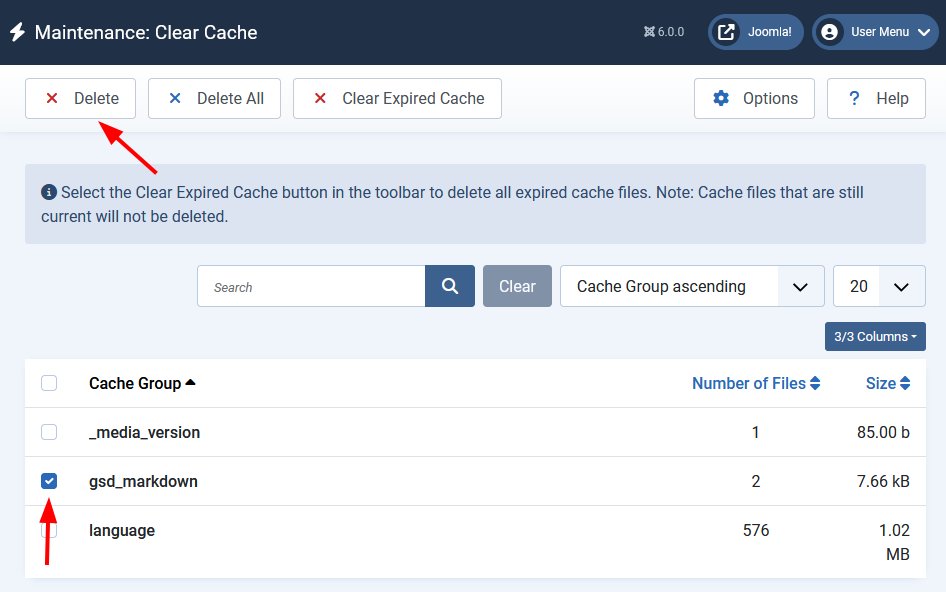
This wipes the cached Markdown version of every page on your site. The next request to any Markdown URL will regenerate and re-cache it.
Forcing a Cache Refresh
Add ?force_update=1 to a Markdown request for that page. The cached version is discarded and a fresh response is generated and stored in its place. This only works when the request is already a Markdown request:
https://example.com/my-article.md?force_update=1
https://example.com/my-article?markdown=1&force_update=1
It also works when sending an Accept: text/markdown header with ?force_update=1. Visiting a regular HTML URL with ?force_update=1 alone has no effect.
Cloudflare Markdown for Agents: Compatibility and Limitations
Cloudflare recently launched a feature called Markdown for Agents that can convert HTML pages to Markdown at the CDN level. When enabled on your Cloudflare zone, Cloudflare intercepts requests with an Accept: text/markdown header, fetches the HTML from your origin, converts it on the fly, and returns Markdown to the agent.
If you use both, disable one of them. When both are active, Cloudflare forwards the Accept: text/markdown header to your origin and Google Structured Data intercepts it, serving Markdown back to Cloudflare. What Cloudflare does at that point is not confirmed — it may detect the Content-Type: text/markdown response and pass it through unchanged, or it may attempt to re-process it. The safest approach is to run only one at a time.
The recommendation is to keep Google Structured Data's conversion enabled and disable Cloudflare's Markdown for Agents. Here's why:
- Cloudflare has no knowledge of your Joomla structure. It converts the full HTML, including template chrome, module positions, and any other blocks on the page. Google Structured Data knows exactly which part of the page is the component output and strips everything else out.
- Cloudflare can't include your structured data. The JSON-LD schema Google Structured Data generates for search engines is appended to the Markdown response when the Schema Summary setting is enabled. No CDN layer can replicate that, because the data comes from your Joomla configuration and content.
- Cloudflare's frontmatter is limited. It includes a title and description. Google Structured Data also includes the canonical URL, publication date, and language tag.
- No dedicated Markdown URLs. Cloudflare's conversion only responds to the
Accept: text/markdownheader. There are no.mdURLs or?markdown=1parameters — no way to link directly to a Markdown version of a page. - No discoverability. Cloudflare doesn't inject a
<link rel="alternate" type="text/markdown">tag into your HTML pages. Agents visiting the HTML version have no way to discover that a Markdown version exists.
If you prefer to use Cloudflare's conversion instead, disable the Convert Pages to Markdown toggle in Google Structured Data's configuration. The two should not run at the same time.
Troubleshooting
The Markdown version shows outdated content
The page is being served from cache. Add ?force_update=1 to a Markdown request to clear the cached version and regenerate it.
Markdown URLs are being redirected
This usually happens when Joomla's System - SEF plugin runs before System - Google Structured Data and rewrites the URL on its own. Go to System → Manage → Plugins, filter by type System, and give System - Google Structured Data a lower ordering number than System - SEF so it runs first. Then request the Markdown URL again with ?force_update=1 to refresh the page's cache, or clear your cache.
Markdown URLs return a 404
If your site has Joomla's SEF options Add Suffix to URL or Trailing Slash enabled (System → Global Configuration → Site), older builds could return a 404 for .md URLs, or redirect the request back to the HTML page. This is resolved in version 6.2.1. After updating, clear your cache and request the Markdown URL again. As a fallback that works regardless of your SEF settings, use the ?markdown=1 query parameter or send an Accept: text/markdown header.
A Markdown request returns the full HTML page
A page-cache or optimization plugin such as JCH Optimize may have cached the HTML response and served it for the Markdown request. This is fixed in version 6.2.1, where Markdown requests bypass these caches. If you still encounter it, clear both the optimization plugin's cache and Joomla's cache, then retry the Markdown URL with ?force_update=1.
Frequently Asked Questions
How do I generate the Markdown version of the homepage?
Add ?markdown=1 to your homepage URL. For example: https://example.com/?markdown=1. You can also use the .md suffix, but the exact URL depends on your site's SEF URL structure.
Can I select a specific part of the page for conversion?
Yes. In the configuration, set the Content Extraction Method to CSS Selector, then enter your selector in the field below. The first matching element in the rendered HTML will be converted.
Does this plugin work with page builders like SP Page Builder or Yootheme?
Yes. If the Component Buffer method doesn't capture the content rendered by your page builder, switch to CSS Selector and target the wrapper element that contains your main content. Use Full Page only if a reliable CSS selector can't be identified.
How long is the Markdown cached?
Markdown pages use the cache lifetime from Joomla's global configuration. You can adjust it under System → Global Configuration → Cache Time.
Will the Markdown URLs hurt my SEO or create duplicate content?
No. Each Markdown page ships with an X-Robots-Tag: none header (equivalent to noindex, nofollow) and a canonical link pointing back to your HTML page. Google won't index the .md version or treat it as a duplicate. It won't raise your rankings either, and we're not claiming it does. The feature adds an AI-readable layer without touching how your normal pages rank.
Do I need to be a developer to use this?
Not at all. It's a single toggle under Components → Google Structured Data → Configuration → AI Agents. The default extraction method, Component Buffer, works for standard Joomla articles out of the box. You only touch the other settings if your content lives inside a custom page builder.
Does this replace my structured data markup?
No, it builds on it. With the Schema Summary setting enabled, Google Structured Data appends your full JSON-LD schema as a code block inside every Markdown page. So AI agents read your content and your structured data together, in one request. That's an advantage generic CDN converters can't match, since they never see your schema.
Isn't an llms.txt file enough on its own?
Probably not. Ahrefs found that 97% of published llms.txt files are never requested by any bot, and Google confirmed in July 2025 it doesn't support the format (Ahrefs, 2026). Serving real Markdown pages through .md URLs and content negotiation reaches agents directly, which is the more dependable approach.
Which content extraction method should I choose?
Start with Component Buffer, the default. It captures your article's output before the template wraps it, which gives the cleanest result for standard Joomla content. Switch to CSS Selector if your content sits inside a page builder, and keep Full Page as a last resort if the other two miss anything.
HTML to Markdown Conversion is available in Pro
Unlock this and dozens of other powerful features by upgrading to Google Structured Data Pro.
Unlock this feature
Last updated on Jul 3rd 2026 13:07
In This Article
- Convert HTML to Markdown in Joomla
- Accessing Markdown Pages
- What's Included in a Markdown Page
- Helping Agents Discover Markdown Version
- Caching Markdown Pages
- Cloudflare Markdown for Agents: Compatibility and Limitations
- Troubleshooting
- Frequently Asked Questions
- How do I generate the Markdown version of the homepage?
- Can I select a specific part of the page for conversion?
- Does this plugin work with page builders like SP Page Builder or Yootheme?
- How long is the Markdown cached?
- Will the Markdown URLs hurt my SEO or create duplicate content?
- Do I need to be a developer to use this?
- Does this replace my structured data markup?
- Isn't an llms.txt file enough on its own?
- Which content extraction method should I choose?

Tassos offers a premium suite of Joomla extensions with 7 products and over 2.4 million downloads, providing reliable solutions since 2014.


 Rated:
Copyright © 2014 - 2026 - Smile Motive Development LP. All Rights Reserved.