

Unlock this and dozens of other powerful features by upgrading to Google Structured Data Pro.
Unlock this feature
-
- DJ-Catalog2
- DJ-Classifieds
- DJ-Events
- DPCalendar
- EasyBlog
- Eshop
- Event Booking
- Gridbox
- HikaShop
- iCagenda
- J2Commerce
- JBusiness Directory
- JCal Pro
- JEvents
- Joomla Articles
- Joomla Menu Manager
- JoomShopping
- JReviews
- K2
- OSCampus Structured Data
- Quix Page Builder
- RSBlog
- RSEventsPro
- SEO Glossary
- SobiPro
- SP Page Builder
- VirtueMart
- YOOtheme
- ZOO
-
- Troubleshoot Structured Data not Added to the Page
- Troubleshoot Structured Data not Identified by the Google Rich Results Tool
- Troubleshoot Structured Data not Showing in Search Results
- Preview button not showing on Structured Data Testing Tool
- I am seeing the "is not a known valid target type for the identifier property" error
- Fixing Error decoding JSON data in Joomla Articles
- Fix missing Google Structured Data tab in the Article Editing Page
-
- How to map schema properties using CSS Selectors
- How to Export and Import Google Structured Data Items
- HTML to Markdown Conversion
- Adding Facebook Open Graph Meta Data
- Site Representation Settings
- Use Structured Data for Google Merchant
- Create Multilingual Structured Data Items
- Use the Custom Code Content Type
- Prepare Content option
- Using the Schema Cleaner
J2Commerce Structured Data
Add Product structured data to all J2Commerce (previously known as J2Store) products. Show prices, reviews, and availability in search results. Help customers find your Joomla store products more easily.
J2Commerce Structured Data is available in Pro
Google Structured Data integrates seamlessly with the J2Commerce component and enables you to add structured data, specifically the Product Content Type, to your J2Commerce pages.
Enable Integration
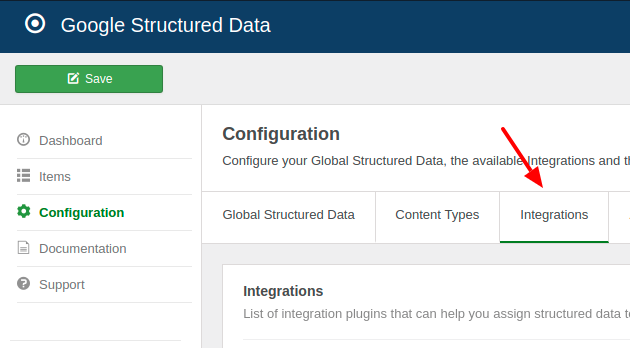
As with all of the integrations, go to Components → Google Structured Data → Configuration and open the Integrations tab, where all integrations are listed.
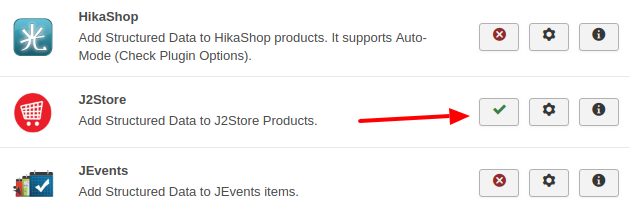
Find the "J2Store" Integration in the list and make sure that it is enabled with the green checkmark indicator as shown in the screenshot below.
Add Product Structured Data to J2Store Pages
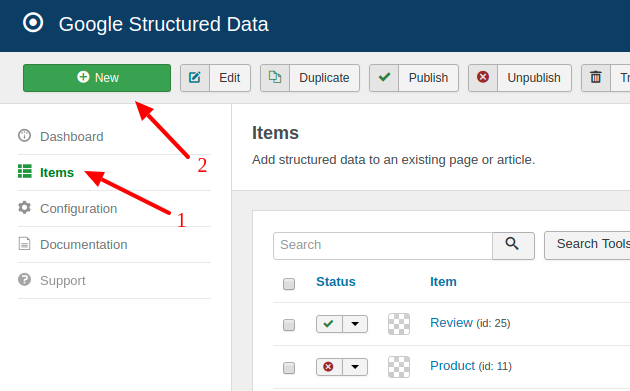
Let's see how you can add the Product Content Type to J2Store pages. Go to Components → Google Structured Data → Items and click New to create a new structured data item.
Enter a Title, then select the Product content type and the J2Store(J2Commerce) integration. Integration View is filled in automatically with Product Detail.
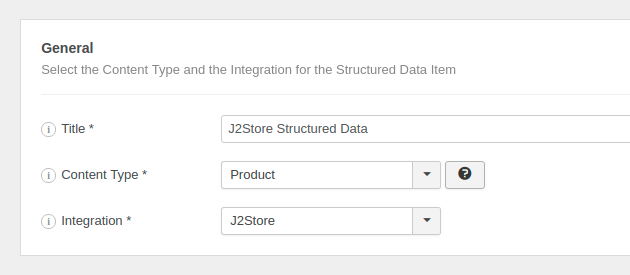
Once you pick a content type and an integration, the form reloads and 2 new sections appear:
- Product: This section helps you map the content type properties with page fields, custom fields, site info or custom values.
- Publishing Rules: This is where you can select the pages where the structured data is going to be generated to.
To learn more details on how you can use these sections visit the How to Add Structured Data to Pages documentation page.
Publishing Rules
In case, you don't want to generate the Product Content Type to all pages, you can use the available publishing rules to target specific pages. Each rule is Disabled by default. Set it to Include or Exclude and pick the items. The J2Store Integration implements the following publishing rules:
| Name | Description |
|---|---|
| Product | Target specific J2Store Products only. |
| Category | Target all products assigned to specific J2Store categories. |
To learn more about the Publishing Rules section visit the How to add Structured Data to Pages documentation page.
Remember, in case you don't enable any publishing rules, the structured data will be generated on all J2Store pages.
The Product Schema is not added to J2Store Pages
The Product Schema is very likely to not be added to J2Store Product pages when you're displaying J2Store Products using the Joomla! Articles menu types rather than the J2Store menu types.
Since J2Store is heavily based on the Joomla! Articles, it's very convenient to use the Articles menu types to display products on the front-end. However, when you access a product through an Article-based menu type such as the Single Article or the Category Blog layout, what you see is actually an Article and not a J2Store product. In that case, the Google Structured Data extension fails to recognize the page as a J2Store Product and the assigned Product Structured Data nevers gets added to the page.
The Solution
The solution to this issue, is to change your menu items and switch over to the J2Store menu types. For instance, if you're using the Article → Category Blog layout to display a category of products, you should modify your menu item to use a J2Store-based list layout such as the Products List View or the Products Tag layouts.
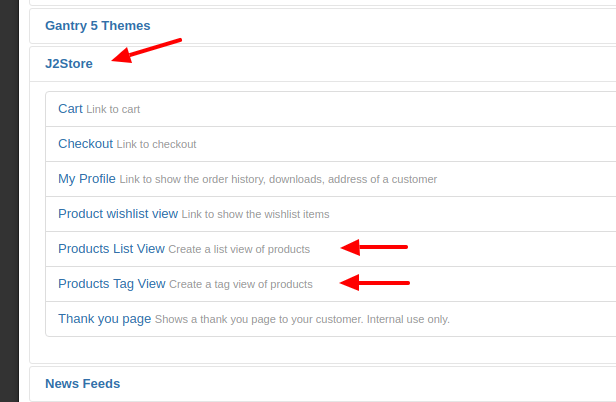
Keep in mind that this is a limitation of the J2Store extension rather than a bug in the Google Structured Data extension code.
Notes
The Structured Data is generated only in the Products component view where a single J2Store Product is displayed. The Category or List views are not currently supported.
J2Commerce Structured Data is available in Pro
Unlock this and dozens of other powerful features by upgrading to Google Structured Data Pro.
Unlock this feature
Last updated on Oct 15th 2026 17:10
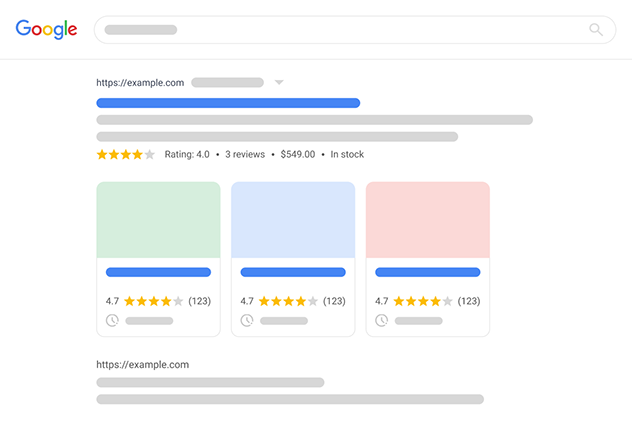
Schema and Structured Data Extension for Joomla
Markup your content with structured data and enhance the appearance of your website with rich results. Boost Joomla SEO in a few clicks.

Tassos offers a premium suite of Joomla extensions with 7 products and over 2.4 million downloads, providing reliable solutions since 2014.


 Rated:
Copyright © 2014 - 2026 - Smile Motive Development LP. All Rights Reserved.