An Educational Occupational Program is a structured set of courses that leads somewhere, like a learning path, a training track or a certificate program. Marking it up tells search engines what the program is called, what it covers, and which courses it's made of. Use it on the page that presents the program as a whole. The courses inside it get the Course Content Type on their own pages.
- Log into your Joomla backend.
- Go to Components → Google Structured Data → Items.
- Click New.
- Enter a Title. It's for your own reference, so anything works.
- Select Educational Occupational Program in the Content Type dropdown.
- Select the Integration of the component that holds your programs.
- Click Save.
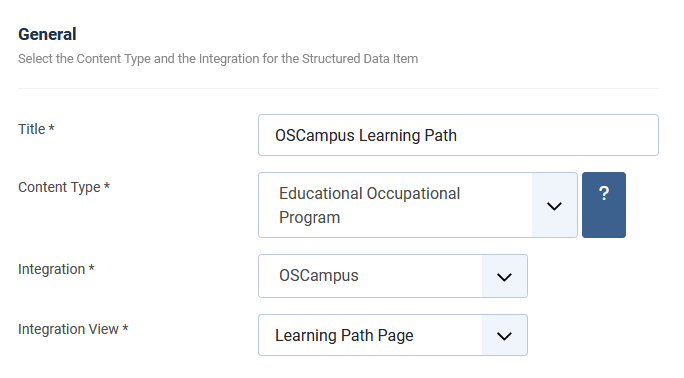
Once the page reloads, a new section called Educational Occupational Program appears, where you map each property to page data.
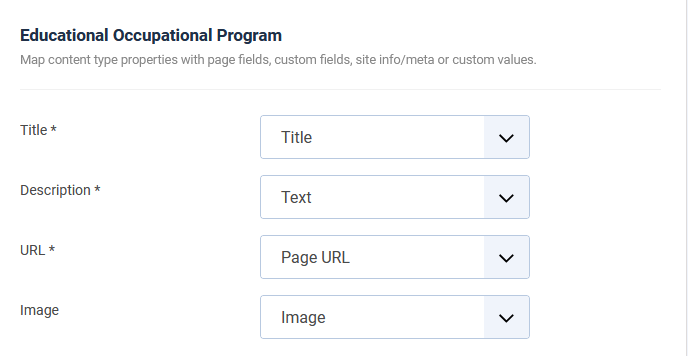
To read more about how the mapping works, visit the respective section of the How to Add Structured Data to Pages guide.
| Name |
Description |
| Title |
The name of the program. |
| Description |
A description of the program. |
| URL |
The URL of the page that describes the program. |
| Image |
An image that represents the program. |
The Title, Description and URL properties are required. Image is optional.
Always mark up content that visitors can see on the page. Markup that describes hidden content can lead to a spammy structured markup penalty.
The Educational Occupational Program lists its courses in its hasCourse property, each course with its name, URL, description and image.
There's no field to map for this list. The Integration supplies it, so the list appears only with an Integration that knows which courses belong to a program, such as the OSCampus Integration, where every learning path lists its courses in the order OSCampus shows them. With any other Integration, the markup describes the program on its own, with no course list.
This section controls the pages where your Educational Occupational Program item runs. Every Integration comes with its own publishing rules, so the options depend on the Integration you picked. With OSCampus, the Learning Path rule targets specific learning paths.
Leave all options Disabled to apply the schema on every page the selected Integration covers.
To learn more about the Publishing Rules section, visit the How to Add Structured Data to Pages guide.
The Schema Markup Validator checks every schema.org type, including this one.
- Visit the Schema Markup Validator.
- Enter the URL of your program page and click RUN TEST.
- Check that the EducationalOccupationalProgram item is detected, that it lists its courses under
hasCourse, and that it has no errors.
No. Map the properties to page data and one item covers every program page that its Publishing Rules target.
Use Course on the page of a single course, and Educational Occupational Program on the page that groups several courses into a path. On a site with both kinds of page, create one item of each. With OSCampus, the program markup then points at the page of every course it holds.
The course list comes from the Integration. Check that you selected an Integration that supplies it, such as OSCampus, and that the program has published courses the visitor can view.





 Rated: