

Unlock this and dozens of other powerful features by upgrading to Google Structured Data Pro.
Unlock this feature
-
- DJ-Catalog2
- DJ-Classifieds
- DJ-Events
- DPCalendar
- EasyBlog
- Eshop
- Event Booking
- Gridbox
- HikaShop
- iCagenda
- J2Commerce
- JBusiness Directory
- JCal Pro
- JEvents
- Joomla Articles
- Joomla Menu Manager
- JoomShopping
- JReviews
- K2
- OSCampus Structured Data
- Quix Page Builder
- RSBlog
- RSEventsPro
- SEO Glossary
- SobiPro
- SP Page Builder
- VirtueMart
- YOOtheme
- ZOO
-
- Troubleshoot Structured Data not Added to the Page
- Troubleshoot Structured Data not Identified by the Google Rich Results Tool
- Troubleshoot Structured Data not Showing in Search Results
- Preview button not showing on Structured Data Testing Tool
- I am seeing the "is not a known valid target type for the identifier property" error
- Fixing Error decoding JSON data in Joomla Articles
- Fix missing Google Structured Data tab in the Article Editing Page
-
- How to map schema properties using CSS Selectors
- How to Export and Import Google Structured Data Items
- HTML to Markdown Conversion
- Adding Facebook Open Graph Meta Data
- Site Representation Settings
- Use Structured Data for Google Merchant
- Create Multilingual Structured Data Items
- Use the Custom Code Content Type
- Prepare Content option
- Using the Schema Cleaner
Defined Term Structured Data
Add DefinedTerm structured data to glossary entries, encyclopedia pages and acronym lists. Set the term, its definition, the names it also goes by, and the set of terms it belongs to.
Defined Term Structured Data is available in Pro
The Defined Term schema type is not officially supported by Google. It will not be detected in the Google Rich Results Test, but it is fully valid according to the Schema.org Validator.
Even though Google Search may not directly use this type, structured data can still provide value. Other Google services, third-party search engines, and AI models such as ChatGPT can read it to better understand your content.
Remember: today we should not add structured data only for Google, but also for the broader web ecosystem, including alternative search engines and AI systems.
A Defined Term is a single entry of a glossary, dictionary or vocabulary. By marking up your glossary with structured data, you tell search engines that the page defines one term, what the term means, which other names it goes by, and which set of terms it belongs to. It is the right Content Type for glossary pages, encyclopedia entries, acronym lists and any page that explains one word or phrase. Let's see how you can assign the Defined Term Content Type to a page.
How to markup Joomla Pages with the Defined Term Schema
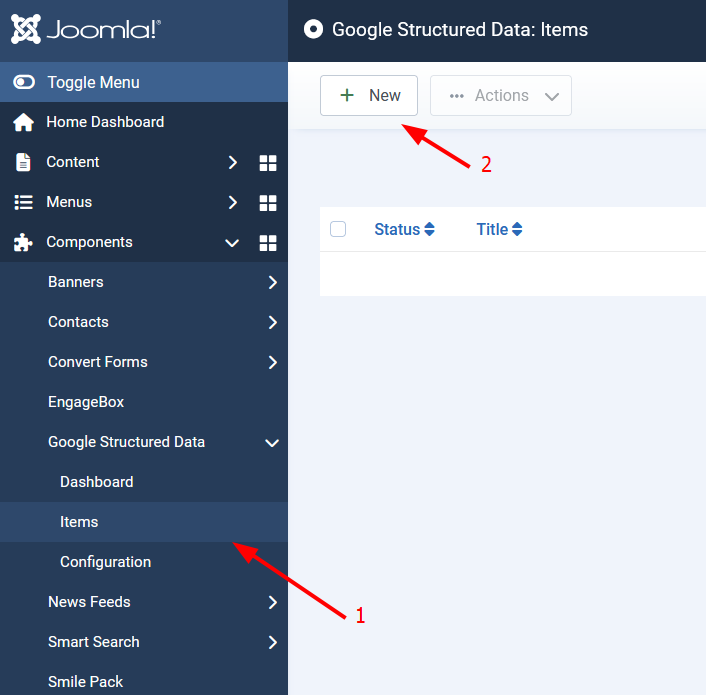
From the main menu choose Components → Google Structured Data. Click on Items from the left sidebar and then on the New button to create a new Structured Data Item.
On the next page, you will need to prepare the Structured Data Item. Enter a Title (it can be anything) and select the Defined Term Content Type from the respective dropdown.
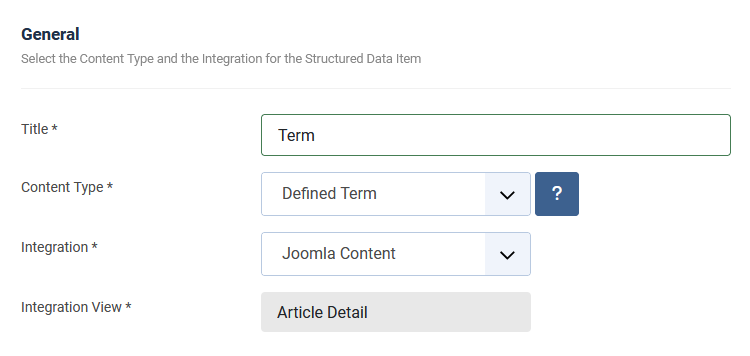
Τhe Integration option may vary depending on the component you want to markup at that time. View the Supported Integrations.
Next, click to save the Structured Data Item. Once the page reloads, a new section called Defined Term appears below where you can map each property with page data.
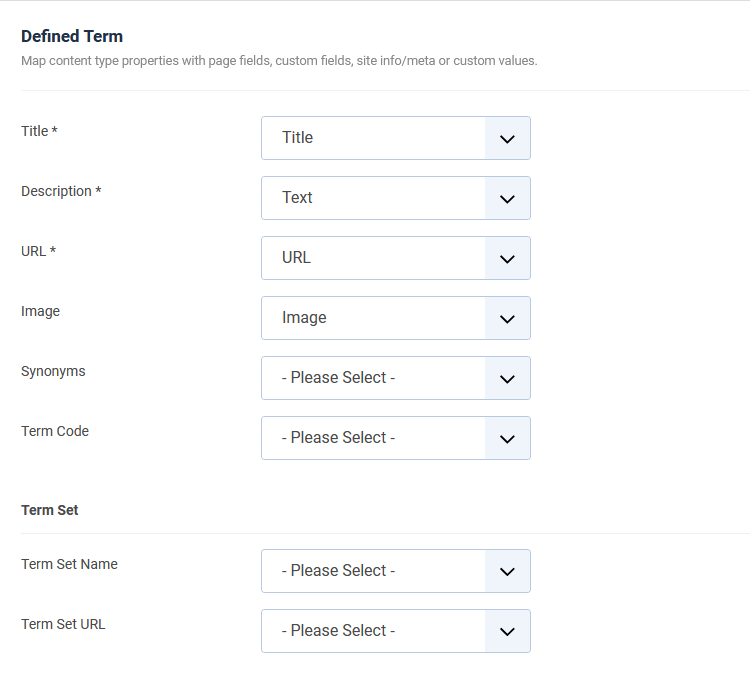
To read more details on how the mapping works, visit the respective section in the How to Add Structured Data to Pages guide.
Defined Term Schema Properties
Here's a table of the properties you can define in the Defined Term Content Type.
| Name | Description |
|---|---|
| Title | The name of the term. |
| Description | The definition of the term. |
| URL | The URL of the page that describes the term. |
| Image | An image that illustrates the term. |
| Synonyms | Other names for the term. Separate multiple synonyms with a comma. Each one is added to the markup as a separate value. |
| Term Code | A code that identifies the term within its term set. For example, an entry number or an acronym. |
| Term Set Name | The name of the glossary or vocabulary the term belongs to, e.g. the title of the article category. |
| Term Set URL | The URL of the page that lists the terms of the set. |
The Title, Description and URL properties are required. The rest are optional.
Every property can also read its value straight from the page. Choose the CSS Selector mapping option and enter a selector, such as .glossary-term h1, when your glossary is built with a page builder and the value is not available as a page property.
The Term Set
A term rarely stands on its own. The Term Set section describes the glossary the term belongs to, so that search engines can group all your terms together instead of reading each page as an unrelated definition.
Map Term Set Name to the name of the glossary and Term Set URL to the page that lists its terms. On a Joomla article, that is usually the category title and the category page.
Leave both Term Set fields empty if you prefer to omit the set. In that case the markup describes the term only.
General rule: Always markup content that is displayed on the page to visitors. Doing otherwise you may end up with a Spammy Structured Markup Penalty.
Publishing Rules
In this section you will be able to control the pages where your Defined Term Item will be applied. With the Joomla Content Integration selected, the following rules are available.
| Name | Description |
|---|---|
| Article | Select which Joomla Articles will contain the Defined Term structured data. |
| Category | Select which Joomla Categories will contain the Defined Term structured data. |
Every Integration comes with its own publishing rules. If your glossary lives in a third party component, select that Integration instead and the rules of that component appear here. See the Supported Integrations for the full list.
Leave all options Disabled to apply the Defined Term schema on every page the selected Integration covers.
To learn more about the Publishing Rules section visit the How to Add Structured Data to Pages guide.
Validate your Defined Term markup
Google's Rich Results Test reports no eligible items for this schema type, because Google has no rich result for it. Use the Schema Markup Validator instead.
- Visit the Schema Markup Validator.
- Enter the URL of your term page and click RUN TEST.
- Check that the DefinedTerm item is detected and that it has no errors.
Useful Links
- Schema.org DefinedTerm Documentation
- Schema.org DefinedTermSet Documentation
- Google Structured Data General Guidelines
Frequently Asked Questions
Can I add the Defined Term Schema to a glossary component?
Yes. Select the matching Integration when you create the Structured Data Item and the markup is generated on every term page. See the SEO Glossary Integration for an example.
Do I need one Structured Data Item per term?
No. Map the properties to page data, such as the article title and the article text, and one Structured Data Item covers every term page that the Publishing Rules target.
What is the difference between the Defined Term and the Article Content Type?
The Article Content Type describes a page as a piece of writing, with an author, a publish date and a publisher. The Defined Term Content Type describes the page as one entry of a vocabulary. Pick Defined Term when the page exists to explain a single word or phrase.
Defined Term Structured Data is available in Pro
Unlock this and dozens of other powerful features by upgrading to Google Structured Data Pro.
Unlock this feature
Last updated on Sep 9th 2026 10:09
Schema and Structured Data Extension for Joomla
Markup your content with structured data and enhance the appearance of your website with rich results. Boost Joomla SEO in a few clicks.

Tassos offers a premium suite of Joomla extensions with 7 products and over 2.4 million downloads, providing reliable solutions since 2014.


 Rated:
Copyright © 2014 - 2026 - Smile Motive Development LP. All Rights Reserved.