

Unlock this and dozens of other powerful features by upgrading to Google Structured Data Pro.
Unlock this feature
-
- DJ-Catalog2
- DJ-Classifieds
- DJ-Events
- DPCalendar
- EasyBlog
- Eshop
- Event Booking
- Gridbox
- HikaShop
- iCagenda
- J2Commerce
- JBusiness Directory
- JCal Pro
- JEvents
- Joomla Articles
- Joomla Menu Manager
- JoomShopping
- JReviews
- K2
- OSCampus Structured Data
- Quix Page Builder
- RSBlog
- RSEventsPro
- SEO Glossary
- SobiPro
- SP Page Builder
- VirtueMart
- YOOtheme
- ZOO
-
- Troubleshoot Structured Data not Added to the Page
- Troubleshoot Structured Data not Identified by the Google Rich Results Tool
- Troubleshoot Structured Data not Showing in Search Results
- Preview button not showing on Structured Data Testing Tool
- I am seeing the "is not a known valid target type for the identifier property" error
- Fixing Error decoding JSON data in Joomla Articles
- Fix missing Google Structured Data tab in the Article Editing Page
-
- How to map schema properties using CSS Selectors
- How to Export and Import Google Structured Data Items
- HTML to Markdown Conversion
- Adding Facebook Open Graph Meta Data
- Site Representation Settings
- Use Structured Data for Google Merchant
- Create Multilingual Structured Data Items
- Use the Custom Code Content Type
- Prepare Content option
- Using the Schema Cleaner
SEO Glossary Structured Data
Add Defined Term structured data to every SEO Glossary term by JoomUnited. Create one Structured Data Item and the markup is generated on all published terms, no matter how many your glossary holds.
SEO Glossary Structured Data is available in Pro
Google Structured Data integrates perfectly with SEO Glossary by JoomUnited and enables you to add structured data, and specifically the Defined Term Content Type, to your glossary term pages. You create one Structured Data Item and the markup is generated on every published term, no matter how many terms your glossary holds.
Enable Integration
As with all of the integrations, you need to navigate to Components > Google Structured Data > Configuration and click the Integrations Tab where all the Integrations are listed.
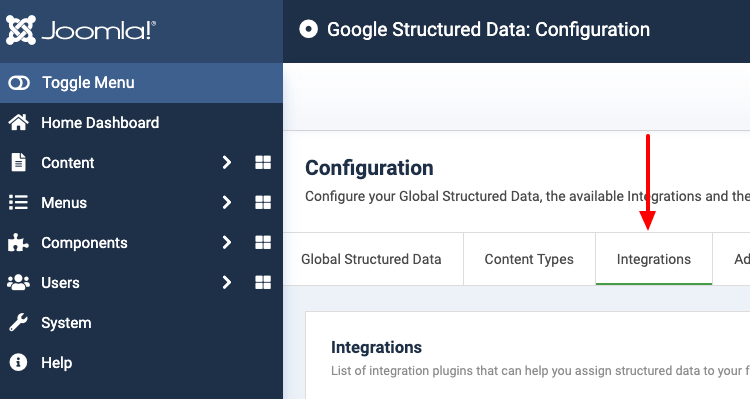
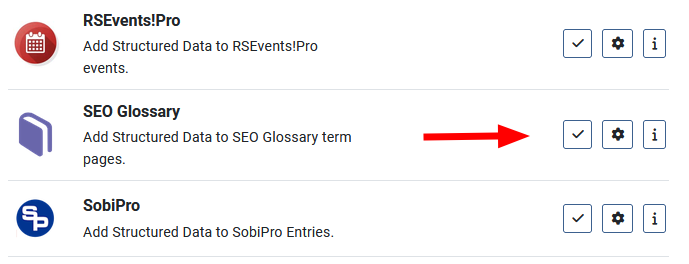
Find the "SEO Glossary" Integration in the list and make sure that it is enabled with the green checkmark indicator as shown in the screenshot below.
Add Defined Term Structured Data to SEO Glossary Terms
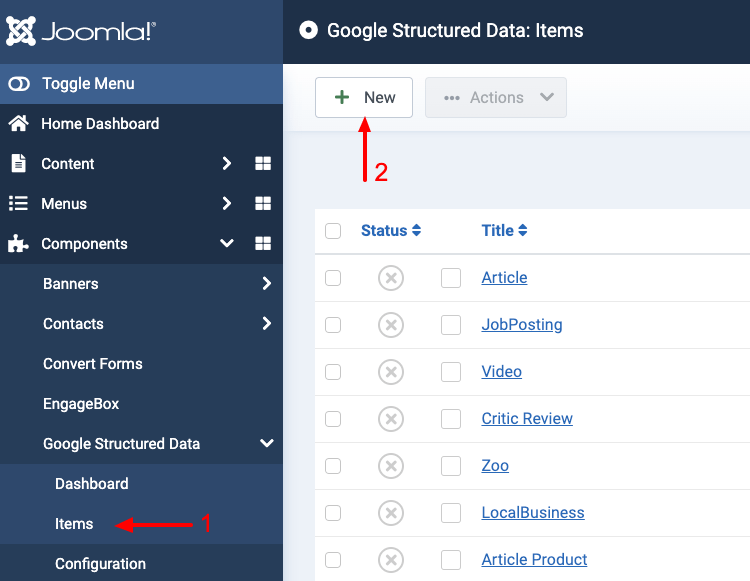
Let's see how you can add the Defined Term Content Type to SEO Glossary terms. From the Components menu, choose Google Structured Data, navigate to the Items section and click on the New button to create a new Structured Data Item.
On the next page, you will see the following 3 options where you will need to select the Defined Term Content Type and the SEO Glossary Integration as shown in the screenshot below.
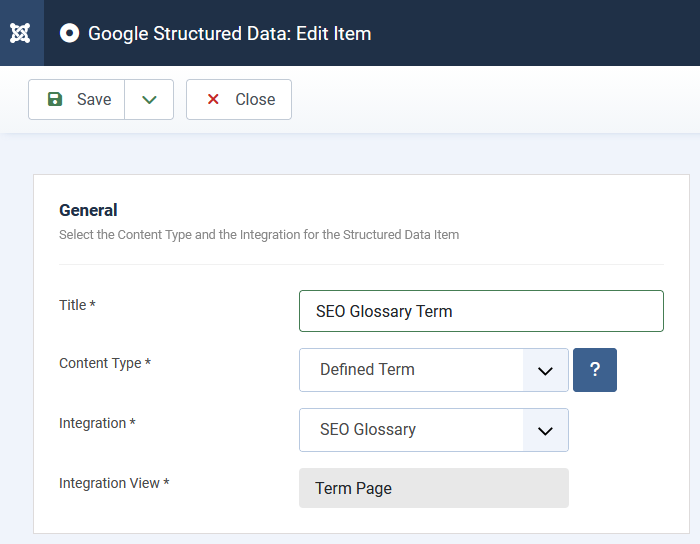
Click Save to return to the same page. Once the item is saved 2 new sections appearing.
- Defined Term: This section helps you map the content type properties with Page options, Meta Properties, Site info and more.
- Publishing Rules: This is where you can select the pages where the structured data is going to be generated to.
To learn more details on how you can use these sections visit the How to Add Structured Data to Pages documentation page.
The Defined Term Content Type is the best match for a glossary, but the SEO Glossary Integration works with the Article Content Type and the rest of the Content Types too.
Map the Term Set
The Defined Term Content Type has a Term Set section that tells Google which glossary the term belongs to. The SEO Glossary Integration exposes the parent glossary, so open the Term Set section and set the two fields as follows.
| Field | Mapping Option |
|---|---|
| Term Set Name | Glossary Name |
| Term Set URL | Glossary URL |
Leave both Term Set fields empty if you prefer to omit the set from the markup.
Mapping Options
On top of the standard Integration options, such as Title, Text and Image, the SEO Glossary Integration adds the following options to every mapping dropdown.
| Name | Description |
|---|---|
| Term URL | The URL of the term page, exactly as SEO Glossary builds it. |
| Synonyms | The synonyms of the term, separated by a comma. |
| Tags | The Joomla tags assigned to the term, separated by a comma. |
| Hits | The number of times the term page has been viewed. |
| Glossary ID | The ID of the glossary the term belongs to. |
| Glossary Name | The name of the glossary the term belongs to. |
| Glossary Description | The description of the glossary the term belongs to. |
| Glossary URL | The URL of the page that lists the terms of the glossary. |
Publishing Rules
In case you don't want to generate the Defined Term Content Type on all term pages, you can use the available publishing rules to target specific terms. The SEO Glossary Integration implements the following publishing rules:
| Name | Description |
|---|---|
| Term | Target specific SEO Glossary terms only. |
| Glossary | Target all terms assigned to specific SEO Glossary glossaries. This rule affects newly created terms as well. |
To learn more about the Publishing Rules section visit the How to add Structured Data to Pages documentation page.
Remember, in case you don't enable any publishing rules, the structured data will be generated on all SEO Glossary term pages.
Notes
- The Structured Data is generated only in the term view where a single SEO Glossary term is displayed. The glossary landing page and the letter pages are not currently supported.
- Unpublished terms, and terms that belong to an unpublished glossary, get no structured data. The Start Publishing and Finish Publishing dates of the term are respected as well.
- A term that points to an external link still gets the structured data on its own term page.
- The Author option returns the name typed in the Author field of the term. If that field is empty, it returns the name of the user who created the term.
- SEO Glossary stores no modification date for its terms, so the Date Modified option returns the creation date of the term.
SEO Glossary Structured Data is available in Pro
Unlock this and dozens of other powerful features by upgrading to Google Structured Data Pro.
Unlock this feature
Last updated on Oct 14th 2026 12:10
Schema and Structured Data Extension for Joomla
Markup your content with structured data and enhance the appearance of your website with rich results. Boost Joomla SEO in a few clicks.

Tassos offers a premium suite of Joomla extensions with 7 products and over 2.4 million downloads, providing reliable solutions since 2014.


 Rated:
Copyright © 2014 - 2026 - Smile Motive Development LP. All Rights Reserved.