

-
- DJ-Catalog2
- DJ-Classifieds
- DJ-Events
- DPCalendar
- EasyBlog
- Eshop
- Event Booking
- Gridbox
- HikaShop
- iCagenda
- J2Commerce
- JBusiness Directory
- JCal Pro
- JEvents
- Joomla Articles
- Joomla Menu Manager
- JoomShopping
- JReviews
- K2
- OSCampus Structured Data
- Quix Page Builder
- RSBlog
- RSEventsPro
- SEO Glossary
- SobiPro
- SP Page Builder
- VirtueMart
- YOOtheme
- ZOO
-
- Troubleshoot Structured Data not Added to the Page
- Troubleshoot Structured Data not Identified by the Google Rich Results Tool
- Troubleshoot Structured Data not Showing in Search Results
- Preview button not showing on Structured Data Testing Tool
- I am seeing the "is not a known valid target type for the identifier property" error
- Fixing Error decoding JSON data in Joomla Articles
- Fix missing Google Structured Data tab in the Article Editing Page
-
- How to map schema properties using CSS Selectors
- How to Export and Import Google Structured Data Items
- HTML to Markdown Conversion
- Adding Facebook Open Graph Meta Data
- Site Representation Settings
- Use Structured Data for Google Merchant
- Create Multilingual Structured Data Items
- Use the Custom Code Content Type
- Prepare Content option
- Using the Schema Cleaner
How to map schema properties using CSS Selectors
CSS Selectors let you pull a schema property's value straight out of your page's HTML. Point a property at an element, tell Google Structured Data what to read from it (text, HTML, an attribute, or a count), and the value gets picked up when the page renders.
This is how you mark up information that has no matching field anywhere in Joomla: content from an unsupported component, a custom module, or a section your page builder generates. When you'd rather hand-write a whole block than map individual properties, the Custom Code content type is the better tool.
Selectors resolve every time a page renders, not when you save the item. One item can therefore cover many pages at once, each property filled from the HTML of whichever page is being viewed.
Map a property to a CSS selector
- Log into your Joomla backend.
- Go to Components → Google Structured Data → Items.
- Open the item you want to edit, or create a new one.
- Find the schema property you want to fill.
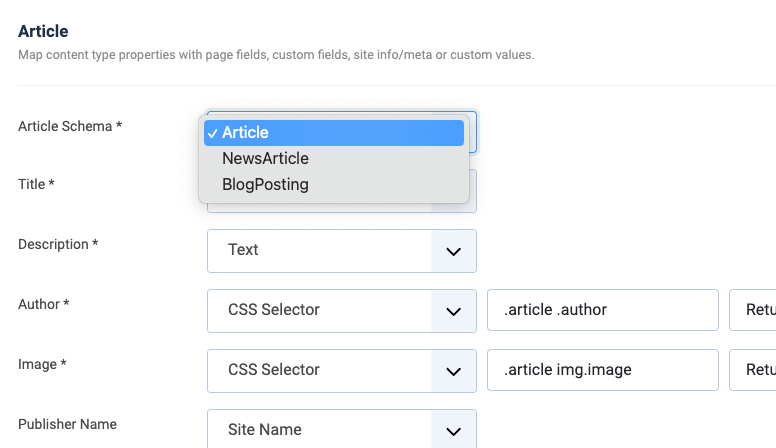
- Open the property's dropdown and pick CSS Selector under the Custom Info group. it sites alongside the other mapping options.
- Type your selector in the Enter CSS Selector box.
- Choose what to read from the matched element in the dropdown next to it.
- Click Save.
Use the item's Publishing Rules section to control which pages it runs on.
What you can read from an element
The second dropdown decides what gets stored in the property.
| Option | What you get |
|---|---|
| Return Node Text | The element's plain text, with tags stripped and whitespace trimmed. The default, and the right choice for names, headings, prices, and short descriptions. |
| Return Node HTML | The full element including its own opening and closing tags. |
| Return Node Inner HTML | Everything inside the element, without the element's own tags. Use it when the property accepts formatted content and you want to keep the markup. |
| Return Attribute Value | The value of a single attribute. A third box appears where you type the Attribute Name, e.g. src for an image or href for a link. |
| Return Nodes Total | How many elements match the selector. Useful for counts like a review or comment total. |
Examples
Say the page contains this markup:
<div class="product">
  <h1 class="title">Blue <em>Widget</em></h1>
  <img class="photo" src="/images/widget.jpg" alt="Blue Widget">
</div>
The first three options all target .title, which is the quickest way to see how they differ:
| Option | Selector | Value stored |
|---|---|---|
| Return Node Text | .title | Blue Widget |
| Return Node HTML | .title | <h1 class="title">Blue <em>Widget</em></h1> |
| Return Node Inner HTML | .title | Blue <em>Widget</em> |
| Return Attribute Value | .photo(Attribute Name:src) | /images/widget.jpg |
| Return Nodes Total | .product img | 1 |
Note how Return Node Text flattens the <em> away while Return Node Inner HTML keeps it. For most schema properties, plain text is what you want, since Google expects a value rather than markup.
Read a list into one property
Some properties accept more than one value. Examples are Learning Outcomes and Subjects on the Course and Learning Resource Content Types, and Synonyms on the Defined Term Content Type. On these properties a CSS Selector reads every matching element, and each match becomes a separate value.
So to turn a bulleted list into a list of values, point the selector at the list items.
.my-outcomes liA selector that matches the list itself, such as .my-outcomes, returns one match, so the whole list becomes a single value. Empty and duplicate matches are dropped.
Selector syntax
The selector parser is deliberately small. It handles tags, classes, IDs, and descendants:
h1
.product-title
h4.question
#faqs .question
.faqs .class1 h4
div.card.featured
Commas, child combinators (>), sibling combinators, attribute selectors, and pseudo-classes like :nth-child aren't supported.
For anything more precise, write an XPath query and start it with an equals sign:
=//h1[contains(@class, "faq-question")]Everything after the = is passed through as raw XPath, so the full expression language is available.
The same selector syntax is used by the HTML to Markdown feature when you point it at a content wrapper.
Troubleshooting
A property comes back empty
Almost always a timing problem. Selectors run against the rendered page, and by default the extension builds its markup before the page is fully assembled, so anything added late isn't there yet.
- Go to Components → Google Structured Data → Options.
- Turn on Wait Page to Render.
- Reload the page and re-test.
If it's still empty, the selector itself is the suspect. Open the page in your browser, inspect the element, and confirm the class or ID you typed is actually on the rendered HTML rather than on a wrapper your template swaps out. Then check it against the supported syntax above. A selector using a comma or a >will silently match nothing.
If nothing at all is being output, the cause is probably upstream of your selector. Work through Structured Data not added to the page first.
Test your finished markup with Google's Rich Results Test before you call it done.
Frequently asked questions
My selector works in the browser, so why not here?
The extension never uses your browser's selector engine. Selectors are parsed in PHP, converted to an XPath query, and run against the page's HTML on the server. That converter is much smaller than what DevTools accepts, so a selector using a comma, a >, or :nth-child matches nothing at all rather than throwing an error.
Rewrite those as XPath with a leading =.
Does it work with content added by JavaScript?
No. Selectors run against the HTML Joomla sends to the browser, before any JavaScript executes. If an element only exists after a script runs, there's nothing to match.
Worth knowing because the element looks present when you inspect the page, since DevTools shows you the DOM after scripts have run.
Can I map more than one matching element to a property?
Yes, on properties that accept more than one value, such as Learning Outcomes or Subjects. There, every match becomes a separate value (see Read a list into one property). All other properties take the first match and ignore the rest. Make the selector more specific, or use Return Nodes Total if what you want is the count.



 Rated: