

-
- DJ-Catalog2
- DJ-Classifieds
- DJ-Events
- DPCalendar
- EasyBlog
- Eshop
- Event Booking
- Gridbox
- HikaShop
- iCagenda
- J2Commerce
- JBusiness Directory
- JCal Pro
- JEvents
- Joomla Articles
- Joomla Menu Manager
- JoomShopping
- JReviews
- K2
- OSCampus Structured Data
- Quix Page Builder
- RSBlog
- RSEventsPro
- SEO Glossary
- SobiPro
- SP Page Builder
- VirtueMart
- YOOtheme
- ZOO
-
- Troubleshoot Structured Data not Added to the Page
- Troubleshoot Structured Data not Identified by the Google Rich Results Tool
- Troubleshoot Structured Data not Showing in Search Results
- Preview button not showing on Structured Data Testing Tool
- I am seeing the "is not a known valid target type for the identifier property" error
- Fixing Error decoding JSON data in Joomla Articles
- Fix missing Google Structured Data tab in the Article Editing Page
-
- How to map schema properties using CSS Selectors
- How to Export and Import Google Structured Data Items
- HTML to Markdown Conversion
- Adding Facebook Open Graph Meta Data
- Site Representation Settings
- Use Structured Data for Google Merchant
- Create Multilingual Structured Data Items
- Use the Custom Code Content Type
- Prepare Content option
- Using the Schema Cleaner
OSCampus Structured Data
Google Structured Data integrates with OSCampus, the learning management system by Joomlashack, and adds structured data to your learning path, course and lesson pages. You create one Structured Data Item per page type. Every current and future learning path, course and lesson then gets its markup, and nothing is typed by hand.
The pages also point at each other. A learning path lists its courses, a course lists its modules and their lessons, and a lesson points back at its module and its course. Search engines read your whole curriculum as one connected structure.
Enable the integration
- Log into your Joomla backend.
- Go to Components → Google Structured Data → Configuration.
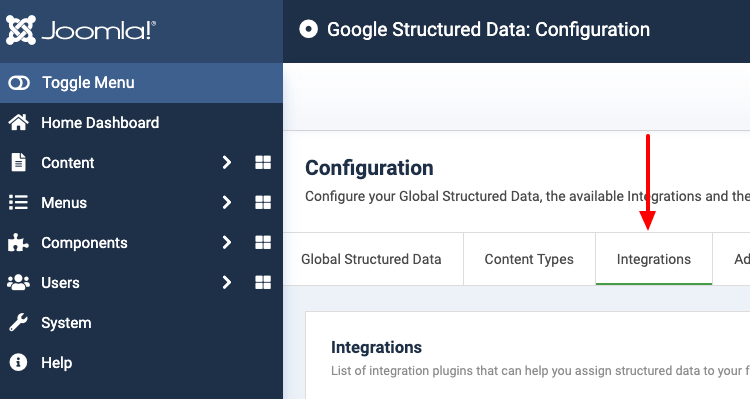
- Click the Integrations tab.
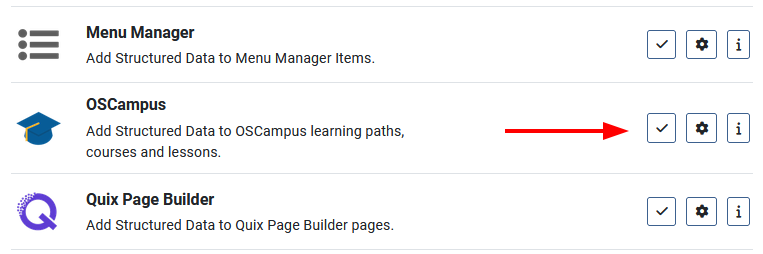
- Find OSCampus in the list and make sure it's enabled.
Add structured data to OSCampus pages
OSCampus has 3 kinds of front end pages, and each one needs its own Structured Data Item. The Integration View option tells the item which kind of page it's for. These are the Content Types that fit each view best.
| Integration View | Content Type | What the markup describes |
|---|---|---|
| Learning Path Page | Educational Occupational Program | The learning path and every course inside it. |
| Course Page | Course | The course, its modules and the lessons of each module. |
| Lesson Page | Learning Resource | The lesson, and the module and course it belongs to. |
Repeat these steps once for each row of the table.
- Log into your Joomla backend.
- Go to Components → Google Structured Data → Items.
- Click New.
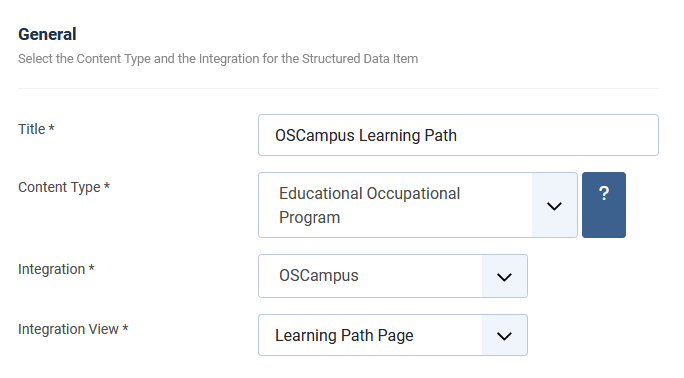
- Enter a Title. It's for your own reference, so anything works.
- Select the Content Type from the table above.
- Select OSCampus in the Integration dropdown.
- Select the matching page in the Integration View dropdown.
- Click Save.
Once the item is saved, 2 new sections appear.
- The Content Type section maps each property to page data, such as the course title or the lesson length.
- Publishing Rules decide which learning paths, courses or lessons get the markup.
The defaults of the Educational Occupational Program and Learning Resource Content Types already point at the right OSCampus data, so those two items work as soon as you save them. The Course Content Type is shared with other integrations, so map its new properties yourself (see Map the Course properties below). To learn how the mapping works, read How to Add Structured Data to Pages.
How the pages connect
The integration builds the links between your pages from the OSCampus structure. You don't map anything for them.
| Page | Property | What it holds |
|---|---|---|
| Learning path | hasCourse |
Every course of the learning path, in the order OSCampus lists them. |
| Course | syllabusSections |
Every module of the course, each one holding its lessons with their name, URL, length and type. |
| Lesson | isPartOf |
The module and the course the lesson belongs to. |
Add a course to a learning path, or a lesson to a module, and the markup follows on the next page load.
Mapping options
On top of the standard options, such as Title, Text and Image, each Integration View adds its own options to the mapping dropdowns.
| Name | Integration View | Description |
|---|---|---|
| Page URL | All | The URL of the learning path, course or lesson page, exactly as OSCampus builds it. |
| Length in Minutes | Course, Lesson | The length of the course or lesson, as entered in OSCampus. Time Required turns it into a duration, so 45 becomes PT45M. |
| Difficulty | Course | The difficulty of the course, such as Beginner, Intermediate or Advanced, in the language of the page. |
| Tags | Course, Lesson | The OSCampus tags of the course, separated by a comma. Lessons have no tags in OSCampus, so on a lesson this returns the tags of its course. |
| Teacher | Course, Lesson | The name of the teacher of the course. |
| Learning Path Title | Course | The title of the learning path the course belongs to. When the course is in more than one learning path, this is the first one. |
| Learning Paths | Course | The titles of every learning path the course belongs to, separated by a comma. |
| Lesson Type | Lesson | The lesson type as OSCampus stores it, for example quiz or text. |
| Learning Resource Type | Lesson | The lesson type translated for schema.org. Quizzes become Quiz, Wistia, Vimeo and embedded lessons become Video, and text lessons become Lesson. |
| Module Title | Lesson | The title of the module the lesson belongs to. |
| Course Title | Lesson | The title of the course the lesson belongs to. |
| Course URL | Lesson | The URL of that course. |
| Course Description | Lesson | The description of that course. |
| Course Image | Lesson | The image of that course. OSCampus lessons have no image of their own, so map the Image property to this option. |
Map the Course properties
These are the mappings that fit an OSCampus course. Set them in the Course section of the Course Page item.
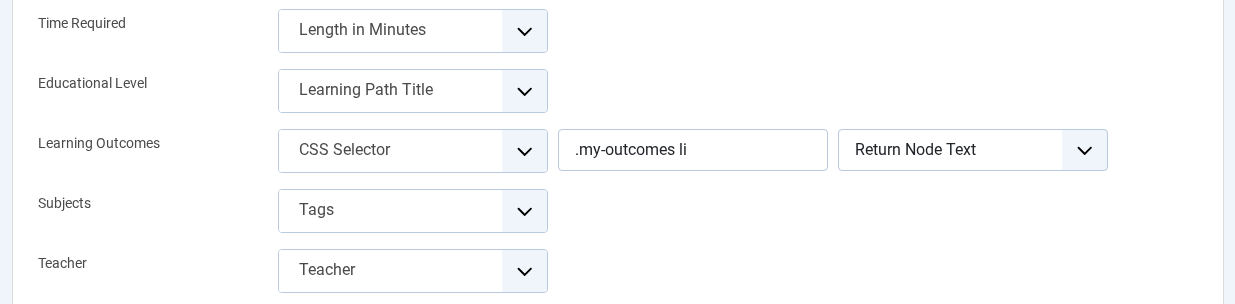
| Property | Mapping Option |
|---|---|
| Time Required | Length in Minutes |
| Educational Level | Difficulty, or Learning Path Title if your learning paths stand for levels |
| Learning Outcomes | CSS Selector (see Learning outcomes below) |
| Subjects | Tags |
| Teacher | Teacher |
OSCampus has no price field. Offer Category is required, and when Price isn't mapped the markup carries a price of 0.00. So set Offer Category to Free for a free course, or map Price for a paid one.
Learning outcomes
OSCampus has no field for learning outcomes, so read them from the page with a CSS Selector. Most course pages show the outcomes as a bulleted list, so wrap that list in an element with a class of your own.
<ul class="my-outcomes">
  <li>Feed and keep a sourdough starter</li>
  <li>Shape and score a loaf</li>
</ul>
Then set Learning Outcomes to CSS Selector, enter .my-outcomes li and keep Return Node Text. Keep the li in the selector. It makes every list item a separate outcome, and without it the whole list lands in the markup as one long string.
The same works for lessons. Use the Learning Outcomes property of the Lesson Page item.
Publishing rules
Leave the publishing rules disabled and the item runs on every page of its Integration View. To target specific content, use the OSCampus publishing rules.
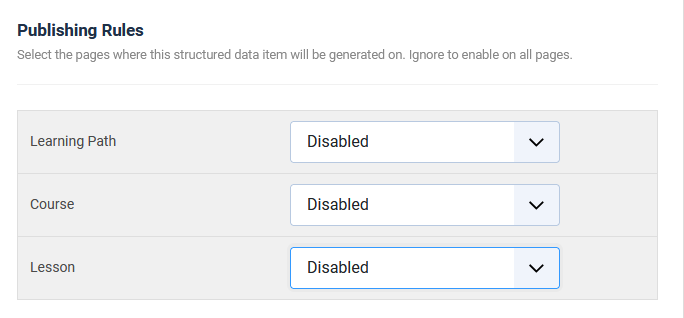
| Name | Description |
|---|---|
| Learning Path | Target specific learning paths. The rule also covers every course in those paths and every lesson of those courses, including courses you add later. |
| Course | Target specific courses, and every lesson of those courses. |
| Lesson | Target specific lessons only. |
Each item only lists the rules that make sense for its view. A Learning Path Page item shows the Learning Path rule, a Course Page item adds the Course rule, and a Lesson Page item shows all 3.
To learn more, read the Publishing Rules part of How to Add Structured Data to Pages.
Notes
- Structured data is generated on single learning path, course and lesson pages. Course list and overview pages get none.
- Learning paths and courses get markup only when they're published and the visitor's access level can view them. A lesson needs to be published and to belong to a course the visitor can view. The Start Publishing and Finish Publishing dates count too.
- The
hasCourseandsyllabusSectionslists skip unpublished courses and lessons. A module with no published lessons is left out. - Every text lesson is marked up as a Lesson. The integration reads the lesson type only, so it can't tell a theory lesson from a practical assignment.



 Rated: