

-
- Managing Form Submissions
- Searching and Filtering Submissions
- Submission Context Tracking
- Customizing Submission Columns
- Editing Submissions
- Deleting Submissions
- Importing Submissions
- Exporting Submissions
- Exporting Submissions with a Webhook URL
- Tracking the User's IP Address
- Tracking the User's Country
- Disable Submission Storage
- Auto-Delete Old Submissions
- Auto-Save Each Submission to a JSON file
- Increment a Count on Each Submission
- Add a Unique ID to Each Submission
-
- Email the Person Who Filled Out the Form
- Send an Email Only When a Checkbox Is Checked
- Attach the Submission PDF to Emails
- Send Email Based on Drop Down Selection
- Send Different Email Content Based on Form Responses
- Set up Auto-Responder Emails
- Styling Emails with CSS
- Sending Plain-Text Alternative Body Emails
- Troubleshooting Email Delivery
- Tracking Sent Emails
- Resending Emails
-
- Browser Autocomplete for Form Fields
- Redirect to a Menu Item After Form Submission
- Show a Form Only to Logged-In Users
- Adding an “Other” Option
- Show or Hide Form Fields Based on User Joomla User Group
- Scroll the Page to the Top When a Long Form is Submitted
- Display Submissions Count for a Specific Form
- Populate Drop Down, Radio Buttons or Checkboxes with a CSV File
- Silently POST Submitted Data to Any API or URL
- Create a Custom Login Form
- Auto-Populate Fields with Article Data
- Add a placeholder text to a Dropdown field
- Create Multilingual Forms in Joomla
- Redirect User to a URL After Form Submission
- Importing and Exporting Forms
- Display Convert Forms in a popup
-
- Does Convert Forms Use Cookies?
- Minimum Time to Submit
- Restrict Form Submissions Based on IP
- Enforcing a Custom Password Policy in Convert Forms
- Add ALTCHA Proof of Work to your Joomla form
- Add Cloudflare Turnstile to your Joomla Form
- Implement the Iubenda Consent Database in Joomla with Convert Forms
- Add Custom Validations to Fields and Forms
- Add Math Captcha to your Form
- Prevent a Field From Saving in the Database
- Add hCaptcha to your Form
- Enable Double Opt-in
- Allow Form Submissions in Specific Date Range
- Ensure a Unique Value is Entered Into a Field
- Block Form Submissions Containing Profanity (Bad Words)
- Block Email Addresses or Email Domains
- Honeypot
- Setting Up Google reCAPTCHA
- Create GDPR Compliant Forms
Add Honeypot Protection
A hidden anti-spam field traps bots without affecting real users, reducing spam submissions without requiring extra user interaction.
Convert Forms automatically protects your forms from spam by adding a hidden honeypot field to every form. This field is designed to trap spam bots, which fill out every form field. When the honeypot field is filled, the form submission is flagged as spam and blocked. Since most bots can’t distinguish between visible fields and the hidden honeypot, they fill it out, preventing the submission from going through.
This simple yet effective technique is widely used by web security experts and ensures that only legitimate submissions are processed, offering a powerful defense against automated spam bots.
How to Setup
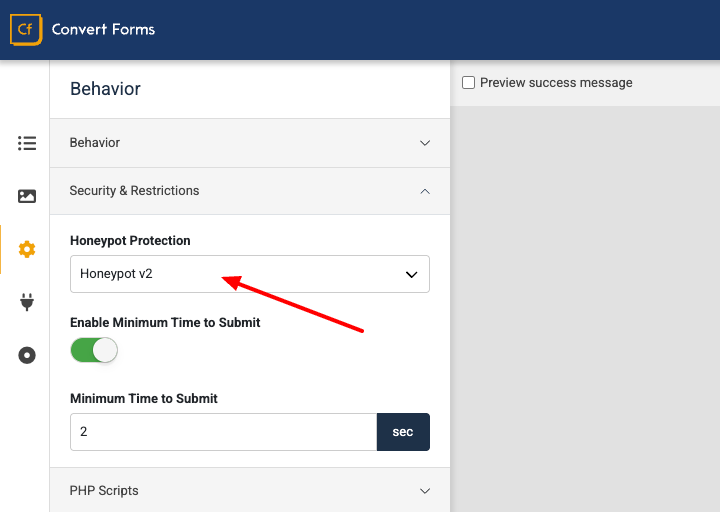
To enable Honeypot protection on your form, follow these steps:
- Edit your form.
- Navigate to Behavior.
- Go to Security and Restrictions.
- Enable the Honeypot Protection option.
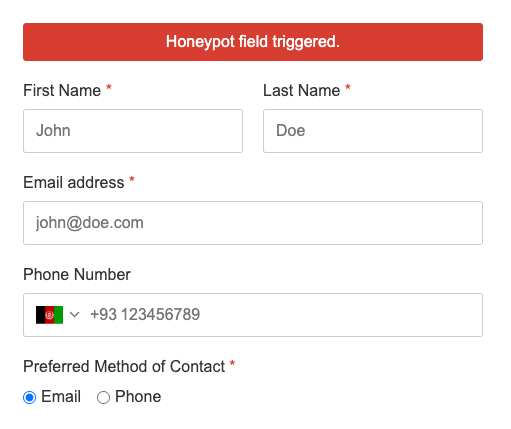
If a bot attempts to submit the form after filling out the honeypot field, the submission will be blocked, and an error message will appear.
Honeypot v1 (Deprecated Version)
This is the original version of the Honeypot, which relies on a fixed name for the honeypot field. It is the default version used by all forms but has now been deprecated. We strongly encourage you to use Honeypot v2 for better security and reliability.
Honeypot v2 (Recommended Version)
Honeypot v2 is the enhanced version that provides better protection. It adds a honeypot with a unique name for each session, making it harder for bots to identify. This version is more secure because it injects the honeypot field via JavaScript, blocking bots that do not use JavaScript. Additionally, Honeypot v2 works very well with caching mechanisms like Page Cache or Conservative Cache since it is injected dynamically using JS.
Troubleshooting
Why do I get "Honeypot ID not found" when I submit the form?
This error may appear due to the following reasons:
- You're using an older version of JCH Optimize, their "Optimize JavaScript Files" is the culprit. This should be fixed in the newest version of JCH Optimize, so try updating it and re-try.
- You're using Route 66 and have Google Pagespeed > "Optimize Javascript" enabled. The bundle it creates seems to break Convert Forms. Please disable it and re-try.



 Rated: