

-
- Managing Form Submissions
- Searching and Filtering Submissions
- Submission Context Tracking
- Customizing Submission Columns
- Editing Submissions
- Deleting Submissions
- Importing Submissions
- Exporting Submissions
- Exporting Submissions with a Webhook URL
- Tracking the User's IP Address
- Tracking the User's Country
- Disable Submission Storage
- Auto-Delete Old Submissions
- Auto-Save Each Submission to a JSON file
- Increment a Count on Each Submission
- Add a Unique ID to Each Submission
-
- Email the Person Who Filled Out the Form
- Send an Email Only When a Checkbox Is Checked
- Attach the Submission PDF to Emails
- Send Email Based on Drop Down Selection
- Send Different Email Content Based on Form Responses
- Set up Auto-Responder Emails
- Styling Emails with CSS
- Sending Plain-Text Alternative Body Emails
- Troubleshooting Email Delivery
- Tracking Sent Emails
- Resending Emails
-
- Browser Autocomplete for Form Fields
- Redirect to a Menu Item After Form Submission
- Show a Form Only to Logged-In Users
- Adding an “Other” Option
- Show or Hide Form Fields Based on User Joomla User Group
- Scroll the Page to the Top When a Long Form is Submitted
- Display Submissions Count for a Specific Form
- Populate Drop Down, Radio Buttons or Checkboxes with a CSV File
- Silently POST Submitted Data to Any API or URL
- Create a Custom Login Form
- Auto-Populate Fields with Article Data
- Add a placeholder text to a Dropdown field
- Create Multilingual Forms in Joomla
- Redirect User to a URL After Form Submission
- Importing and Exporting Forms
- Display Convert Forms in a popup
-
- Does Convert Forms Use Cookies?
- Minimum Time to Submit
- Restrict Form Submissions Based on IP
- Enforcing a Custom Password Policy in Convert Forms
- Add ALTCHA Proof of Work to your Joomla form
- Add Cloudflare Turnstile to your Joomla Form
- Implement the Iubenda Consent Database in Joomla with Convert Forms
- Add Custom Validations to Fields and Forms
- Add Math Captcha to your Form
- Prevent a Field From Saving in the Database
- Add hCaptcha to your Form
- Enable Double Opt-in
- Allow Form Submissions in Specific Date Range
- Ensure a Unique Value is Entered Into a Field
- Block Form Submissions Containing Profanity (Bad Words)
- Block Email Addresses or Email Domains
- Honeypot
- Setting Up Google reCAPTCHA
- Create GDPR Compliant Forms
Create GDPR Compliant Forms
In this guide, we’ll discuss general considerations for GDPR compliance in your Joomla forms.
First, an obligatory disclaimer: We’re not lawyers and what follows isn’t legal advice. We have a vested interest in your success under the GDPR, but if you need concrete legal counsel, talk to a lawyer.
What Is GDPR Compliance?
Since May 25, 2018, the EU's General Data Protection Regulation (GDPR) has governed how personal data is collected. You can find the full overview via official sources, but here’s the gist:
In the simplest terms, what GDPR (General Data Protection Regulation) does is protect users from unauthorized data collection by requiring explicit consent. If data is being collected and stored, the individual providing the information needs to be aware of it and give permission before any action is taken.
Along with providing permission to collect data, the GDPR requires that users are able to request access to their data and have it removed if requested.
What Forms Do We Need to Worry About?
Not all your forms are necessarily going to be impacted by the GDPR. Running an anonymous survey or a quiz? If you’re not collecting personally identifiable information on users, your form’s not impacted. However, if you are asking for a name, email or address, the GDPR impacts that form. So, how to comply?
Request Consent
Before collecting or storing user data under GDPR, you would need to request their consent.
This can be easily resolved by adding a required checkbox field to any forms that need to be compliant. This way users will not be able to submit the form without explicitly offering consent.
To do this, go to Components → Convert Forms → Forms and create or edit a form. In the Fields tab, open Add Field and click Terms of Service.
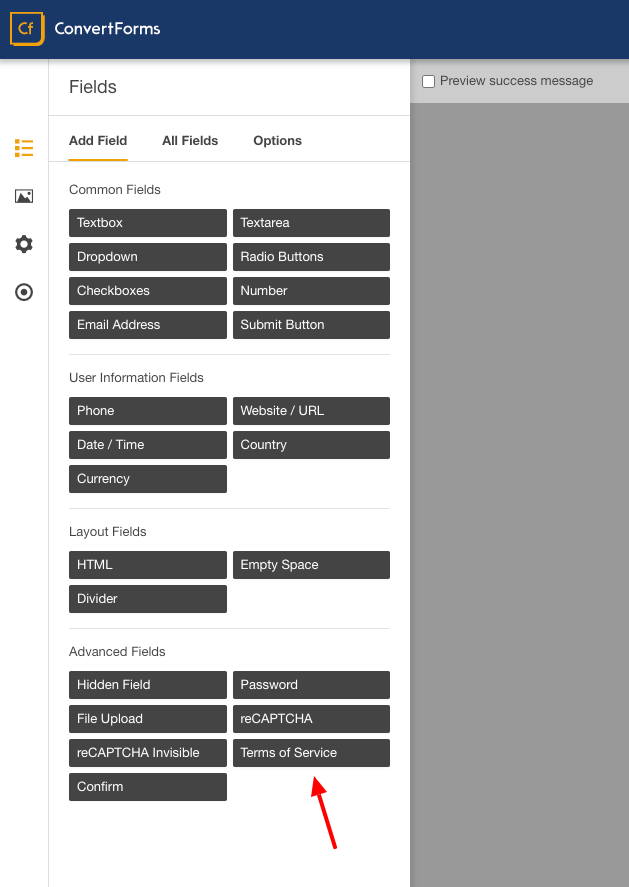
Once the field has been added to the form, enter your consent text in the Terms of Service Text option. For this example, we’ll add “I consent to site.com collecting and storing my data“. You can also include a link to a more detailed Privacy Policy that users can access to read about how their privacy is handled on your website.
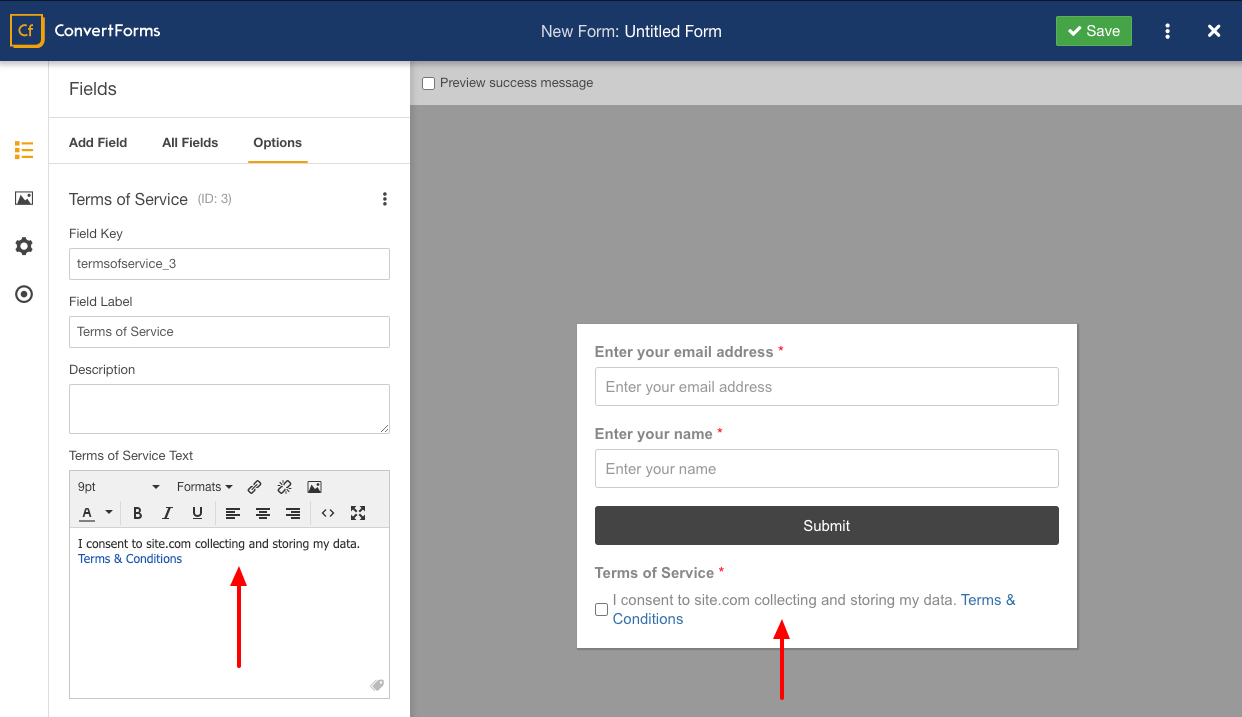
The most important property of the field should be the required status. The Terms of Service field is always required, so every submission includes consent. This way, you’ll know that every submission is compliant because without providing consent, the submission would not complete.
Frequently Asked Questions
Can I prevent Convert Forms saving the entries to the database?
Convert Forms allows you to prevent new submissions from being saved in your database by disabling the `Save Submission Data in Database` toggle under your form settings > Submission tab. For step-by-step instructions, see Disable Submission Storage in Convert Forms.
If you only need to remove one field value from stored submissions, see Prevent a Field From Saving in the Database.
It's important to note though that GDPR does not prohibit saving personal data to the database; it requires that you gain consent before doing so.
Can the user view or edit their own submissions?
Does Convert Forms save the IP address of the user?
Is there any penalty or fine for noncompliance?



 Rated: