

Unlock this and dozens of other powerful features by upgrading to Convert Forms Pro.
Unlock this feature
-
- Managing Form Submissions
- Searching and Filtering Submissions
- Submission Context Tracking
- Customizing Submission Columns
- Editing Submissions
- Deleting Submissions
- Importing Submissions
- Exporting Submissions
- Exporting Submissions with a Webhook URL
- Tracking the User's IP Address
- Tracking the User's Country
- Disable Submission Storage
- Auto-Delete Old Submissions
- Auto-Save Each Submission to a JSON file
- Increment a Count on Each Submission
- Add a Unique ID to Each Submission
-
- Email the Person Who Filled Out the Form
- Send an Email Only When a Checkbox Is Checked
- Attach the Submission PDF to Emails
- Send Email Based on Drop Down Selection
- Send Different Email Content Based on Form Responses
- Set up Auto-Responder Emails
- Styling Emails with CSS
- Sending Plain-Text Alternative Body Emails
- Troubleshooting Email Delivery
- Tracking Sent Emails
- Resending Emails
-
- Browser Autocomplete for Form Fields
- Redirect to a Menu Item After Form Submission
- Show a Form Only to Logged-In Users
- Adding an “Other” Option
- Show or Hide Form Fields Based on User Joomla User Group
- Scroll the Page to the Top When a Long Form is Submitted
- Display Submissions Count for a Specific Form
- Populate Drop Down, Radio Buttons or Checkboxes with a CSV File
- Silently POST Submitted Data to Any API or URL
- Create a Custom Login Form
- Auto-Populate Fields with Article Data
- Add a placeholder text to a Dropdown field
- Create Multilingual Forms in Joomla
- Redirect User to a URL After Form Submission
- Importing and Exporting Forms
- Display Convert Forms in a popup
-
- Does Convert Forms Use Cookies?
- Minimum Time to Submit
- Restrict Form Submissions Based on IP
- Enforcing a Custom Password Policy in Convert Forms
- Add ALTCHA Proof of Work to your Joomla form
- Add Cloudflare Turnstile to your Joomla Form
- Implement the Iubenda Consent Database in Joomla with Convert Forms
- Add Custom Validations to Fields and Forms
- Add Math Captcha to your Form
- Prevent a Field From Saving in the Database
- Add hCaptcha to your Form
- Enable Double Opt-in
- Allow Form Submissions in Specific Date Range
- Ensure a Unique Value is Entered Into a Field
- Block Form Submissions Containing Profanity (Bad Words)
- Block Email Addresses or Email Domains
- Honeypot
- Setting Up Google reCAPTCHA
- Create GDPR Compliant Forms
Submission Context Tracking
Automatically capture the who, where, and how behind every form submission, IP, location, device, referrer, and UTM campaign, with zero hidden fields or setup.
Submission Context Tracking is available in Pro
Every time someone submits a form, Convert Forms automatically records context about that submission: who sent it, where they came from, what device they used, and which campaign brought them in.
Without this, capturing details like the visitor's IP or the page a form was submitted from meant building it by hand: add a hidden field for each value, wire each one to a Smart Tag ({ip}, and so on), then repeat the whole setup on every form you run. With numerous forms, that's the same busywork over and over, and a single form where you forgot a field loses that data for good.
Now it happens with no setup on your part, the same way on every form, with no hidden fields, Smart Tags, or third-party tracking tools to add or maintain. You also get details you'd rarely wire up by hand, like the country, device, and referrer.
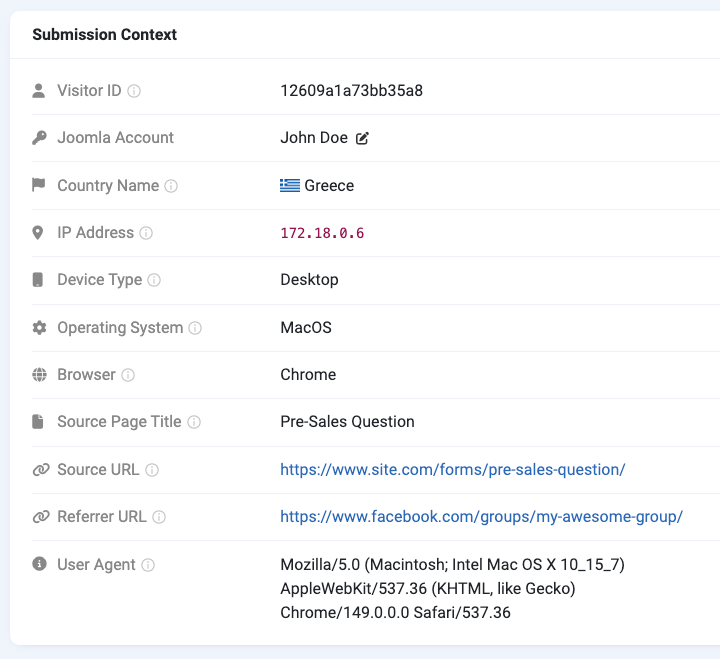
What Convert Forms tracks
These are the context values Convert Forms records for every submission.
- User ID: The Joomla user ID of the submitter, when logged in (0 for guests).
- Visitor ID: An anonymous identifier for the visitor who submitted the form.
- IP Address: The IP address the submission was sent from.
- Country Code: The two-letter country code of the visitor, resolved using the geolocation feature.
- Page Title: The title of the page where the form was submitted.
- Source URL: The full URL of the page where the form was submitted.
- Referrer URL: The page the visitor came from before submitting.
- User Agent: The raw browser user-agent string.
- Device: The device type detected: Desktop, Mobile, or Tablet.
- Operating System: The operating system detected from the user agent.
- Browser: The web browser detected from the user agent.
This page covers the submission's context. The submission's own identity (its ID, status, form, and submitted/modified dates) is shown separately in the Status card on the edit screen.
What's available to you as an admin
From those stored values, Convert Forms derives a fuller set of details and presents them in the backend, grouped for readability. Here's the complete set you can see and work with.
Visitor
| Detail | Description |
|---|---|
| Visitor ID | An anonymous identifier for the visitor who submitted the form, independent of any Joomla login. It comes from the nrid cookie set by the Tassos Framework. |
Joomla Account
Looked up from the stored user ID. Captured only when the submitter is logged into your Joomla site.
| Detail | Description |
|---|---|
| Joomla Account ID | The Joomla user ID of the submitter, when logged in. |
| Joomla Account User Name | The username of the submitter, when logged in. |
| Joomla Account Name | The full name of the submitter, when logged in. |
| Joomla Account Email | The account email of the submitter, when logged in. |
Location
Country Name is derived from the stored country code, so it works even if IP storage is turned off. Country detection uses the geolocation feature. See the Geolocation Setup Guide.
| Detail | Description |
|---|---|
| IP Address | The IP address the submission was sent from. |
| Country Code | The two-letter country code of the visitor. |
| Country Name | The country name, derived from the country code. |
For more on the IP address, including how to show it as a column and how to switch it off for GDPR, see Tracking the User's IP Address.
Device
| Detail | Description |
|---|---|
| Device Type | The device type detected: Desktop, Mobile, or Tablet. |
| Operating System | The operating system detected from the user agent. |
| Browser | The web browser detected from the user agent. |
| User Agent | The raw browser user-agent string. |
Source & Campaign
This is where lead attribution lives. Source Domain, Source Path, Referrer Domain, and the UTM parameters are all parsed from the stored Source and Referrer URLs.
| Detail | Description |
|---|---|
| Source URL | The URL of the page where the form was submitted. |
| Source Domain | The domain of the page where the form was submitted, parsed from the source URL (without www). |
| Source Path | The path of the page where the form was submitted, parsed from the source URL (without the domain or query string). |
| Referrer URL | The page the visitor came from before submitting. |
| Referrer Domain | The domain the visitor came from before submitting, parsed from the referrer URL (without www). |
| Source Page Title | The title of the page where the form was submitted. |
| UTM Source | The utm_source campaign parameter from the landing URL (e.g. google, newsletter). |
| UTM Medium | The utm_medium campaign parameter from the landing URL (e.g. cpc, email). |
| UTM Campaign | The utm_campaign campaign parameter from the landing URL. |
| UTM Term | The utm_term campaign parameter from the landing URL (paid keywords). |
| UTM Content | The utm_content campaign parameter from the landing URL (A/B variant). |
Viewing the submission context
All the context for a submission lives in one place: the Submission Context card on the submission's edit screen. Open any submission and you'll find it there, grouped for readability.
- Log in to your Joomla backend.
- Go to Components → Convert Forms → Submissions.
- Click the submission's ID to open it.
- Look under the Submission Context card.
Showing context as columns
Any of these details can be added as a column in the Submissions list, so you can scan them across submissions without opening each one.
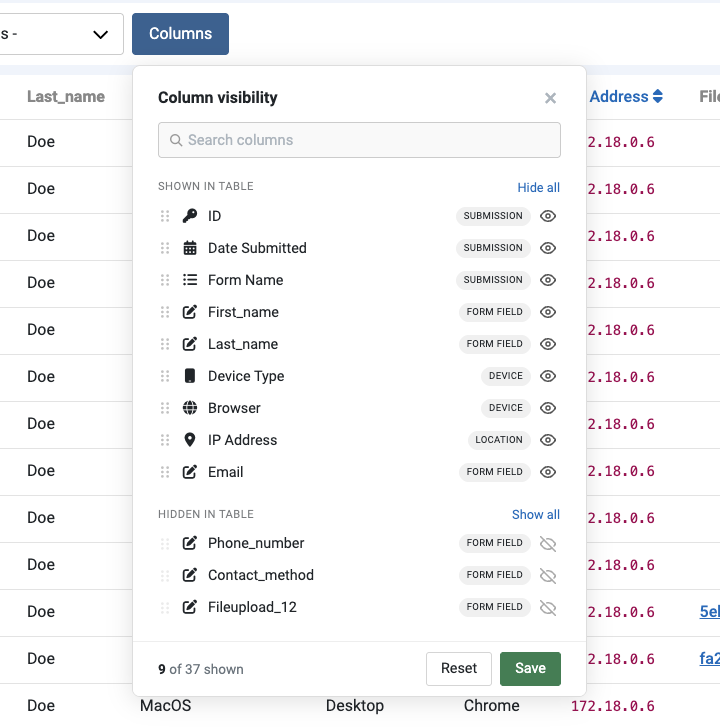
- Go to Components → Convert Forms → Submissions
- Select a form from the filters at the top
- Click Columns.
- Search for the detail you want (for example, UTM Source or Country) and move it to the Shown in table section.
- Click Save.
For the full walkthrough, see Customizing Submission Columns.
Exporting context
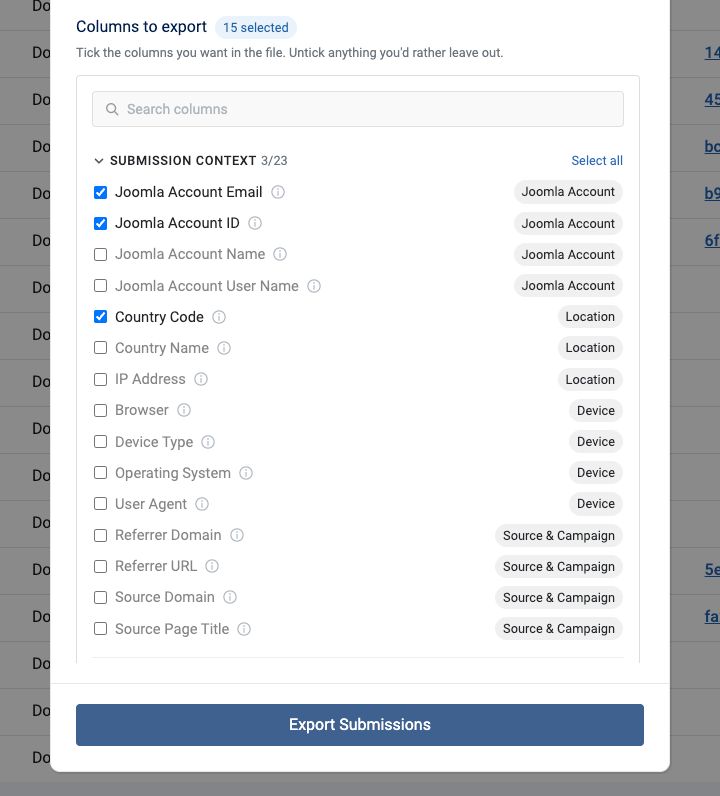
When you export your submissions, you can include any of these context details in the export file. The export dialog groups the columns into Submission Identity, Form Fields, and Submission Context, so you can pull source, campaign, device, or location data into a spreadsheet for analysis.
Outputting context with Smart Tags
Every context value is available as a Smart Tag, so you can drop it into a notification email, the form's confirmation message, a redirect URL, a PDF, a webhook, or anywhere else Convert Forms accepts Smart Tags. Output the whole context block at once, or pull a single value like the country, IP, device, or campaign.
For the complete list of tags, see Submission Context Smart Tags.
Disabling IP tracking for GDPR
The visitor's IP address is the one context detail you can switch off. If your privacy policy requires you not to store IP addresses, set Store IP Addresses to No in the component options. The steps are in Tracking the User's IP Address. The remaining details are captured automatically.
Troubleshooting
Country Code and Country Name are empty
Convert Forms resolves the visitor's country from their IP address through the geolocation feature. If that feature isn't set up, there's no country to record, so both Country Code and Country Name stay empty even though everything else is tracked.
Enable it by following the geolocation setup guide. Country data is only recorded for submissions received after geolocation is enabled, so older submissions won't be backfilled.
The IP address is missing
If the IP field is blank, IP storage is most likely turned off. Convert Forms lets you disable it for GDPR, and while it's off no IP is recorded. Check Store IP Addresses in the component options, covered in Tracking the User's IP Address.
IP tracking arrived in v5.2.0. On a fresh install the option is switched on automatically. If you updated from an earlier version, it stays off so the update doesn't change what you store without warning, and you'll need to turn it on manually.
The referrer is empty
Referrer URL only has a value when the browser sends one. Visitors who type your address directly, arrive from a bookmark, or come from a site that strips the referrer (common when moving from an HTTPS page to an HTTP one) leave nothing to record. That's expected, not a bug.
UTM parameters are empty
The UTM details are read from the campaign parameters on the landing URL, such as utm_source and utm_medium. If the link the visitor clicked didn't carry them, there's nothing to capture. Tag your ads, emails, and campaign links with UTM parameters before they point to your site.
Device, OS, or browser shows as unknown
These are detected from the visitor's user-agent string. Bots, scripts, and uncommon or masked browsers don't always send a recognizable one, so the value can come back empty or unknown. The raw User Agent is still stored if you need to inspect it.
Older submissions have no context
Tracking happens at the moment a form is submitted. Submissions collected before you updated to a version that records a given detail stay empty, and Convert Forms doesn't backfill past entries.
The context details aren't listed in the Columns or Export dialogs
Both the Columns picker and the export options only appear once you've selected a single form in the Submissions list filters. Pick a form first, then the context details show up as choices.
Submission Context Tracking is available in Pro
Unlock this and dozens of other powerful features by upgrading to Convert Forms Pro.
Unlock this feature
Last updated on Jul 6th 2026 11:07

Tassos offers a premium suite of Joomla extensions with 7 products and over 2.4 million downloads, providing reliable solutions since 2014.


 Rated:
Copyright © 2014 - 2026 - Smile Motive Development LP. All Rights Reserved.