

-
- Managing Form Submissions
- Searching and Filtering Submissions
- Submission Context Tracking
- Customizing Submission Columns
- Editing Submissions
- Deleting Submissions
- Importing Submissions
- Exporting Submissions
- Exporting Submissions with a Webhook URL
- Tracking the User's IP Address
- Tracking the User's Country
- Disable Submission Storage
- Auto-Delete Old Submissions
- Auto-Save Each Submission to a JSON file
- Increment a Count on Each Submission
- Add a Unique ID to Each Submission
-
- Email the Person Who Filled Out the Form
- Send an Email Only When a Checkbox Is Checked
- Attach the Submission PDF to Emails
- Send Email Based on Drop Down Selection
- Send Different Email Content Based on Form Responses
- Set up Auto-Responder Emails
- Styling Emails with CSS
- Sending Plain-Text Alternative Body Emails
- Troubleshooting Email Delivery
- Tracking Sent Emails
- Resending Emails
-
- Browser Autocomplete for Form Fields
- Redirect to a Menu Item After Form Submission
- Show a Form Only to Logged-In Users
- Adding an “Other” Option
- Show or Hide Form Fields Based on User Joomla User Group
- Scroll the Page to the Top When a Long Form is Submitted
- Display Submissions Count for a Specific Form
- Populate Drop Down, Radio Buttons or Checkboxes with a CSV File
- Silently POST Submitted Data to Any API or URL
- Create a Custom Login Form
- Auto-Populate Fields with Article Data
- Add a placeholder text to a Dropdown field
- Create Multilingual Forms in Joomla
- Redirect User to a URL After Form Submission
- Importing and Exporting Forms
- Display Convert Forms in a popup
-
- Does Convert Forms Use Cookies?
- Minimum Time to Submit
- Restrict Form Submissions Based on IP
- Enforcing a Custom Password Policy in Convert Forms
- Add ALTCHA Proof of Work to your Joomla form
- Add Cloudflare Turnstile to your Joomla Form
- Implement the Iubenda Consent Database in Joomla with Convert Forms
- Add Custom Validations to Fields and Forms
- Add Math Captcha to your Form
- Prevent a Field From Saving in the Database
- Add hCaptcha to your Form
- Enable Double Opt-in
- Allow Form Submissions in Specific Date Range
- Ensure a Unique Value is Entered Into a Field
- Block Form Submissions Containing Profanity (Bad Words)
- Block Email Addresses or Email Domains
- Honeypot
- Setting Up Google reCAPTCHA
- Create GDPR Compliant Forms
Send Email Based on Drop Down Selection
Running a single contact form for several departments? Convert Forms can send every submission straight to the inbox of the team the user selects, so each enquiry reaches the people who can help it, automatically and with no manual forwarding on your part.
Method 1: Email Address in the Dropdown Value
This is the fastest approach: store each department's address directly in the dropdown, then point a single Email Task at the field.
In a dropdown (or radio) field, every option has a label the user sees and a value that gets submitted. Put the department name in the label and the matching email address in the value.
-
Edit your form and add a Dropdown field. Let's call it department.
-
In the field's Choices section, set each option's label to the department name and its value to the matching email address:
Label Value Sales Department [email protected] Support Department [email protected] Billing Department [email protected] 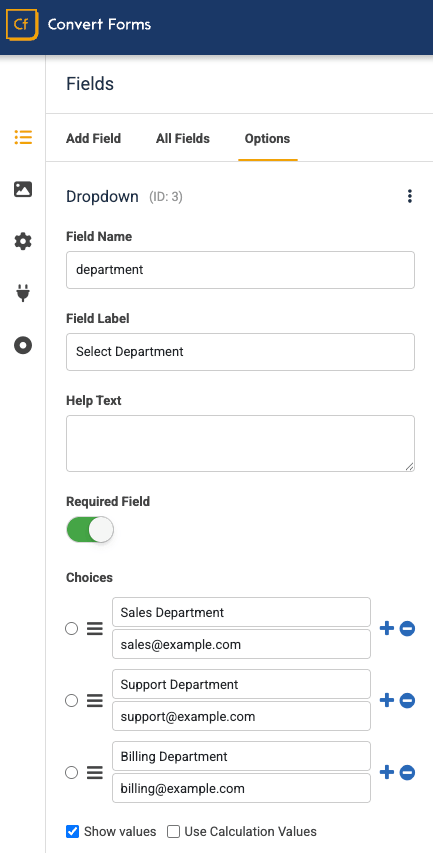
-
Open the Tasks panel and create a new Email Task. Set the Trigger to New Submission and the Action to Send an Email.
-
In the To option, select the dropdown field's Smart Tag:
{field.department}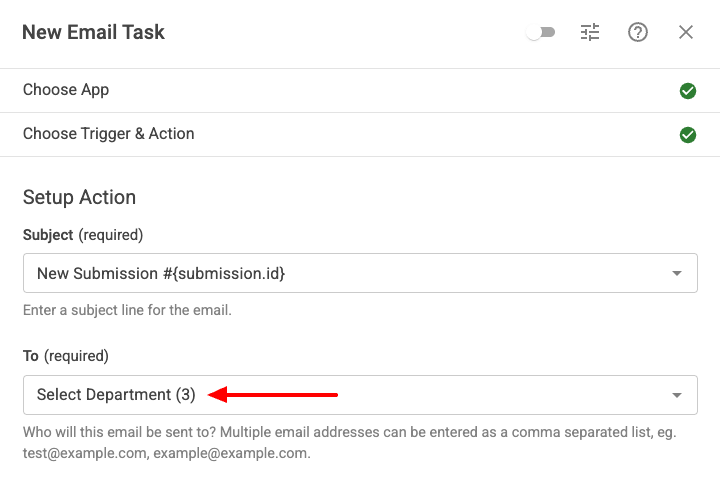
-
Fill in the Subject and Body, give the task a title, enable it, and click Save. Save the form.
Now every submission is emailed to the address behind the selected option, and you can add or change departments later just by editing the dropdown, with no need to touch the task.
Method 2: One Task per Department with Conditional Logic
This approach keeps every email address out of your form's HTML. The dropdown stores only a harmless key, and the real addresses live inside your tasks, where visitors can't see them. The trade-off is a little more setup: one Email Task per department.
-
Edit your form and add a Dropdown field named department. This time, set each option's value to a plain key rather than an email address:
Label Value Sales Department sales Support Department support Billing Department billing -
Open the Tasks panel and create an Email Task for the first department:
- Set the Trigger to New Submission and the Action to Send an Email.
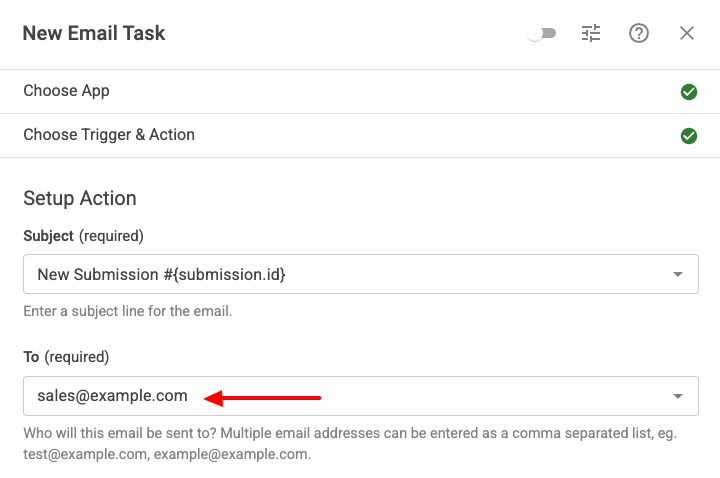
- In the To option, type the real address, e.g.
[email protected]. -
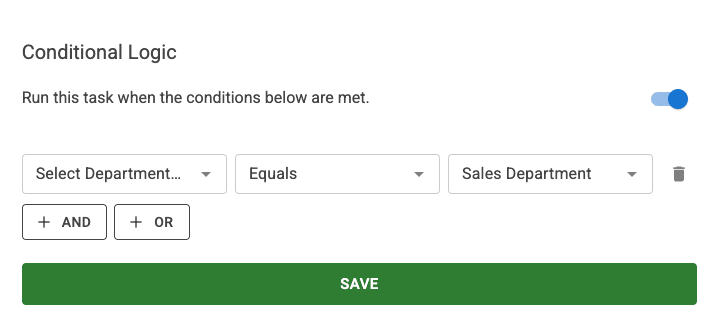
Scroll to Conditional Logic, switch on Run this task when certain conditions are met, and add a condition: the department field is
sales. For how conditions work, see Conditional Logic in the Tasks guide.
Next is to set up the Conditional Logic section:
-
Repeat for each remaining department, changing only the To address and the condition value (
support,billing, and so on). -
Give each task a title, enable it, and click Save. Save the form.
Now the matching task fires only when its department is selected, and the addresses never appear in the page.
Avoid duplicating the email body. Since every department task sends the same message, don't paste the body into each one, or you'll have several copies to keep in sync. Keep the message in one place and load it into each task's Body with a shared template. See Create Reusable Email Templates.
Tips
- Show the chosen department in the email. In Method 1,
{field.department}outputs the option's value, which is the email address. To print the friendly department name in your subject or body instead, use the label Smart Tag{field.department.selected.label}. In Method 2 the value is already readable (e.g. sales), and the same tag gives you the full label (Sales Department). - Need different content per department, not just a different recipient? Method 2 already gives you a separate task per department, so simply write a different Body in each one. See Send Different Emails to Different Recipients.
Troubleshooting
- The email bounces or goes nowhere. Check that each dropdown option's value is a valid email address and that the To option references the correct field name.
- The wrong task runs, or none of them do. Make sure each task's condition matches the dropdown value exactly (the key, not the label) and that Conditional Logic is enabled on every task.
- The email shows a key or address instead of the department name. Use
{field.department.selected.label}wherever you want the human-readable label. Learn more in Smart Tags.



 Rated: