

-
- Managing Form Submissions
- Searching and Filtering Submissions
- Submission Context Tracking
- Customizing Submission Columns
- Editing Submissions
- Deleting Submissions
- Importing Submissions
- Exporting Submissions
- Exporting Submissions with a Webhook URL
- Tracking the User's IP Address
- Tracking the User's Country
- Disable Submission Storage
- Auto-Delete Old Submissions
- Auto-Save Each Submission to a JSON file
- Increment a Count on Each Submission
- Add a Unique ID to Each Submission
-
- Email the Person Who Filled Out the Form
- Send an Email Only When a Checkbox Is Checked
- Attach the Submission PDF to Emails
- Send Email Based on Drop Down Selection
- Send Different Email Content Based on Form Responses
- Set up Auto-Responder Emails
- Styling Emails with CSS
- Sending Plain-Text Alternative Body Emails
- Troubleshooting Email Delivery
- Tracking Sent Emails
- Resending Emails
-
- Browser Autocomplete for Form Fields
- Redirect to a Menu Item After Form Submission
- Show a Form Only to Logged-In Users
- Adding an “Other” Option
- Show or Hide Form Fields Based on User Joomla User Group
- Scroll the Page to the Top When a Long Form is Submitted
- Display Submissions Count for a Specific Form
- Populate Drop Down, Radio Buttons or Checkboxes with a CSV File
- Silently POST Submitted Data to Any API or URL
- Create a Custom Login Form
- Auto-Populate Fields with Article Data
- Add a placeholder text to a Dropdown field
- Create Multilingual Forms in Joomla
- Redirect User to a URL After Form Submission
- Importing and Exporting Forms
- Display Convert Forms in a popup
-
- Does Convert Forms Use Cookies?
- Minimum Time to Submit
- Restrict Form Submissions Based on IP
- Enforcing a Custom Password Policy in Convert Forms
- Add ALTCHA Proof of Work to your Joomla form
- Add Cloudflare Turnstile to your Joomla Form
- Implement the Iubenda Consent Database in Joomla with Convert Forms
- Add Custom Validations to Fields and Forms
- Add Math Captcha to your Form
- Prevent a Field From Saving in the Database
- Add hCaptcha to your Form
- Enable Double Opt-in
- Allow Form Submissions in Specific Date Range
- Ensure a Unique Value is Entered Into a Field
- Block Form Submissions Containing Profanity (Bad Words)
- Block Email Addresses or Email Domains
- Honeypot
- Setting Up Google reCAPTCHA
- Create GDPR Compliant Forms
Editing Submissions
Sometimes a submission needs a quick fix. A visitor mistyped their email, you want to record a follow-up note, or you need to mark an entry as handled. Convert Forms lets you open any submission and edit it directly in the backend, no database access required.
How to edit a submission
- Log into your Joomla backend.
- Go to Components → Convert Forms → Submissions.
- Find the submission you want to edit. Use the filters at the top if the list is long (see Searching and Filtering Submissions).
-
Click the submission's ID link in its row.
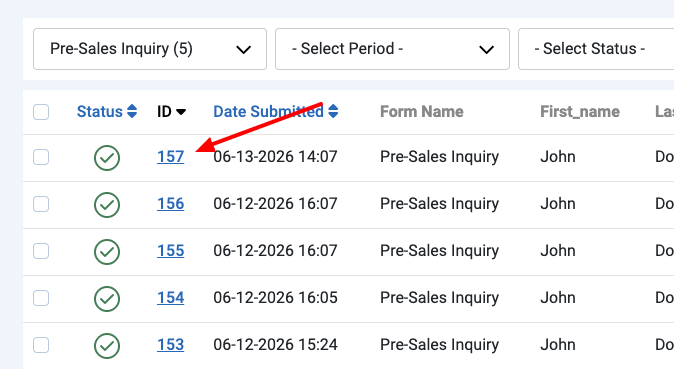
- The edit screen opens, showing everything tied to that submission.
-
To fix the visitor's answers, head to the User Submitted Data card. Edit any value, then click Save in the toolbar to keep your changes.
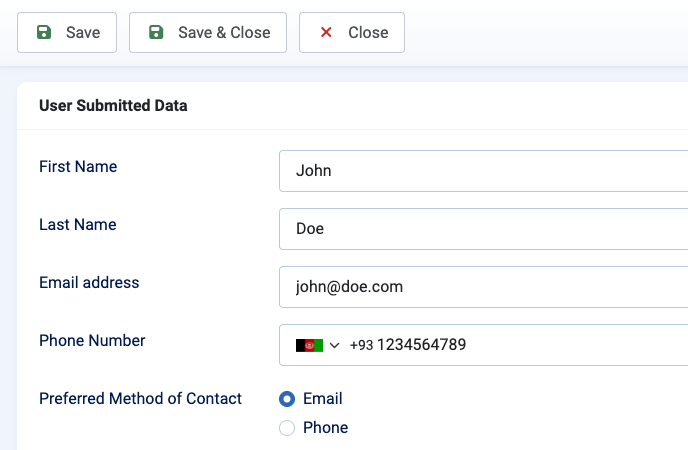
Editing changes the stored values only. It doesn't re-send notifications or re-trigger any integrations that ran when the form was originally submitted.
What's on the edit screen
The edit screen is split into a few cards.
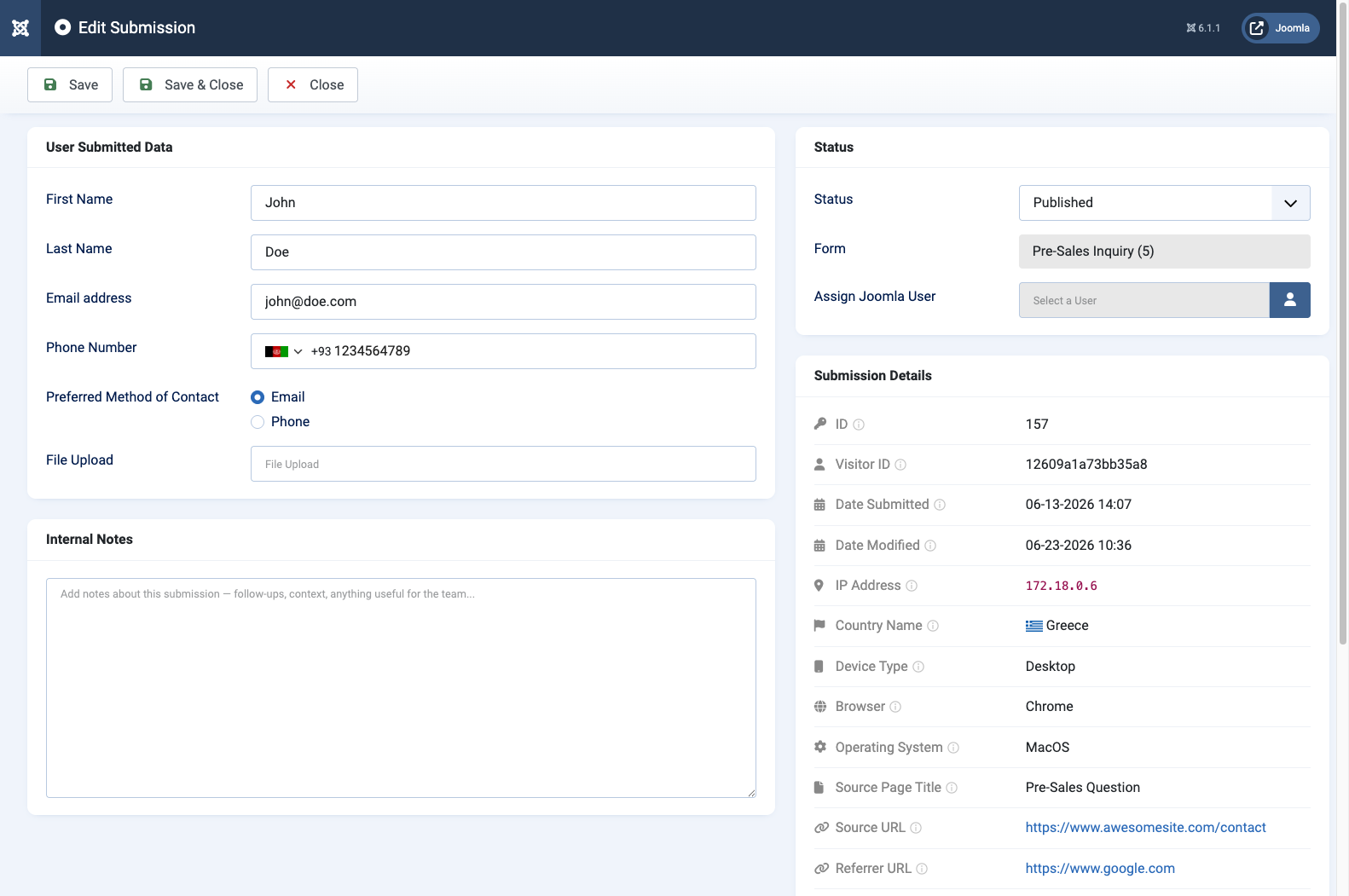
User Submitted Data
These are the actual values the visitor entered, one field per row. Change any value and it updates the stored submission.
Internal Notes
A private notes field for your team. Use it to record follow-ups, context, or anything useful. Notes are never shown to the visitor and stay attached to the submission.
Status
The submission's identity and state, in one card, in this order:
- ID: the submission's unique number.
- Form Name: the form the submission came through. Read-only, since a submission can't be moved to another form.
- Status: an editable dropdown, Published, Unpublished, Archived, or Trashed. This is the same status the list filters use, so changing it here moves the submission between views.
- Date Submitted: when the submission was received.
- Date Modified: when the submission was last edited.
Submission Context
The context Convert Forms captures automatically the moment the form is submitted: who submitted, from where, and on what device. Most rows are read-only with a one-click copy button.
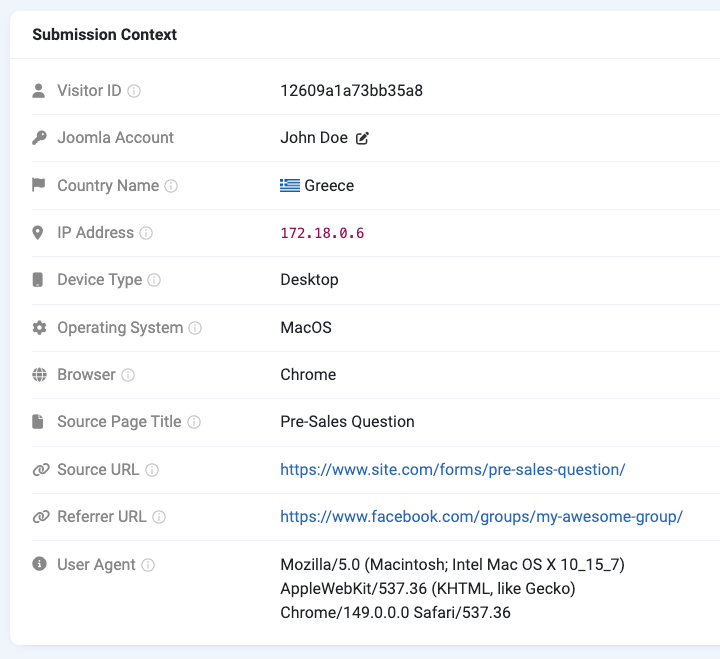
Two rows behave a little differently:
- Joomla Account is editable. Use its picker to re-assign the submission to a different Joomla user.
- Country is shown with its flag.
The card keeps things readable by leaving out redundant, derived values (such as Source Path or Referrer Domain) and only showing UTM campaign rows when they carry a value. The complete set is still available as columns, in exports, and via Smart Tags.
For the full list of what's captured and how to use it, see Submission Context Tracking.
Last updated on Jul 6th 2026 11:07

Tassos offers a premium suite of Joomla extensions with 7 products and over 2.4 million downloads, providing reliable solutions since 2014.


 Rated:
Copyright © 2014 - 2026 - Smile Motive Development LP. All Rights Reserved.