

-
- Managing Form Submissions
- Searching and Filtering Submissions
- Submission Context Tracking
- Customizing Submission Columns
- Editing Submissions
- Deleting Submissions
- Importing Submissions
- Exporting Submissions
- Exporting Submissions with a Webhook URL
- Tracking the User's IP Address
- Tracking the User's Country
- Disable Submission Storage
- Auto-Delete Old Submissions
- Auto-Save Each Submission to a JSON file
- Increment a Count on Each Submission
- Add a Unique ID to Each Submission
-
- Email the Person Who Filled Out the Form
- Send an Email Only When a Checkbox Is Checked
- Attach the Submission PDF to Emails
- Send Email Based on Drop Down Selection
- Send Different Email Content Based on Form Responses
- Set up Auto-Responder Emails
- Styling Emails with CSS
- Sending Plain-Text Alternative Body Emails
- Troubleshooting Email Delivery
- Tracking Sent Emails
- Resending Emails
-
- Browser Autocomplete for Form Fields
- Redirect to a Menu Item After Form Submission
- Show a Form Only to Logged-In Users
- Adding an “Other” Option
- Show or Hide Form Fields Based on User Joomla User Group
- Scroll the Page to the Top When a Long Form is Submitted
- Display Submissions Count for a Specific Form
- Populate Drop Down, Radio Buttons or Checkboxes with a CSV File
- Silently POST Submitted Data to Any API or URL
- Create a Custom Login Form
- Auto-Populate Fields with Article Data
- Add a placeholder text to a Dropdown field
- Create Multilingual Forms in Joomla
- Redirect User to a URL After Form Submission
- Importing and Exporting Forms
- Display Convert Forms in a popup
-
- Does Convert Forms Use Cookies?
- Minimum Time to Submit
- Restrict Form Submissions Based on IP
- Enforcing a Custom Password Policy in Convert Forms
- Add ALTCHA Proof of Work to your Joomla form
- Add Cloudflare Turnstile to your Joomla Form
- Implement the Iubenda Consent Database in Joomla with Convert Forms
- Add Custom Validations to Fields and Forms
- Add Math Captcha to your Form
- Prevent a Field From Saving in the Database
- Add hCaptcha to your Form
- Enable Double Opt-in
- Allow Form Submissions in Specific Date Range
- Ensure a Unique Value is Entered Into a Field
- Block Form Submissions Containing Profanity (Bad Words)
- Block Email Addresses or Email Domains
- Honeypot
- Setting Up Google reCAPTCHA
- Create GDPR Compliant Forms
Email the Person Who Filled Out the Form
Sending a confirmation email to the user who submitted the form is a great way to instantly acknowledge that you've received their entry. Instead of typing a fixed address in the To field, you point it at the email the user just entered, using a Smart Tag. Convert Forms then fills in the real address at send time.
Send the Email to the Submitter
To send a confirmation email to the person who filled out the form, follow the steps below:
- Go to Components → Convert Forms → Forms and edit your form.
- Open the Tasks panel and create a new Email Task (or edit an existing one). Set the Trigger to New Submission and the Action to Send an Email.
-
In the To option, select your Email Address field. This should usually point to
{field.email}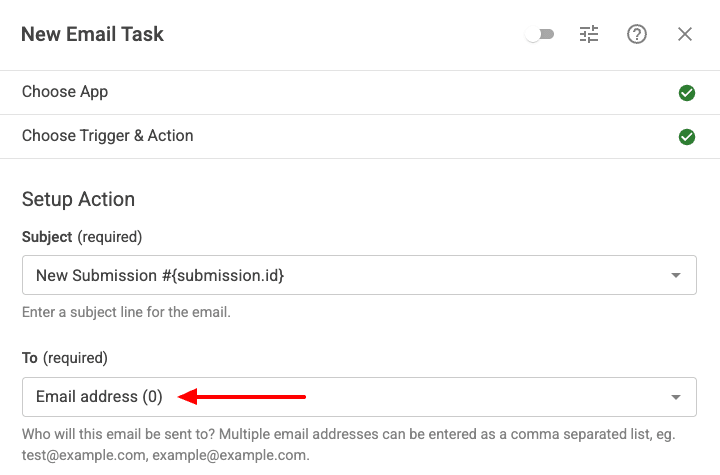
- Write a friendly Subject and Body. Personalize them with Smart Tags, for example:
- Subject:
We've received your submission #{submission.id} - Body:
Hi {field.name}, thank you for getting in touch. We'll get back to you soon. Here's a copy of what you sent us: {submission.fields}
- Subject:
- Set a From Name and From address your recipients will recognize, ideally an address on your own domain for good deliverability.
- Give the task a title, enable it, and click Save. Save the form.
When the form is submitted, the {field.email} Smart Tag automatically resolves to the address the user typed, and the confirmation lands in their inbox.
Tips
- Send both an admin notification and a confirmation. Create two Email Tasks: one with To set to
{site.email}for you, and one with To set to{field.email}for the user. See Send Multiple Emails. - Let users reply to you. On the confirmation email, set Reply To Email to your support address so replies reach your team rather than bouncing back to the user's own address.
- Only send when requested. If you'd rather send a copy only when the user opts in, gate the task with a checkbox. See Send an Email Only When a Checkbox Is Checked.
Troubleshooting
- The email didn't arrive. Confirm the form actually has an Email Address field and that you selected its Smart Tag (not a different field). Then work through Troubleshooting Email Delivery.
- The address looks wrong or empty. Check the field name in your Smart Tag matches the field name in the form builder exactly.
Last updated on Jul 2nd 2026 14:07
In This Article

Tassos offers a premium suite of Joomla extensions with 7 products and over 2.4 million downloads, providing reliable solutions since 2014.


 Rated:
Copyright © 2014 - 2026 - Smile Motive Development LP. All Rights Reserved.