

-
- Managing Form Submissions
- Searching and Filtering Submissions
- Submission Context Tracking
- Customizing Submission Columns
- Editing Submissions
- Deleting Submissions
- Importing Submissions
- Exporting Submissions
- Exporting Submissions with a Webhook URL
- Tracking the User's IP Address
- Tracking the User's Country
- Disable Submission Storage
- Auto-Delete Old Submissions
- Auto-Save Each Submission to a JSON file
- Increment a Count on Each Submission
- Add a Unique ID to Each Submission
-
- Email the Person Who Filled Out the Form
- Send an Email Only When a Checkbox Is Checked
- Attach the Submission PDF to Emails
- Send Email Based on Drop Down Selection
- Send Different Email Content Based on Form Responses
- Set up Auto-Responder Emails
- Styling Emails with CSS
- Sending Plain-Text Alternative Body Emails
- Troubleshooting Email Delivery
- Tracking Sent Emails
- Resending Emails
-
- Browser Autocomplete for Form Fields
- Redirect to a Menu Item After Form Submission
- Show a Form Only to Logged-In Users
- Adding an “Other” Option
- Show or Hide Form Fields Based on User Joomla User Group
- Scroll the Page to the Top When a Long Form is Submitted
- Display Submissions Count for a Specific Form
- Populate Drop Down, Radio Buttons or Checkboxes with a CSV File
- Silently POST Submitted Data to Any API or URL
- Create a Custom Login Form
- Auto-Populate Fields with Article Data
- Add a placeholder text to a Dropdown field
- Create Multilingual Forms in Joomla
- Redirect User to a URL After Form Submission
- Importing and Exporting Forms
- Display Convert Forms in a popup
-
- Does Convert Forms Use Cookies?
- Minimum Time to Submit
- Restrict Form Submissions Based on IP
- Enforcing a Custom Password Policy in Convert Forms
- Add ALTCHA Proof of Work to your Joomla form
- Add Cloudflare Turnstile to your Joomla Form
- Implement the Iubenda Consent Database in Joomla with Convert Forms
- Add Custom Validations to Fields and Forms
- Add Math Captcha to your Form
- Prevent a Field From Saving in the Database
- Add hCaptcha to your Form
- Enable Double Opt-in
- Allow Form Submissions in Specific Date Range
- Ensure a Unique Value is Entered Into a Field
- Block Form Submissions Containing Profanity (Bad Words)
- Block Email Addresses or Email Domains
- Honeypot
- Setting Up Google reCAPTCHA
- Create GDPR Compliant Forms
Customizing Submission Columns
The Submissions list doesn't have to show every field a form collects. With the Columns picker, you decide which columns appear, hide the ones you don't need, and drag them into the order that works best for you.
Managing Column Visibility
- Log in to your Joomla backend.
- Go to Components → Convert Forms → Submissions.
-
Select a form from the Form filter.
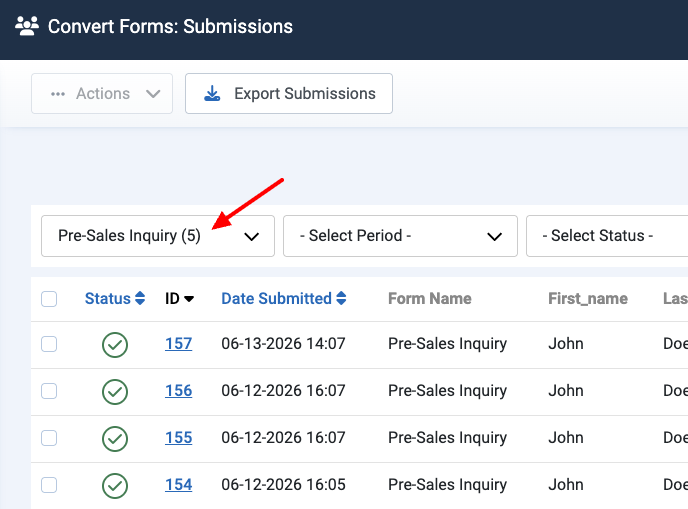
-
Click the Columns button in the filter bar.
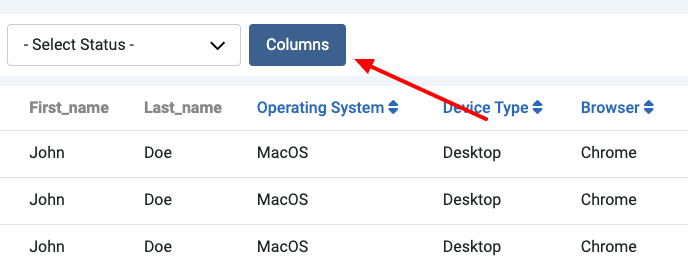
-
Use the picker to show, hide, and reorder columns. See Inside the columns picker below for what each part does.
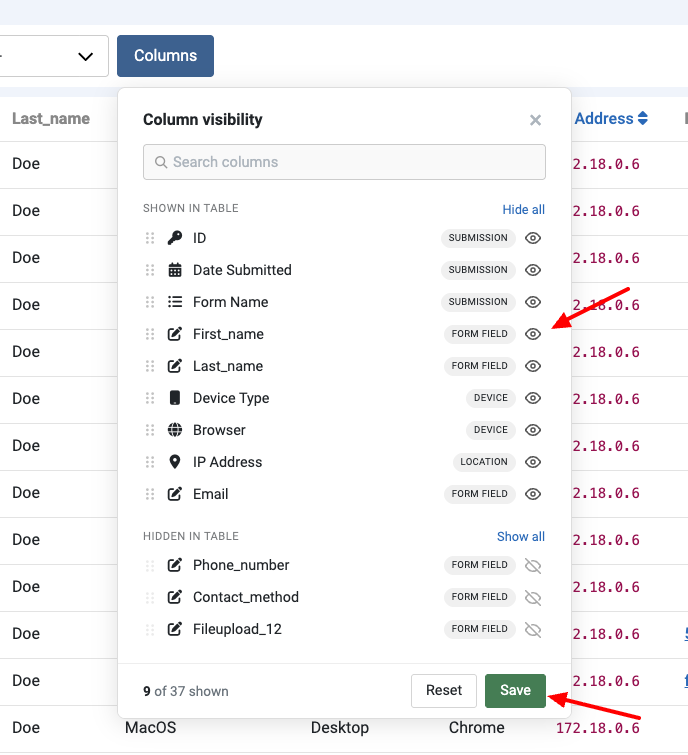
-
Click Save to apply your choices to the Submissions list. If you make changes you don't want to keep, the Reset link restores your last saved layout.
Inside the columns picker
The picker opens below the button and splits columns into two sections:
- Shown in table lists the columns currently in the table. Drag the handle on a column's left to change where it appears in the Submissions list.
- Hidden in table lists every available column that's currently hidden.
- Click the eye icon on the right of a column to move it between the two sections, showing or hiding it.
- For forms with lots of fields, use the Search columns box to filter by name. Groups with no matches hide while you search, and matching groups expand automatically. Clear the search to see everything again.
Frequently asked questions
Will my column layout affect other admins?
No. Your column selection and order are saved against your own user account, so every back-end user has their own independent layout for each form. Changing yours doesn't touch anyone else's.
Does this change which columns get exported?
No. The Submissions list and the export are separate. When you export submissions, you pick what goes in the file from the export's own Columns to export step. See Exporting Submissions.



 Rated: