

Unlock this and dozens of other powerful features by upgrading to Convert Forms Pro.
Unlock this feature
-
- Managing Form Submissions
- Searching and Filtering Submissions
- Submission Context Tracking
- Customizing Submission Columns
- Editing Submissions
- Deleting Submissions
- Importing Submissions
- Exporting Submissions
- Exporting Submissions with a Webhook URL
- Tracking the User's IP Address
- Tracking the User's Country
- Disable Submission Storage
- Auto-Delete Old Submissions
- Auto-Save Each Submission to a JSON file
- Increment a Count on Each Submission
- Add a Unique ID to Each Submission
-
- Email the Person Who Filled Out the Form
- Send an Email Only When a Checkbox Is Checked
- Attach the Submission PDF to Emails
- Send Email Based on Drop Down Selection
- Send Different Email Content Based on Form Responses
- Set up Auto-Responder Emails
- Styling Emails with CSS
- Sending Plain-Text Alternative Body Emails
- Troubleshooting Email Delivery
- Tracking Sent Emails
- Resending Emails
-
- Browser Autocomplete for Form Fields
- Redirect to a Menu Item After Form Submission
- Show a Form Only to Logged-In Users
- Adding an “Other” Option
- Show or Hide Form Fields Based on User Joomla User Group
- Scroll the Page to the Top When a Long Form is Submitted
- Display Submissions Count for a Specific Form
- Populate Drop Down, Radio Buttons or Checkboxes with a CSV File
- Silently POST Submitted Data to Any API or URL
- Create a Custom Login Form
- Auto-Populate Fields with Article Data
- Add a placeholder text to a Dropdown field
- Create Multilingual Forms in Joomla
- Redirect User to a URL After Form Submission
- Importing and Exporting Forms
- Display Convert Forms in a popup
-
- Does Convert Forms Use Cookies?
- Minimum Time to Submit
- Restrict Form Submissions Based on IP
- Enforcing a Custom Password Policy in Convert Forms
- Add ALTCHA Proof of Work to your Joomla form
- Add Cloudflare Turnstile to your Joomla Form
- Implement the Iubenda Consent Database in Joomla with Convert Forms
- Add Custom Validations to Fields and Forms
- Add Math Captcha to your Form
- Prevent a Field From Saving in the Database
- Add hCaptcha to your Form
- Enable Double Opt-in
- Allow Form Submissions in Specific Date Range
- Ensure a Unique Value is Entered Into a Field
- Block Form Submissions Containing Profanity (Bad Words)
- Block Email Addresses or Email Domains
- Honeypot
- Setting Up Google reCAPTCHA
- Create GDPR Compliant Forms
JSON-API
Programmatically access form data, leads, and campaigns using GET requests.
JSON-API is available in Pro
The JSON-API feature is only available in the Convert Forms Pro version.
Convert Forms Pro provides a JSON-API to developers who would like to programmatically communicate with third-party apps.
How to create your API Key
To create the API Key which will authenticate your requests to your ConvertForms, follow the steps below:
1. Navigate to Components > Convert Forms
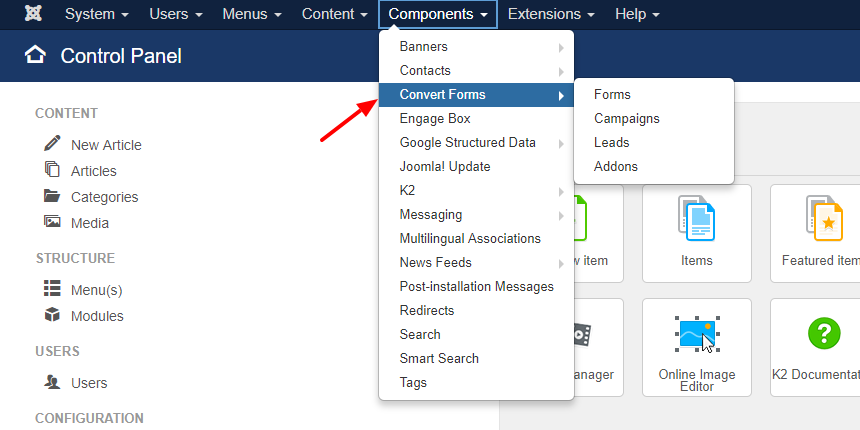
2. Click the "Options" button.
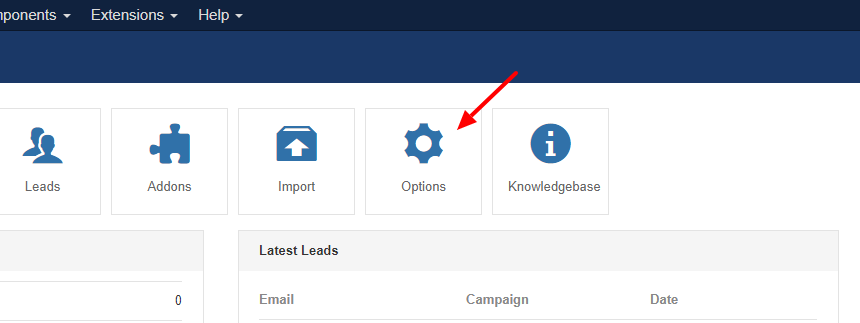
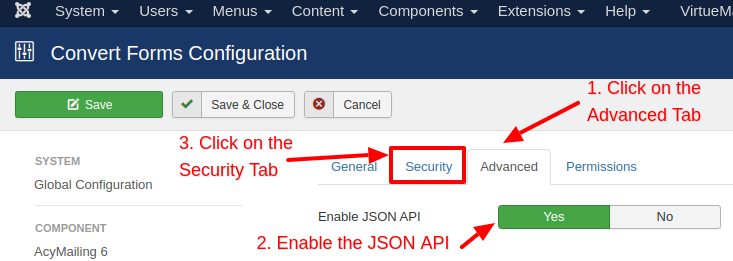
3. Click the "Advanced Tab" to get to the options of the JSON API and enable the option Enable JSON API.
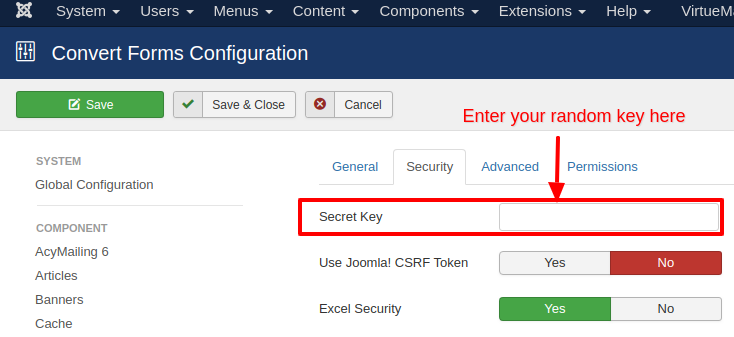
4. Click on the "Security Tab" and type in your random alphanumeric API Secret Key. It is preferably if you type a key longer than 20 characters.
5. Save your configuration by clicking "Save".
The Base URL
All the requests to the JSON API are of the type "GET" and they need to be sent to the following URL.
https://example.com/index.php?option=com_ajax&format=raw&plugin=ConvertForms&task=apiReplace https://example.com with the domain of your Joomla website.
The Arguments
The supported arguments towards the Base URL are the following.
- api_key: API Key entered in the configuration page
- endpoint: leads|forms|campaigns (Default to forms)
- limit: (Defaults to 1000)
- start: Paging (Defaults to 0)
- order: Rows ordering (Defaults to ID)
- dir: Rows Ordering direction (Defaults to DESC)
- form: Filter leads by Form ID
- campaign: Filter leads by Campaign ID
Examples
Get All Forms
{baseurl}&api_key={apikey}&endpoint=forms
Example Response
[
    {
        "id": "5",
        "name": "My Newsletter",
        "created": "2017-08-03 17:35:19",
        "state": "1"
    },
    {
        "id": "4",
        "name": "Winter Contest Sign-up",
        "created": "2017-07-29 08:22:35",
        "state": "1"
    },
    {
        "id": "3",
        "name": "Free recipes e-book Sign-up",
        "created": "2017-07-27 12:53:48",
        "state": "1"
    }
]
Get All Campaigns
{baseurl}&api_key={apikey}&endpoint=campaigns
Example Response
[
    {
        "id": "4",
        "name": "MailChimp Campaign",
        "created": "2017-07-29 08:14:55",
        "state": "1"
    },
    {
        "id": "3",
        "name": "Zoho Campaign",
        "created": "2017-07-27 12:29:02",
        "state": "1"
    },
    {
        "id": "2",
        "name": "CampaignMonitor Campaign",
        "created": "2017-06-09 07:10:29",
        "state": "1"
    }
]
Get All Leads
{baseurl}&api_key={apikey}&endpoint=leads
Example Response
[
    {
        "id": "1",
        "state": "1",
        "created": "2017-07-27 12:54:59",
        "form_id": "3",
        "campaign_id": "3",
        "user_id": "0",
        "visitor_id": "8580a154e54a7126",
        "field_email": "[email protected]",
        "field_age": "90"
    },
    {
        "id": "2",
        "state": "1",
        "created": "2017-07-29 13:31:11",
        "form_id": "2",
        "campaign_id": "1",
        "user_id": "0",
        "visitor_id": "8580a154e54a7126",
        "field_email": "[email protected]",
        "field_age": "90"
    }
]
Get Leads of Form #1
{baseurl}&api_key={apikey}&endpoint=leads&form=1
Example Response
The same as "Get All Leads"
Get Leads of Campaign #5
{baseurl}&api_key={apikey}&endpoint=leads&campaign=5
Example Response
The same as "Get All Leads"
Errors
In case an error occurs with one of your requests the error response will be of the following format.
{
    "error": "ConvertForms API: Endpoint not found: foooorms"
}
In this example we tried to use a non-existant endpoint called "foooorms".
JSON-API is available in Pro
Unlock this and dozens of other powerful features by upgrading to Convert Forms Pro.
Unlock this feature
Last updated on Sep 25th 2025 08:09

Tassos offers a premium suite of Joomla extensions with 7 products and over 2.4 million downloads, providing reliable solutions since 2014.


 Rated:
Copyright © 2014 - 2026 - Smile Motive Development LP. All Rights Reserved.