

-
- Managing Form Submissions
- Searching and Filtering Submissions
- Submission Context Tracking
- Customizing Submission Columns
- Editing Submissions
- Deleting Submissions
- Importing Submissions
- Exporting Submissions
- Exporting Submissions with a Webhook URL
- Tracking the User's IP Address
- Tracking the User's Country
- Disable Submission Storage
- Auto-Delete Old Submissions
- Auto-Save Each Submission to a JSON file
- Increment a Count on Each Submission
- Add a Unique ID to Each Submission
-
- Email the Person Who Filled Out the Form
- Send an Email Only When a Checkbox Is Checked
- Attach the Submission PDF to Emails
- Send Email Based on Drop Down Selection
- Send Different Email Content Based on Form Responses
- Set up Auto-Responder Emails
- Styling Emails with CSS
- Sending Plain-Text Alternative Body Emails
- Troubleshooting Email Delivery
- Tracking Sent Emails
- Resending Emails
-
- Browser Autocomplete for Form Fields
- Redirect to a Menu Item After Form Submission
- Show a Form Only to Logged-In Users
- Adding an “Other” Option
- Show or Hide Form Fields Based on User Joomla User Group
- Scroll the Page to the Top When a Long Form is Submitted
- Display Submissions Count for a Specific Form
- Populate Drop Down, Radio Buttons or Checkboxes with a CSV File
- Silently POST Submitted Data to Any API or URL
- Create a Custom Login Form
- Auto-Populate Fields with Article Data
- Add a placeholder text to a Dropdown field
- Create Multilingual Forms in Joomla
- Redirect User to a URL After Form Submission
- Importing and Exporting Forms
- Display Convert Forms in a popup
-
- Does Convert Forms Use Cookies?
- Minimum Time to Submit
- Restrict Form Submissions Based on IP
- Enforcing a Custom Password Policy in Convert Forms
- Add ALTCHA Proof of Work to your Joomla form
- Add Cloudflare Turnstile to your Joomla Form
- Implement the Iubenda Consent Database in Joomla with Convert Forms
- Add Custom Validations to Fields and Forms
- Add Math Captcha to your Form
- Prevent a Field From Saving in the Database
- Add hCaptcha to your Form
- Enable Double Opt-in
- Allow Form Submissions in Specific Date Range
- Ensure a Unique Value is Entered Into a Field
- Block Form Submissions Containing Profanity (Bad Words)
- Block Email Addresses or Email Domains
- Honeypot
- Setting Up Google reCAPTCHA
- Create GDPR Compliant Forms
Managing Form Submissions
Every time someone submits one of your forms, Convert Forms stores the entry so you can review it later. The Submissions list in the backend is where all of that lives: you can read entries, edit them, search and filter, change which columns you see, delete what you don't need, and export everything to a file.
Prefer not to keep entries at all? You can turn off submission storage per form.
Editing Form Submissions
Need to fix a typo in someone's entry, add an internal note, or change a submission's status? You can open any submission and edit it directly from the backend. Just head to the Submissions list and click the submission's ID.
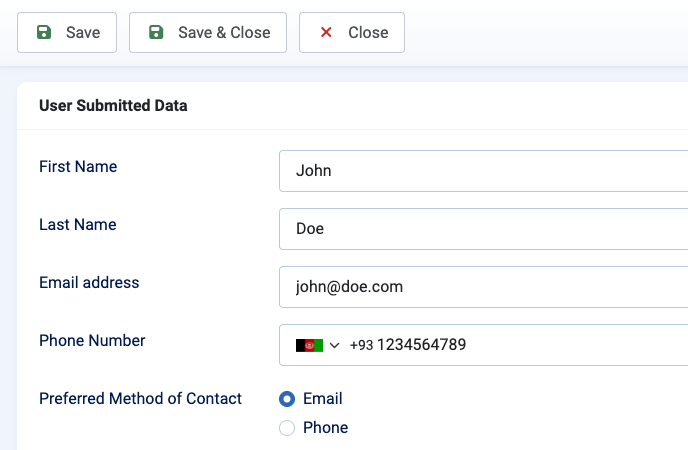
The edit screen shows the data the visitor submitted, a status selector, an internal notes field for your team, and read-only details like IP, country, device, and the page the form was submitted from.
Read more: Editing Form Submissions
Submission Context Tracking
Beyond the values people enter, Convert Forms automatically records context for every submission: where the visitor came from, the campaign that brought them in, their device, their IP address, and their location. No hidden fields or extra setup required.
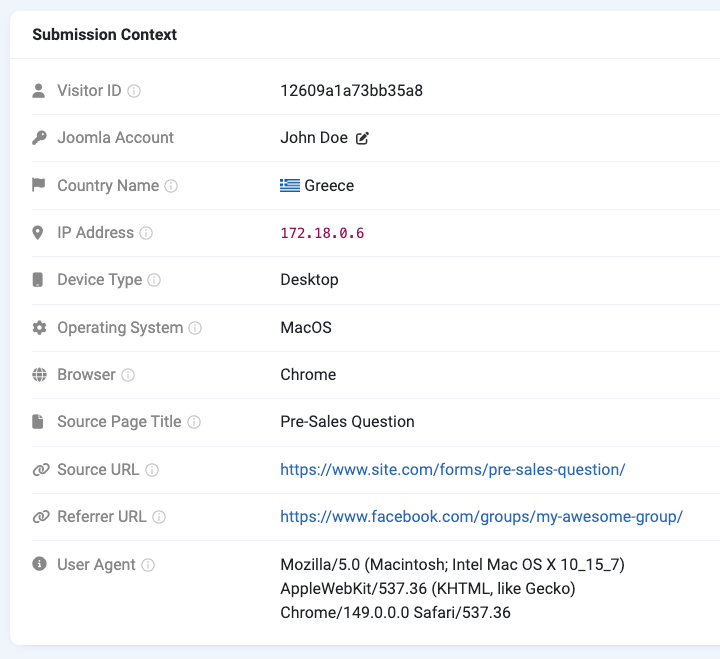
You can view this data on each submission, show it as columns in the list, or include it in an export.
Read more: Submission Context Tracking
Searching and Filtering Submissions
Once you've collected a few hundred entries, scrolling isn't an option. Convert Forms gives you filters to narrow the list down quickly: by period, form, keyword, and status.
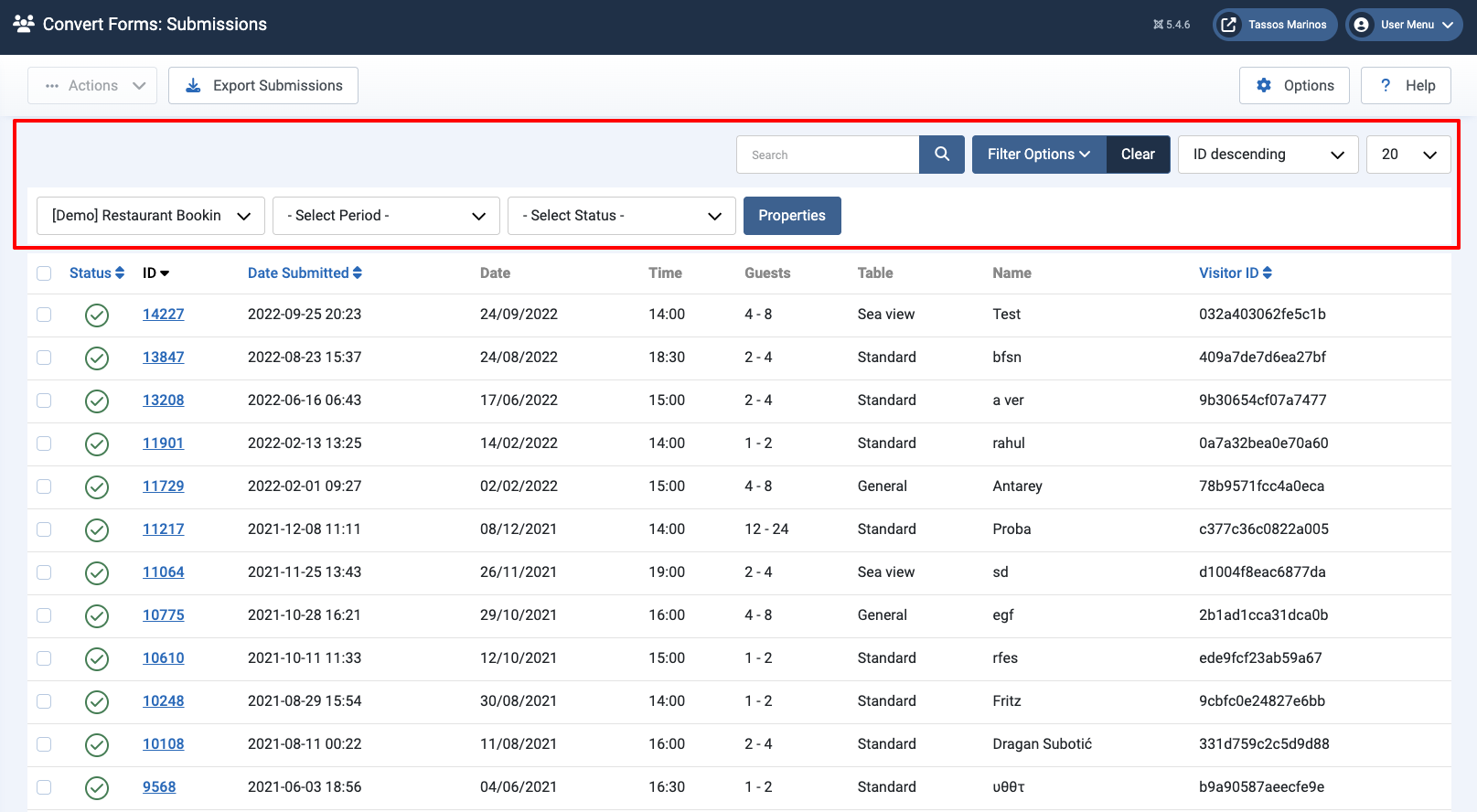
You can combine them to answer questions like "show me all submissions for the Contact form from last month that are still unpublished."
Read more: Searching and Filtering Submissions
Customizing Submission Columns
The Submissions list doesn't have to show every field. With the Columns picker, you decide exactly which columns appear, in what order. Show the fields you care about, hide the rest, and drag them into the order that makes sense for you.
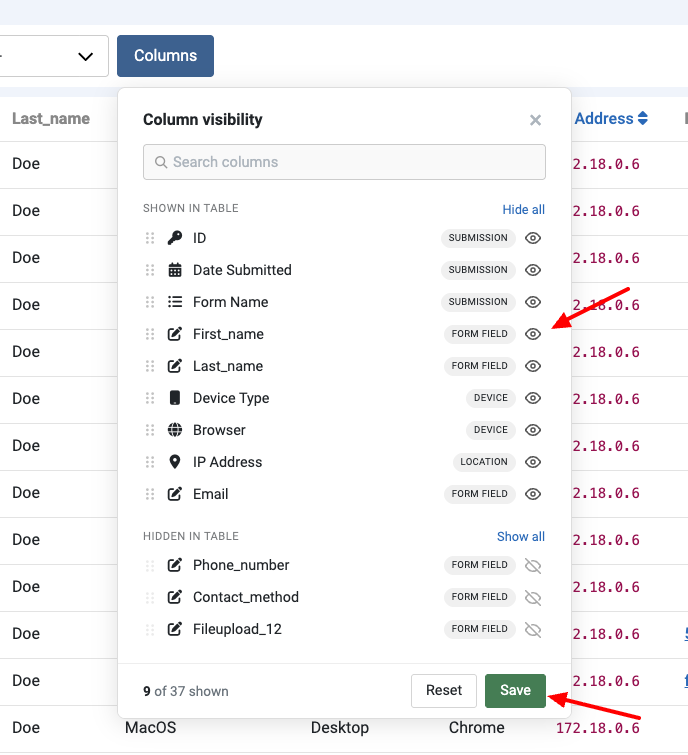
Read more: Customizing Submission Columns
Deleting Form Submissions
Spam entries, test submissions, or data you no longer need can be removed. Convert Forms uses a two-step approach: trash first (reversible), then empty the trash to delete permanently.
To keep the list clean without doing it by hand, you can also auto-delete old submissions on a schedule.
Read more: Deleting Form Submissions
Importing Form Submissions
Convert Forms doesn't import submissions through the interface, but if you're migrating data from another site or system, you can insert it straight into the database with a tool like phpMyAdmin.
Read more: Importing Form Submissions
Exporting Form Submissions
Need your submissions outside of Joomla? Export them to a CSV or JSON file to import into a CRM, a spreadsheet, or any other system. You choose the form, the period, the status, and exactly which columns end up in the file.
Read more: Exporting Form Submissions



 Rated: