

-
- Managing Form Submissions
- Searching and Filtering Submissions
- Submission Context Tracking
- Customizing Submission Columns
- Editing Submissions
- Deleting Submissions
- Importing Submissions
- Exporting Submissions
- Exporting Submissions with a Webhook URL
- Tracking the User's IP Address
- Tracking the User's Country
- Disable Submission Storage
- Auto-Delete Old Submissions
- Auto-Save Each Submission to a JSON file
- Increment a Count on Each Submission
- Add a Unique ID to Each Submission
-
- Email the Person Who Filled Out the Form
- Send an Email Only When a Checkbox Is Checked
- Attach the Submission PDF to Emails
- Send Email Based on Drop Down Selection
- Send Different Email Content Based on Form Responses
- Set up Auto-Responder Emails
- Styling Emails with CSS
- Sending Plain-Text Alternative Body Emails
- Troubleshooting Email Delivery
- Tracking Sent Emails
- Resending Emails
-
- Browser Autocomplete for Form Fields
- Redirect to a Menu Item After Form Submission
- Show a Form Only to Logged-In Users
- Adding an “Other” Option
- Show or Hide Form Fields Based on User Joomla User Group
- Scroll the Page to the Top When a Long Form is Submitted
- Display Submissions Count for a Specific Form
- Populate Drop Down, Radio Buttons or Checkboxes with a CSV File
- Silently POST Submitted Data to Any API or URL
- Create a Custom Login Form
- Auto-Populate Fields with Article Data
- Add a placeholder text to a Dropdown field
- Create Multilingual Forms in Joomla
- Redirect User to a URL After Form Submission
- Importing and Exporting Forms
- Display Convert Forms in a popup
-
- Does Convert Forms Use Cookies?
- Minimum Time to Submit
- Restrict Form Submissions Based on IP
- Enforcing a Custom Password Policy in Convert Forms
- Add ALTCHA Proof of Work to your Joomla form
- Add Cloudflare Turnstile to your Joomla Form
- Implement the Iubenda Consent Database in Joomla with Convert Forms
- Add Custom Validations to Fields and Forms
- Add Math Captcha to your Form
- Prevent a Field From Saving in the Database
- Add hCaptcha to your Form
- Enable Double Opt-in
- Allow Form Submissions in Specific Date Range
- Ensure a Unique Value is Entered Into a Field
- Block Form Submissions Containing Profanity (Bad Words)
- Block Email Addresses or Email Domains
- Honeypot
- Setting Up Google reCAPTCHA
- Create GDPR Compliant Forms
Campaigns Feature Is Deprecated: Migrate to Tasks
The Campaigns section is now marked as deprecated and will be removed in a future release, although a specific timeline has not been established yet. Convert Forms includes a migration tool that moves your Campaigns to Tasks for you. See How to migrate from Campaigns to Tasks for the steps.
If your forms do not sync with any third-party service, you do not need to migrate anything.
Do I need to migrate?
You only need to migrate if your forms send submissions to an email marketing or CRM service through a Campaign.
If your forms only store submissions and send emails through your web host, there is nothing to migrate. Your form submissions are already being saved in your Joomla site's database, and this behavior will remain the same in the future. Your forms will continue to work as they do today.
Nothing will break when the Campaigns section is officially removed. The update mechanism will automatically transition everything.
How to migrate from Campaigns to Tasks
Campaigns are the old way to connect a form to an email marketing or CRM service. Tasks replace them, and they are more flexible.
The Campaigns Migration tool does the move for you. It reads each form's Campaign, creates the matching Task, including the connection and the field mapping, and then points the form at a no-sync campaign so that nothing is sent twice.
Your forms keep working the whole time, and it is safe to run the migrator more than once.
Migrate automatically (recommended)
Step 1: Find the notice
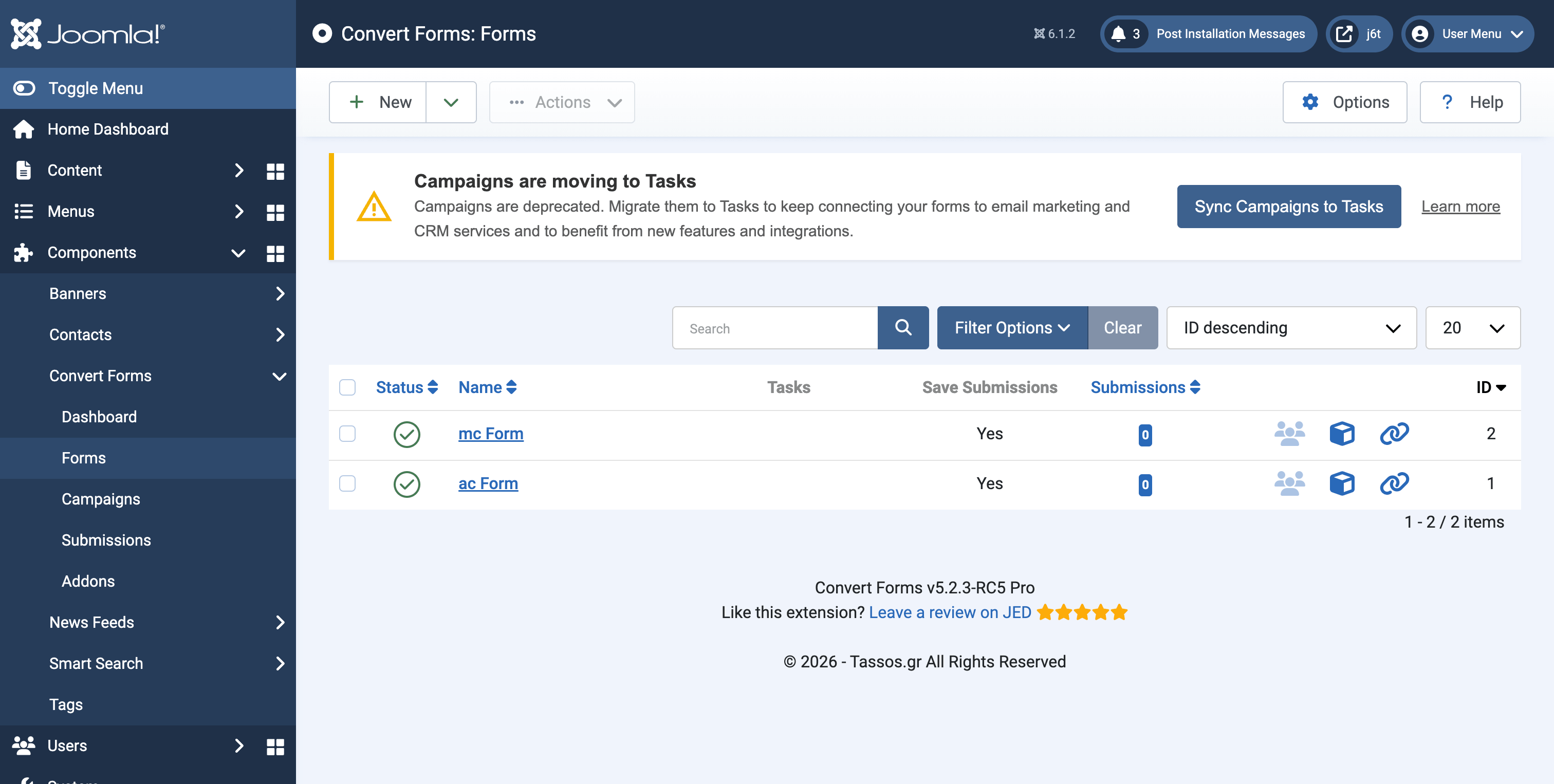
Open any Convert Forms admin page (Dashboard, Forms, Submissions, Campaigns, or Add-ons). A Campaigns are moving to Tasks notice appears at the top.
The notice is only shown while you still have Campaigns left to migrate. Once everything is migrated, it disappears on its own.
Step 2: Start the migration
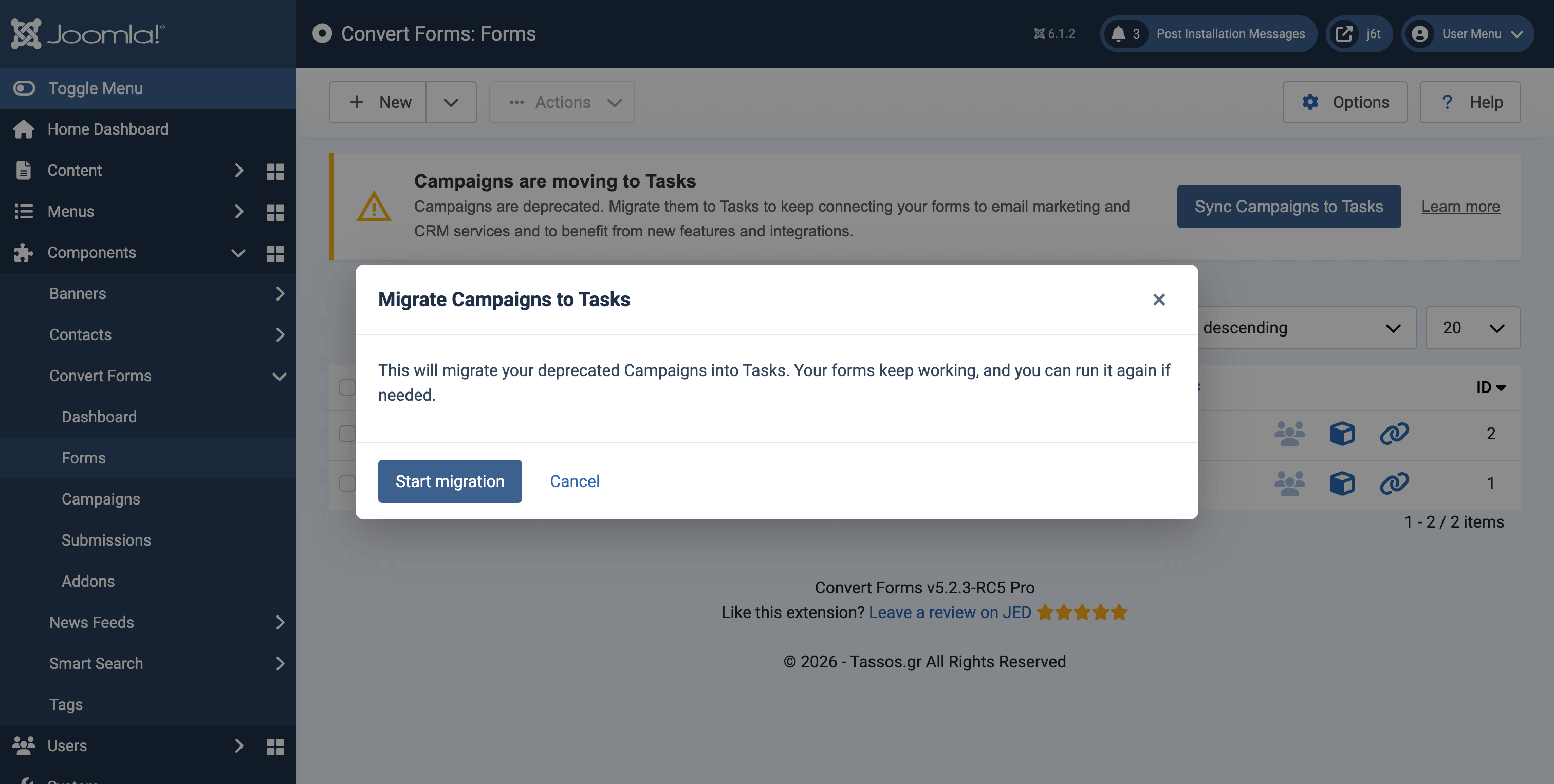
Click Sync Campaigns to Tasks. A dialog opens and explains what is about to happen:
This will migrate your deprecated Campaigns into Tasks. Your forms keep working, and you can run it again if needed.
Click Start migration.
Step 3: Wait for it to finish
Your forms are processed in batches, with a progress bar. Leave the dialog open until the migration is finished. It cannot be dismissed while it is running.
Step 4: Read the results
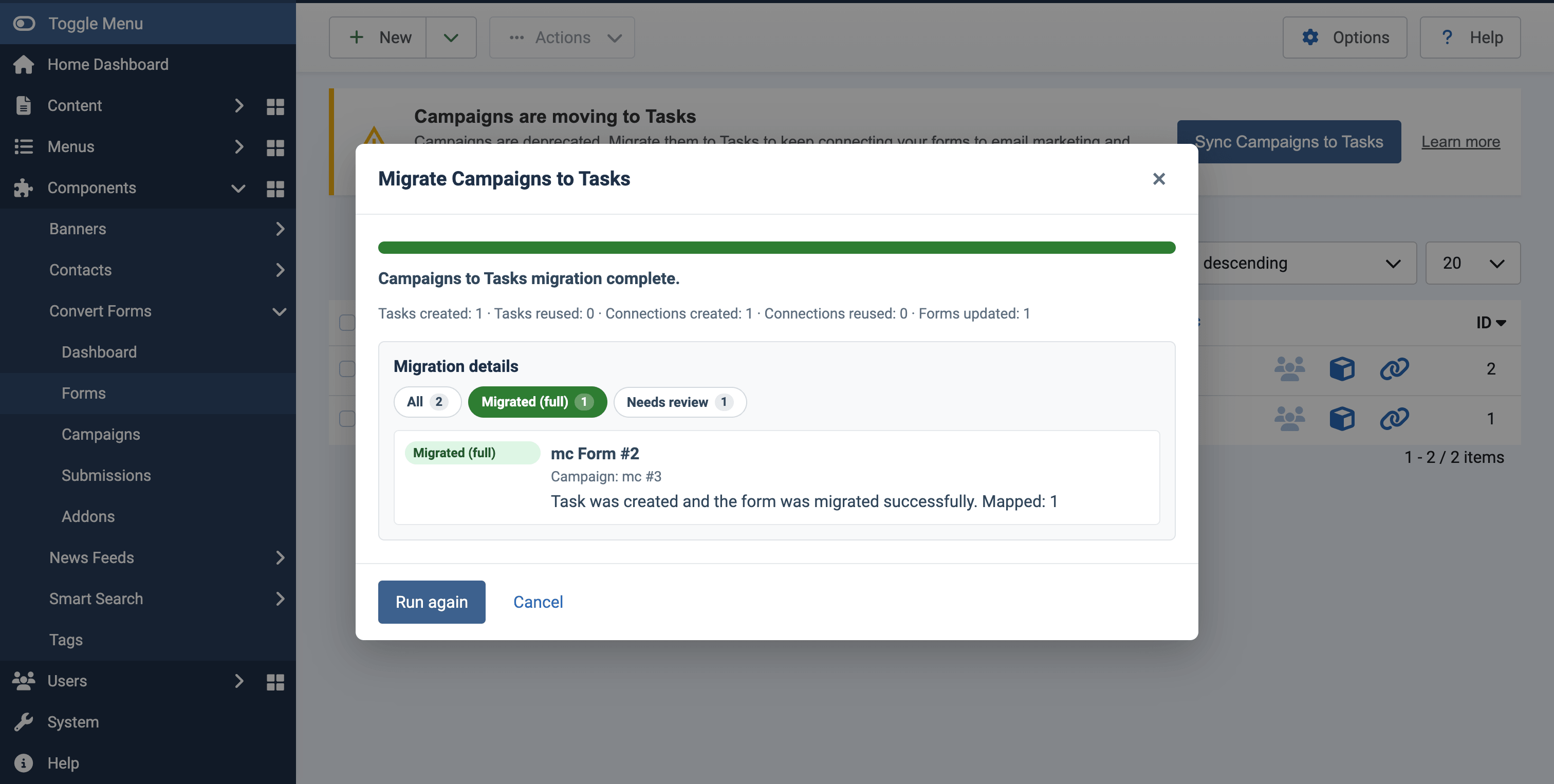
When the migration finishes, you get a Migration details panel with a short summary line, followed by one row per form, split across tabs.
| Tab | What it means |
|---|---|
| All | Every form the migrator looked at. |
| Migrated (full) | Migrated successfully by creating an associated task based on the form's campaign. |
| Migrated (partial) | The Task was created and works. Some form fields had no matching field in the service, so they are not sent. This is common and usually needs no action. |
| Needs review | Not migrated. The form still uses its Campaign and keeps working. See Step 5. |
| No action needed | Nothing to migrate, typically a Campaign that does not connect to any service. |
Step 5: Handle anything under "Needs review"
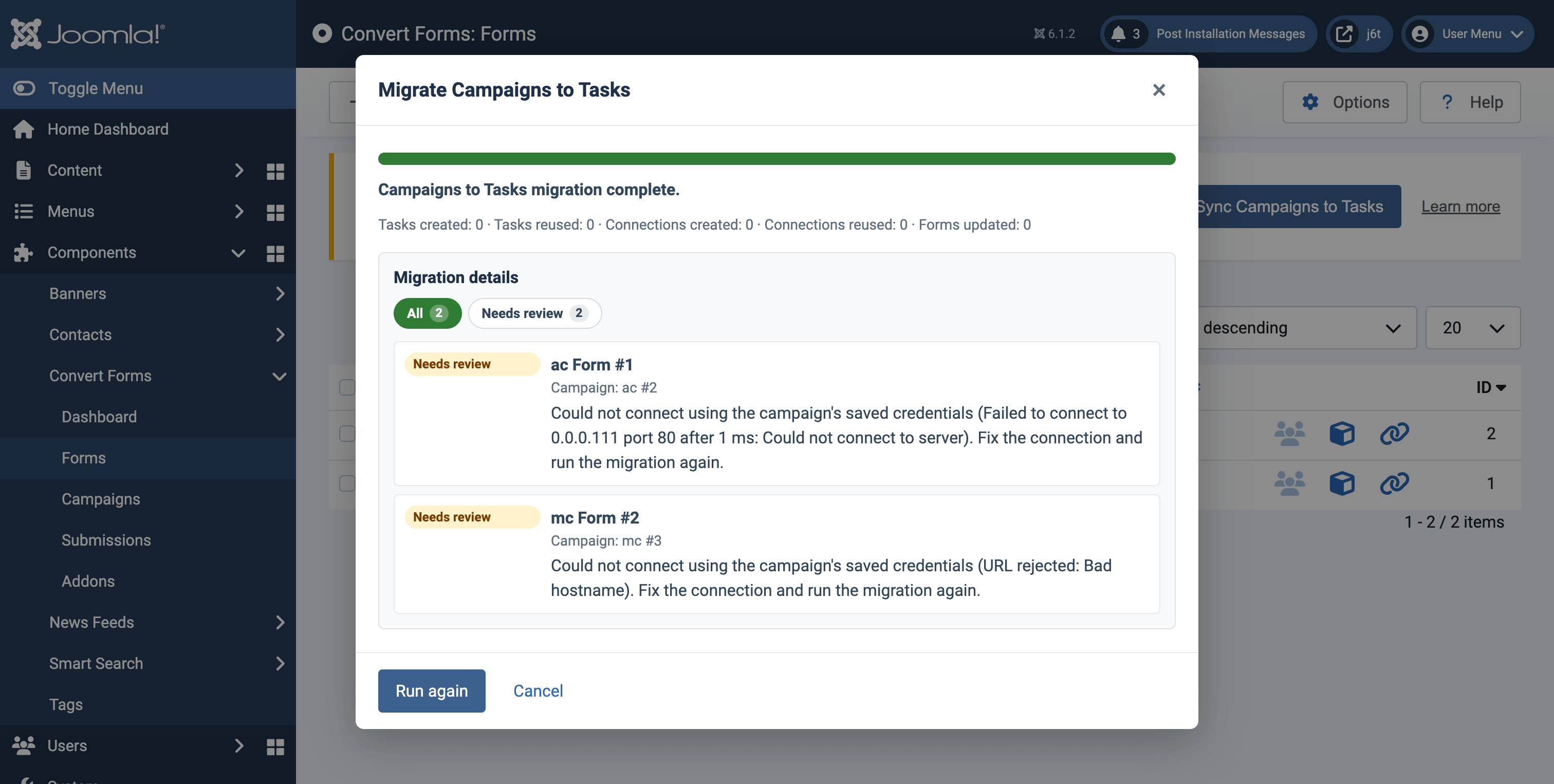
Each row tells you why the form was skipped. These are the two you are most likely to see:
- "This campaign connects to its service in an older way that's no longer supported." This applies to HubSpot and Kit (ConvertKit). Follow the Read the documentation link on the row and set the Task up by hand, as described in Migrate manually.
- "Could not connect using the campaign's saved credentials. Fix the connection and run the migration again." This means a wrong or expired key. No broken Task was created. Fix the credentials, then run the migrator again.
Nothing here is lost. The form keeps its Campaign and continues to work until you resolve the issue.
Step 6: Check your Tasks
Open a migrated form and go to its Tasks tab. You will find a Task named Migrated Campaign: <campaign name>, carrying the list, the main fields, and the custom fields from the old Campaign.
Submit the form once to confirm that the data reaches your service.
Step 7: Run the migrator again if you need to
The migrator is safe to run again. It reuses the Tasks and connections it has already created instead of duplicating them. Fix whatever was flagged, then click Sync Campaigns to Tasks again. The button now reads Run again.
What gets migrated
Each Campaign becomes the matching Task, with its list, its main fields, and its custom fields carried over.
| Old Campaign | Becomes Task |
|---|---|
| ActiveCampaign | ActiveCampaign |
| AcyMailing | AcyMailing |
| Campaign Monitor | Campaign Monitor |
| Drip | Drip |
| Elastic Email | Elastic Email |
| GetResponse | GetResponse |
| iContact | iContact |
| Mailchimp | Mailchimp |
| Salesforce (Web-to-Lead) | Salesforce |
| Sendinblue (v3) | Brevo |
What cannot be migrated, and why
| Campaign | Why | What to do |
|---|---|---|
| HubSpot | The old Campaign uses an old HubSpot key that the new HubSpot Task cannot use. | Set it up by hand with a HubSpot Private App token. Guide |
| ConvertKit | The old Campaign uses an old ConvertKit key. The new Kit Task requires a newer key. | Set it up by hand with a Kit (v4) key. Guide |
| AWeber, Zoho, ZohoCRM | These are no longer available. They used sign-in methods that the services no longer support, and there is no Task for them. | Set them up by hand if a Task is added in the future. |
Forms that cannot be moved are left exactly as they are and are listed in the results, so that nothing stops working by surprise.
Migrate manually
For the Campaigns listed above, or if you would rather do the migration yourself:
- Open the form and go to its Tasks tab.
- Click New and select your service from the apps list.
- Enter your credentials, choose your list, and map your form fields to the fields of the service.
- Save and test your form.
If the form still has a Campaign that points at the same service, remove it afterwards so that your submissions are not sent twice.
After the migration
Once no Campaigns are left to migrate:
- The notice disappears.
- You can no longer create new Campaigns. The New and Duplicate buttons are removed from the Campaigns page.
- The Collect Submissions Using the Campaign option is removed from the Submission tab of each form. Use the Tasks tab of the form from now on.
Your existing Campaigns remain in the list, read-only, in case you want to refer back to them.
Transitioning to Tasks
Tasks do everything Campaigns did, and more:
- Conditional execution. Run a Task only when the submission meets your conditions, instead of on every submission.
- Flexible field mapping. Map any form field to any field of the service. Fixed field names are no longer required.
- More than one integration per form. Send the same submission to several services at once.
- Dynamic audiences. Select the list or audience from a form field, instead of hard-coding a single one.
- Shared Connections. Store your credentials once and reuse them across every Task.
Almost every service that was available as a Campaign is already available as a Task. The only ones without an equivalent are AWeber, Zoho, and ZohoCRM.
Why we are deprecating campaigns
Campaigns were built around a single integration per form and a fixed set of field names, which made them rigid:
- There was no conditional logic. Every submission was sent, with no way to filter.
- Field names had to match what the service expected, such as
email. - Custom fields could not be mapped freely.
- Only one integration per form was supported.
- Audience lists were static.
Tasks were designed to remove each of those limits, and new integrations are only being added to Tasks.
What will be removed
When Campaigns will be eventually removed in the future (no ETA), the following will be removed with them:
- The Campaigns section in the Convert Forms backend.
- The Collect Submissions Using the Campaign option in the form builder.
- The
campaignsJSON-API endpoint, along with thecampaignfilter of theleadsendpoint. - The Campaign step in the Zapier integration.
- The Campaign plugins.
If you need assistance with the migration, please review our documentation or contact our support team.



 Rated: