

-
- Managing Form Submissions
- Searching and Filtering Submissions
- Display Form Submissions on the Front-End
- Submission Context Tracking
- Customizing Submission Columns
- Editing Submissions
- Deleting Submissions
- Importing Submissions
- Exporting Submissions
- Exporting Submissions with a Webhook URL
- Tracking the User's IP Address
- Tracking the User's Country
- Disable Submission Storage
- Auto-Delete Old Submissions
- Auto-Save Each Submission to a JSON file
- Increment a Count on Each Submission
- Add a Unique ID to Each Submission
-
- Checkboxes
- Color Picker
- Confirmation
- Country
- Currency
- Date & Time
- Dropdown
- Email Address Field
- File Upload
- Hidden Field
- Icon element
- Number
- Page Counter element
- Password
- Phone Number
- Radio & Checkbox Images
- Radio Buttons
- Range Slider
- Rating
- Rich Text Editor
- Signature
- Terms of Service
- Textarea
- Textbox
- Website / URL Field
-
- Email the Person Who Filled Out the Form
- Send an Email Only When a Checkbox Is Checked
- Attach the Submission PDF to Emails
- Send Email Based on Drop Down Selection
- Send Different Email Content Based on Form Responses
- Set up Auto-Responder Emails
- Styling Emails with CSS
- Sending Plain-Text Alternative Body Emails
- Troubleshooting Email Delivery
- Tracking Sent Emails
- Resending Emails
-
- Browser Autocomplete for Form Fields
- Customizing Submission Date Created and Modified Formats
- How to Create a Quiz Form
- Centering forms
- Show Confirmation Popup After Submission
- Redirect to a Menu Item After Form Submission
- Use custom Google Font in your form
- Embed a Form in an External Website
- Copy Value From One Field to Another
- Add Placeholder Text to Fields
- Show a Form Only to Logged-In Users
- Add Custom CSS
- Adding an “Other” Option
- Show or Hide Form Fields Based on User Joomla User Group
- Scroll the Page to the Top When a Long Form is Submitted
- Populate Fields Using Query String
- Display Submissions Count for a Specific Form
- Populate Drop Down, Radio Buttons or Checkboxes with a CSV File
- Silently POST Submitted Data to Any API or URL
- Create a Custom Login Form
- Auto-Populate Fields with Article Data
- Add a placeholder text to a Dropdown field
- Create Multilingual Forms in Joomla
- Redirect User to a URL After Form Submission
- Importing and Exporting Forms
- Display Convert Forms in a popup
-
- CSRF Token
- Does Convert Forms Use Cookies?
- Minimum Time to Submit
- Restrict Form Submissions Based on IP
- Enforcing a Custom Password Policy in Convert Forms
- Add ALTCHA Proof of Work to your Joomla form
- Add Cloudflare Turnstile to your Joomla Form
- Implement the Iubenda Consent Database in Joomla with Convert Forms
- Add Custom Validations to Fields and Forms
- Add Math Captcha to your Form
- Prevent a Field From Saving in the Database
- Add hCaptcha to your Form
- Enable Double Opt-in
- Allow Form Submissions in Specific Date Range
- Ensure a Unique Value is Entered Into a Field
- Block Form Submissions Containing Profanity (Bad Words)
- Block Email Addresses or Email Domains
- Honeypot
- Setting Up Google reCAPTCHA
- Create GDPR Compliant Forms
-
- Troubleshooting Spam Submissions
- Updating from Convert Forms 5 to 6
- Troubleshooting Form Submission Errors
- Troubleshooting Form Rendering Issues with Joomla Cache
- Frequently Asked Questions
- Troubleshooting Issues with the Joomla Email Cloak Plugin
- Campaigns Feature Is Deprecated: Migrate to Tasks
- Prevent Form from Getting Covered by a Sticky Menu Bar
- Troubleshooting Convert Forms
Multi-Page Forms
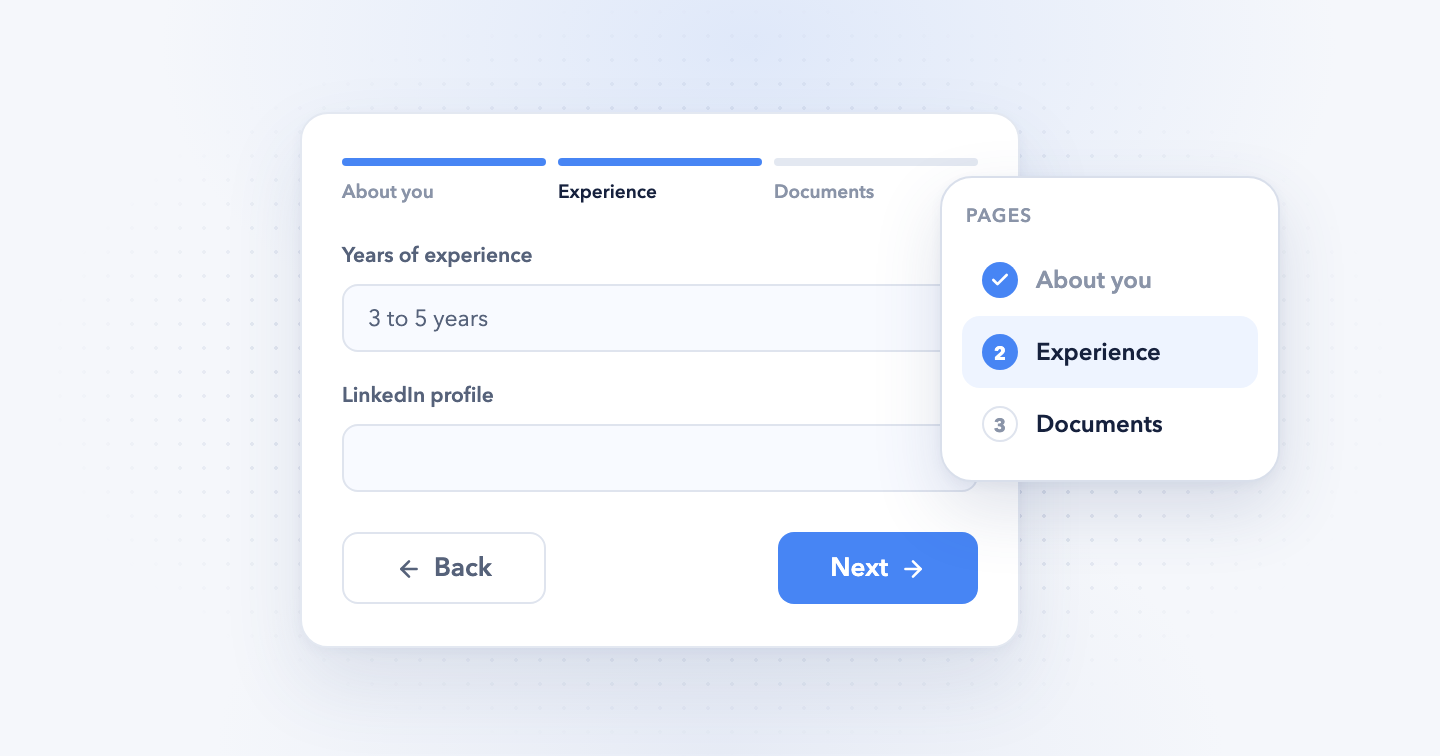
Split a long form into pages, add a progress bar, and skip the pages a visitor doesn't need with Page Logic.
Heads up: this feature is new in Convert Forms 6 and is only in the latest beta release. On Convert Forms 5, this page won't match your backend. Download the beta and back up your site first.
What is a multi-page form?
A multi-page form splits its questions across pages, and visitors fill in 1 page at a time. They move on with Next, go back with Back, and submit on the last page.
A long form feels shorter when visitors see 3 questions at a time instead of 20. You decide how to split it: 1 question per page for a step-by-step feel, or related questions grouped together, like contact details on page 1 and order details on page 2. With Page Logic, visitors can also skip the pages that don't apply to them.
However many pages you add, Convert Forms sends 1 submission with the answers from every page.
Multi-page forms work in the free version. Page Logic and per-page design need Convert Forms Pro.
Add a page
- Log into your Joomla backend.
- Go to Components → Convert Forms → Forms.
- Open your form.
- Click Form in the left sidebar.
-
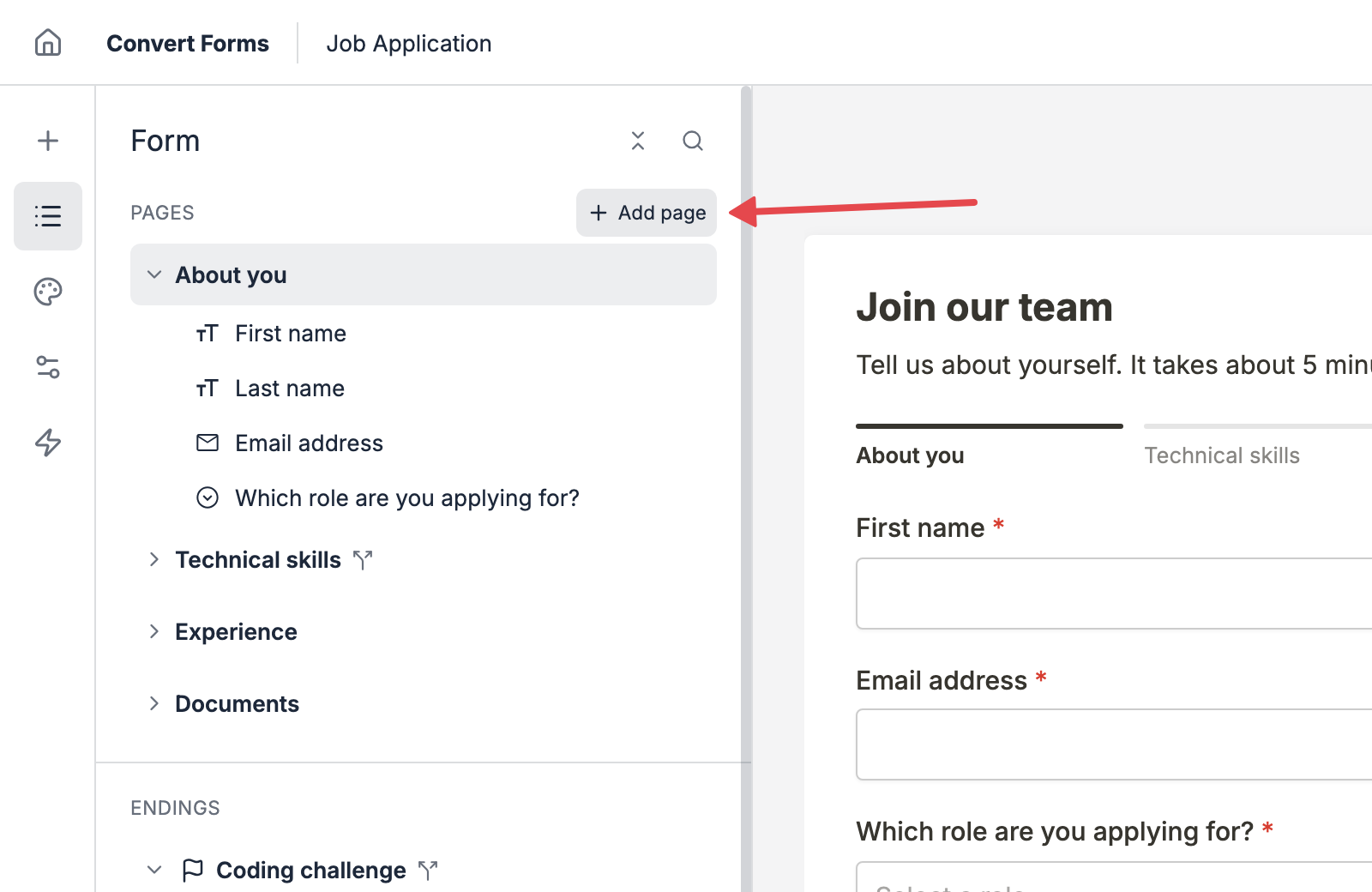
Hover over the Pages heading and click Add page.
-
The new page appears at the bottom of the Pages list, and the preview switches to it.
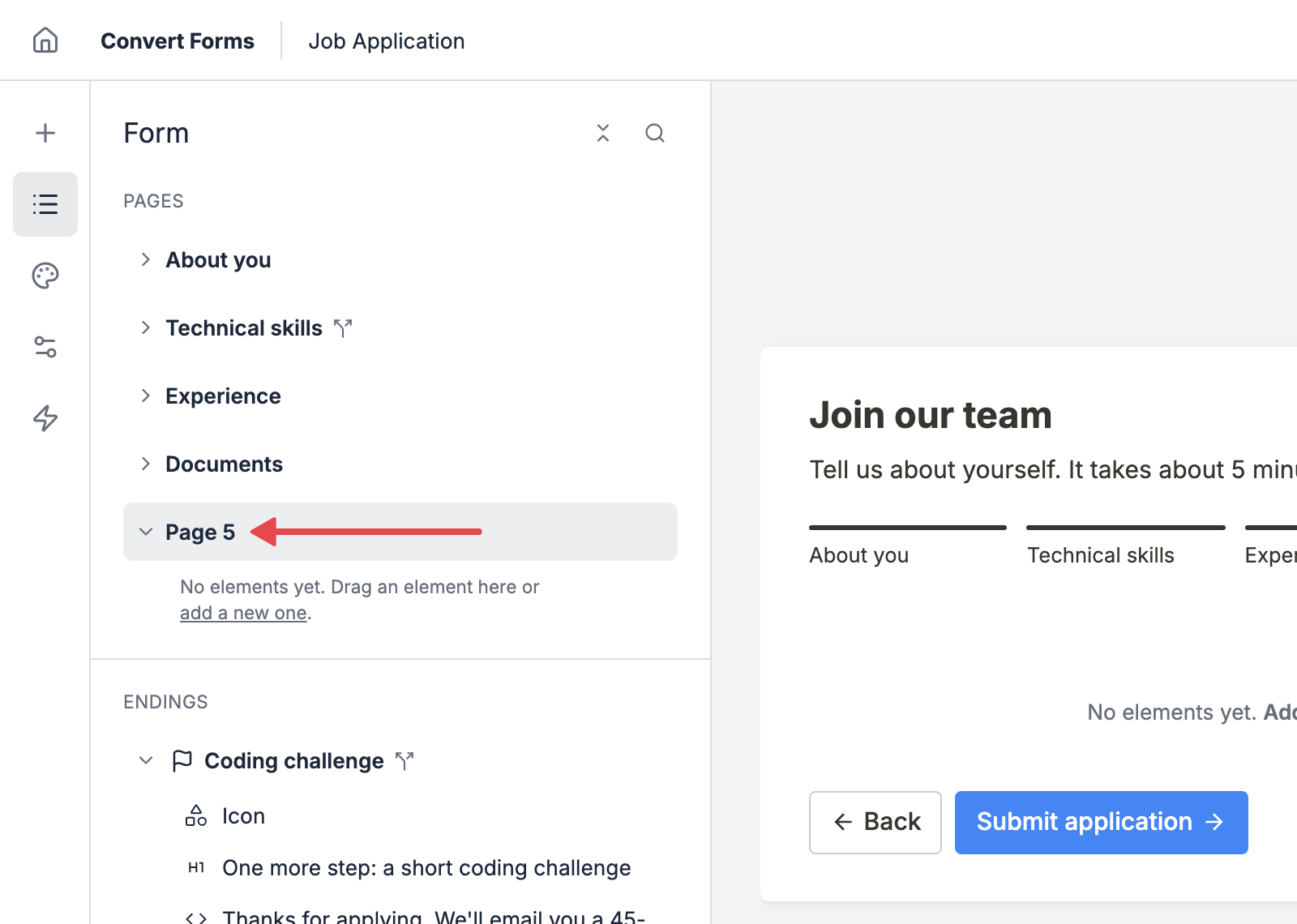
- Click Add a new one, in the preview or under the page in the Form tree, to start adding elements.
To move the new page somewhere else, drag it in the Form tree.
Move elements between pages
There are 3 ways to move elements to another page.
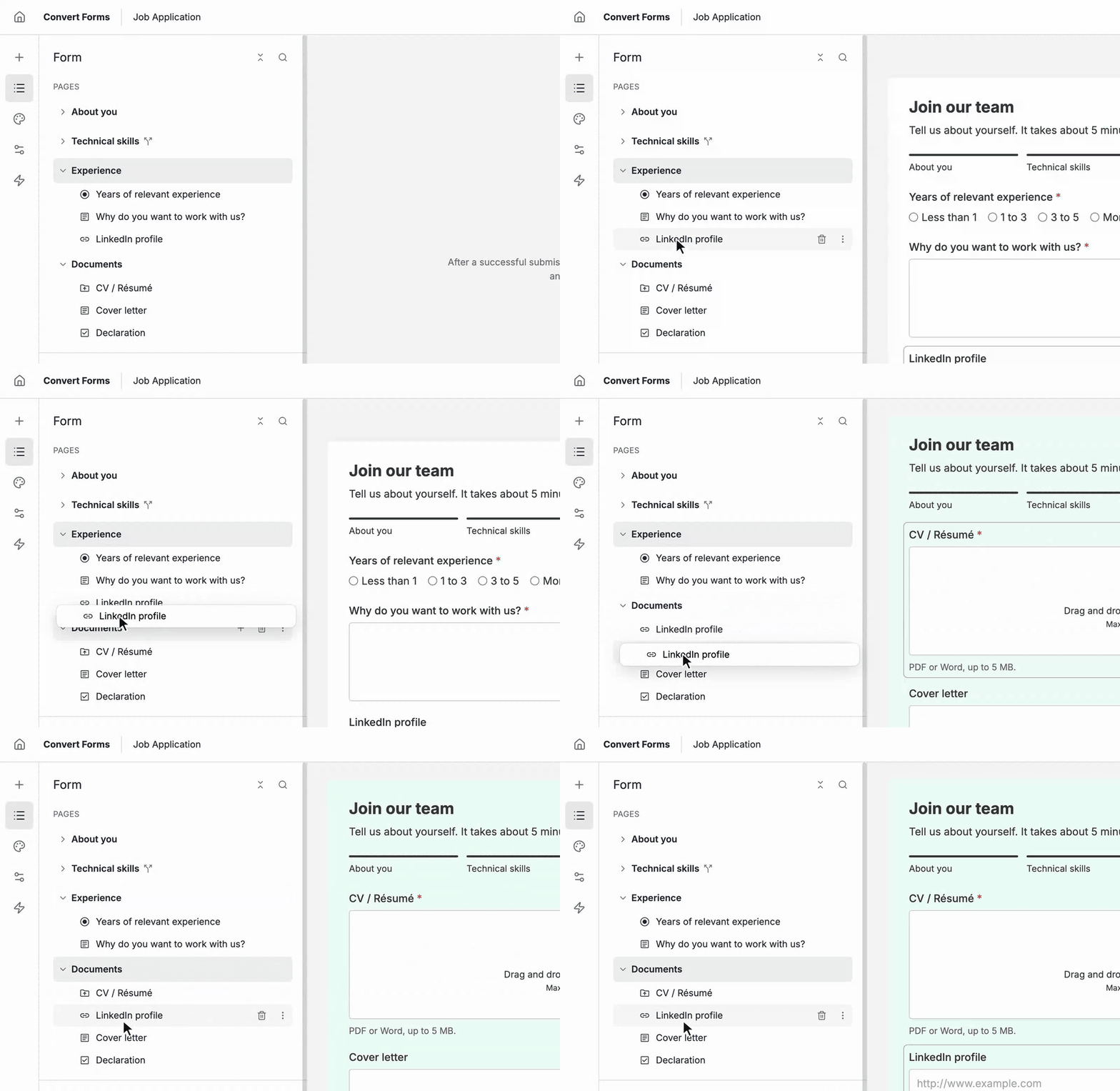
Drag and drop
Drag an element in the Form tree and drop it on another page.
Use the element's menu
- Hover over the element in the Form tree.
- Click its menu (⋮).
- Point to Move to page.
-
Pick the page.
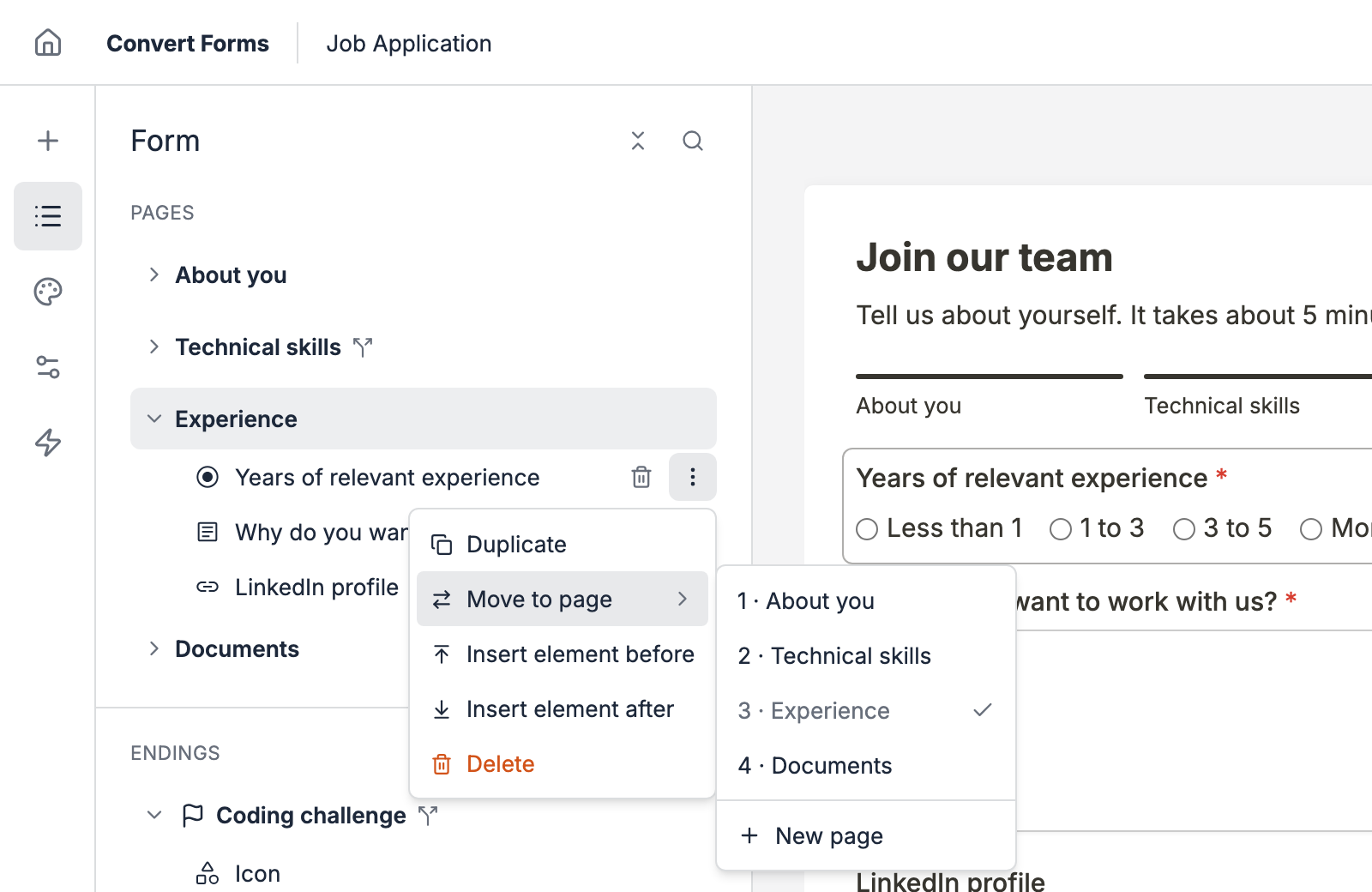
Pick New page to move the element to a new page at the end of the form.
Move several elements at once
- Hover over an element in the Form tree, and its icon turns into a checkbox.
- Tick the checkbox of each element you want to move.
- Click the Move selected icon (⇄) at the top of the Form tree.
-
Pick the page.
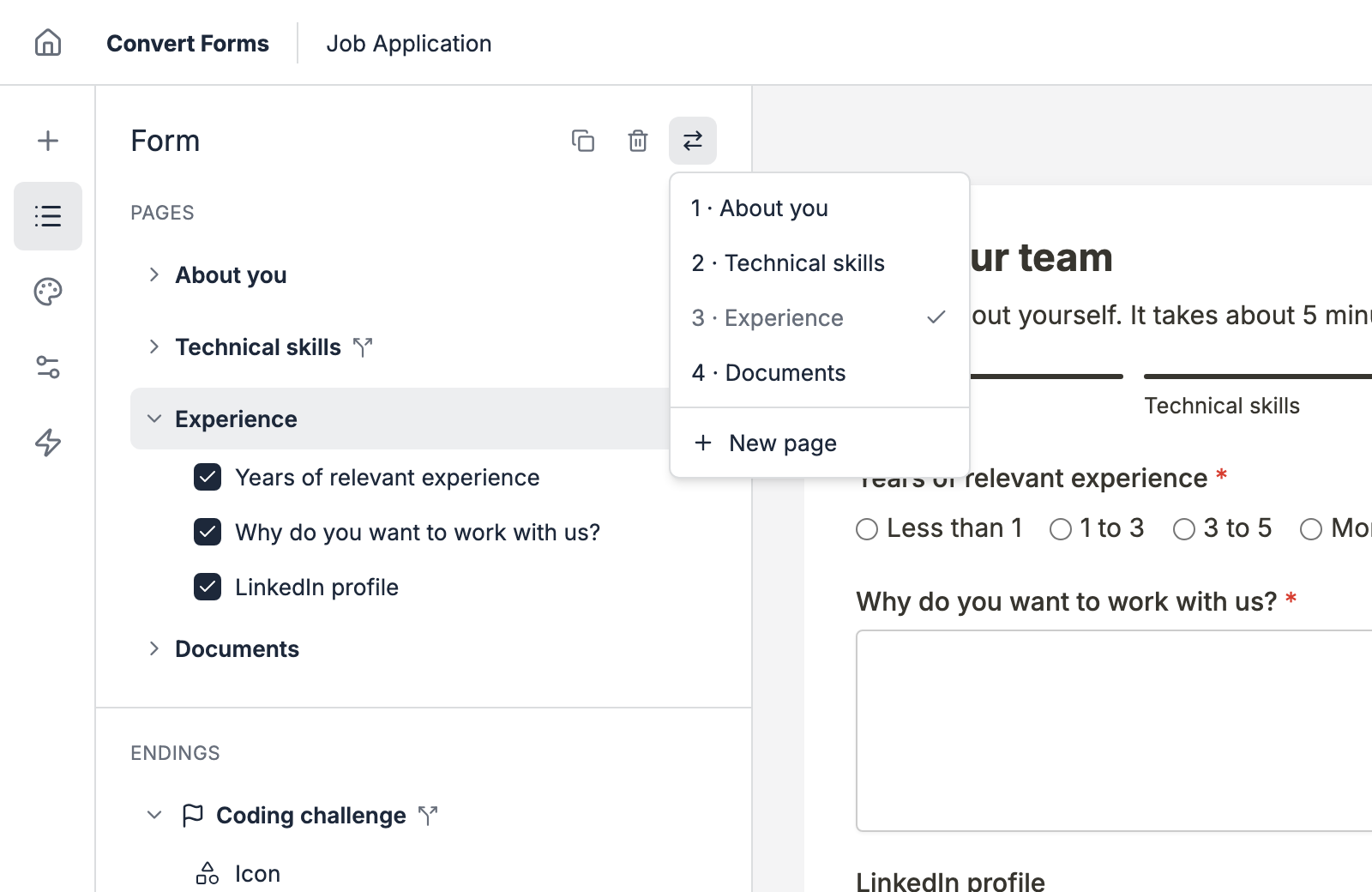
You can tick elements from different pages, and they all move together.
Reorder pages
Drag a page in the Form tree to move it. Its elements move with it.
It's easier to collapse the pages first, so the tree shows only their names. Click the Collapse all icon at the top of the Form tree, then drag the page where you want it.
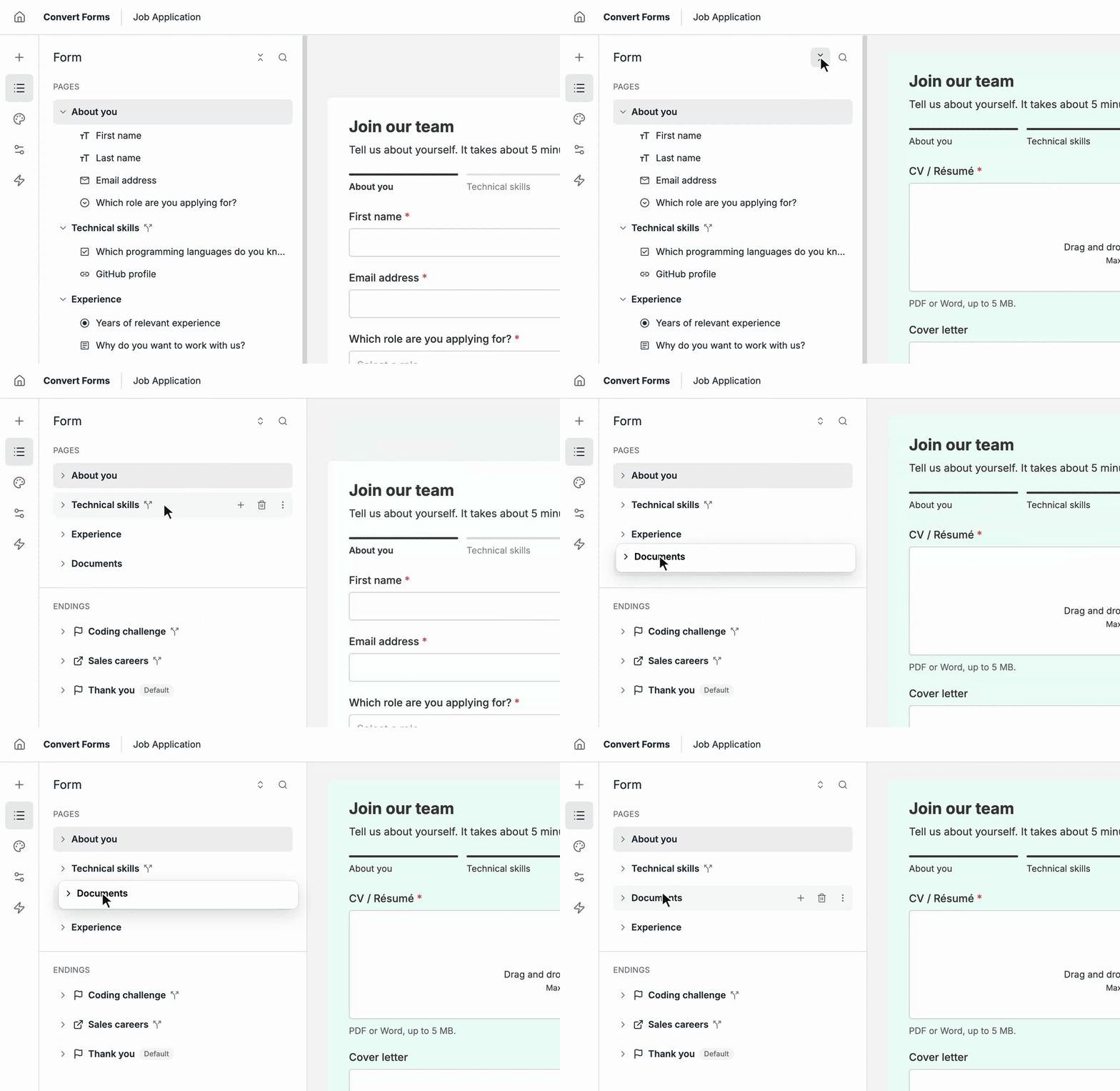
If you use Page Logic, review your rules after you reorder pages. A rule can only check elements on earlier pages, so a page moved above the element its rule watches stops working. The builder warns you when that happens.
Duplicate a page
To copy a page, open its menu (⋮) in the Form tree and click Duplicate. The copy gets all the page's elements and their logic.
Rename a page
A page's title shows in the Form tree and in the progress indicator. There are 2 ways to change it.
In the Form tree
- Double-click the page's name in the Form tree.
-
Type the new name and press Enter.
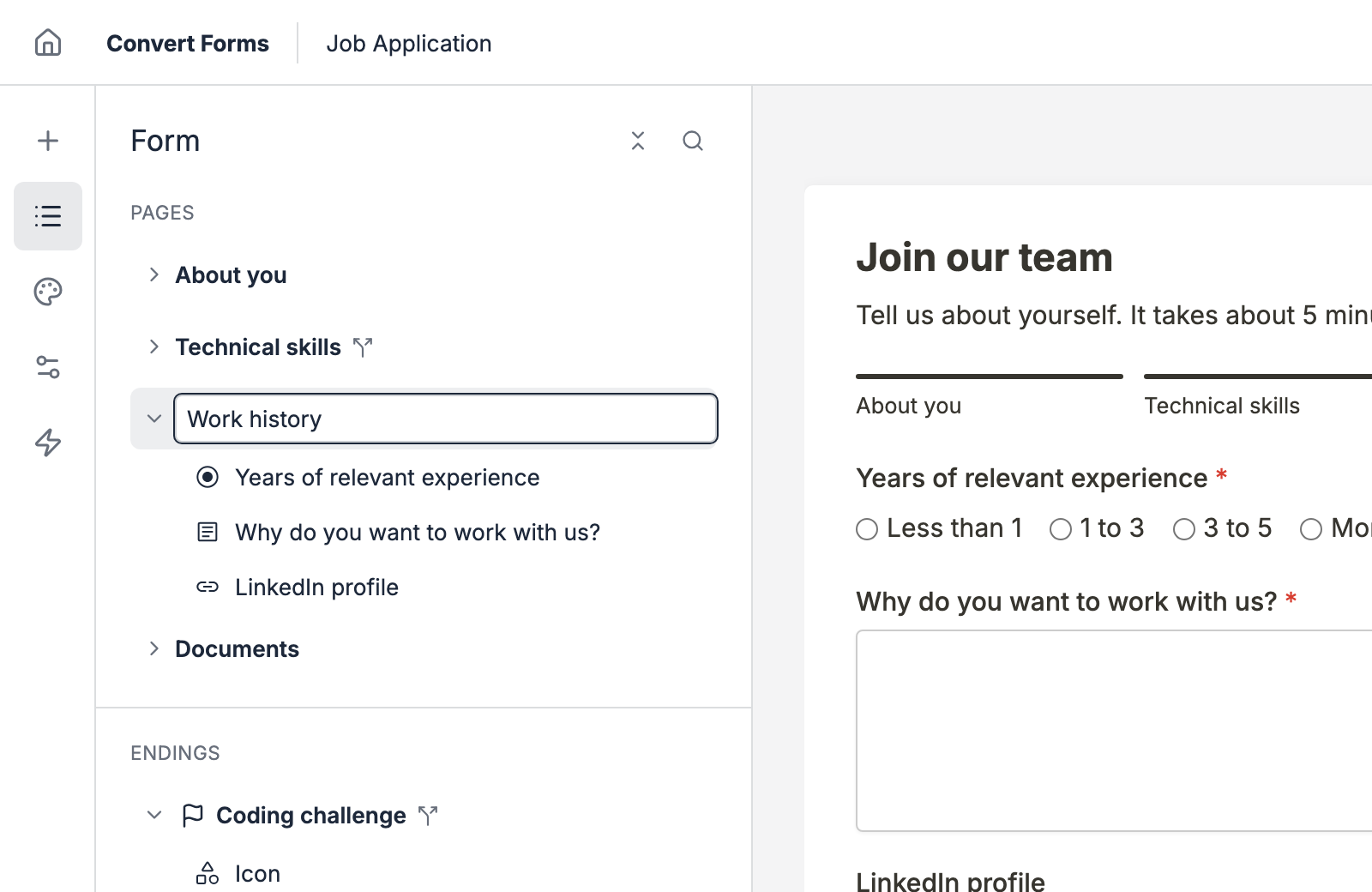
Press Escape to keep the old name. Rename in the page's menu (⋮) does the same thing.
In the right sidebar
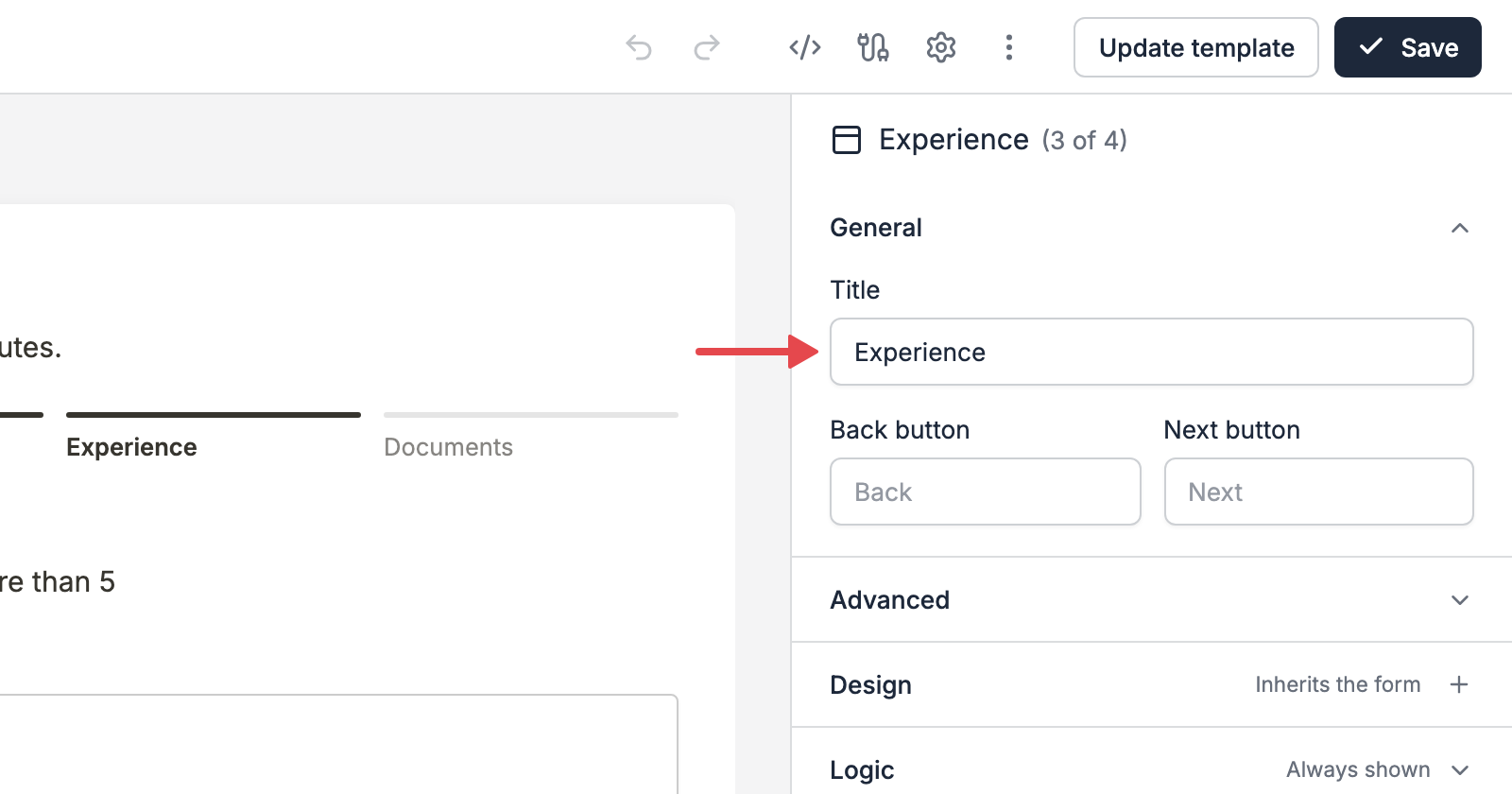
- Click the page in the Form tree.
-
Type the new name in Title, in the right sidebar.
Delete a page
Deleting a page deletes every element on it too. Move the elements you want to keep to another page first.
From the page's menu
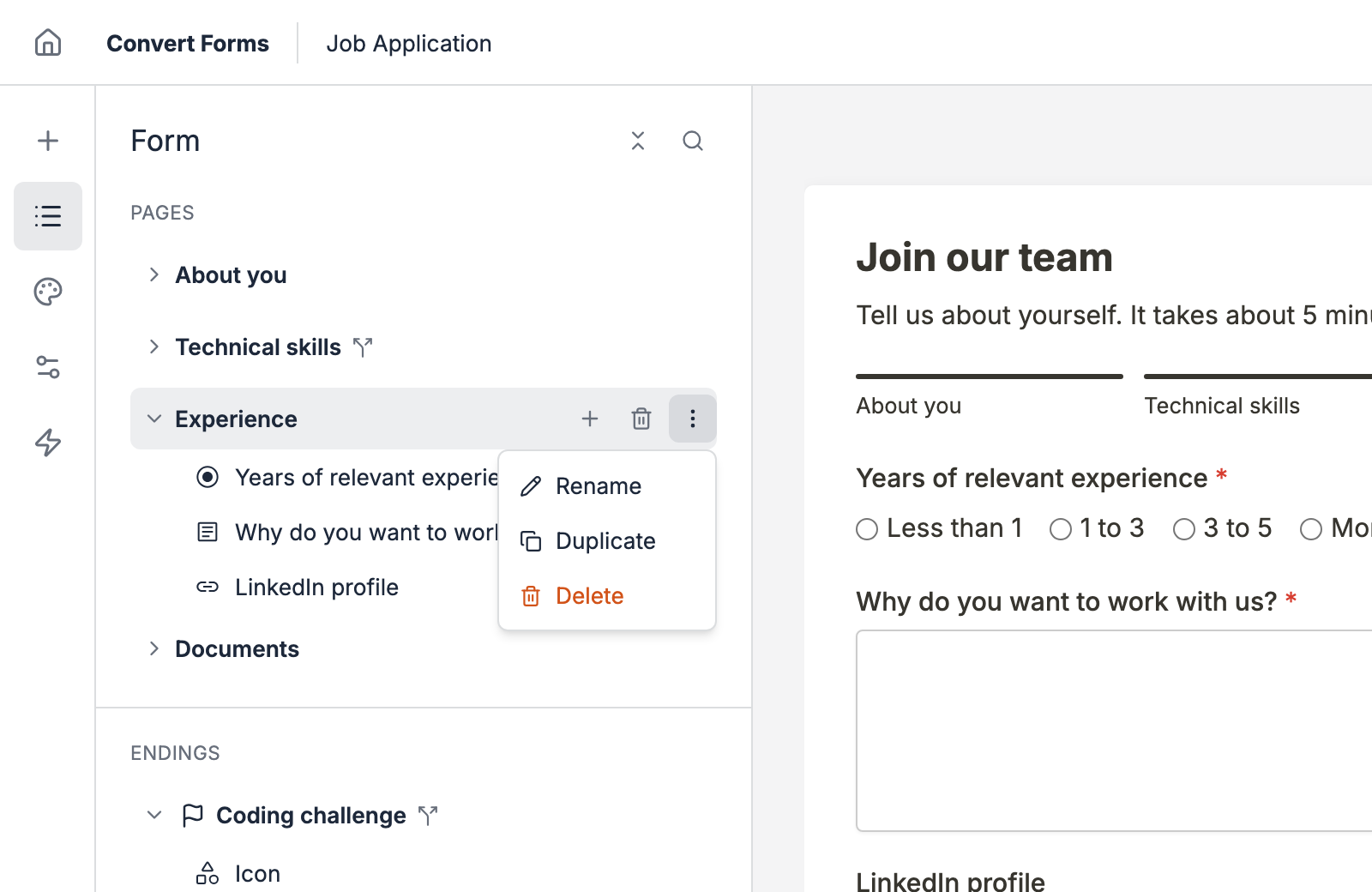
- Hover over the page in the Form tree.
- Click its menu (⋮).
-
Click Delete.
- Click Delete in the confirmation box.
With the trash icon
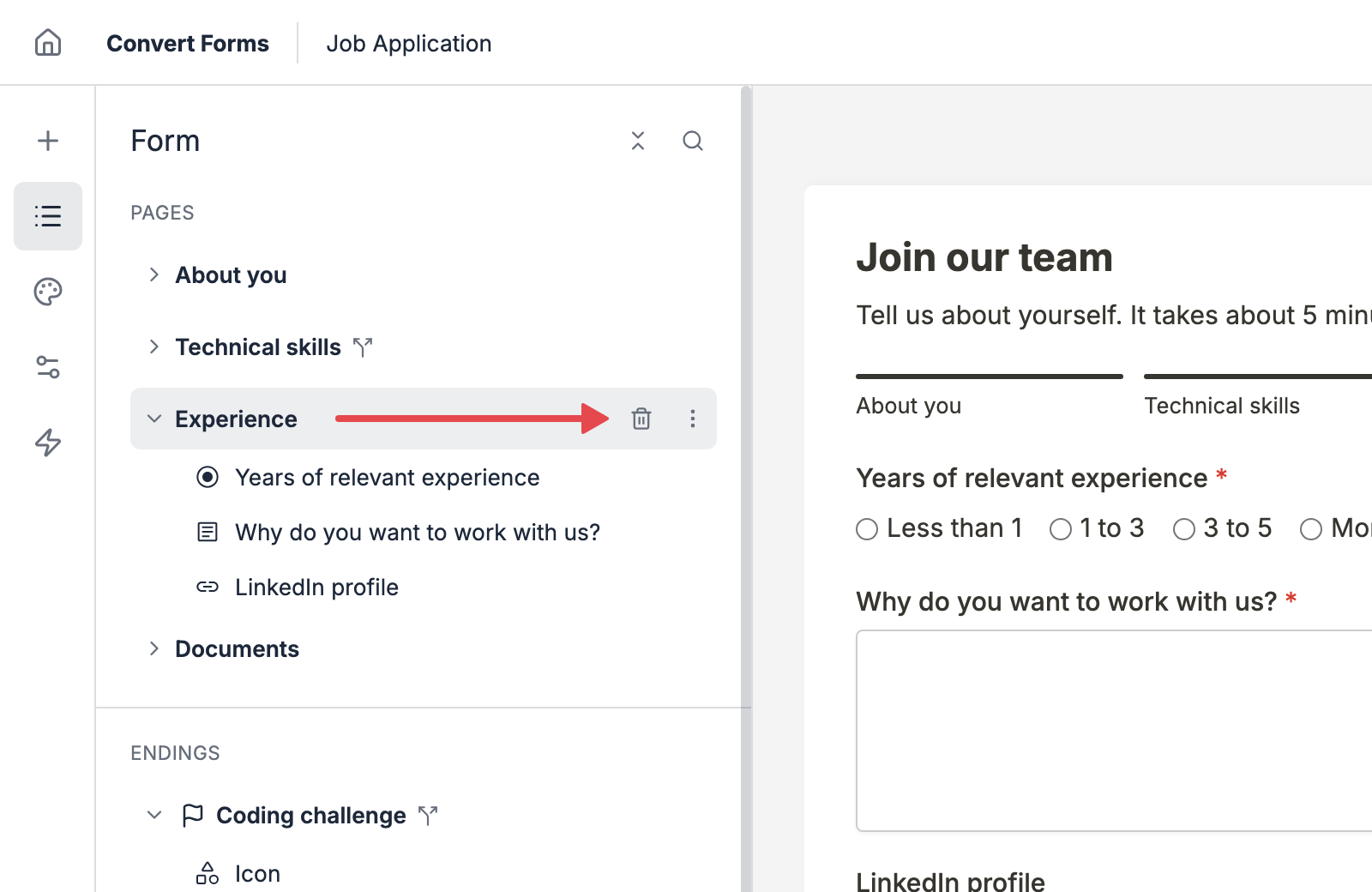
- Hover over the page in the Form tree.
Click the trash icon next to its menu.
- Click Delete in the confirmation box.
A page with no elements goes right away, with no confirmation box.
A form always keeps at least 1 page. On the last page, Delete is greyed out and the trash icon doesn't show.
Before you delete a page, check that no Page Logic, ending rule or Conditional Logic watches its elements. Convert Forms removes those rules along with the page, which can change who sees a page or an ending.
Customize a page
Every page inherits the form's global design from the Design panel: fonts, colors, spacing and buttons. That keeps all pages consistent, and most forms need nothing more.
When a page needs to stand out, override its settings for that page only. Change the labels of its buttons, hide its Back button, or give it a different background color, while the rest of the form keeps the global design.
Change the buttons
- Log into your Joomla backend.
- Go to Components → Convert Forms → Forms.
- Open your form.
- Click Form in the left sidebar.
- Click the page in the Form tree. Its settings open in the right sidebar.
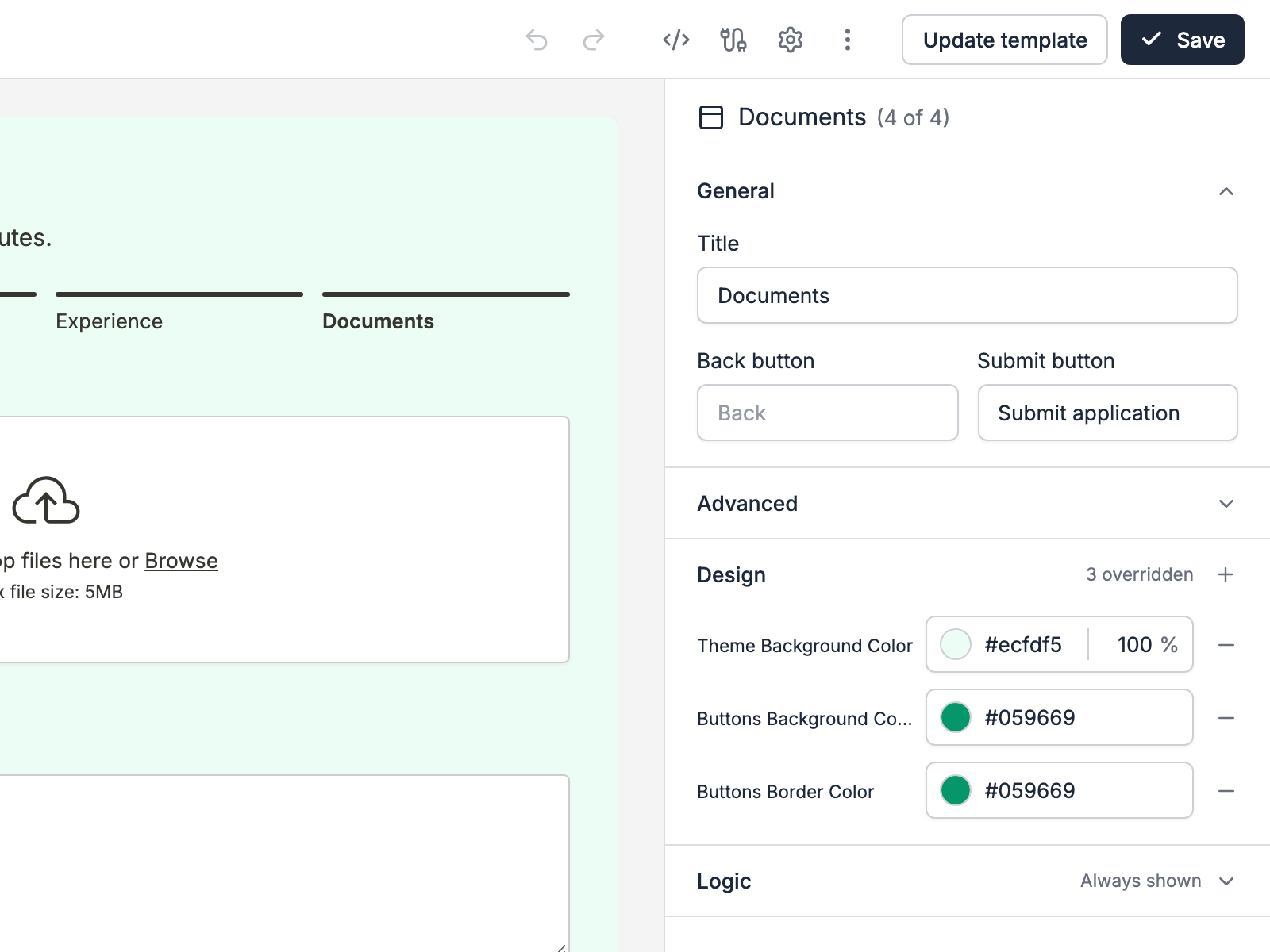
Under General, type the labels of the page's buttons.
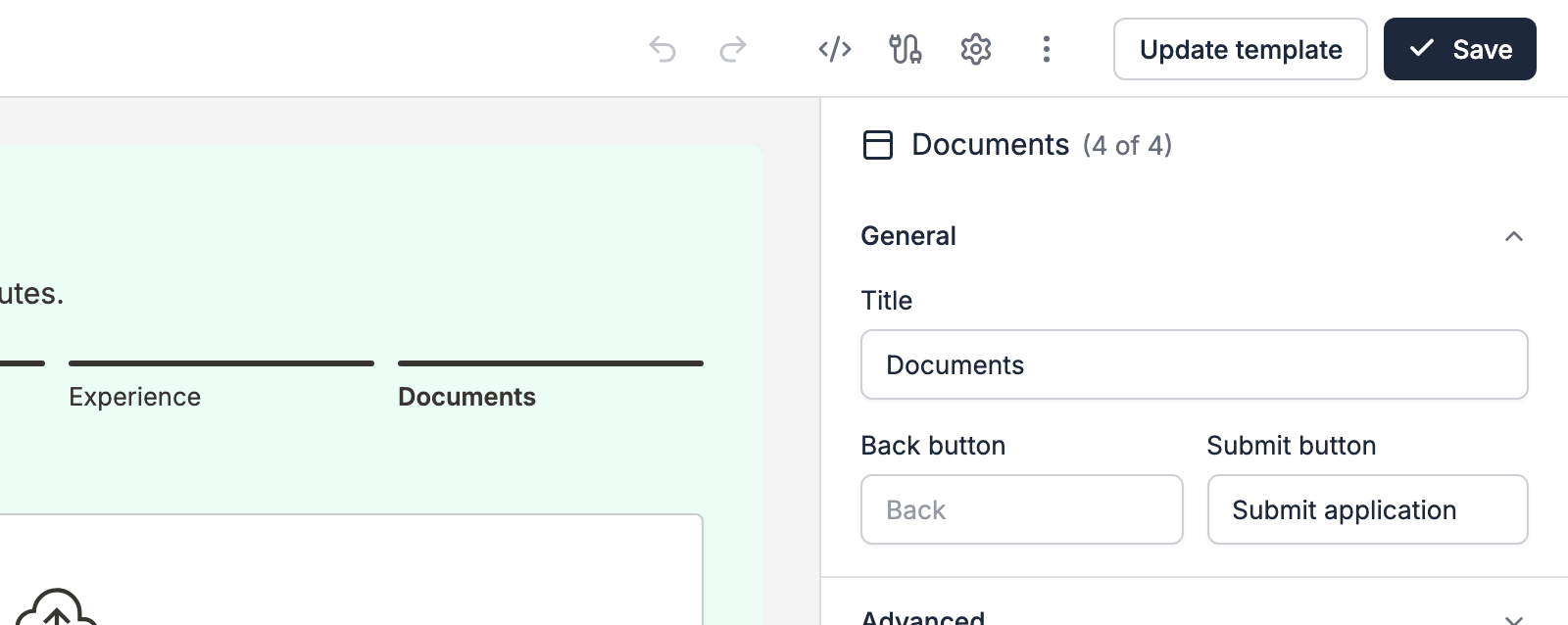
- Back button and Next button: the labels on this page. Leave them empty to use Back and Next.
- Submit button: on the last page only, the label of the button that submits the form. Leave it empty to use Submit.
Under Advanced, pick which buttons show.
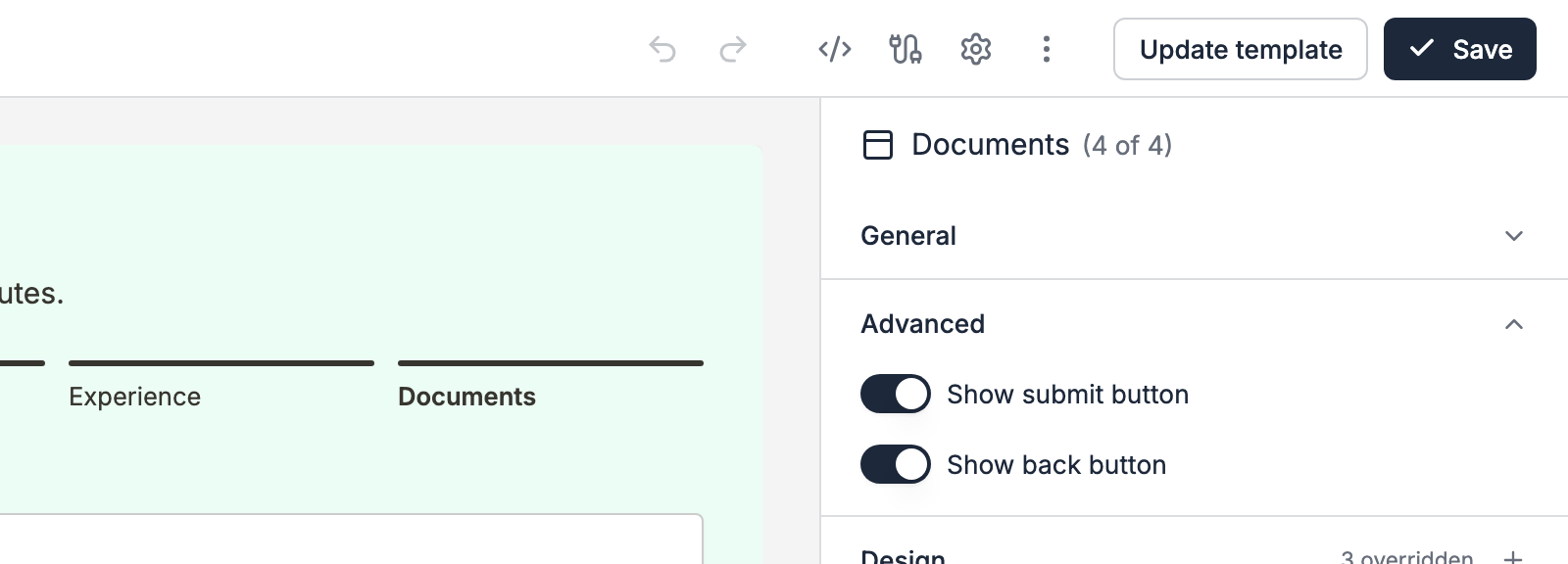
- Show back button: turn it off to stop visitors from going back from this page. The first page has no Back button.
- Show submit button: on the last page only. Turn it off if you submit through a Submit Button element instead.
- Save the form.
The buttons' colors, size and alignment come from Design → Buttons. To change them on 1 page, override them as shown below.
Override the design
A page can override 11 of the form's design settings:
- Theme: Background Color, Text Color, Accent Color and Spacing
- Inputs: Text Color, Background Color and Border Color
- Buttons: Text Color, Background Color, Border Color and Alignment
- Click the page in the Form tree.
- Click the + next to Design in the right sidebar.
- Pick the setting to override.
Set its value.
- Save the form.
To drop an override, click the minus next to it, and the setting goes back to the global design. Design overrides need Convert Forms Pro.
Endings can override their colors too. See Ending pages.
How validation works across pages
Convert Forms checks the answers 1 page at a time, so visitors fix a mistake on the page where they made it.
- Next checks every field on the current page: required fields, email format, number limits and so on. If one fails, the visitor stays on the page and sees the message next to that field.
- Enter in a text field moves to the next page, with the same check. It submits the form only on the last page.
- Back skips the check and keeps everything the visitor typed. Clicking a completed page in the Lines progress indicator works the same way.
- Submit checks every page again, in case the visitor went back and cleared a field. If a page fails, the form jumps to it and points at the field.
- Skipped pages don't get checked. Their fields are left out of the submission, required ones included.
When a page opens, the cursor lands in its first field, so visitors can start typing right away.
Nothing is saved until the visitor submits on the last page. The server-side checks, like blocked email domains or a captcha, run at that point.
Add a progress indicator
A progress indicator sits at the top of the form and shows visitors which page they're on and how many are left. On a long form, seeing the end helps them keep going.
- Log into your Joomla backend.
- Go to Components → Convert Forms → Forms.
- Open your form.
- Click Behavior in the left sidebar.
-
Pick a style under Progress bar.
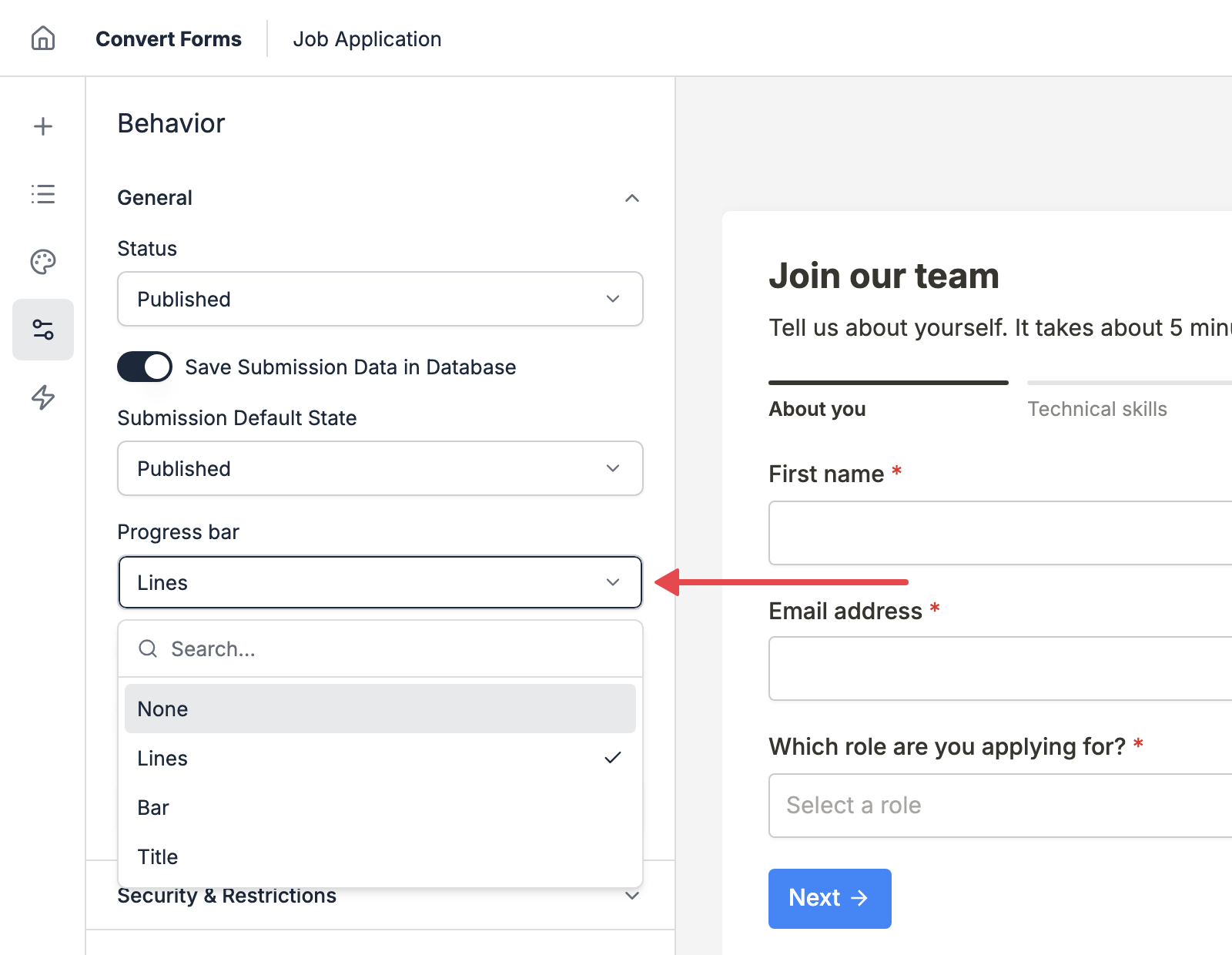
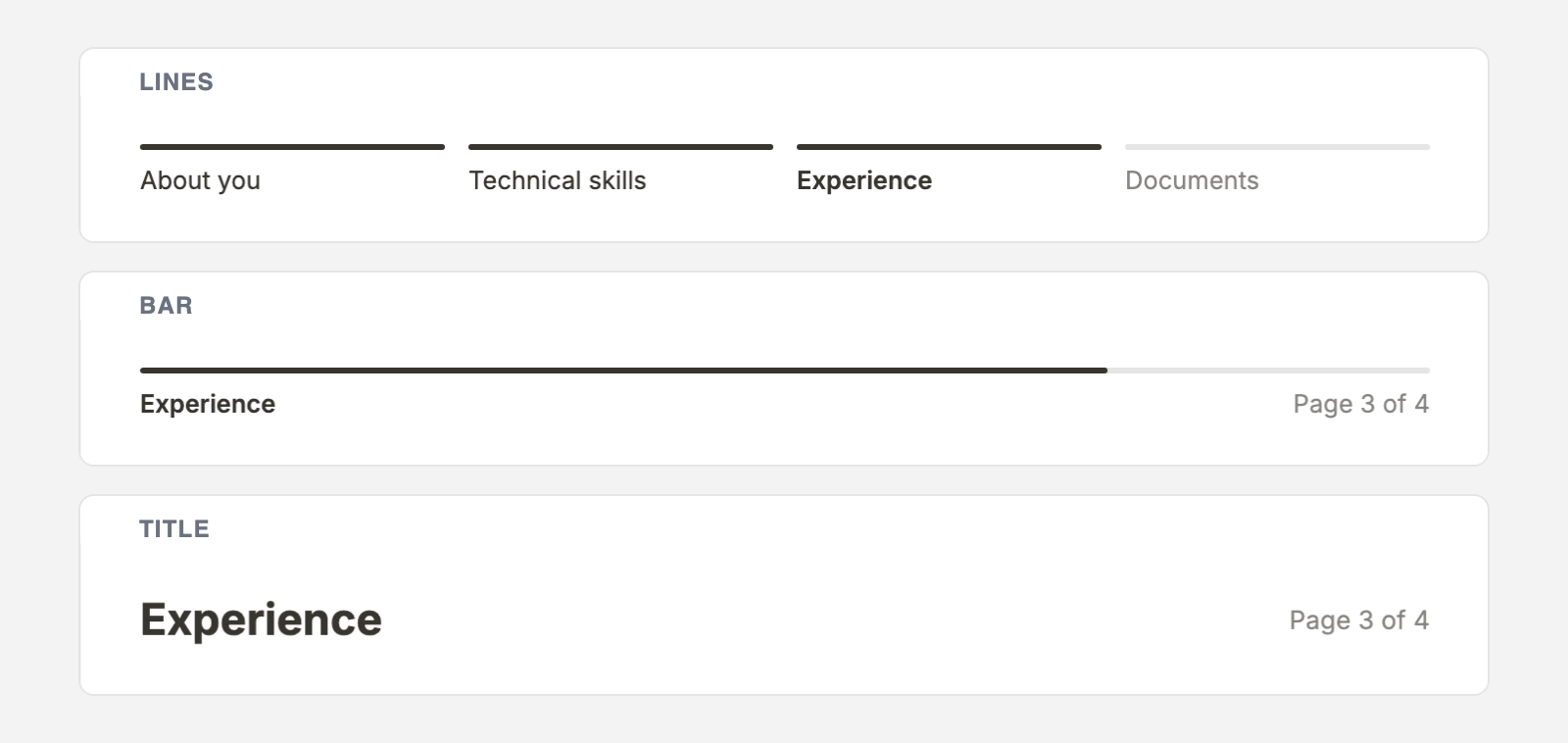
There are 3 styles:
- Lines: 1 line per page, filled in as the visitor moves on. Visitors can click a completed page to go back to it.
- Bar: 1 line that fills up, with the current page's title and a page counter.
- Title: the current page's title as a heading, with the page counter on the right.
- Save the form.
With Lines or Bar, 2 more settings appear. Show page titles writes the page titles under the bar, and Show page numbers puts each page's number before its title.
The progress indicator shows only on forms with 2 or more pages. On forms narrower than 420px, Lines turns into Bar so it fits.
Animate page changes
Without an animation, the next page replaces the current one at once, and visitors can miss that anything changed. A short transition shows them the form moved on, or back, so they keep their place.
- Log into your Joomla backend.
- Go to Components → Convert Forms → Forms.
- Open your form.
- Click Behavior in the left sidebar.
-
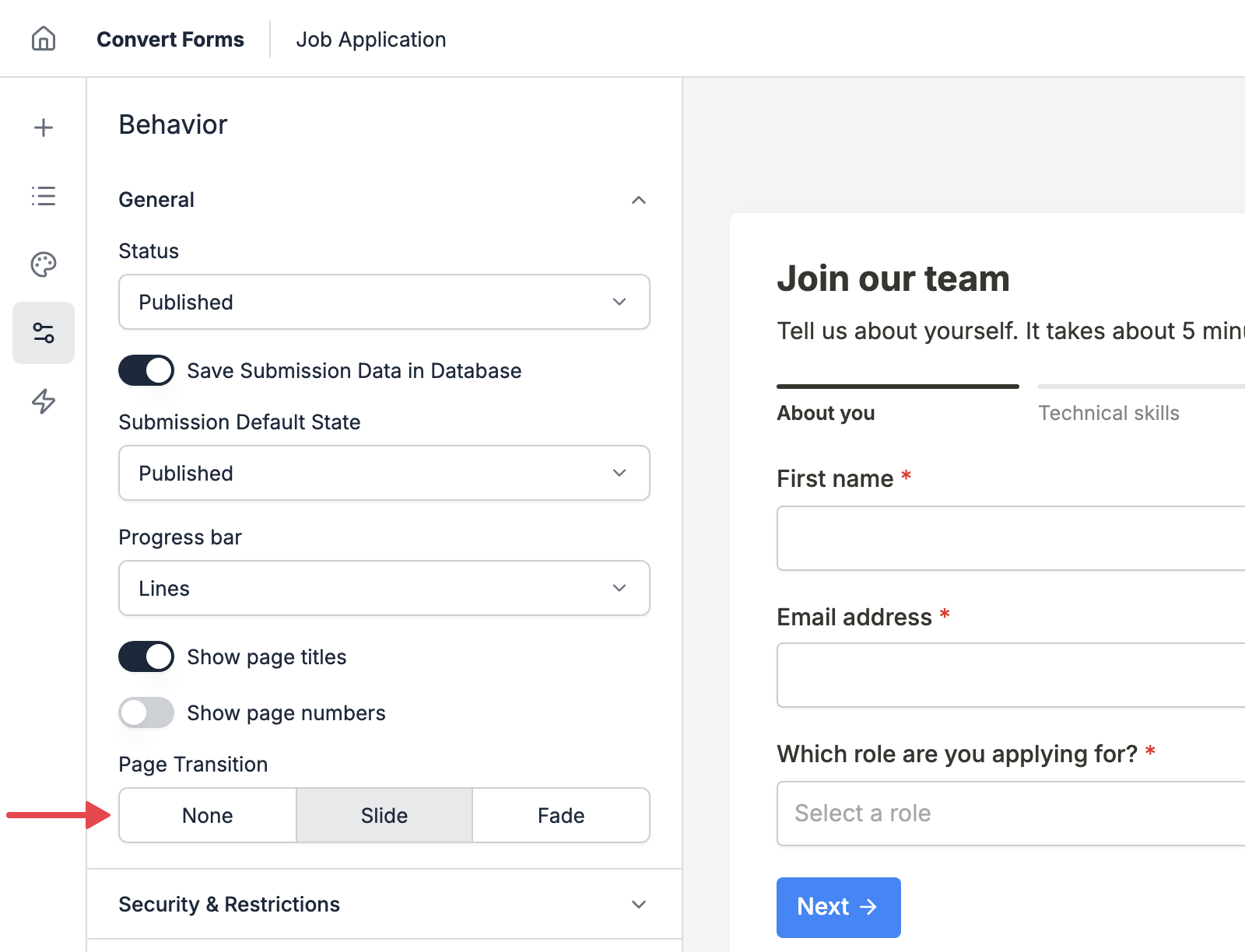
Pick Slide or Fade under Page Transition.
- Save the form.
- Slide: the new page slides in from the side the visitor is heading to.
- Fade: the new page fades in.
The transition applies to every page of the form. Pick None to turn it off.
Move to the next page as soon as visitors answer
On a page with a single question, visitors can pick an answer and land on the next page without clicking Next.
It works best for conversational forms, which ask 1 question per page. Quizzes, surveys and lead qualification forms feel faster that way, since every page takes 1 click instead of 2.
- Log into your Joomla backend.
- Go to Components → Convert Forms → Forms.
- Open your form.
- Click Behavior in the left sidebar.
-
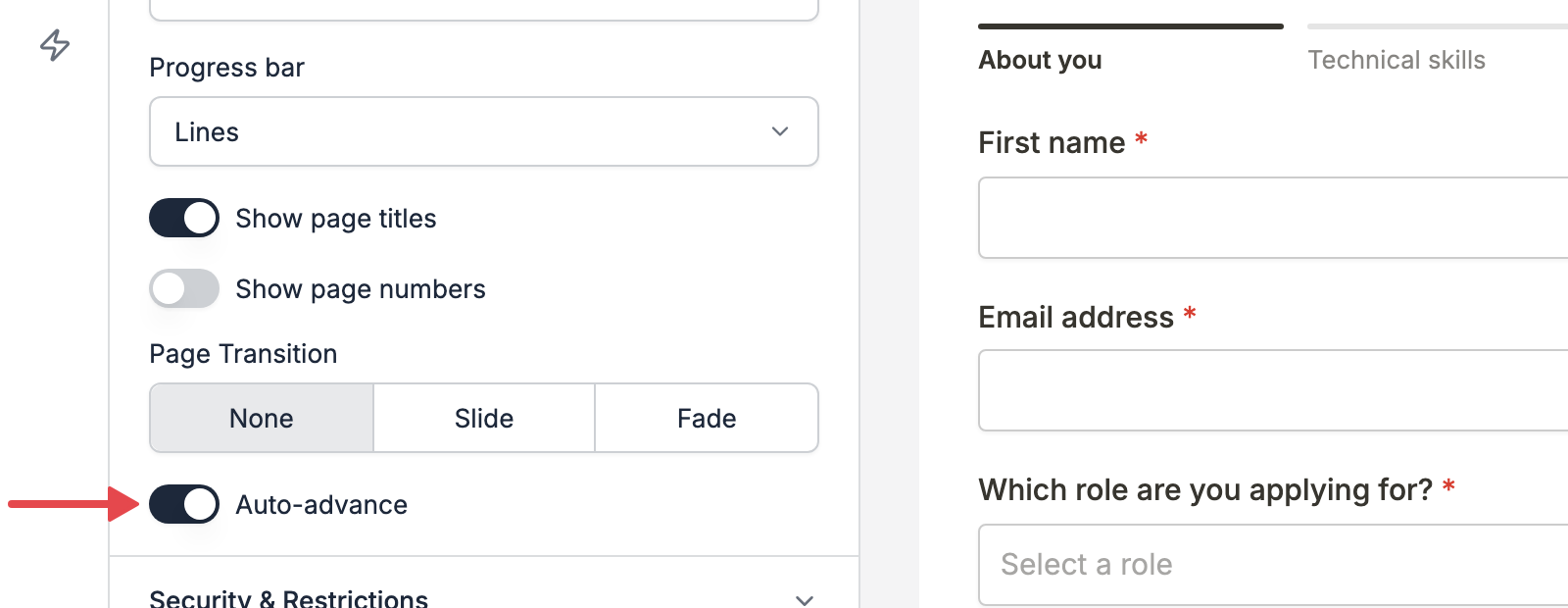
Turn on Auto-advance.
- Save the form.
A page moves on by itself when its only question is a Dropdown, Radio Buttons, Rating, Country or Currency field. Headings, text, icons and other layout elements don't count as questions, so you can still put a title or a short intro above the question.
A few things to know:
- A page with 2 or more questions waits for Next. That includes a field that Conditional Logic shows later, like an "Other" text field, so visitors never skip a field their answer reveals.
- The last page never submits on its own. Visitors still click Submit.
- The Next button stays, so a visitor who goes back can move on again without changing the answer.
- Keyboard visitors can browse the choices with the arrow keys and stay on the page until they press Next.
- The answer goes through the usual checks first. If it fails, the visitor stays on the page and sees why.
Skip pages with Page Logic
Show a page only to the visitors who need it. A "Company details" page, for example, can show only when the visitor picks Business on page 1.
- Click the page in the Form tree.
- Open its Logic section in the right sidebar.
- Pick Show or Hide.
- Add a rule, for example Customer type is Business.
- Save the form.
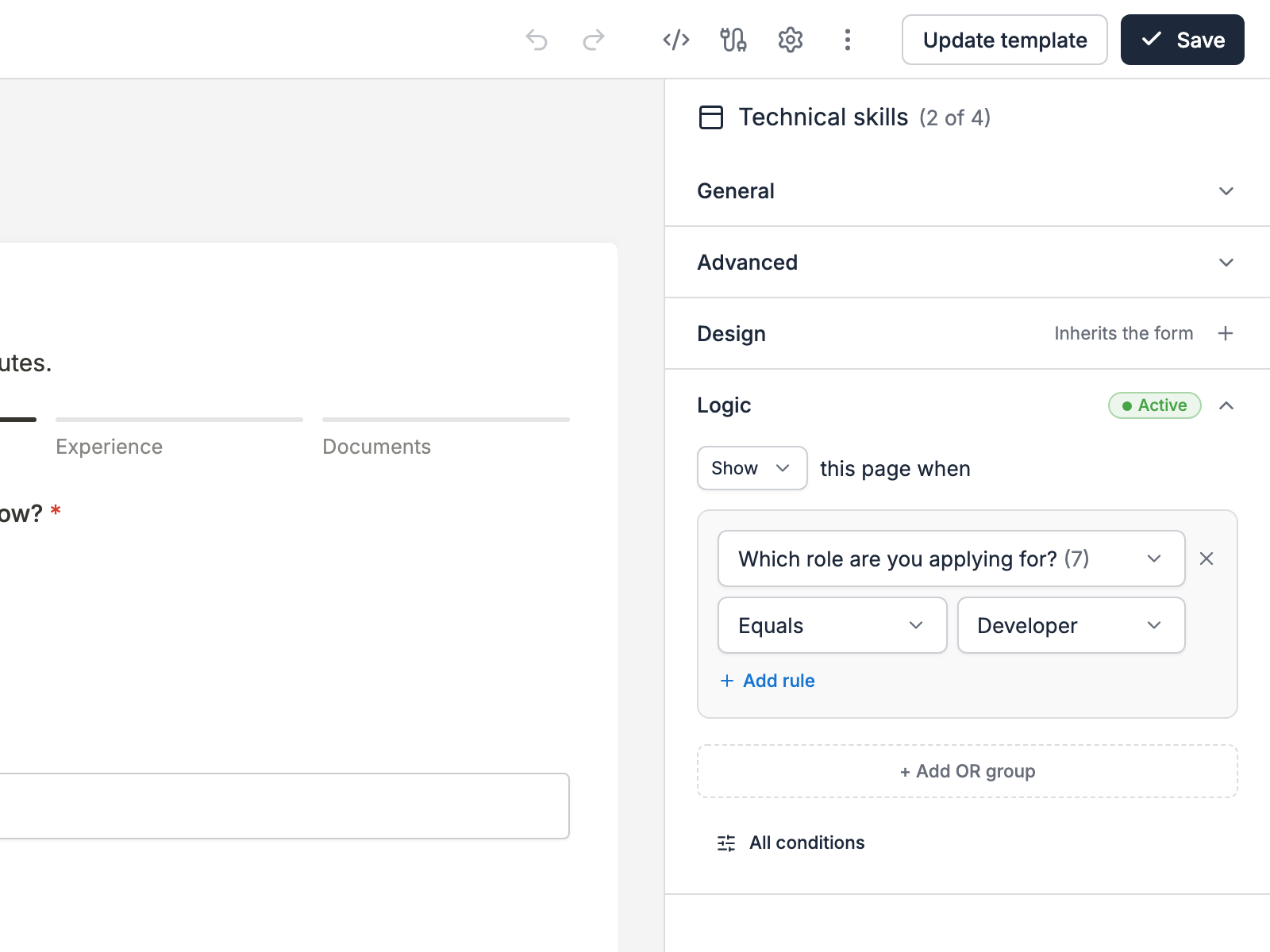
A few things to know:
- A rule can check elements on earlier pages only, since later pages aren't filled in yet.
- The first and last pages always show.
- Visitors skip a hidden page, and Convert Forms ignores its fields, required ones included.
- A page whose elements are all hidden by Conditional Logic gets skipped too, with no page rule needed.
- If you move a page above the element its rule checks, the builder warns you, since the rule can't work from there.
Page Logic needs Convert Forms Pro.
What happens after the last page
After the visitor submits, the form shows its ending: a thank-you page or a redirect. See Ending pages.
FAQ
Can I create multi-page forms in the free version?
Yes. The free version has no limit on pages, and it includes the progress indicator, page transitions and everything on this page about adding, moving, renaming and deleting pages.
Convert Forms Pro adds 3 things:
- Page Logic, to show or skip pages based on the visitor's answers.
- More than 1 ending, to show different visitors a different ending. The free version has 1, which can be a thank-you page or a redirect.
- Per-page design overrides.
Do multi-page forms work on mobile?
Yes, and they often work better there than one long form, since visitors scroll through a few fields at a time on a small screen. A few things help on phones:
- When a page opens below the visible part of the screen, the browser scrolls back up to the form, so visitors start the new page at the top.
- The Go or Enter key on the phone's keyboard moves to the next page, with the same check as Next.
- The Lines progress indicator turns into Bar when the form is narrower than 420px, so the page titles don't get squeezed. This follows the form's own width, so it also applies to a form in a narrow sidebar on a desktop.
Test your form on a phone before you publish it, with your template's styles in place.
How do I view the submissions of a multi-page form?
The same way as any other form. A multi-page form sends 1 submission with the answers from every page, and you find it under Components → Convert Forms → Submissions. See Managing Form Submissions and Exporting Submissions.
What happens if a visitor leaves before the last page?
Nothing is saved. Convert Forms saves the answers only when the visitor submits on the last page, so a visitor who closes the tab on page 2 leaves no submission behind.
To help visitors finish, keep the pages short, show a progress indicator so they see how much is left, and skip the pages that don't apply to them with Page Logic.
Can I skip empty pages?
Yes, and it happens on its own. When Conditional Logic hides every element on a page, visitors skip that page, with no page rule needed. A page you left with no elements at all still shows, since you put it there on purpose.
Last updated on Nov 10th 2026 18:11
In This Article
- What is a multi-page form?
- Add a page
- Move elements between pages
- Reorder pages
- Duplicate a page
- Rename a page
- Delete a page
- Customize a page
- How validation works across pages
- Add a progress indicator
- Animate page changes
- Move to the next page as soon as visitors answer
- Skip pages with Page Logic
- What happens after the last page
- FAQ
The #1 Joomla Contact Form Builder Extension
Create contact forms, payment forms, registration forms, calculator forms with the most user-friendly Joomla contact form builder extension.

Tassos offers a premium suite of Joomla extensions with 7 products and over 2.5 million downloads, providing reliable solutions since 2014.


 Rated:

Copyright © 2014 - 2026 - Smile Motive Development LP. All Rights Reserved.