

-
-
- Submit Updated Articles to Bing and Yandex with IndexNow in Joomla
- Add Published and Modified Date Meta Tags to Joomla
- Add Open Graph and Twitter Card Tags to Joomla
- Auto-Generate Meta Descriptions from Article Text in Joomla
- Add Noindex to Specific Pages in Joomla
- Verify Your Joomla Site with Google Search Console
-
- Add a View as Markdown Link to Joomla Articles
- Display the Last Modified Date in Joomla Articles
- Embed Iframes in Joomla
- Automatically Link Twitter (X) @mentions in Joomla Articles
- Open External Links in a New Tab in Joomla
- Display Estimated Reading Time in Joomla Articles
- Replace Old URLs in Joomla
- Search and Replace in Joomla
-
- Add a Footer Line to the Joomla Administrator
- Show a Staging Banner in the Joomla Administrator
- Remove the "All" Option from Admin List Limits in Joomla
- Add a Cookie Consent Banner to Joomla
- Make the Administrator Navigation Sticky in Joomla
- Add Google Fonts to Joomla
- Add a Facebook Messenger Chat Button to Joomla
- Add a Reading Progress Bar to Joomla
- Add a Custom Scrollbar to Joomla
- Show Confetti on a Thank You Page in Joomla
- Add Smooth Scrolling to Joomla
- Add a Back to Top Button in Joomla
- Add a WhatsApp Chat Button in Joomla
-
- Protect the Administrator with a Secret URL Key in Joomla
- Show a Welcome Message on First Login in Joomla
- Log Out Idle Administrators in Joomla
- Assign New Users to a Different User Group Automatically in Joomla
- Redirect Visitors by Country in Joomla
- Redirect Users After Login by User Group in Joomla
- Block User Registration with Certain Usernames in Joomla
- Block User Registration by Country in Joomla
- Block User Registration by Email Address in Joomla
- Block User Registration by IP Address in Joomla
- Remove the Forgot Password and Username Links in Joomla
- Remove the Generator Meta Tag in Joomla
- Let Users Log In with Their Email Address in Joomla
- Block Traffic by Country in Joomla
- Block Bot Traffic in Joomla
- Block Traffic by IP Address in Joomla
Compare and restore earlier versions of a snippet
Every save keeps a copy of your snippet. Compare any 2 versions side by side and put an older one back in 1 click.
Every time you save a snippet, Code Snippets keeps a copy of it, the same way Joomla keeps versions of articles. When a change breaks something, you can see exactly what changed and put the earlier code back in 1 click.
Versions are new in Code Snippets 1.0.3. Until 1.0.3 is out, you'll find them in the latest beta.
What a version keeps
A version holds everything on the snippet's edit screen: the code, the code type, the location, the publishing rules, the status, the category and the rest. Restoring a version brings all of it back.
A save only adds a version when something changed. Click Save twice in a row and you still get 1 version.
Add a note to a save
A short note makes a version easy to find later, like "Before the redirect fix" or "Greet members by name".
- Log into your Joomla backend.
- Go to Components → Tassos Code Snippets.
- Open the snippet.
- Make your changes, then type the note in the Version Note field on the right.
- Click Save.
The note shows next to the version in the list of versions and in the compare view. The field is empty again after the save, since each note belongs to 1 save.
Compare 2 versions
- Log into your Joomla backend.
- Go to Components → Tassos Code Snippets.
- Open the snippet.
- Click Versions in the toolbar. A window lists every version with its date, note, Keep Forever setting, author and character count.
- Tick the 2 versions you want to compare.
- Click Compare.
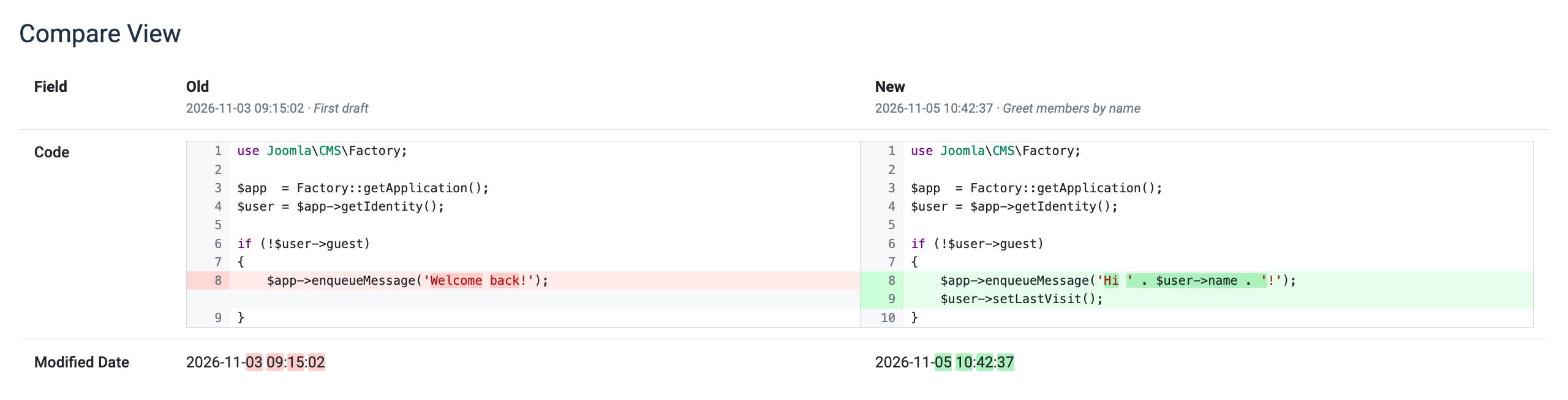
The compare view shows the 2 versions next to each other:
- Old on the left is always the older version and New on the right the newer one, whichever order you ticked them in. Each heading shows that version's save date and note.
- The code sits side by side with line numbers and syntax highlighting. Removed lines are red, added lines are green, and the words that changed inside a line are marked darker.
- When a line exists on only 1 side, the other side gets an empty grey line, so the rest of the code stays lined up.
- Below the code you'll find every other field that changed, like the status, the location or the publishing rules, with the changed part marked. Fields that didn't change aren't listed.
Restore an older version
- Log into your Joomla backend.
- Go to Components → Tassos Code Snippets.
- Open the snippet.
- Click Versions in the toolbar.
- Tick the version you want back. Tick only 1.
- Click Restore.
The edit screen reloads with that version's code and settings and the message "Prior version restored." with the version's date and note. The version you replaced stays in the list, so you can switch back the same way.
Keep or delete versions
Code Snippets keeps the last 10 versions of each snippet and deletes the oldest one as you save a new one. To keep a version past that limit, tick it and click Keep On/Off. Its Keep Forever column switches to Yes. Click Keep On/Off again to undo it.
To clear out versions you don't need, tick them and click Delete.
Turn versions off or keep more of them
Versions are on by default, both on a new install and after you update from an earlier release.
- Log into your Joomla backend.
- Go to Components → Tassos Code Snippets.
- Click Options in the toolbar.
- In the General tab, set Enable Versions to Yes or No.
- Set Maximum Versions to the number of versions to keep for each snippet. The default is 10.
- Click Save & Close.
With Enable Versions set to No, the Versions button and the Version Note field disappear and saves stop adding versions. The versions you already have stay, and show up again when you turn it back on.
Versions live in your site's database, next to the snippet. For a copy outside your site, export your snippets to a file.


 Rated: