
Unlock this and dozens of other powerful features by upgrading to EngageBox Pro.
Unlock this feature
 Tassos Docs
EngageBox
v7.1.4
-
- AcyMailing
- Browser
- City
- Component Condition
- Continent Condition
- Convert Forms Conditions
- Cookie Condition
- Country Condition
- Date Condition
- Day of Week
- Device Condition
- Display Conditions
- E-Commerce Conditions (VirtueMart - HikaShop)
- EngageBox - Viewed Another Popup Condition
- Homepage
- IP Address Condition
- Joomla! Content Article Condition
- Joomla! Content Category Condition
- Joomla! Content Component View Condition
- K2 Category
- K2 Item
- K2 Page Type
- K2 Tag
- Language
- Menu Item
- Month
- New/Returning Visitor Condition
- Operating System
- Pageviews Condition
- PHP
- Referrer URL Condition
- Region
- Time on Site
- Time Range
- Trigger based on URL match
- URL Condition
- User Access Level Condition
- User Condition
- User Group
-
- Show a Floating Button After Popup is Closed
- Create Multilingual Popups
- Randomly Rotate Popups on a Page
- Αdd Sound Effects to Popup
- Make Accessible Popups
- Add Countdown Timer to Popup
- Limit impressions per unique visitor
- Test the responsiveness of your boxes for various devices and viewports
- Open a box by clicking on a menu item
- Trigger based on the minimum time visitor spent on the site
- Auto-Close Popup After a Specific Time
- Control Popup using HTML Attributes
Region Condition
Display based on the visitor's geographical region
Region Condition is available in Pro
The Region Condition lets you define the region (or regions) from which your visitors should be located from to be able to see your box. You can add some many regions you desire.
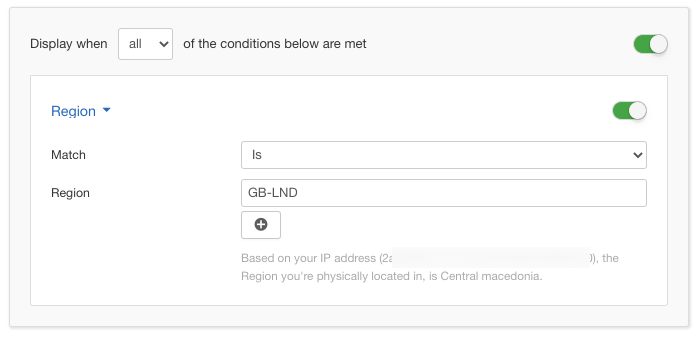
Options
In the table below you can see which options are available to setup the Region Condition.
| Name | Description |
|---|---|
| Match | Set whether to match or not the selected regions. |
| Region | In this repeater field, you can add one or more regions. |
Use Case
The most common use case for the Region Condition is when your box contains content which is targetted towards people visiting from a certain region.
Useful Notes
The Region Condition uses a special plugin called System - Tassos GeoIP, which is installed automatically with EngageBox Pro.
Normally, upon new installs, you will be greeted with a notice from within EngageBox that you need to update the GeoIP Database so that the City, Region, Country and the Continent Conditions would work with the latest data as you can see below.
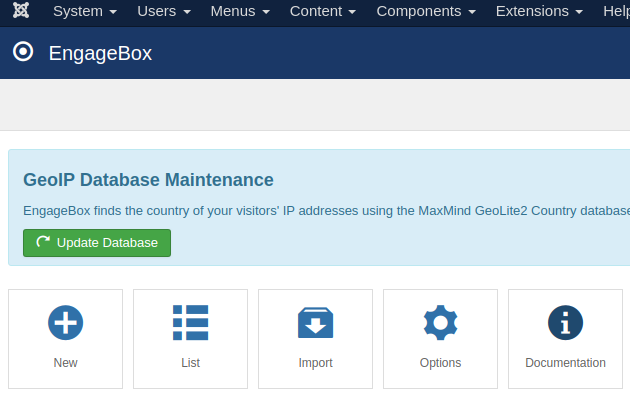
In that case, just click Update Now and the notice will disappear within a few seconds until the next update is due.
You can also go to System → Manage → Plugins, open System - Tassos GeoIP and click Update Database whenever you like.
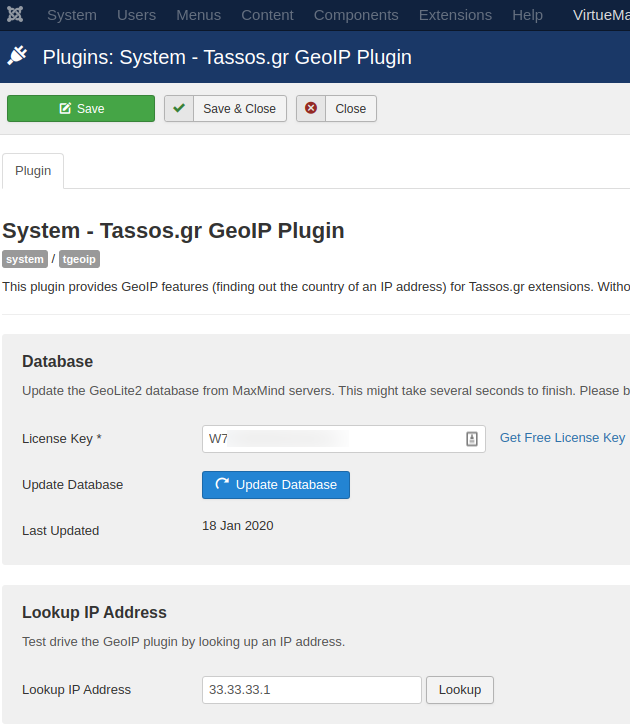
You can also use Lookup IP Address to check the data returned for a specific IP address.
Read our full guide on how to set up GeoIP plugin here: How to enable Geolocation features in Tassos.gr extensions
Region Condition is available in Pro
Unlock this and dozens of other powerful features by upgrading to EngageBox Pro.
Unlock this feature
Last updated on Oct 15th 2026 15:10
In This Article

Tassos offers a premium suite of Joomla extensions with 7 products and over 2.4 million downloads, providing reliable solutions since 2014.


 Rated:
Copyright © 2014 - 2026 - Smile Motive Development LP. All Rights Reserved.