
Unlock this and dozens of other powerful features by upgrading to EngageBox Pro.
Unlock this feature
 Tassos Docs
EngageBox
v7.1.4
-
- AcyMailing
- Browser
- City
- Component Condition
- Continent Condition
- Convert Forms Conditions
- Cookie Condition
- Country Condition
- Date Condition
- Day of Week
- Device Condition
- Display Conditions
- E-Commerce Conditions (VirtueMart - HikaShop)
- EngageBox - Viewed Another Popup Condition
- Homepage
- IP Address Condition
- Joomla! Content Article Condition
- Joomla! Content Category Condition
- Joomla! Content Component View Condition
- K2 Category
- K2 Item
- K2 Page Type
- K2 Tag
- Language
- Menu Item
- Month
- New/Returning Visitor Condition
- Operating System
- Pageviews Condition
- PHP
- Referrer URL Condition
- Region
- Time on Site
- Time Range
- Trigger based on URL match
- URL Condition
- User Access Level Condition
- User Condition
- User Group
-
- Show a Floating Button After Popup is Closed
- Create Multilingual Popups
- Randomly Rotate Popups on a Page
- Αdd Sound Effects to Popup
- Make Accessible Popups
- Add Countdown Timer to Popup
- Limit impressions per unique visitor
- Test the responsiveness of your boxes for various devices and viewports
- Open a box by clicking on a menu item
- Trigger based on the minimum time visitor spent on the site
- Auto-Close Popup After a Specific Time
- Control Popup using HTML Attributes
Vimeo Integration
Vimeo Integration is available in Pro
To create a Vimeo Video Popup with EngageBox you need to use the iFrame box type which makes it easier to fetch the content of an external URL like Vimeo, YouTube, Google Maps or even a Joomla article.
Step 1: Find the Vimeo Video Embed URL
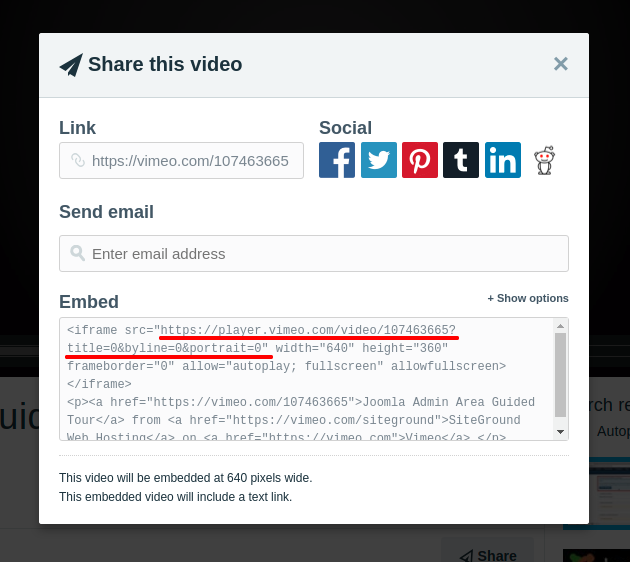
Visit Vimeo, find the video you'd like to embed and click on the "Share" button next to the video player. Click on the "Embed" area and copy only the value of the src property as shown in the picture below.
Step 2: Create an iFrame Box Type
Go to Components → EngageBox and click New → Blank Popup.
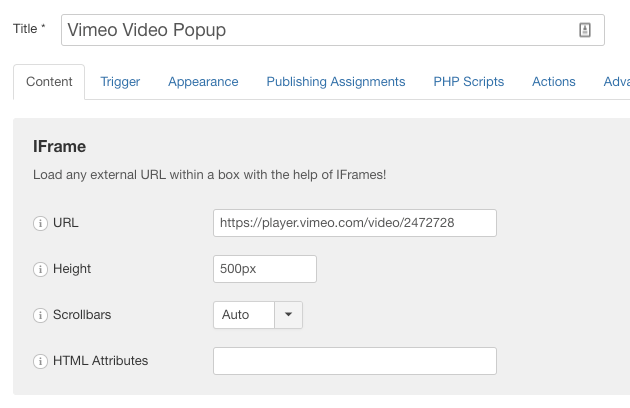
- Set Box Type in the right sidebar to IFrame.
- Paste the Vimeo iFrame URL you copied in the previous step into the URL field.
- Enable the Remove on close option if you don't want the video to continue playing after it has been closed.
Make Vimeo Video Autoplay
To make the Vimeo video autoplay when the popup is triggered, you need a couple of things.
- Append ?autoplay=1 to the iFrame URL
- Add allow="autoplay" to the HTML Attributes option
Vimeo Integration is available in Pro
Unlock this and dozens of other powerful features by upgrading to EngageBox Pro.
Unlock this feature
Last updated on Oct 15th 2026 17:10

Tassos offers a premium suite of Joomla extensions with 7 products and over 2.4 million downloads, providing reliable solutions since 2014.


 Rated:
Copyright © 2014 - 2026 - Smile Motive Development LP. All Rights Reserved.