

-
- Managing Form Submissions
- Searching and Filtering Submissions
- Submission Context Tracking
- Customizing Submission Columns
- Editing Submissions
- Deleting Submissions
- Importing Submissions
- Exporting Submissions
- Exporting Submissions with a Webhook URL
- Tracking the User's IP Address
- Tracking the User's Country
- Disable Submission Storage
- Auto-Delete Old Submissions
- Auto-Save Each Submission to a JSON file
- Increment a Count on Each Submission
- Add a Unique ID to Each Submission
-
- Email the Person Who Filled Out the Form
- Send an Email Only When a Checkbox Is Checked
- Attach the Submission PDF to Emails
- Send Email Based on Drop Down Selection
- Send Different Email Content Based on Form Responses
- Set up Auto-Responder Emails
- Styling Emails with CSS
- Sending Plain-Text Alternative Body Emails
- Troubleshooting Email Delivery
- Tracking Sent Emails
- Resending Emails
-
- Browser Autocomplete for Form Fields
- Redirect to a Menu Item After Form Submission
- Show a Form Only to Logged-In Users
- Adding an “Other” Option
- Show or Hide Form Fields Based on User Joomla User Group
- Scroll the Page to the Top When a Long Form is Submitted
- Display Submissions Count for a Specific Form
- Populate Drop Down, Radio Buttons or Checkboxes with a CSV File
- Silently POST Submitted Data to Any API or URL
- Create a Custom Login Form
- Auto-Populate Fields with Article Data
- Add a placeholder text to a Dropdown field
- Create Multilingual Forms in Joomla
- Redirect User to a URL After Form Submission
- Importing and Exporting Forms
- Display Convert Forms in a popup
-
- Does Convert Forms Use Cookies?
- Minimum Time to Submit
- Restrict Form Submissions Based on IP
- Enforcing a Custom Password Policy in Convert Forms
- Add ALTCHA Proof of Work to your Joomla form
- Add Cloudflare Turnstile to your Joomla Form
- Implement the Iubenda Consent Database in Joomla with Convert Forms
- Add Custom Validations to Fields and Forms
- Add Math Captcha to your Form
- Prevent a Field From Saving in the Database
- Add hCaptcha to your Form
- Enable Double Opt-in
- Allow Form Submissions in Specific Date Range
- Ensure a Unique Value is Entered Into a Field
- Block Form Submissions Containing Profanity (Bad Words)
- Block Email Addresses or Email Domains
- Honeypot
- Setting Up Google reCAPTCHA
- Create GDPR Compliant Forms
Exporting Submissions
Export your form submissions to a CSV or JSON file to move them into a CRM, a spreadsheet, or any other system. You pick the form, filter the entries, and choose exactly which columns end up in the file.
How to Export Form Submissions
- Log into your Joomla backend.
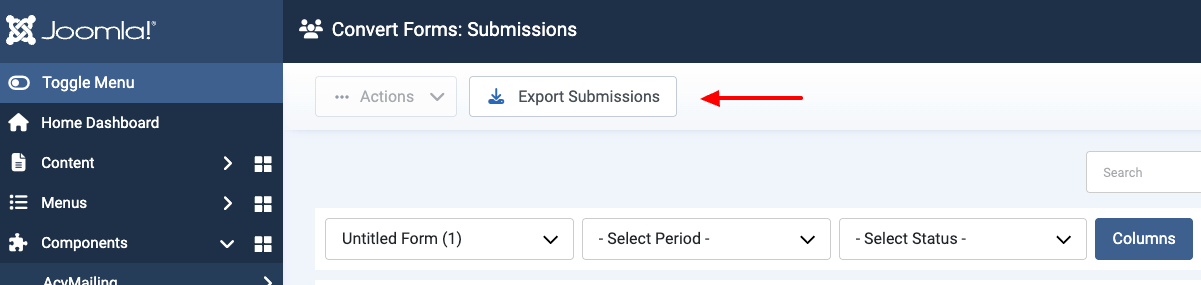
- Go to Components → Convert Forms → Submissions.
-
Click the Export Submissions button at the top of the page.
-
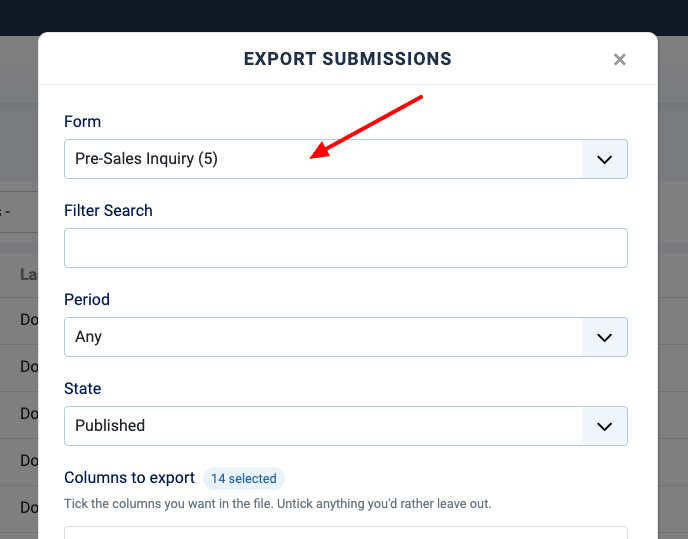
In the modal that opens, select the form whose submissions you want to export. By default, the form you were just viewing in the Submissions list is already selected.
-
Optionally, narrow down which submissions are included:
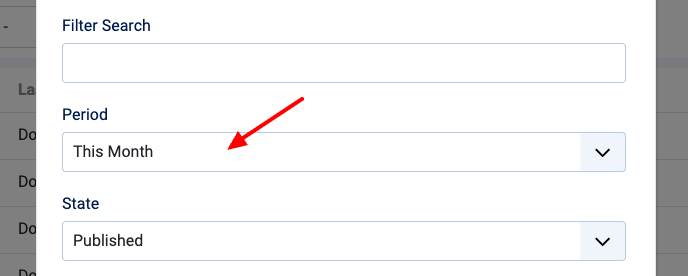
- Use the Search filter to match submissions by a keyword.
- Use the Period filter to limit the export to a date range.
- Use the State filter to include only submissions with a given status.
Leave these untouched to export every submission in the form.
-
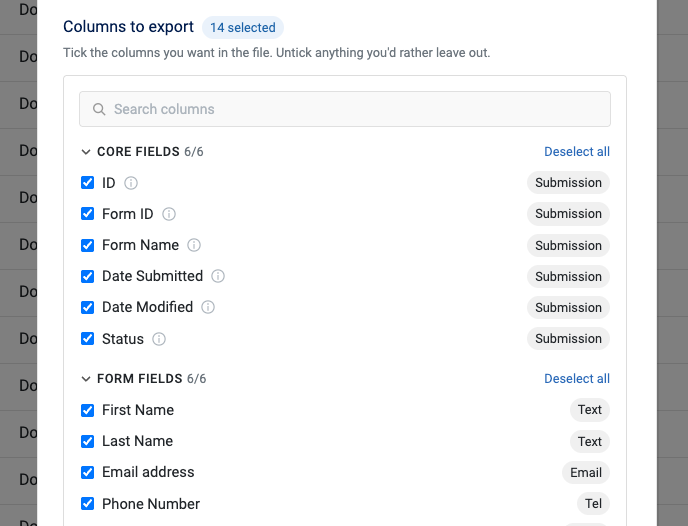
Select the columns to export. The available column groups are explained in the next section.
-
Click the Export Submissions button in the modal to generate the file and start the download.
Choosing which columns to export
You don't have to export everything. The Columns to export picker lets you tick exactly the columns you want in the file and leave out the rest. Once you select a form, its columns load into three groups:
- Core Fields: ID (always included), Created, Modified, Form Name, and Status.
- Form Fields: every field your form collects. These are all ticked by default.
- Submission Details: built-in metadata like Visitor ID, IP, Country, Device, Browser, OS, Page Title, Source URL, Referrer URL, and User Agent. These start unticked and the group is collapsed, since most exports don't need them.
Your selection is remembered in your browser per form, so the next time you open the export for that form your previous choices are restored.
Advanced options
Flip the Advanced options toggle at the bottom of the export modal to reveal three extra settings:
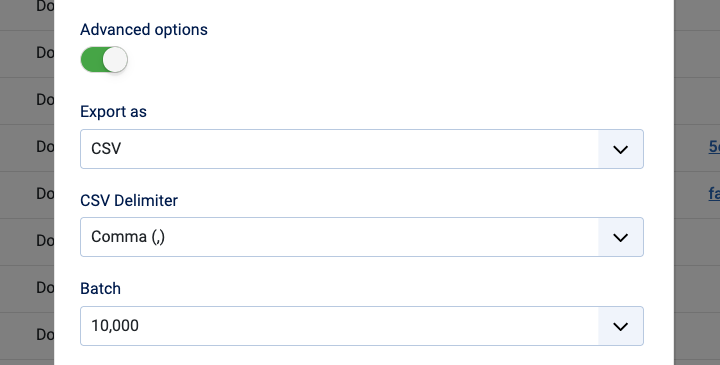
- Export as: the file format, CSV (default) or JSON.
- CSV Delimiter: the character separating values, a comma (default) or a semicolon. Only shown when the format is CSV.
- Batch: how many submissions are processed at a time. Larger batches finish faster; smaller batches are safer on slower servers.
How to export submissions automatically
Convert Forms allows you to automate the export of your submissions using a password-protected webhook URL without requiring you to log into your site.
Developers can also read submissions on demand using the Pro JSON API. Third-party tools like Zapier or Make can pull entries through their submissions endpoint using an API key, with no file export involved. See JSON-API.
Excel Security Option
Convert Forms includes an Excel Security option on its configuration page. When enabled, any value in the exported CSV file that starts with a =, +, - or @ is prefixed with a tab. This prevents CSV injection when the file is opened in Excel.
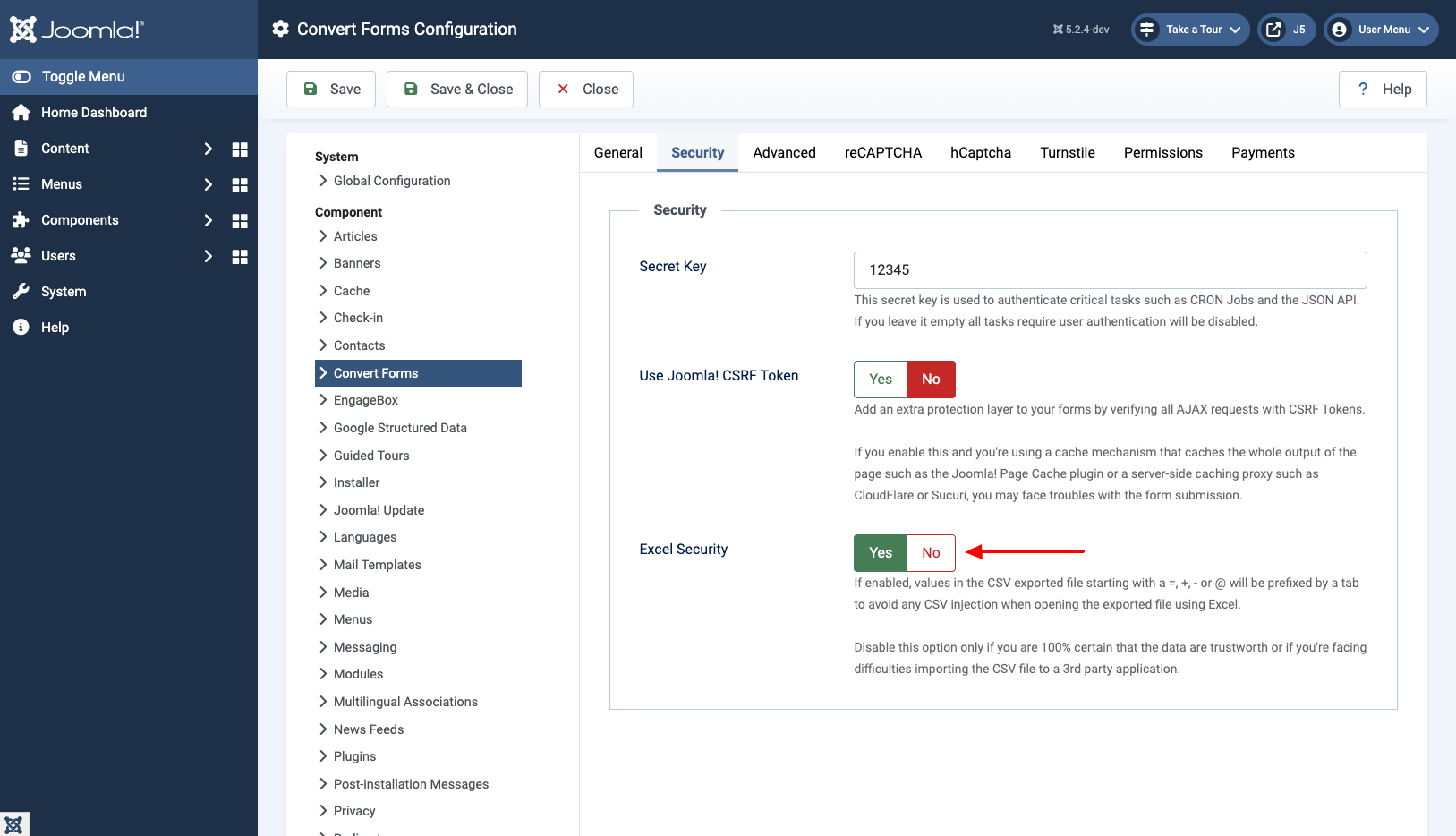
The Excel Security option can be disabled if you are 100% certain that the data are trustworthy or if you're facing difficulties importing the CSV file to a 3rd party application.
Frequently Asked Questions
Why are IP, Country, or Device missing from my export?
Those columns live under the Submission Details group in the Columns to export picker, which starts unticked and collapsed. Expand the group and tick the columns you want, then run the export.
If the IP column is ticked but still comes out empty, the Store IP Addresses option in the Convert Forms configuration is likely turned off, so no IP was recorded with those submissions. See Tracking the User's IP Address for details.
My exported CSV shows odd tabs or quotes when I open it in Excel.
That's the Excel Security option prefixing any value starting with =, +, - or @ with a tab to block CSV injection. Disable it on the Convert Forms configuration page if you trust the data or need a clean import into another application.



 Rated: